Table of Contents
The free Foxit PDF Reader does not include the full desktop Combine Files workflow. To merge PDFs locally, use Foxit PDF Editor; for a quick non-confidential job, use Foxit's online merge tool in a browser. Both methods let you arrange the files before producing one PDF.
If the documents contain personal, financial, legal, medical, or company-confidential information, prefer the desktop editor so the files do not need to be uploaded to an online service.
Foxit Reader vs Foxit PDF Editor
| Product | Can merge PDFs? | Best for |
|---|---|---|
| Foxit PDF Reader | Not through the full desktop Combine Files tool | Viewing, commenting, forms, and signatures |
| Foxit PDF Editor | Yes | Local merging, editing, organizing, and sensitive files |
| Foxit online merger | Yes | Quick browser-based jobs on non-sensitive documents |
| Foxit PDF Editor Mobile | Yes on supported plans/versions | Combining files on iOS or Android |
Foxit has changed product names and subscription tiers over time. If a command is missing, confirm that you installed PDF Editor, not only PDF Reader, and check whether your license includes the feature.
Merge files in Foxit PDF Editor on Windows
1. Open Combine Files
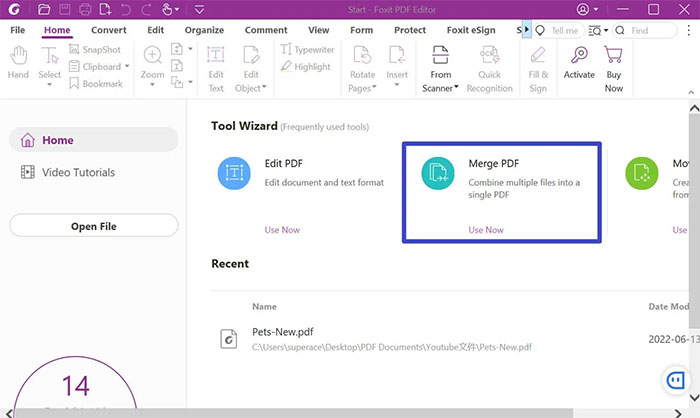
Launch Foxit PDF Editor. From the Start page, choose Merge PDF > Use Now, or open File > Create > Combine Files. Some releases also place the command under Convert > Combine Files.
2. Add the documents
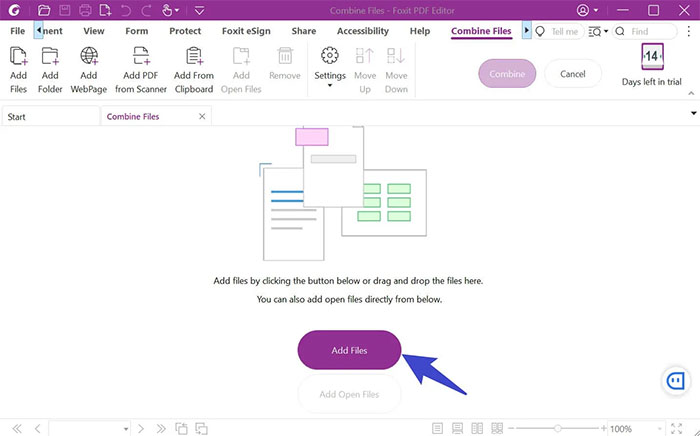
Select Add Files, then choose the PDFs you want. Foxit can also convert supported Office documents and images while combining them, although those source applications or conversion components may be required.
In the file picker, hold Ctrl while selecting non-adjacent files or Shift for a continuous range, then choose Open.
3. Put the files in the correct order
The list order becomes the page order in the final PDF. Select an item and use Move Up or Move Down; remove duplicates or the wrong version before combining.
For a large project, rename source files with numeric prefixes such as 01-Cover.pdf, 02-Report.pdf, and 03-Appendix.pdf. This makes it easier to catch an ordering mistake.
4. Combine and save
Select Combine and wait for Foxit to create a new document.
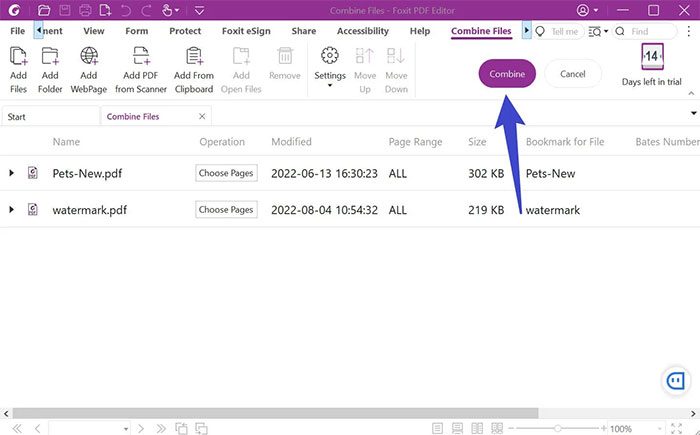
Use File > Save As, choose a new filename, and save the result without overwriting a source PDF. Open the saved file again and check the first page of each section, bookmarks, orientation, page size, and total page count.
Merge PDFs with the Foxit online tool
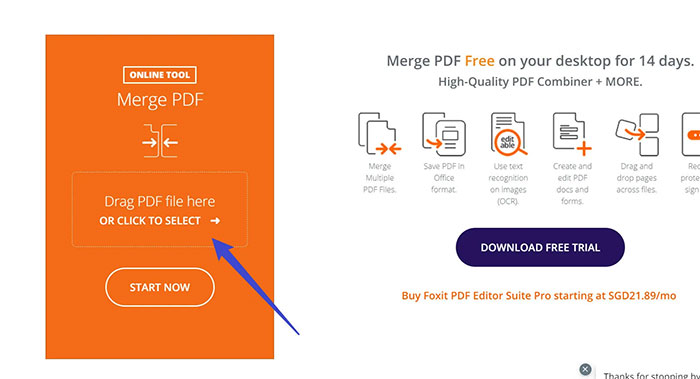
- Open the Foxit online PDF merger.
- Drag the PDFs onto the upload area or choose them from the file picker.
- Use the arrows or drag controls to reorder the files.
- Remove any document that should not be included.
- Select the merge or start button.
- Download the finished PDF and open it locally to verify the result.
Delete the downloaded copy from a shared device when finished. Do not upload documents you are not authorized to send to a third-party service, even if the tool describes the transfer as secure.
Merge PDFs on Foxit PDF Editor Mobile
On supported mobile versions, open the main interface and choose Combine Files, or select multiple documents from the file list and use the combine action. Arrange the files, confirm the selection, and save the result.
The mobile combine feature may require a subscription. Menu icons and access differ between iOS and Android, so use the feature label rather than relying on an old icon position.
Combine selected pages instead of entire files
If you need only part of another PDF, avoid merging the whole document and deleting dozens of pages later. In Foxit PDF Editor, open the destination file and use the page-organizing tools to insert pages from another file at a chosen position.
For two scanned documents containing odd and even pages, the Editor's interleave function may be more appropriate than ordinary file concatenation. Confirm which file begins with the first page and preview the result before saving.
Protect bookmarks, forms, and signatures
- Bookmarks: check whether source bookmarks remain useful after page numbers change.
- Forms: fields with the same internal name can interact after files are combined. Test the completed form.
- Digital signatures: combining or editing a signed PDF usually changes the document and can invalidate its signature status. Preserve the signed original.
- Passwords: unlock protected documents only when you have authorization. Different security settings can prevent a merge.
- Accessibility: verify reading order, tags, headings, and document language if the result must be accessible.
Troubleshooting
Combine Files is missing
Open Help > About and confirm that the installed application is Foxit PDF Editor. Update it, sign in to the licensed account, and check the plan. Foxit Reader is a different product.
A file cannot be added
Open it separately to confirm that it is a valid PDF. Remove a password when authorized, print or export a fresh copy only if doing so preserves the required quality and permissions, and shorten unusually long file paths.
The merged PDF is too large
Use the Editor's optimization or compression tool after checking image quality. Keep an uncompressed master if the PDF will be printed, archived, or processed with OCR.
Pages appear in the wrong order
Return to the combine list, sort it manually, and save to a new filename. Do not rely on alphabetical order when filenames contain unpadded numbers such as 1, 2, and 10.
Fonts or layouts change
This usually happens when Foxit converts an Office document or image rather than merging existing PDFs. Export each source application file to PDF first, inspect it, then combine the finished PDFs.
Which method should you use?
- Use Foxit PDF Editor for confidential files, large jobs, page-level editing, forms, or repeated work.
- Use Foxit Online for a small, non-sensitive merge when you do not have the desktop editor.
- Use Foxit Mobile when the documents are already on your phone or tablet and your plan includes Combine Files.
If you only need to open and annotate PDFs, compare the best free PDF readers. For other desktop options, see this list of PDF joining software.
Related Articles
 Instructions on editing PDF files using Foxit PDF Reader13 minutes read
 Link Download Foxit Reader 10.1.1.375768 minutes read
 How to Set up Voice Text Reading Mode in Foxit Reader?2 minutes read
 Foxit Reader - PDF Reader with Many Additional Features: Key Facts17 minutes read
 How to Rotate PDF Files on Foxit Reader: How to Use Foxit Reader3 minutes read
 How to Use Foxit Reader to Read PDF Files3 minutes read
Reader Comments 0
Sign in with email or Google to join the discussion.