Table of Contents
To add a comment in Google Docs, select the text, image, table cell, or other object, then click Add comment or press Ctrl + Alt + M on Windows/ChromeOS or Command + Option + M on macOS. Type specific feedback and choose Comment.
Comments attach a discussion to part of the document without changing the underlying content. Use Suggesting mode when you want to propose an actual text edit that the owner can accept or reject.
Add a comment on a computer
- Open the document in Google Docs.
- Select the exact text, image, table cell, or object your feedback concerns.
- Click the Add comment icon that appears at the right margin. You can also choose Insert > Comment or use the keyboard shortcut.
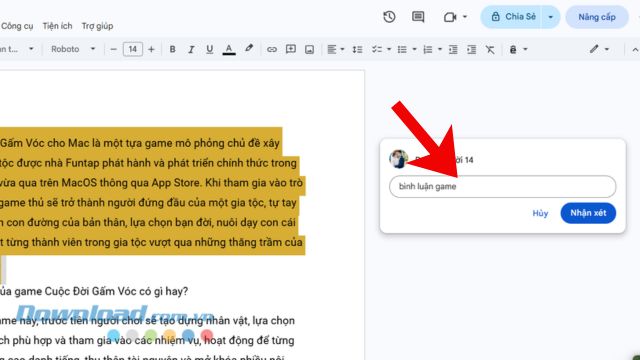
- Enter the question, explanation, or requested change.
- Select Comment.
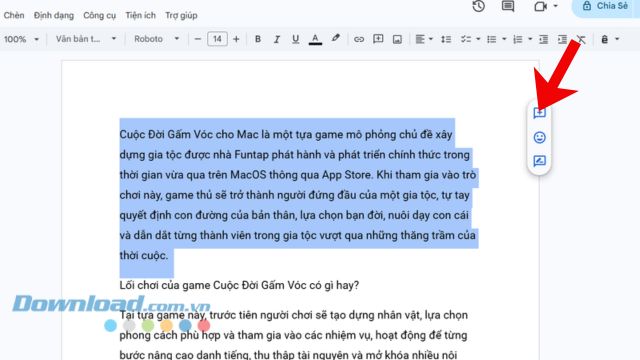
If no text is selected, Docs can attach the comment to the current cursor position. Selecting the relevant sentence is usually clearer because collaborators can immediately see what the thread refers to.
Keyboard shortcuts
| Action | Windows / ChromeOS | macOS |
|---|---|---|
| Add a comment | Ctrl + Alt + M | Command + Option + M |
| Open comment history | Use the Comments button | Use the Comments button |
| Enter Suggesting mode | Use the mode selector | Use the mode selector |
Browser or operating-system shortcuts can conflict with Docs. If the comment shortcut does not work, use Insert > Comment.
Mention a collaborator
Type @ followed by a person's name or email address inside the comment, then select the correct account from the suggestions. Google can notify that person about the thread.
A mention does not automatically grant access. If the person cannot open the document, Docs may prompt you to share it. Review the proposed permission before confirming, especially when the document contains private information.
Assign an action item
For an eligible work or school account, mention one person in the comment and select the Assign to checkbox before posting. The thread becomes an action item rather than a general notification.
- Select the text tied to the task.
- Add a comment with an explicit action and outcome.
- Type
@nameor the person's email and select the correct account. - Enable Assign to [name].
- Select Assign.
Write “Confirm the Q3 total against the source sheet by Thursday” instead of “Please check.” A clear owner, task, and expected result reduces follow-up questions.
Reply, edit, and resolve comments
- Reply: open the thread, enter a response, and post it. Keep decisions in the same thread.
- Edit: open the menu on your own comment and choose Edit. Avoid changing a message after others have relied on it without noting the correction.
- Delete: use the comment menu when the message was posted in error. Deleting removes context; resolving is better when the issue was completed.
- Resolve: select the checkmark or Resolve after the requested work is complete. The thread leaves the active margin but remains in comment history.
The assignee of an action item can mark it done. If new work appears, reply and reassign the action item rather than creating an unrelated duplicate thread.
View and restore resolved comments
Click the Comments icon near the top-right of the document to open comment history. Use its filters or search to find open and resolved threads. Select a resolved thread and choose Re-open when the issue needs more work.
Comment history is useful for decisions, but it is not a substitute for a formal record-retention system. A document owner can change access or delete the file.
Use Suggesting mode for proposed edits
Switch the mode selector from Editing to Suggesting, then change the text. Google Docs records insertions and deletions as suggestions that an editor can accept or reject.
Use a comment to explain why a change is needed; use a suggestion to show the exact replacement. Combining both is helpful for substantive edits, but avoid restating the same message in several places.
Add comments in the mobile app
- Open the document in the Google Docs app.
- Select the text or object.
- Open More and choose Add comment.
- Enter the message and tap Send.
To see all threads, use the Comments icon at the top and swipe or tap through the discussion. The Android and iPhone/iPad layouts may place the command in different menus. Google's comments and action-items help page provides the current platform-specific steps.
Who can comment?
| Permission | What the person can normally do |
|---|---|
| Viewer | Read the document; cannot add ordinary comments |
| Commenter | Add and reply to comments and make suggestions without directly editing content |
| Editor | Edit content, comment, suggest, and resolve threads |
Organization policies, ownership, and file type can restrict some actions. If a shared Microsoft Office file does not support the feature you need, converting it to Google Docs format may be required.
Best practices for useful review comments
- Anchor the comment to the smallest relevant passage.
- State the issue and the desired outcome.
- Separate optional ideas from required changes.
- Mention only people who need to act or decide.
- Assign one clear owner when work is required.
- Reply in the existing thread so context stays together.
- Resolve completed threads instead of leaving the margin cluttered.
- Move a long, off-topic discussion to chat or a meeting, then record the decision in the document.
When the Add comment button is missing
- Check that you are signed in to the correct Google account.
- Open Share and confirm that you have Commenter or Editor access.
- Select content inside the document rather than the browser page.
- Reload the tab and disable an extension that may interfere with Docs.
- Ask the owner whether organization policy or file type restricts comments.
Good comments are short, specific, and actionable. Use them to discuss a decision; use suggestions for exact edits; and resolve the thread when the work is complete.
Related Articles
 How to Use Google Docs on Your Phone9 minutes read
 Tips for Printing Google Docs Documents Including Comments3 minutes read
 Instructions for Dividing and Merging Columns on Google Docs4 minutes read
 How to Add Comments to Google Slides3 minutes read
 The Way Google Docs Helps You Become Professional7 minutes read
 How to Use Emoji Comments on Google Docs4 minutes read
Reader Comments 0
Sign in with email or Google to join the discussion.