Table of Contents
You can install and remove Ubuntu applications through the graphical App Center or from the Terminal with APT and Snap. App Center is easiest for browsing, while terminal commands are useful when you know the exact package name or need clearer error output.

Before installing software
Prefer Ubuntu's configured repositories, the Snap Store, or the software publisher's official download page. Random package files and third-party repositories can run code with your user or administrator privileges. Confirm the publisher, Ubuntu version, processor architecture, and update method before installing.
Ubuntu commonly uses two package formats:
- Debian packages (.deb): installed and updated through APT and Ubuntu repositories.
- Snap packages: self-contained packages managed by the Snap service.
The same application may be available in both formats. They can differ in version, disk use, permissions, startup time, and how updates are delivered.
Install an app with Ubuntu App Center
- Open App Center from the Dock or search for it from Activities.
- Search for the application or browse a category.
- Open the app's page and check its publisher, source, permissions, and package format.
- Select Install.
- Authenticate when Ubuntu asks for your password.
App Center may show a Snap and a Debian package for the same application. Review the source selector instead of assuming the first result is the only edition.

Install a Debian package with APT
Refresh the available package list, then install a package by its repository name:
sudo apt update
sudo apt install PACKAGE_NAME
Replace PACKAGE_NAME with the actual package name. APT shows the dependencies and required disk space before proceeding. Read that summary before confirming.
Install a downloaded .deb file
After downloading a trusted .deb file, open Terminal in its folder and run:
sudo apt install ./filename.debThe ./ tells APT that this is a local file. Using APT is generally more convenient than a low-level package command because it can resolve dependencies from configured repositories. Installing a local package does not guarantee future updates; that depends on whether the package also configures a trusted repository.
Install a Snap package
If Snap support is available, search and install from Terminal:
snap find SEARCH_TERM
sudo snap install PACKAGE_NAME
For packages that require a special channel or classic confinement, follow the publisher's verified instructions and understand the additional access being requested.
Uninstall an app with App Center
- Open App Center.
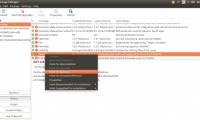
- Open the area that lists installed or managed applications; its label can vary by Ubuntu release.
- Find and select the app.
- Choose Uninstall or Remove.
- Review any warning and authenticate to complete the removal.
Removing an application normally does not delete documents you created with it. It may also leave preferences or cache files in your home folder.

Uninstall APT packages from Terminal
Remove the program while normally retaining system-wide configuration files:
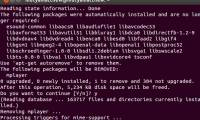
sudo apt remove PACKAGE_NAMERemove the package and its system-wide configuration files:
sudo apt purge PACKAGE_NAMEAfterward, APT may report dependencies that were installed automatically and are no longer required. Review them before running:
sudo apt autoremoveDo not copy a long autoremove command blindly. Check the proposed package list so that software you still need is not removed.
Uninstall a Snap package
List installed Snaps and remove the intended package:
snap list
sudo snap remove PACKAGE_NAME
Snap may retain a temporary snapshot of application data according to its current configuration. If storage cleanup matters, inspect Snap's saved snapshots and retention behavior before deleting anything.
Find the correct package name
The display name in the app menu is not always the package name. Use these commands to search:
apt search SEARCH_TERM
snap find SEARCH_TERM
To inspect installed packages, use:
apt list --installed
snap list
Narrow the output with a specific search term rather than scrolling through the entire list.
If installation fails
- Run
sudo apt updateand read any repository errors. - Check that the package supports your Ubuntu release and CPU architecture.
- Make sure another package manager is not already installing updates.
- Confirm that the system has free disk space and a working network connection.
- If a third-party repository has expired or invalid signing information, do not disable verification just to force the installation.
Keep installed software updated
For APT-managed packages, use Ubuntu's Software Updater or:
sudo apt update
sudo apt upgrade
Snap packages normally update automatically. Applications installed by another system—such as Flatpak or a vendor's standalone installer—must be maintained with that system's own update method.
Use one package source per application when practical. Installing the Snap, Debian, and third-party editions together can create duplicate launchers and make it unclear which copy is receiving updates.


Reader Comments 0
Sign in with email or Google to join the discussion.