Table of Contents
To hide the number on only the first page, insert page numbers and enable Different First Page. To begin numbering on page 3 or any later page, insert a Next Page section break, unlink the new section's header or footer, and set its starting number.
Hide the page number on the first page
This method is best for a document with a single cover page.
Open the Insert tab and select Page Number.
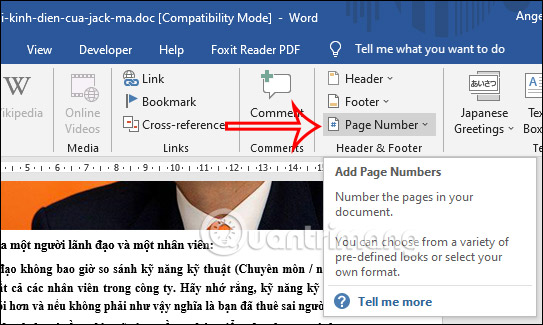
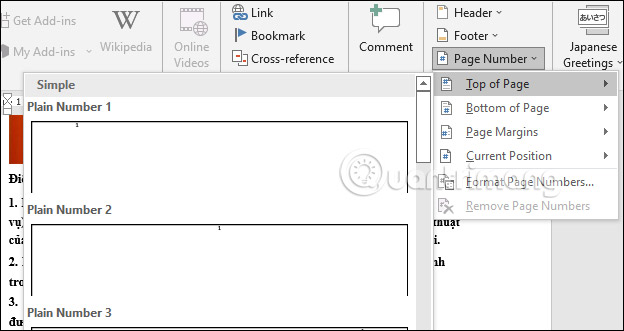
Choose the location and page-number style.
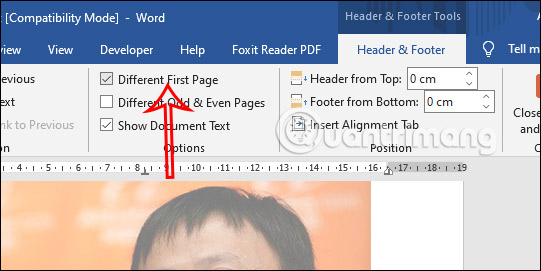
Double-click the header or footer, then enable Different First Page on the Header & Footer tab.
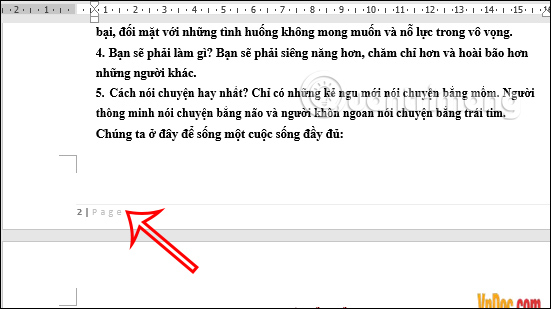
The cover no longer displays a number. By default, the next page is still counted as page 2.
Make the second page display 1
With the header or footer open, select Page Number > Format Page Numbers. Set Start at to 0. The hidden cover is counted as page 0, so the second page displays 1.
Start page numbering on page 3 or later
You need a section break because page-number settings belong to sections. A normal page break is not enough.
1. Insert a section break
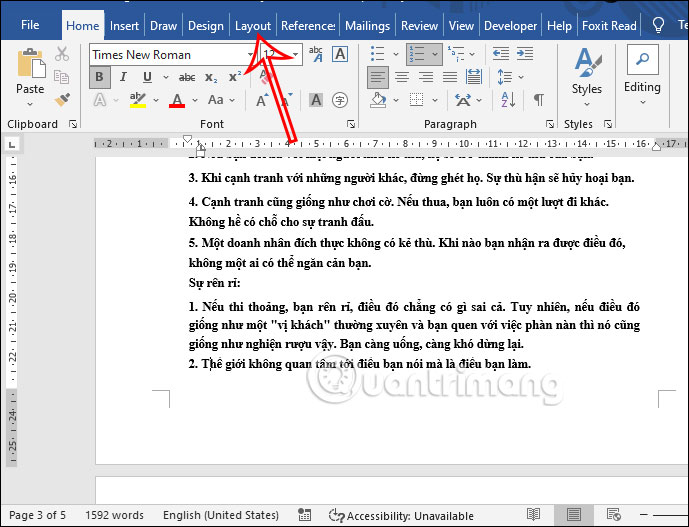
Place the cursor at the very beginning of the page where numbering should start. Open Layout.
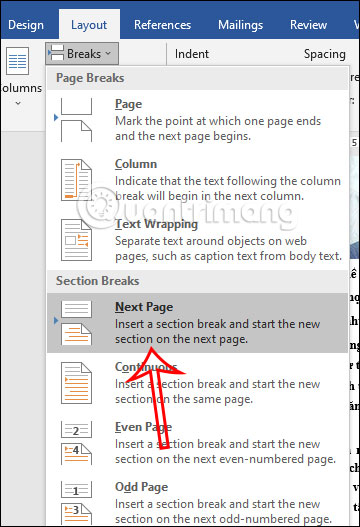
Select Breaks > Section Breaks > Next Page.
2. Unlink the new section
Double-click the header or footer on the first page of the new section. Select Link to Previous so that it is no longer highlighted.
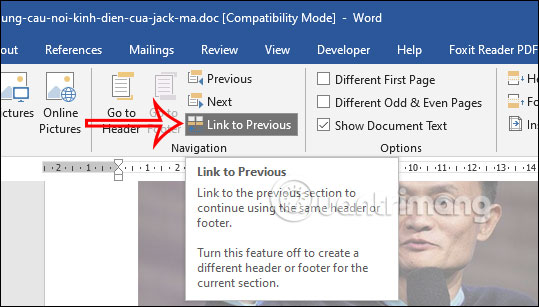
Unlink the area that will contain the page number. If the number is in the footer, unlink the footer; if it is in the header, unlink the header. Headers and footers can have separate link states.
3. Insert and format page numbers
While the cursor is in the new section, choose Page Number and select the desired position.
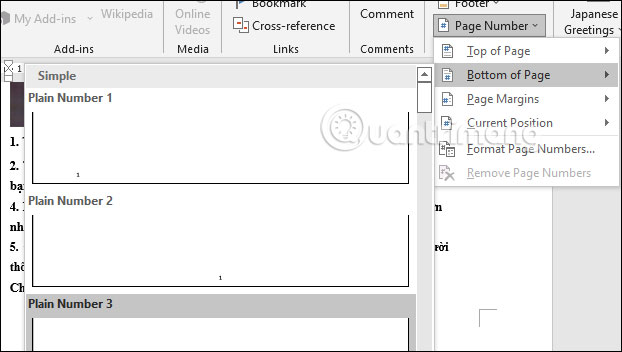
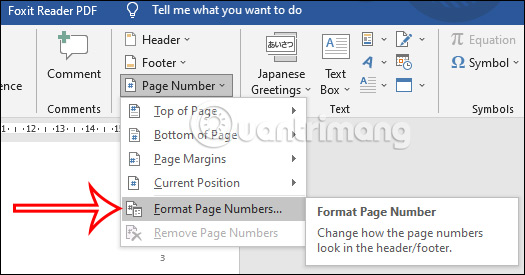
Select Page Number > Format Page Numbers.
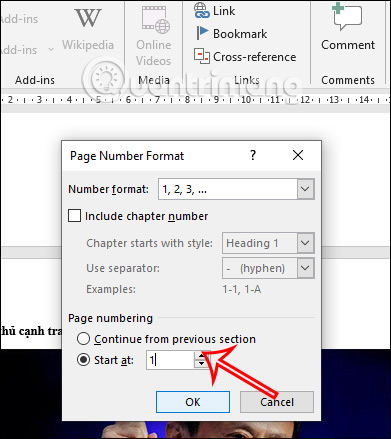
Under Page numbering, choose Start at and enter 1 or another required starting value.
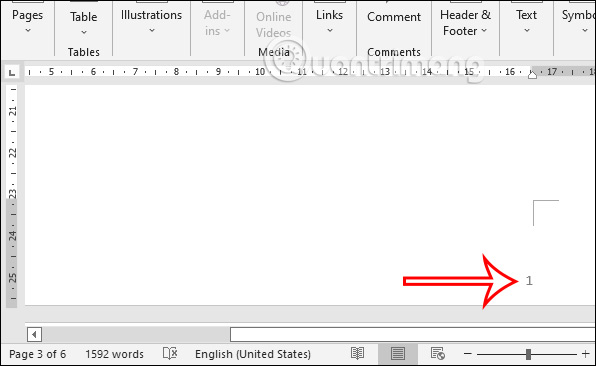
The selected page now begins the new sequence.
4. Remove numbers from the earlier section if necessary
After confirming that Link to Previous is off in the new section, go to the earlier section and delete its page number. The new section's numbering should remain.
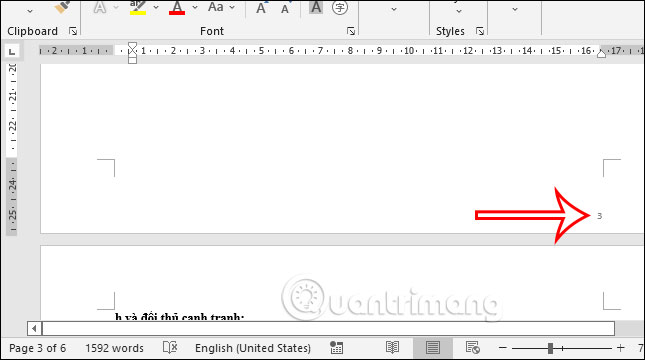
Use Roman numerals before the main text
For a thesis or report, you may want introductory pages numbered i, ii, iii and the main text numbered 1, 2, 3. Create separate sections, unlink them, then open Format Page Numbers in each section. Choose the Roman-numeral format for the front matter and Arabic numerals with Start at 1 for the main section.
Troubleshooting
- Deleting one number removes all numbers: the sections are still linked. Undo the deletion, return to the new section, and turn off Link to Previous.
- The sequence will not restart: choose Start at rather than Continue from previous section.
- A blank page appears: show formatting marks and check whether an extra page break or paragraph sits beside the section break.
- Numbers change between odd and even pages: inspect the Different Odd & Even Pages setting and edit both header or footer variants if enabled.
- The first page of the new section has no number: Different First Page may be enabled for that section.
These steps apply to current desktop versions of Microsoft Word, including Microsoft 365, Word 2021, Word 2019, and Word 2016. Older releases use similar concepts but may place the commands on differently named tabs.
Related Articles
 How to Number Pages in Word Starting from Page 24 minutes read
 How to Number Pages Without First Page in WPS Office6 minutes read
 How to Number Pages Starting from Any Page in Word5 minutes read
 How to Quickly Number Pages in Word 2010, 2013, 2016, And 20195 minutes read
 Number Pages from Any Page in Word 20164 minutes read
 How to Type Pages in Word 2007 from Any Page: Number Word Page5 minutes read
Reader Comments 0
Sign in with email or Google to join the discussion.