Table of Contents
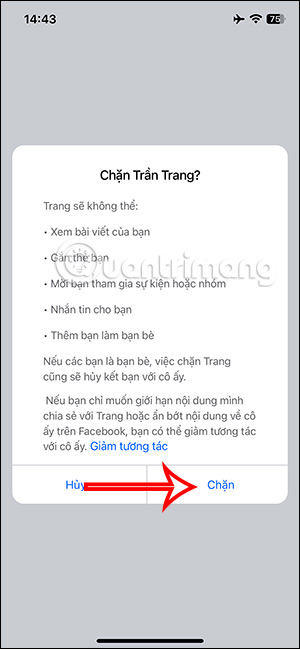
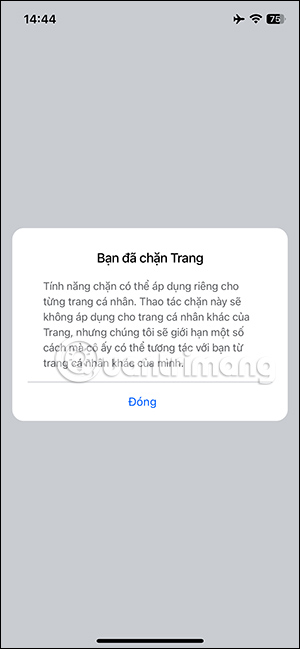
The quickest way to block someone on Facebook is to open the person's profile, select the three-dot menu, choose Block, and confirm. You can do this in the mobile app or a desktop browser. Facebook does not normally notify the person that you blocked them.
Blocking limits interaction between the profiles, but it does not erase previous messages or guarantee complete invisibility. You may still encounter each other's activity in shared groups, apps, public posts, or conversations involving other people.
What Facebook blocking changes
- The blocked profile can no longer start ordinary Facebook interactions with your profile, such as tagging or adding you as a friend.
- If you were friends, blocking removes the friendship.
- Past message history can remain in both inboxes.
- Blocking a profile is different from blocking only its messages and calls in Messenger.
- Shared groups and public content can create limited exceptions to what each person can see.
Block someone from their profile in the Facebook app
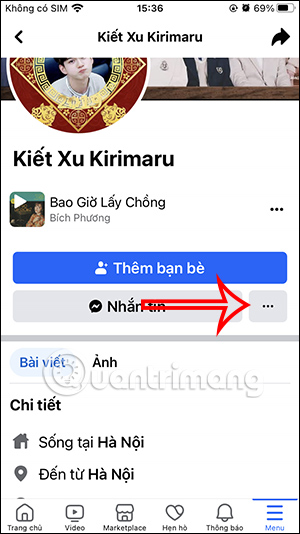
- Open the person's Facebook profile.
- Tap the three-dot menu below or near the profile name.
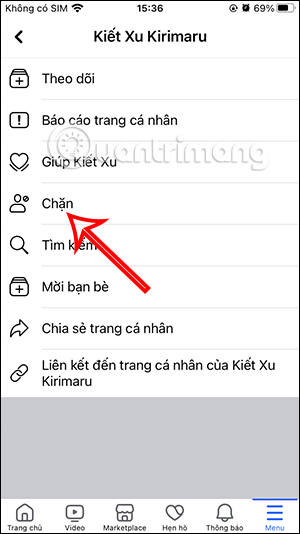
- Select Block.
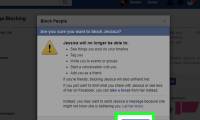
- Read the confirmation and tap Block again.
Block a current friend from the mobile friends list
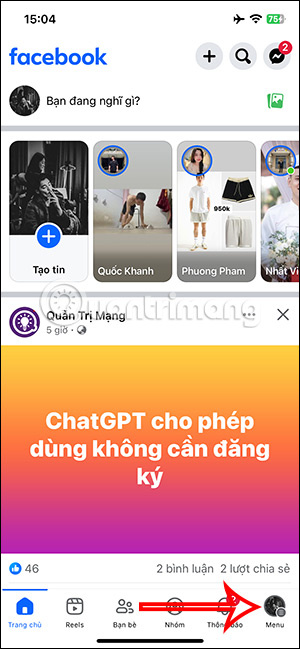
Step 1: Tap the Facebook Menu icon, then select Friends.
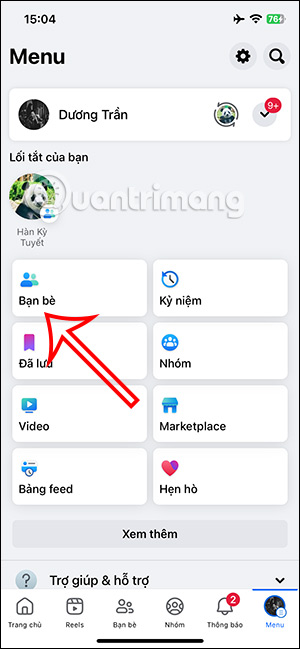
Step 2: Open Your friends or All friends to display the list.
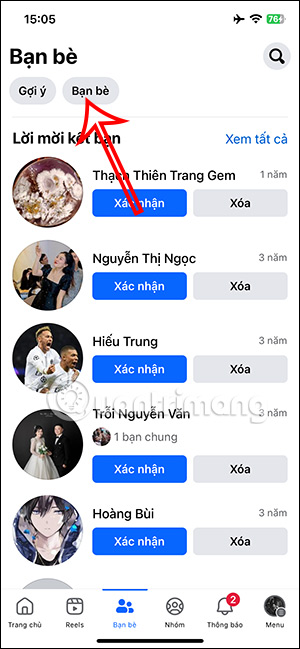
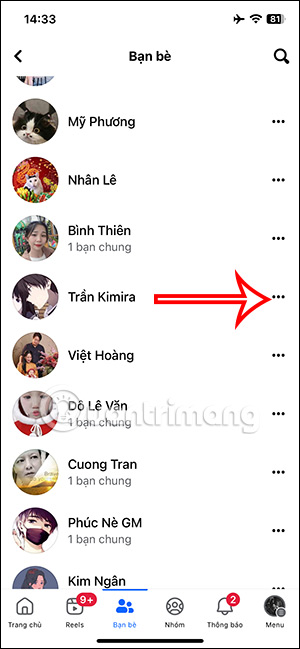
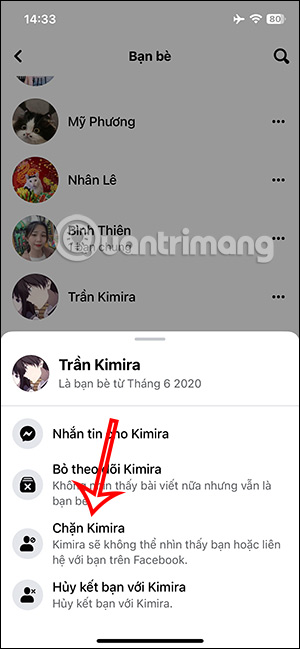
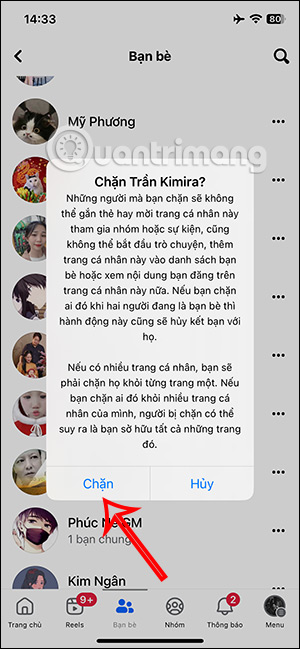
Step 3: Tap the menu beside the person, choose Block, and confirm.
Use the Facebook mobile blocked list
The blocked list is useful when you cannot easily open the profile or want to review existing blocks.
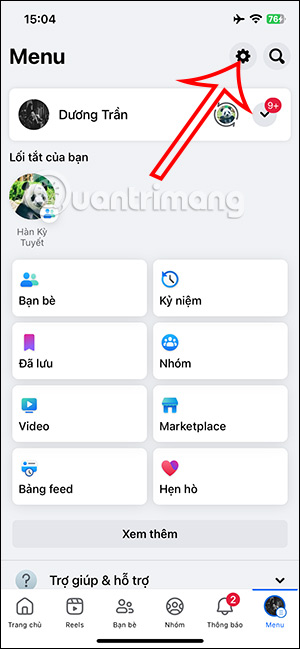
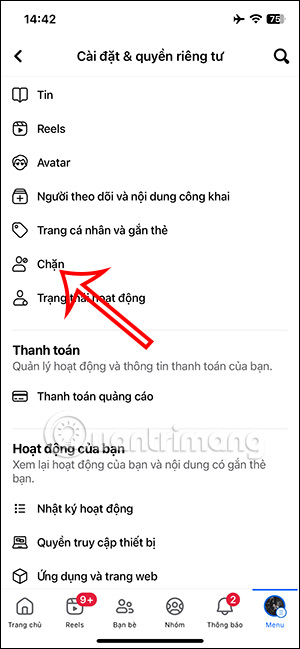
Step 1: Open Menu > Settings & privacy > Settings. Find Blocking, which can appear under Audience and visibility.
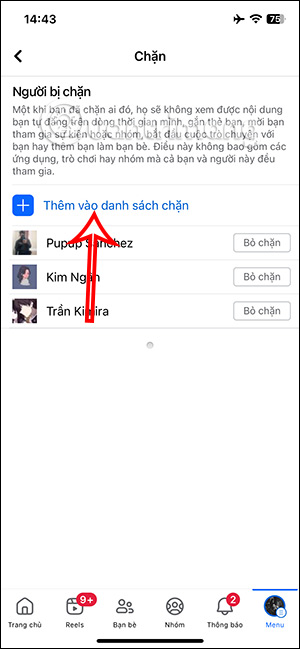
Step 2: Select Add to blocked list, search for the correct profile, and tap Block beside it.
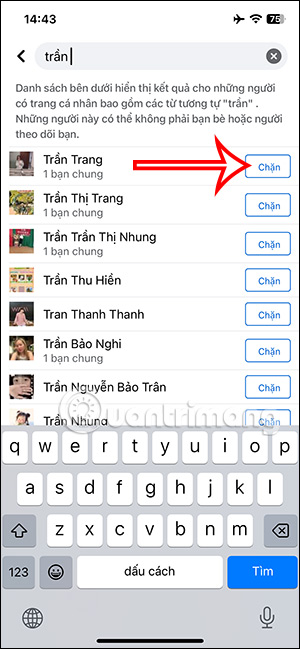
Step 3: Check the name and profile image carefully, then confirm the block.
Block someone on Facebook desktop
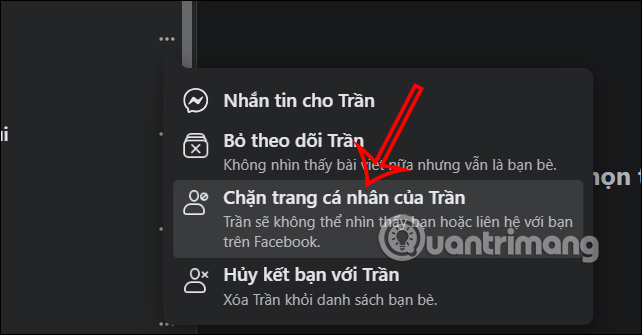
From the friends list
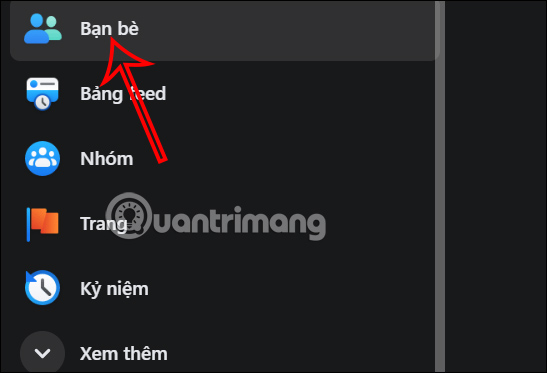
Step 1: Select Friends in the left menu. If it is hidden, select See more.
Open All friends.
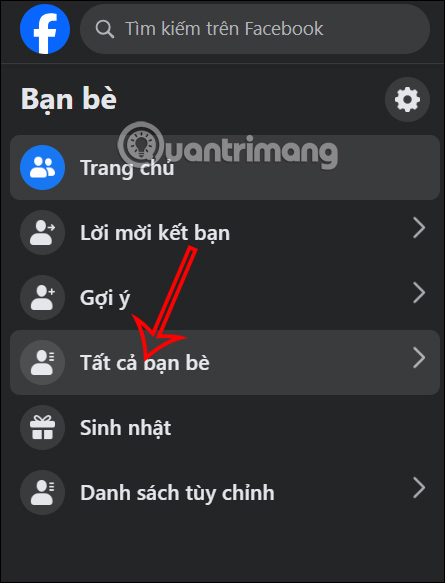
Step 2: Select the three-dot menu beside the person and choose Block.
From the person's profile
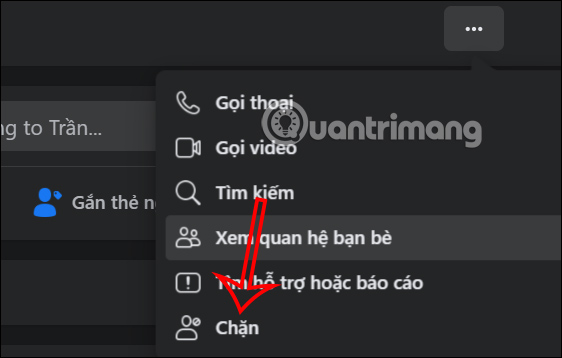
Open the profile, select the three-dot menu, and choose Block.
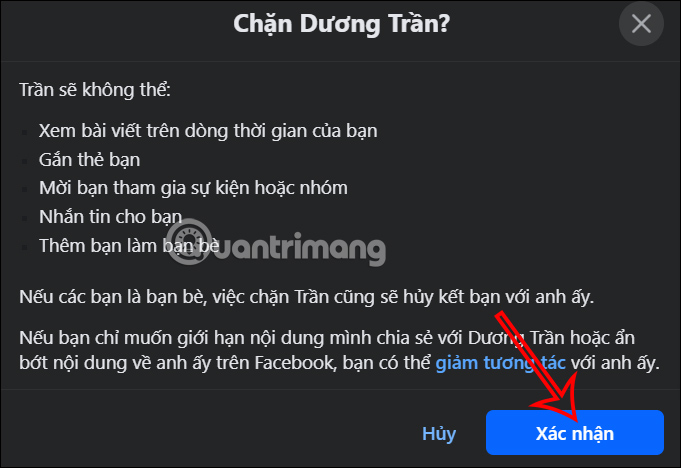
Review the explanation and select Confirm.
From Settings and the blocked list
Step 1: Select your profile picture, then open Settings & privacy > Settings.
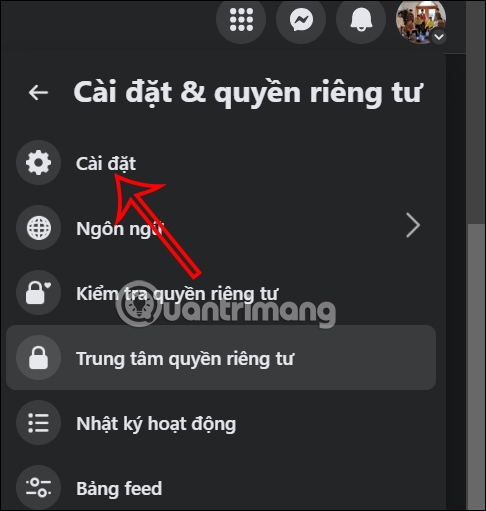
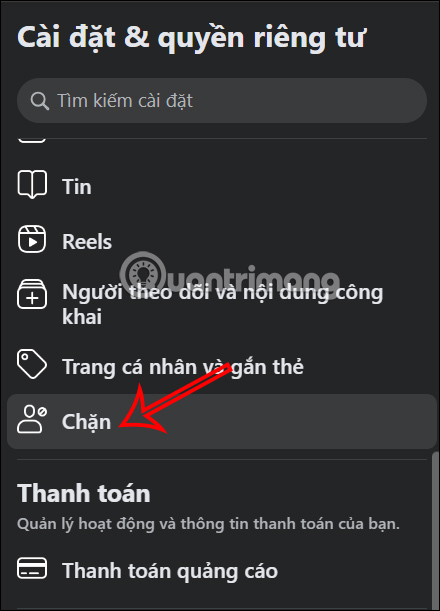
Step 2: Find Blocking in the settings menu.
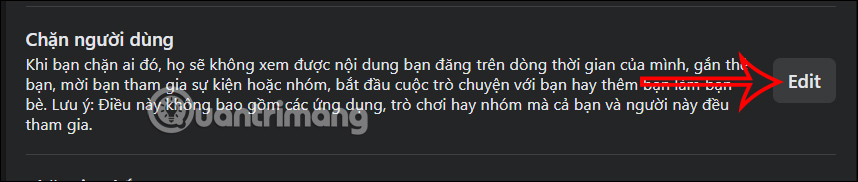
Under Block users, select Edit.
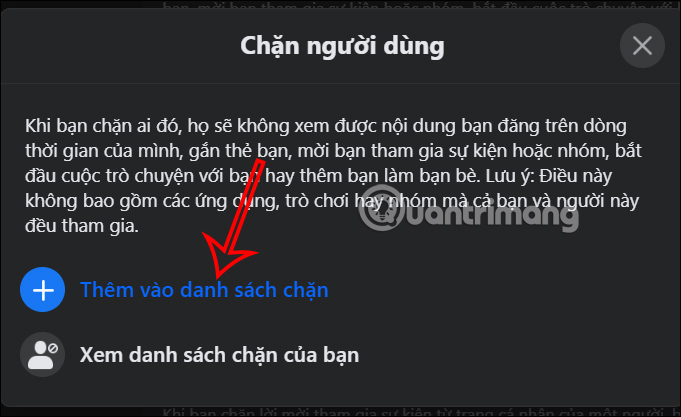
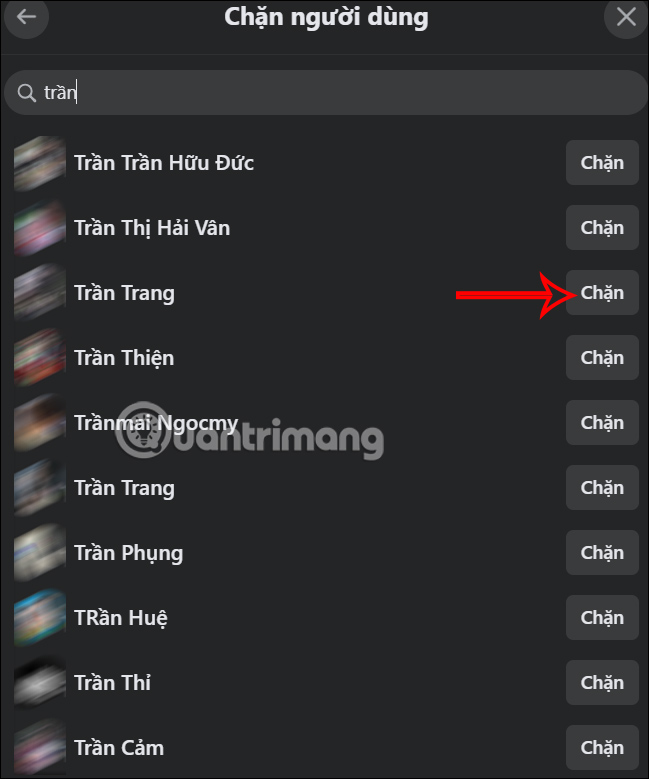
Step 3: Select Add to blocked list, search for the profile, and choose Block.
Blocking on Facebook vs. blocking in Messenger
If you block only messages and calls in Messenger, the person can still see and interact with your Facebook profile according to its privacy settings. If you block the Facebook profile, broader Facebook interactions are restricted as well. Review the wording in the confirmation dialog so you know which action you are taking.
For spam, impersonation, threats, or harassment
Blocking protects your interaction but does not automatically report the account or content. Use the Report option on the profile, message, post, or comment when it may violate Facebook rules. Preserve screenshots and links before blocking if you may need evidence.
For a credible threat or immediate danger, contact the appropriate local emergency or law-enforcement service. Do not rely on a platform block as the only safety measure.
How to unblock someone
Return to Settings > Blocking, open the blocked list, and choose Unblock beside the profile. Facebook may impose a waiting period before the same profile can be blocked again, and unblocking does not automatically restore the friendship.
Related Articles
 How to Block Facebook Nick, How to Block an Annoying Invitation?4 minutes read
 How to Block Users on Facebook: Clear Instructions5 minutes read
 How to Block Facebook Search by Phone Number: Step-by-Step Guide3 minutes read
 How to Chan Account from Facebook Fanpage4 minutes read
 Will You Be Blocked by Other Facebook Users?: Block Facebook4 minutes read
 How to Block a Facebook Account Via Phone Number: Secure Facebook4 minutes read
Reader Comments 0
Sign in with email or Google to join the discussion.