Table of Contents
Learn how to instructions on adding alternating blank rows in Microsoft Excel with practical instructions, useful tips, and troubleshooting guidance…
Adding alternating blank rows in Excel facilitates the addition of content to a data table. Normally, you could use the add row feature in Excel, but this method is relatively time-consuming and manual. This guide walks you through several ways to add alternating blank rows in Excel.
How to Insert Alternating Blank Rows in Excel Using Go to Special
With this data table, we can insert a blank row between the three data rows to use as a field header row, for example.

Step 1:
In the auxiliary column outside the data table, on the 4th row, we will enter the number 1, which means inserting a blank row after 3 rows of data.

Step 2:
Next, from cell number 1, select two more new cells.
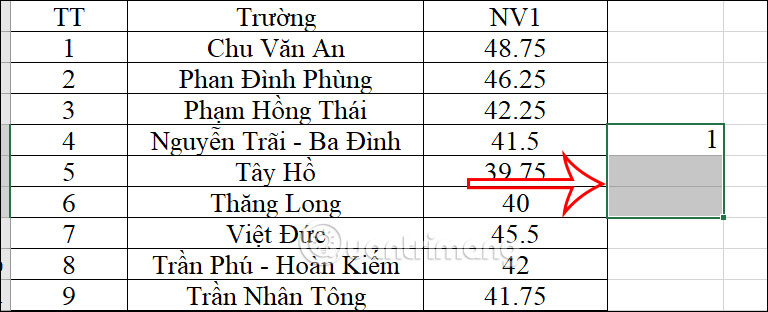
Next, in the bottom right corner of the newly added square, click to add two rows and create an automatically generated numbered column. The result will look like the image below.
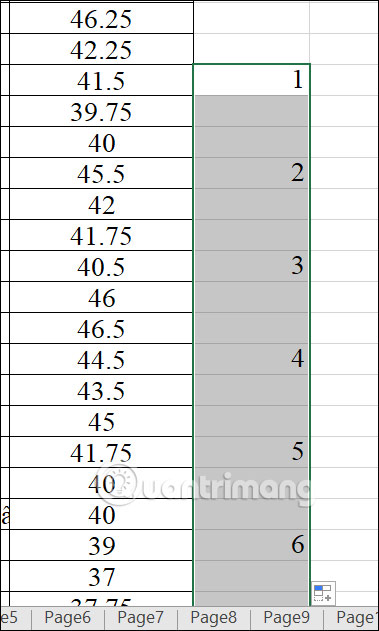
Step 3:
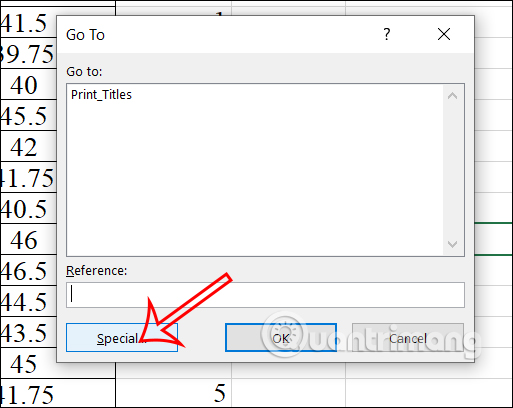
Press Ctrl + G to open the Go To dialog box, then click the Special button .
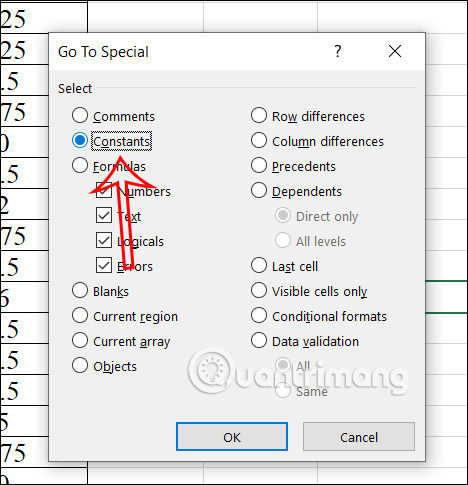
In the new dialog box that appears, click on Constants and then click OK below.
Step 4:
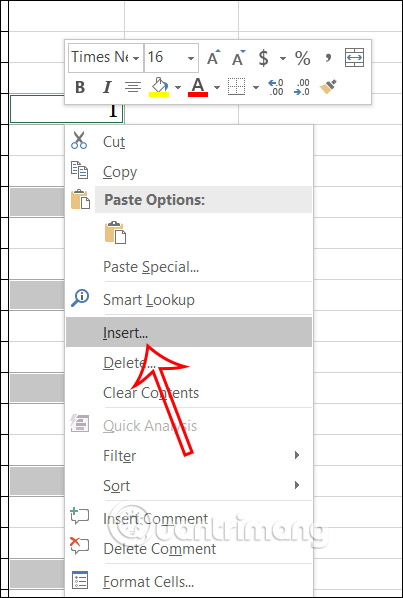
Next, right-click on this column and select Insert from the list that appears.
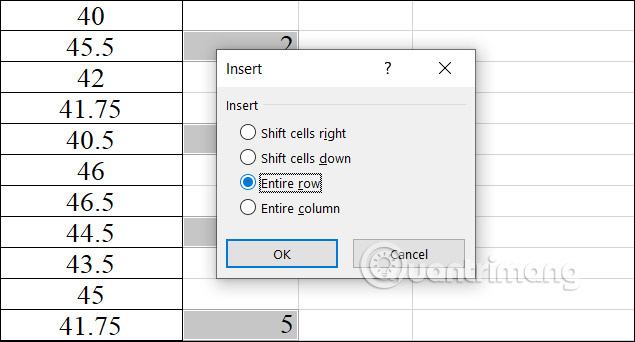
Click on the Entire Row option and then click OK below.
Step 5:
The result shows that every three rows of data there is a blank row interspersed for you to use. Now you just need to fill in the headers for these blank rows in the data table.

Step 6:
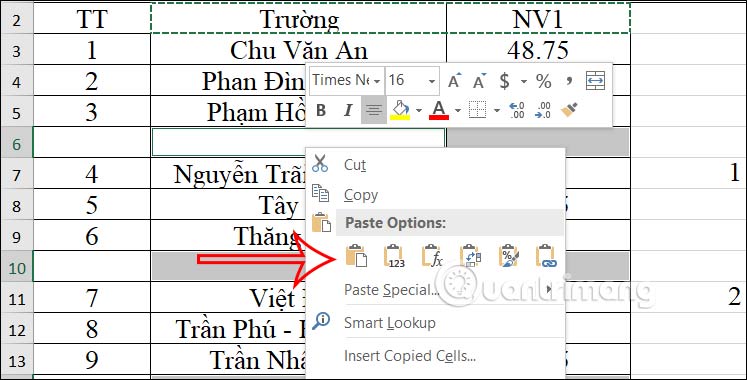
To quickly fill in the header row , copy the original header row , highlight the entire data table , press Ctrl + G to open the Go To dialog box , and click Special .
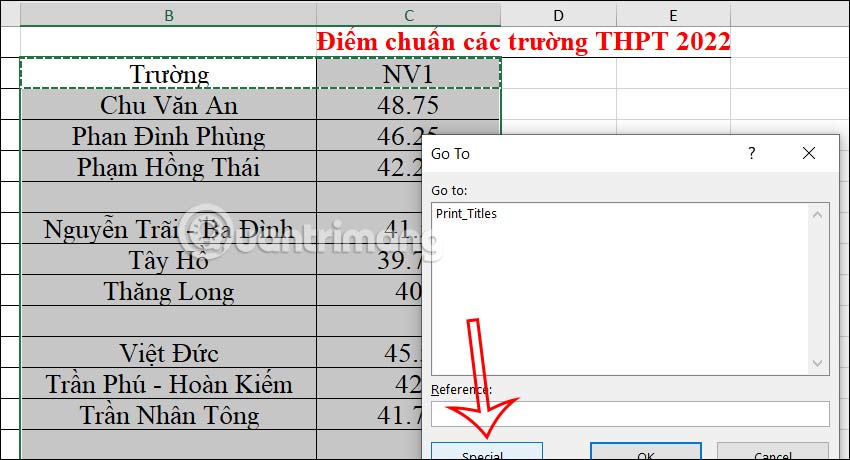
Select Blanks to select only the blank rows within the selected data range.
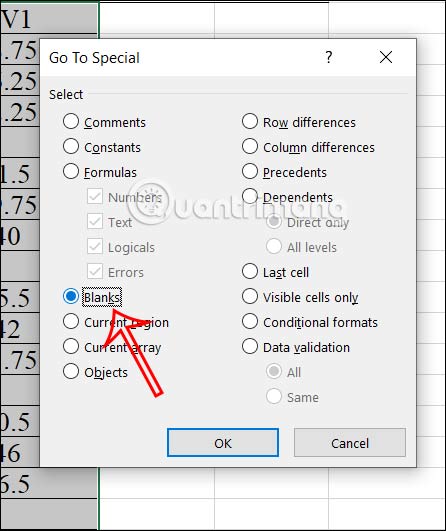
Finally, we just paste the header row into the Excel table.
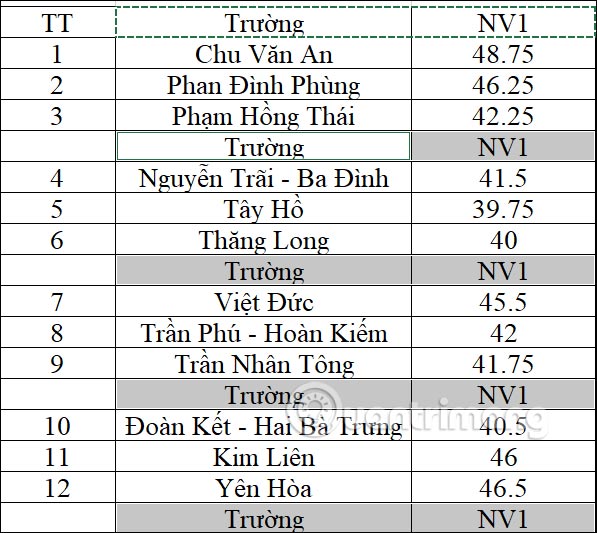
The results are presented in the data table shown below.
Video Tutorial on Inserting Alternate Blank Rows in Excel
How to Insert Alternating Blank Rows in Excel Using Sort
Step 1:
Open the Excel file where you want to add alternating blank rows. First, add sequential numbers from 1 to the end of the data table, and repeat this process in the rows below that do not yet contain data.

For faster operation, type the number 1, then press and hold Ctrl, then drag the mouse to the right corner and pull it down.

Step 2:
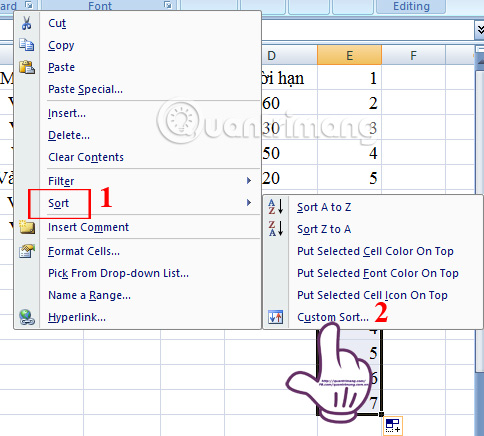
Next, right-click on the numbered row below, select Sort , and choose Custom Sort .
Step 3:
A small Sort Warning window will appear. Click the Sort button below it. Note that you must check the "Expand the selection" option.

Step 4:
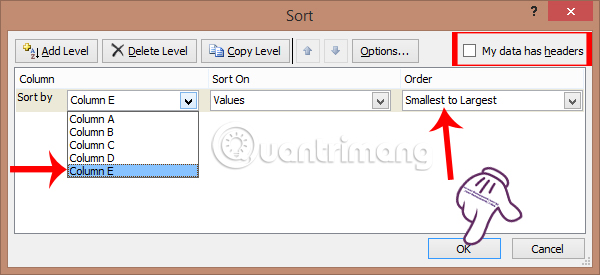
In the new Sort interface, uncheck the "My data has header" option .
Next, in the Sort by section, select Column E. The order will be set to Smallest to Largest, from smallest to largest. Then click OK .
The final result will show an extra blank row interspersed within the Excel data table, as shown below. We just need to delete the serial number in column E to finish.
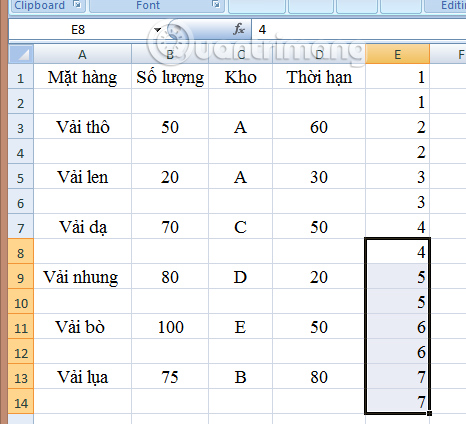
Note that if you want to add 2 or 3 blank rows to the table, you also need to create numbered rows from 1 to the desired row, and then repeat the corresponding numbering if you want to insert 2 or 3 rows.
As shown in the image below, if I add two alternating blank rows to the table, I will create two additional columns, numbered 1 to 3.
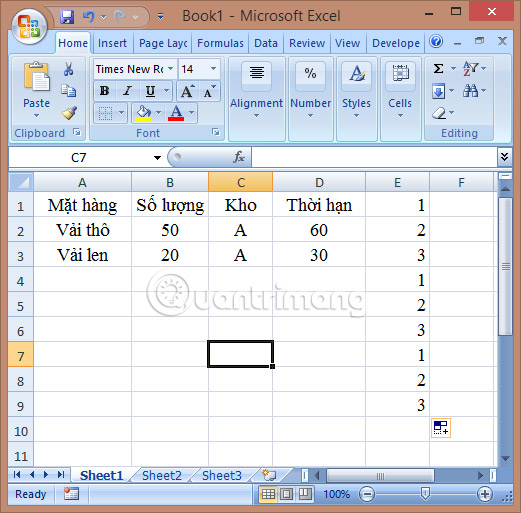
Then, follow the same steps as above and you will get the result shown in the image below.

So now you can add one or two blank rows as you wish to your data table. The method for inserting one or more blank rows in Excel only differs in adding the row number column from 1 to the row where you want to insert the row.
FAQ
What is the best way to instructions on adding alternating blank rows in microsoft excel?
Learn how to instructions on adding alternating blank rows in Microsoft Excel with practical instructions, useful tips, and troubleshooting guidance...
What should you prepare before you instructions on adding alternating blank rows in microsoft excel?
Key takeaway: Learn how to instructions on adding alternating blank rows in Microsoft Excel with practical instructions, useful tips, and troubleshooting guidance...
What common mistakes should you avoid?
Adding alternating blank rows in Excel facilitates the addition of content to a data table.
Related Articles
 How to Color Alternating Rows and Columns in Excel3 minutes read
 8 How to Delete Blank Rows in ExcelHow to Delete Blank Rows in Excel: Best14 minutes read
 How to Coloring Alternating Rows and Columns in Excel5 minutes read
 Instructions for Adding Alternate Blank Lines on Microsoft Excel4 minutes read
 How to Add Excel Rows: How to Add Rows and Delete Rows in Excel4 minutes read
 Adding 1 or More Blank Lines in Excel Is Extremely Fast4 minutes read
Reader Comments 0
Sign in with email or Google to join the discussion.