Table of Contents
To make a quiet microphone louder in Windows 7, open the microphone's properties from the Sound control panel, raise the Microphone level, and then add a small amount of Microphone Boost if your audio driver provides it. Increase the settings gradually: too much boost can add hiss, distortion, or feedback.
Important: Microsoft no longer supports Windows 7. These steps remain useful for a legacy computer, but a device connected to the internet should be upgraded to a supported operating system when possible.
Increase the microphone level
- Connect the microphone or headset. If it has a physical mute switch or volume wheel, make sure it is enabled.
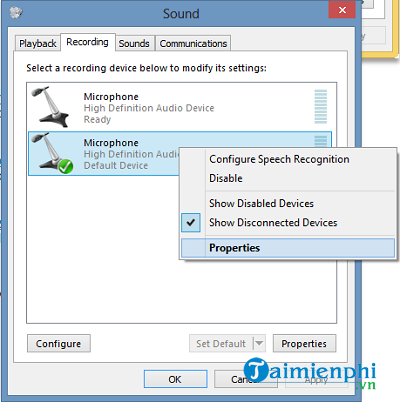
- Click Start > Control Panel > Hardware and Sound > Sound. You can also right-click the speaker icon in the notification area and select Recording devices.
- Open the Recording tab. Speak into the microphone and look for movement in the green level meter. Select the correct device, then click Properties.
- Open the Levels tab. Make sure the speaker icon beside the microphone is not muted.
- Move the Microphone slider to the right. Start around 80 rather than immediately setting it to 100.
- If a Microphone Boost control appears, begin with the lowest boost setting. Test your voice, then increase it only if the normal level is still too quiet.
- Click Apply, test again, and select OK when the result is clear.
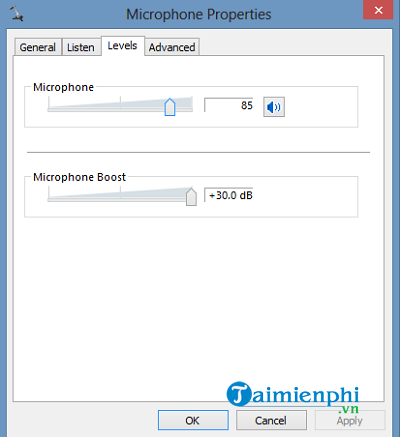
Some drivers place Microphone Boost on a Custom tab instead of the Levels tab. If you see a Custom tab, enable the boost option there and return to Levels to adjust the amount.
Test the result before a call
Open Start > All Programs > Accessories > Sound Recorder, record a short sentence, and play it back at a normal speaker volume. A call application may also have its own input selector and level control, so confirm that the same microphone is selected there.
Listen for three things:
- Voice remains quiet: raise the normal microphone level first, then add boost.
- Hiss or room noise becomes loud: reduce boost and move the microphone closer to your mouth.
- Voice crackles or sounds clipped: lower the level or boost until loud words are clear.
For a broader explanation of gain and input levels, see how to adjust microphone sensitivity. You can also use these microphone sound-quality tips when recording narration.
If Microphone Boost is missing
The boost control is supplied by the sound hardware and its driver, so it is not available for every microphone. Try these checks:
- Return to the Recording tab, right-click an empty area, and enable Show Disabled Devices. Make sure the intended microphone is enabled and set as the default device.
- Connect an analog microphone to the correct microphone jack rather than a line-in jack. On a desktop computer, test the rear microphone port if the front port is weak or noisy.
- For a USB microphone or USB headset, try another USB port. Its own digital controls may replace Windows Microphone Boost.
- Install the correct audio driver from the computer or motherboard manufacturer. Avoid third-party driver-download sites.
- Check the microphone in another computer. If it is quiet everywhere, the cable, connector, or microphone may be faulty.
Reduce feedback and background noise
Do not enable Listen to this device unless you intentionally need live monitoring. Hearing the microphone through nearby speakers can create an echo or a loud feedback loop. Use headphones for calls and recordings, keep the microphone a consistent distance from your mouth, and point it away from fans and keyboard noise.
If maximum Windows settings still produce weak audio, software amplification is rarely the best first fix. Confirm the connector type, driver, microphone placement, and hardware condition before adding more gain; amplification also makes unwanted noise louder.
Related Articles
 How to Increase the Microphone Volume in Windows 108 minutes read
 Increase the Mic Volume on Windows 11: Complete Guide3 minutes read
 How to Increase Microphone Volume on Android4 minutes read
 How to Fix Microphone Volume to 0 or 100 in Windows 115 minutes read
 How to Amplify Microphone Volume on Windows4 minutes read
 How to Increase Laptop Volume in Windows 105 minutes read
Reader Comments 0
Sign in with email or Google to join the discussion.