Table of Contents
To uninstall iTunes, first identify whether it came from the Microsoft Store or an Apple installer. Remove the app through Windows Settings or Control Panel, restart the PC, and reinstall only if needed. Do not delete registry keys or your Music folder as a routine cleanup step.

Back up the library first
Uninstalling the application should not remove purchased media or the local iTunes library, but a backup protects playlists, ratings, device backups, and imported files if additional cleanup becomes necessary. The default library is commonly inside MusiciTunes. Copy that folder to another drive before deleting any Apple data folders.
Uninstall the Microsoft Store version
- Open Start > Settings > Apps > Installed apps.
- Find iTunes, open its three-dot menu, and select Uninstall.
- Follow the prompt, then restart Windows.
These are the same standard steps described in Microsoft's Windows app removal guide.
Uninstall the classic desktop version
Older iTunes installations appear in Control Panel rather than as a Store app.
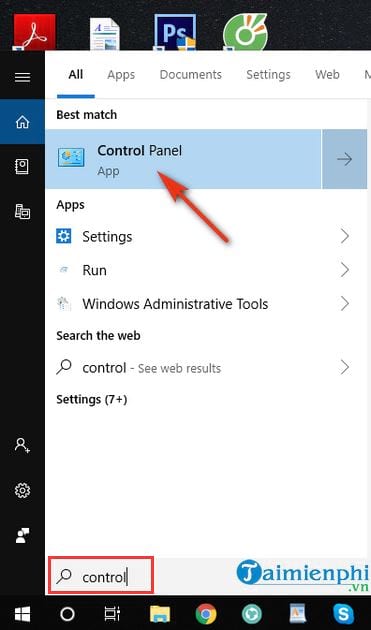
- Search for and open Control Panel.
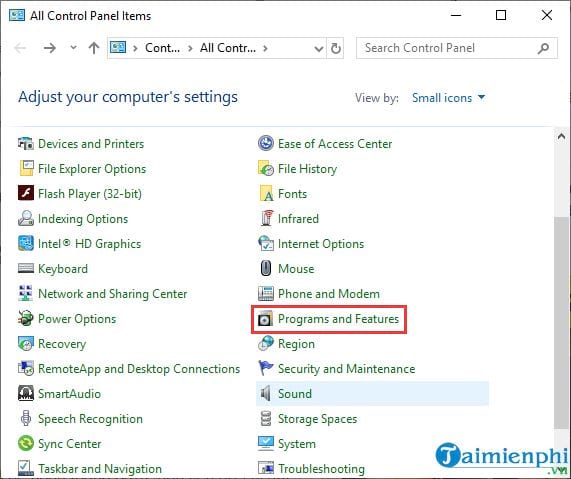
- Select Programs > Programs and Features.
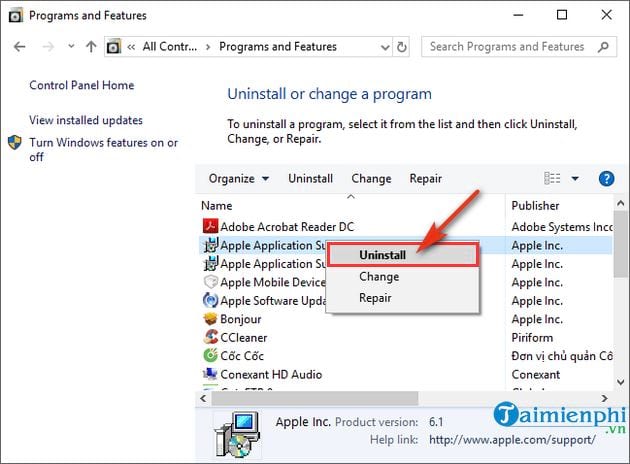
- Select iTunes, choose Uninstall, and complete the wizard.
- Restart the computer before testing or reinstalling.
Should you remove the other Apple components?
A classic installation can include Apple Software Update, Apple Mobile Device Support, Bonjour, and one or two Apple Application Support entries. Leave them installed if you still use iCloud for Windows, Apple Devices, or another Apple program. If the goal is a completely clean iTunes reinstall and ordinary removal has failed, uninstall only components that are no longer required by other Apple software.
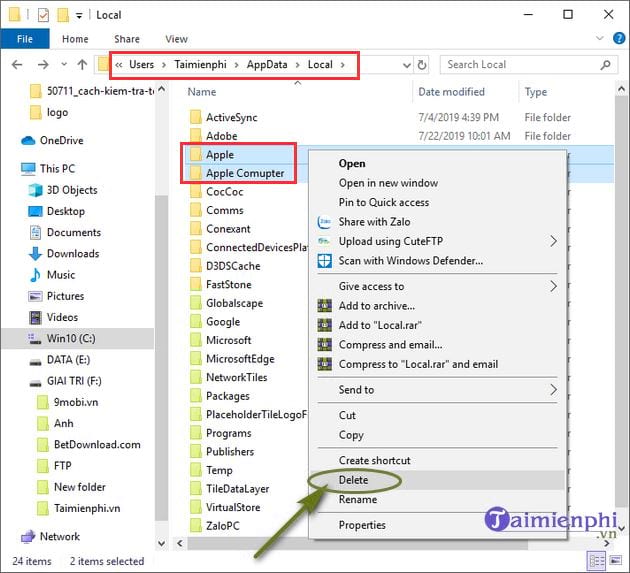
Do not delete the library folder shown below unless you intentionally want to erase the local media and have already made a verified backup.
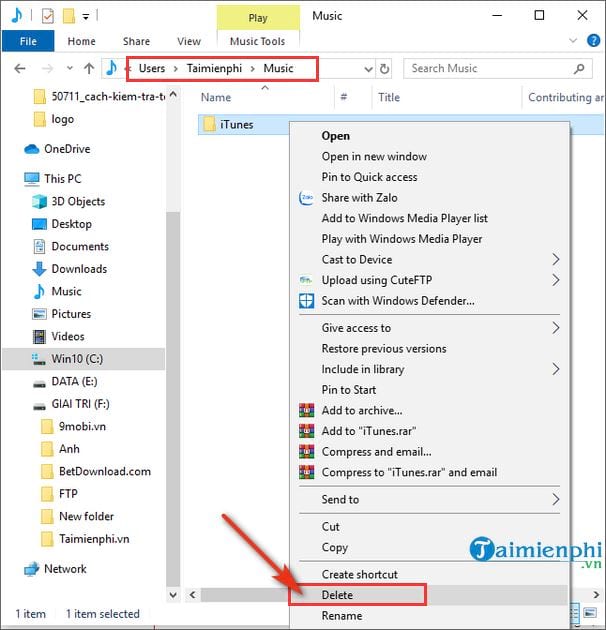
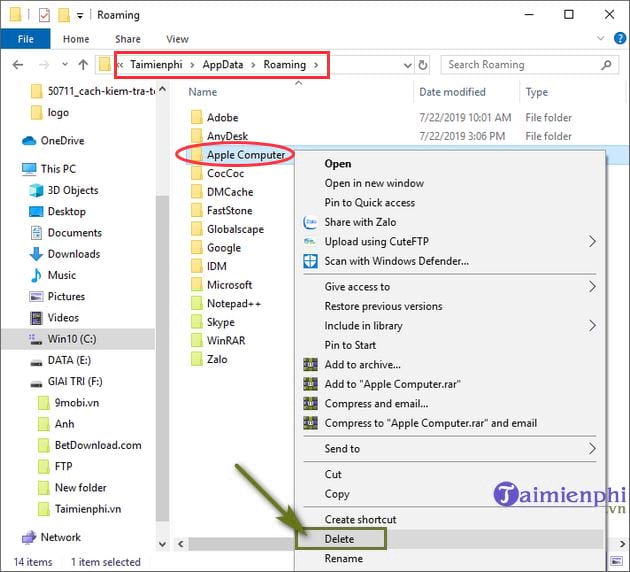
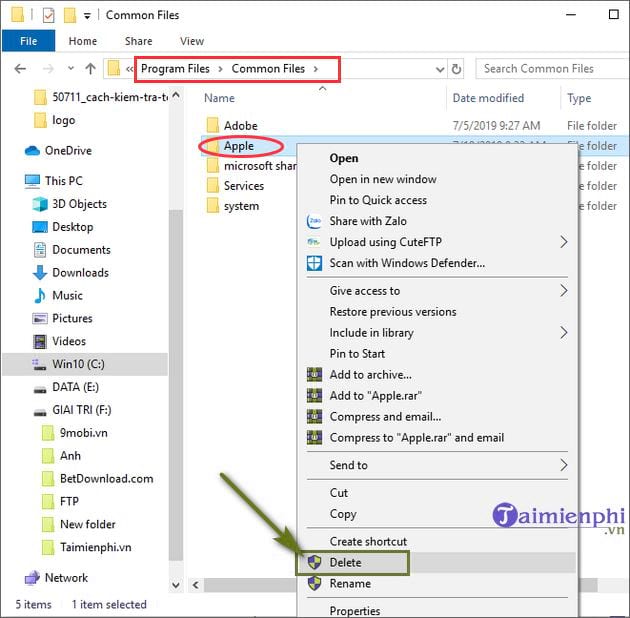
Likewise, AppData and Common Files can contain shared Apple settings and components. Manual deletion is a troubleshooting measure of last resort, not part of a normal uninstall.
Do not use manual registry deletion as a standard fix
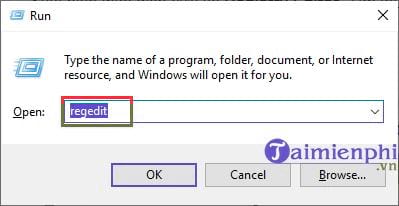
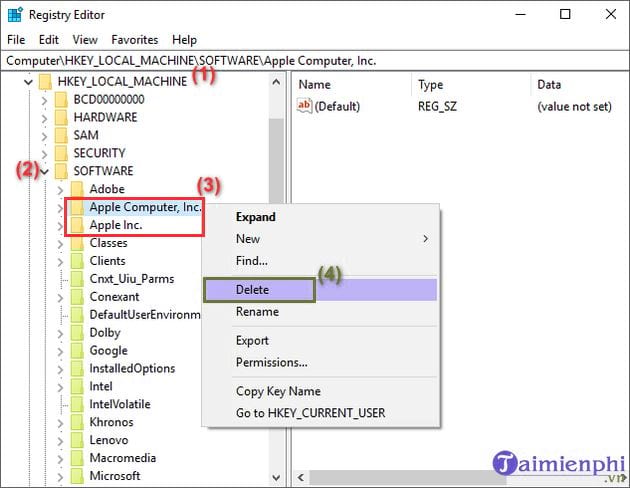
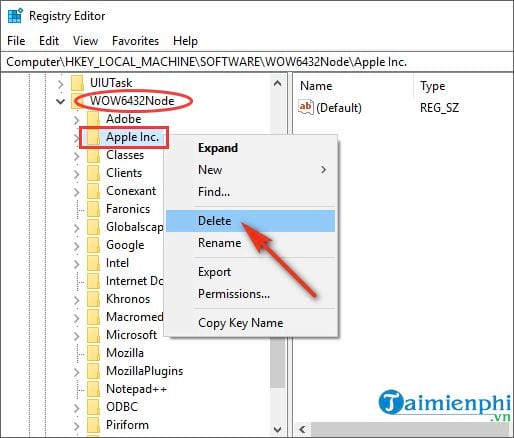
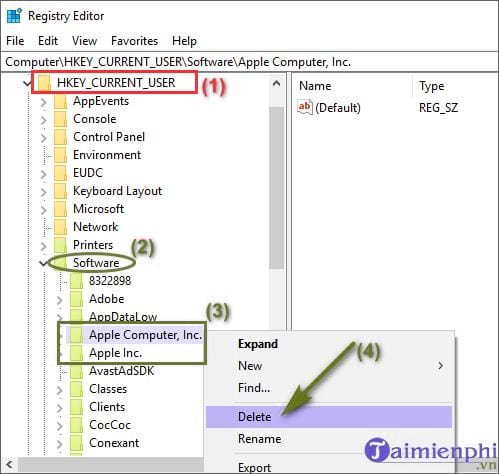
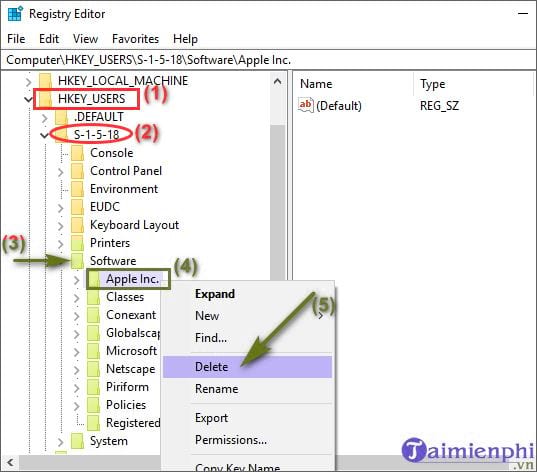
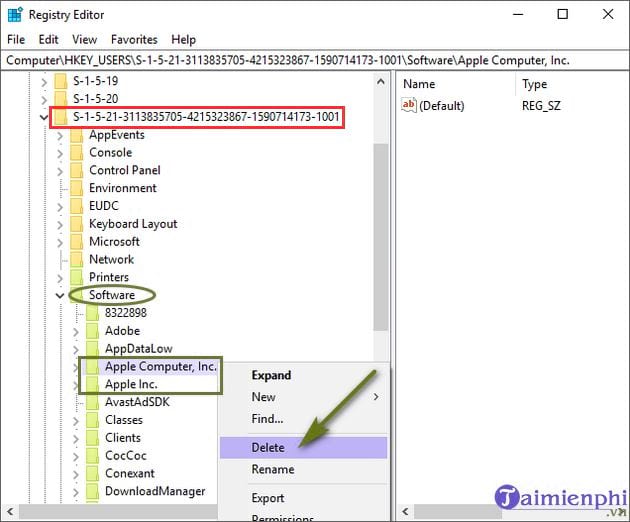
The original procedure recommended searching the Windows Registry and deleting broad Apple keys. That can damage iCloud, Apple Devices, Bonjour-dependent software, device drivers, or unrelated Apple applications. Registry entries also vary by account and installation, so the example user identifiers shown in old screenshots must never be copied.
Legacy registry screenshots retained for reference
These images show the obsolete manual-cleanup route. They are not current removal instructions.
If iTunes will not uninstall or reinstall
- Restart Windows and try uninstalling again from the same source that installed the app.
- Close iTunes and Apple background processes before retrying.
- Use Windows' built-in repair or uninstall troubleshooting options; Microsoft's installation troubleshooting guide covers blocked removals.
- For a Microsoft Store copy, repair or reset the app before removing it.
- After uninstalling, download a fresh installer only from Apple or Microsoft.
Once removal is complete, follow the iTunes download and update guide for a clean reinstall. If the original problem was a specific error rather than installation damage, check iTunes error -45054 before removing the software.
Related Articles
 How to Completely Remove Itunes on Your Computer?: Itunes Windows6 minutes read
 How to Uninstall the Driver Completely on Windows4 minutes read
 'Ll: How to Uninstall Itunes4 minutes read
 How to Uninstall LinkiDoo6 minutes read
 How to Uninstall iTunes: Practical Guide5 minutes read
 How to Completely Uninstall WSL on Windows 10/114 minutes read
Reader Comments 0
Sign in with email or Google to join the discussion.