Table of Contents
To clear the Apple keyboard’s learned words, use Reset Keyboard Dictionary in Settings. This returns its personal dictionary to the default state. If you only want fewer suggestions or automatic changes, adjust Predictive Text or Auto-Correction instead.
Reset the keyboard dictionary
Make a note of custom words or shortcuts you want to keep before resetting. Apple describes this reset as removing custom words and shortcuts, so do not use it merely to fix one unwanted suggestion without considering that trade-off.
- Open Settings > General.
- Tap Transfer or Reset iPhone, or Transfer or Reset iPad.
- Select Reset > Reset Keyboard Dictionary.
- Enter the device passcode if prompted.
- Confirm with Reset Dictionary.
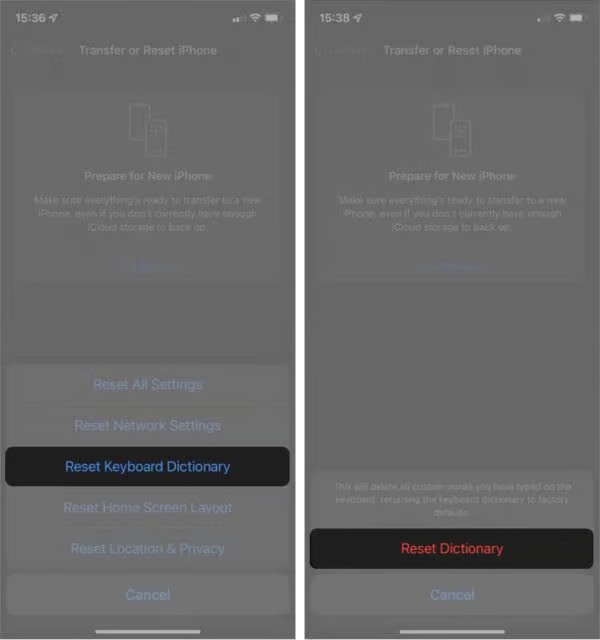
Choose the keyboard-specific reset, rather than Reset All Settings or Erase All Content and Settings. Afterward, type a few sentences in Notes to check the result. The keyboard can learn from future typing again.
Turn off automatic corrections
If the keyboard keeps changing correctly typed names or unusual words, go to Settings > General > Keyboard and turn off Auto-Correction. This changes automatic spelling behavior; it is not a way to erase the learned dictionary.
For a word you use often, a text replacement entry may be a more targeted option than resetting everything.
Hide predictive suggestions
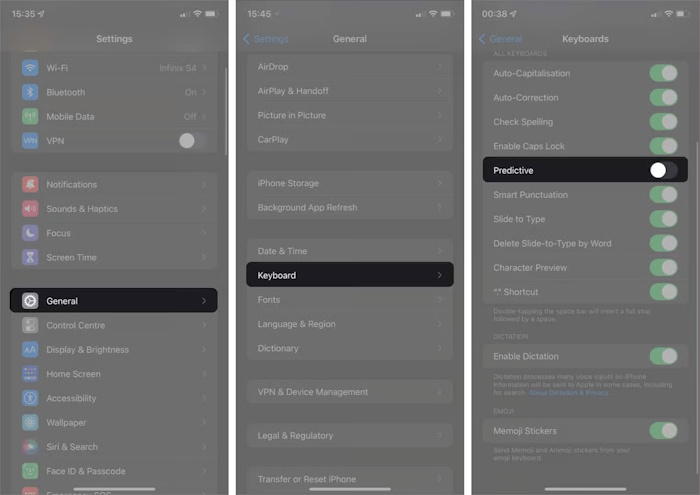
Go to Settings > General > Keyboard and turn off Predictive or Predictive Text, depending on your software version. Some versions also offer a separate inline-prediction setting.
This controls the suggestions you see. It should not be treated as a command to delete previously learned data. For the difference between removing words and hiding suggestions, see removing words from iPhone predictive text.
What this reset does not clear
The keyboard dictionary is not a readable transcript of everything you have typed. Resetting it does not delete conversations, documents, browser history, or search history stored by other apps. Third-party keyboards can also have their own dictionaries and settings; check that keyboard’s app if the unwanted suggestion remains.
Related Articles
 How to delete keyboard history on Android
 How to delete browsing history on iPhone, iPad quickly
 How to delete Snapchat's chat history on iPhone and iPad
 How to delete Web browser history on iPad?
 How to delete Chrome browsing history on iPhone and iPad
 How to fix errors cannot delete apps on iPhone and iPad
Reader Comments 0
Sign in with email or Google to join the discussion.