Table of Contents
You can combine PDF files on an iPhone or iPad without sending them to an online service. Use Preview where available, or try the Files app's Create PDF command. A reviewed Shortcuts workflow is another option for repeated tasks.
Save the source PDFs in Files first and make sure cloud-stored files have downloaded. Keep the originals until you have checked the combined document. Merging makes sharing more convenient, but it does not necessarily reduce the total file size.
Combine PDFs in Preview
On devices with the Preview app, you can insert one PDF into another and rearrange its pages. These controls are available in iOS 26 and later supported versions; older devices may need the Files method below.
- In Files, duplicate the PDF you want to use as the starting document, so the original remains unchanged.
- Open that copy in Preview.
- Show the page thumbnails by tapping the page count. If the controls are hidden, tap the document first.
- Touch and hold a thumbnail and choose Insert from File. Select the other PDF.
- Check the insertion position and drag thumbnails if you need a different page order. Repeat for more documents.
- Rename the combined copy and reopen it to verify the result before sharing.
Apple's Preview page-editing instructions explain insertion and rearrangement on iPhone. The interface differs slightly between devices.
Use Create PDF in the Files app
- Open Files and go to the folder containing your PDFs.
- Tap the three-dot menu, then Select.
- Select the PDFs you want to combine.
- Open the selection's action menu and choose Create PDF, if that command is available.
- Open the newly created PDF, check its page order, and rename it with a distinct name.
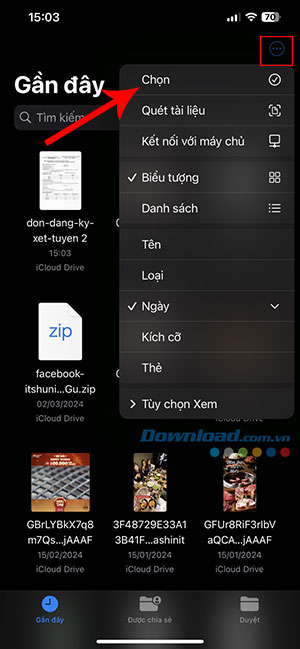
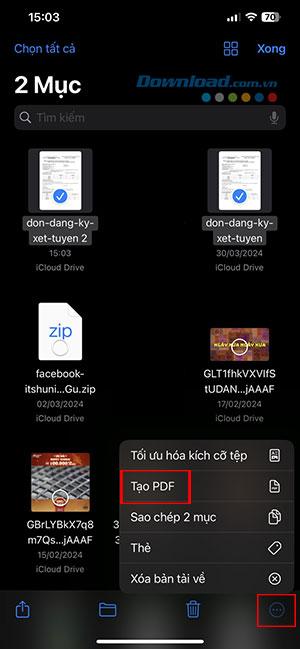
Menu placement varies by iOS or iPadOS version and file provider. If Create PDF is missing, download the files locally or use Preview instead. Do not assume selection order is always the final page order; inspect the output. Numbered file names such as 01-cover.pdf and 02-report.pdf can help organize the source documents.
The original PDFs remain separate. You do not need to delete them for the merge to work. You can also save a web page as a PDF before adding it to your collection.
Use Shortcuts for a repeatable merge
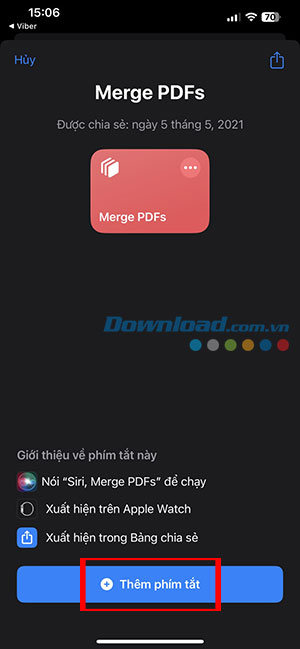
Shortcuts is Apple's automation app, not a keyboard shortcut. A PDF-merging shortcut can accept files from the share sheet, ask for their order, create a PDF, and save it. However, a shortcut named “Merge PDFs” is not automatically a built-in Apple tool: its prompts and behavior depend on the actions its creator included.
If you already have a trusted merge shortcut, open it in Shortcuts and inspect its actions before using it with important documents. The screenshots below illustrate one custom workflow. The prompts in your shortcut may differ.
Grant only the permissions it needs
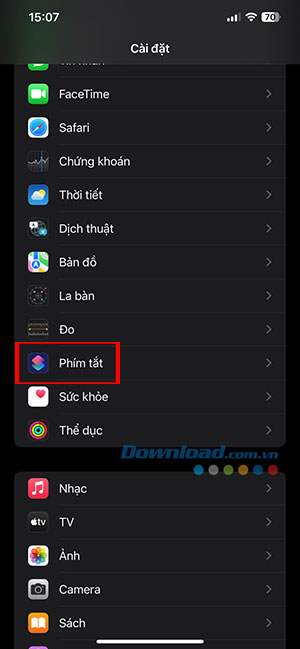


The older Settings screens show Shortcuts options, but enabling every Advanced switch is unnecessary. Respond to a specific file-access request after checking what the shortcut will do. A basic local merge should not need unrelated access such as contacts or location. Consult Apple's Shortcuts privacy controls to review or reset permissions.
Run the reviewed shortcut
- Select the PDFs in Files and tap Share.
- Choose your merge shortcut if it is configured to appear in the share sheet.
- Follow its file-order prompts, then choose a destination and output name.
- Keep the original files when prompted. Open the saved output and verify its pages.
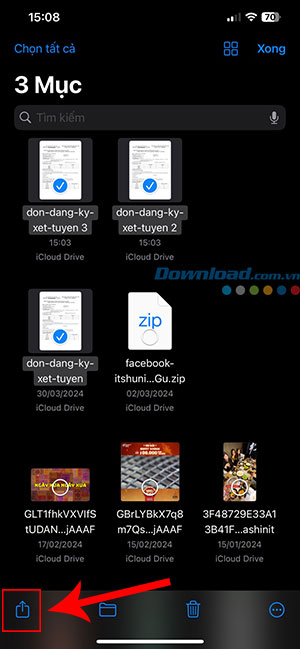
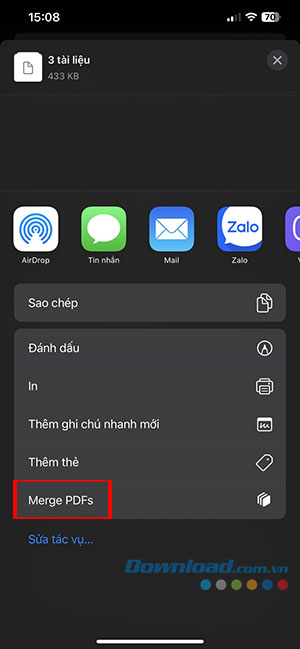
Selecting a shortcut from the share sheet passes the chosen files to that workflow.
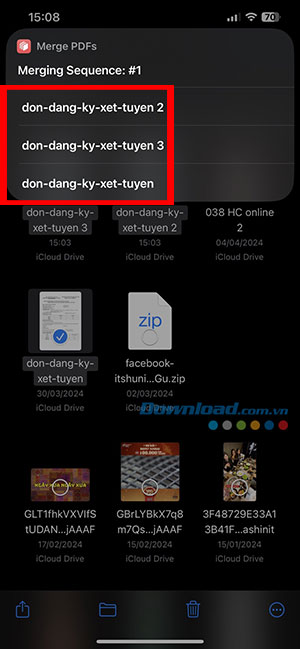
This example asks for the merging order. Other shortcuts may use a different ordering method.
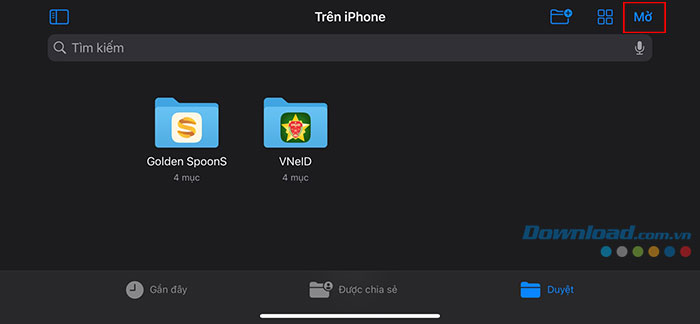
Choose a destination you can find again in Files.
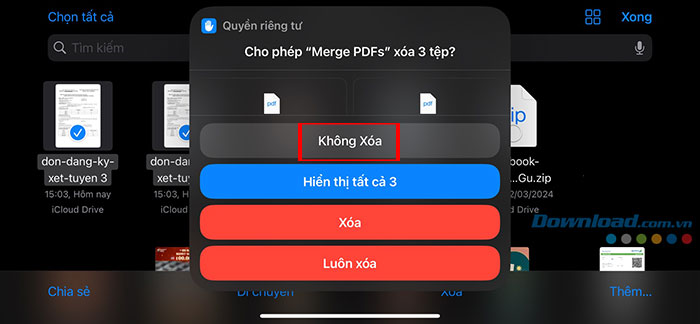
This example offers to delete source files. Choose to keep them until you have verified the result; deletion is not required to combine PDFs.
Use an online service when appropriate
For nonconfidential files, Adobe's online PDF merge workflow is another option in Safari on iPhone or iPad:
- Open the merge tool and select the PDFs from Files.
- Arrange the file list in the intended order.
- Tap Merge and download the combined PDF to your device.
- Use the download's share menu to save it to Files if needed, then inspect it.
Check the service's current account and usage requirements. Uploading transfers the documents to the service, so choose an on-device method for files you need to keep local.
Check the result before sending it
Confirm that every source document's pages are present, in the right order, with readable text and intact images. Combining does not guarantee that bookmarks, forms, or signatures retain their original behavior. If the file remains too large for email, share an appropriate file link or use a separate compression tool. For general alternatives, see PDF creation and conversion methods.
Related Articles
 How to Merge PDF Files, Merge Multiple PDF Files4 minutes read
 How to Merge PDF Files, Merge and Join Multiple PDF Files Into19 minutes read
 How to Merge Multiple PDF Files into One PDF File in Mac OS X5 minutes read
 Instructions to Merge Multiple PDF Files into One PDF File8 minutes read
 5 Methods of Merging PST Files of Microsoft Outlook7 minutes read
 How to Merge Multiple Word Files into 1 File, Merge Multiple Word Documents4 minutes read
Reader Comments 0
Sign in with email or Google to join the discussion.