Table of Contents
Review your iPhone's privacy settings by deciding which data each feature needs. Useful starting points include optional analytics, ad personalization, app location access, Mail activity protection, and notification previews. Some controls should be turned on and others off; there is no single switch that makes all activity private.
1. Review optional analytics sharing
Open Settings > Privacy & Security > Analytics & Improvements. Review Share iPhone Analytics or Share iPhone & Watch Analytics, depending on your device.
Turn off optional sharing if you do not want to contribute that diagnostic information. Review separate options such as Improve Siri & Dictation and iCloud analytics where present. Each control applies to the category described on that screen; disabling analytics does not stop every network connection or all data processing by Apple.
2. Turn off personalized Apple ads if you prefer
Go to Settings > Privacy & Security > Apple Advertising and turn off Personalized Ads. This limits personalization of Apple's advertising. It does not necessarily reduce the number of ads or control tracking by every third-party app. See Apple's advertising settings explanation.
3. Give each app the location access it needs
Open Settings > Privacy & Security > Location Services and tap an app to inspect its permission and explanation.
- Choose Never for an app that does not need location access.
- Choose While Using the App when foreground access is enough.
- Review background access individually rather than removing it from a feature that depends on it.
- Turn off Precise Location where an approximate area is sufficient. Navigation or pickup services may need a more exact position.
Under System Services, review location-dependent features and their explanations, including Significant Locations where available. Turning a feature off can affect its suggestions or other related behavior. Avoid disabling all Location Services simply to tidy the list; see Apple's location-access guide for the effects.
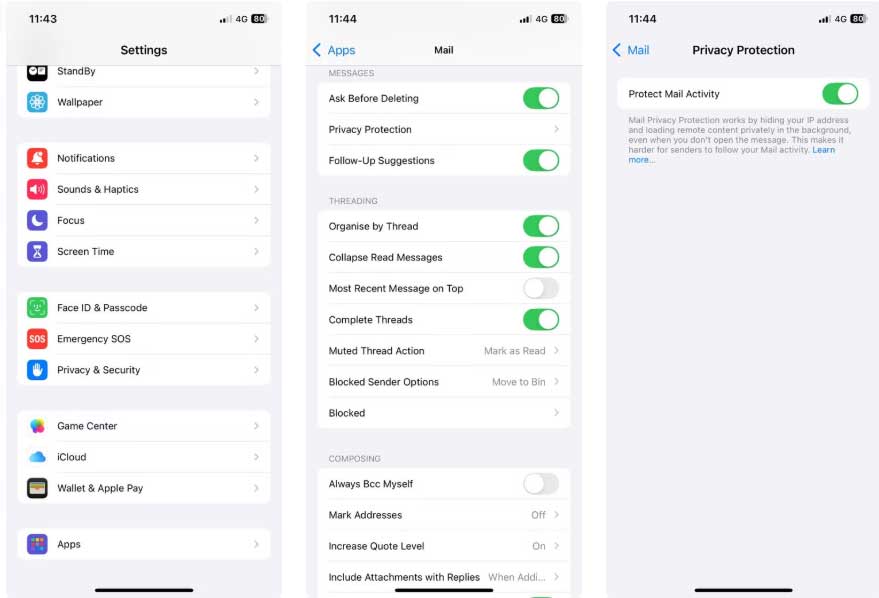
4. Enable Protect Mail Activity
In Apple Mail settings, open Settings > Apps > Mail > Privacy Protection and enable Protect Mail Activity. On older versions, Mail may appear directly in Settings.
This helps conceal your IP address and whether you opened a message from its sender. It is not a guarantee of anonymity, does not apply to every mail app, and does not protect link clicks or attachments in the same way. Read the Mail privacy setup walkthrough for screenshots, and Apple's current requirements if protection is unavailable.
5. Restrict notification previews
Open Settings > Notifications > Show Previews. Choose When Unlocked to keep supported previews hidden while locked, or Never to suppress their content more broadly. You can also review individual apps' notification settings.
The options control preview content, not whether someone can see that a notification arrived. Check a test notification on the Lock Screen to confirm that the information shown matches your preference.
6. Keep software updates enabled
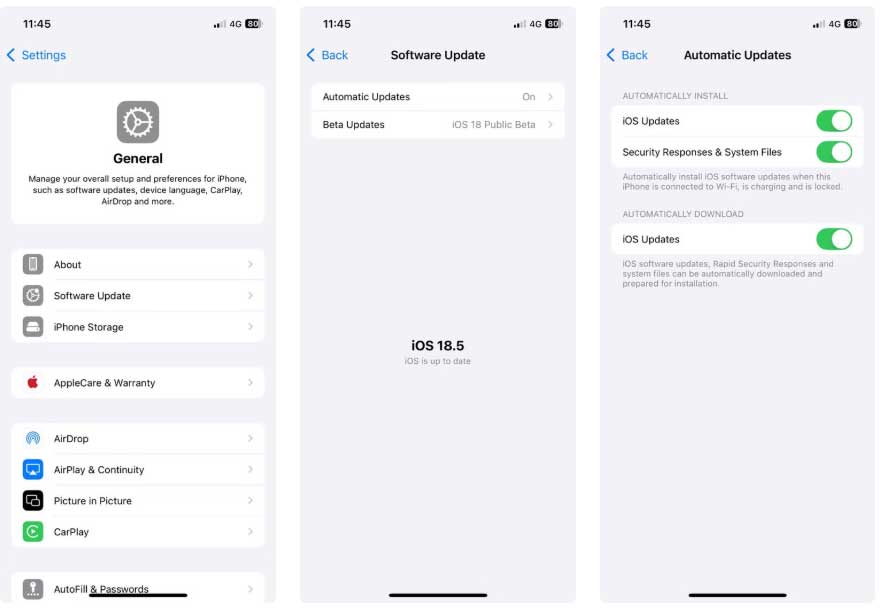
Review Settings > General > Software Update > Automatic Updates, and check the app-update controls in Settings > Apps > App Store. Install available updates and revisit Software Update periodically; an automatic-update setting does not prove that every update has already installed.
Updates can include security fixes, but no software version guarantees complete protection. For another targeted Mail setting, see how Mail handles tracking pixels.
Related Articles
 9 iPhone Privacy Settings You Should Turn on Right Now9 minutes read
 Guide to Controlling Privacy Settings on Copilot4 minutes read
 Turn Off These 5 Google Settings to Improve Your Privacy: Explained6 minutes read
 Check These Privacy Settings Immediately If You Use Claude Frequently6 minutes read
 Unveiling Hidden iOS Settings That Will Give Your iPhone a New Look5 minutes read
 minutes read
Reader Comments 0
Sign in with email or Google to join the discussion.