Table of Contents
You can reorder apps in the Messages menu by touching and holding an icon, then dragging it. To reduce clutter without uninstalling a companion app, check Settings > Apps > Messages > iMessage Apps for its on/off control.
These steps manage iMessage apps and extensions, such as sticker packs and sharing tools. They do not rearrange or delete messages in a conversation.
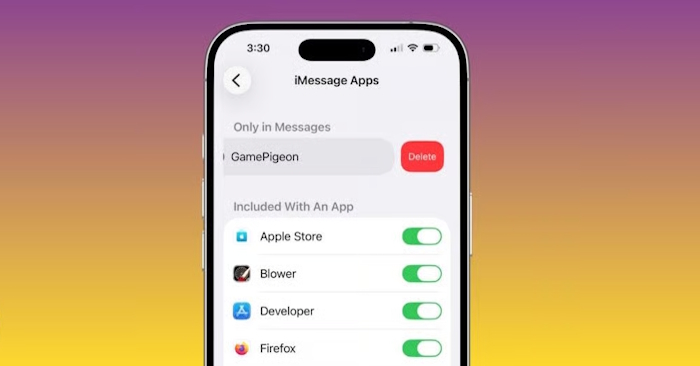
Rearrange the apps in Messages
- Open Messages and enter a conversation.
- Tap the + button beside the text field.
- Touch and hold an app icon until it becomes movable.
- Drag it to the position you want, then release it. Drag toward an edge to move between menu pages where supported.
Keep the options you use most often near the beginning of the menu. Reordering changes their position; it does not uninstall anything.
Turn off an app's Messages extension
- Open Settings > Apps > Messages.
- Tap iMessage Apps.
- Turn off the unwanted app where a switch is available.
- Return to a conversation and reopen the app menu to check the result.
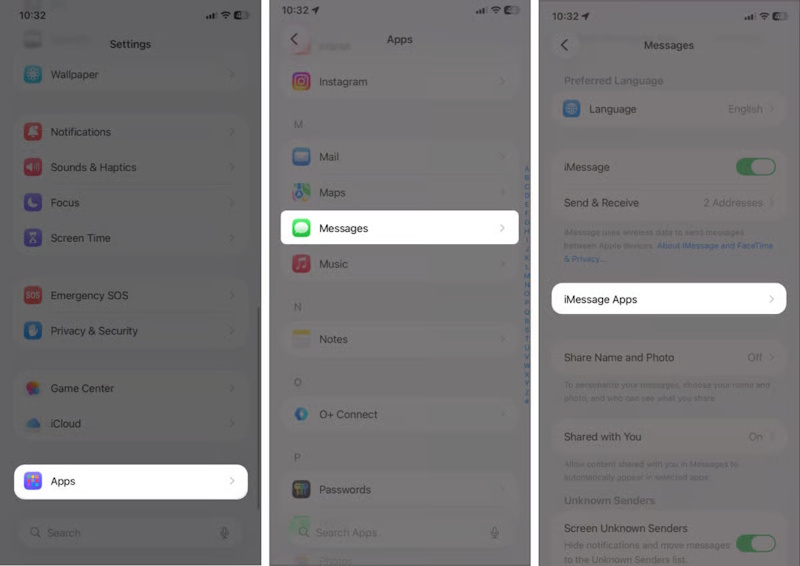
Turning off an extension leaves its main app installed. This is useful when you still want that app outside Messages. The available controls depend on the type of app and the iOS or iPadOS version. On older versions, Messages settings may appear directly in Settings rather than under Apps.
Delete an app you no longer want
For a standalone iMessage app, look for a delete control in the iMessage Apps settings. In the interface pictured, tap the red minus beside the app, choose Delete, and confirm.
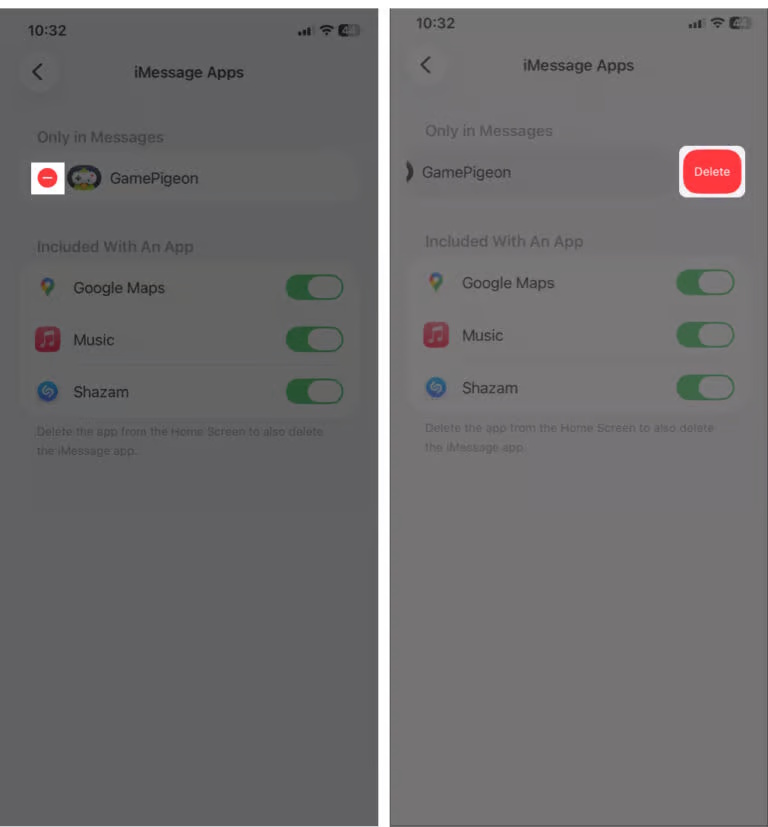
For an extension included with a regular app, you can turn off its Messages integration or delete the main app if you no longer need it anywhere on the device.
- Find the main app on the Home Screen or in App Library.
- Touch and hold it, then choose Remove App.
- Choose Delete App and confirm only after checking whether you need its local data.
Remove from Home Screen only hides the icon from that screen; it does not uninstall the app. Deleting an app also does not automatically cancel a paid subscription. See Apple's deletion guidance for current options.
If the controls do not match your device
Check Apple's iMessage app instructions for your software version. Some built-in functions cannot be removed in the same way as third-party apps. App-deletion restrictions can also affect the options shown.
If you only want to manage individual stickers, that is a separate task: see creating and managing photo stickers or adding effects to Messages stickers.
Related Articles
 How to Delete Sticker in Imessages on iPhone and iPad4 minutes read
 Backup: How to Recover Deleted Imessages on Iphone or Ipad6 minutes read
 How to Use Imessage on iPhone, iPad, Ipod Touch, Mac and Apple Watch15 minutes read
 How to Fix Errors Cannot Delete Apps on iPhone and iPad5 minutes read
 How to Delete Multiple Photos Saved on iPhone for a While7 minutes read
 How to Delete the Home Screen Page Containing Apps on iPhone4 minutes read
Reader Comments 0
Sign in with email or Google to join the discussion.