Table of Contents
You can transfer an eSIM to a new iPhone during setup or later through Settings > Cellular > Add eSIM. The direct transfer option depends on your carrier, plan, and devices. If it is unavailable, your carrier may need to activate a replacement eSIM.
Before you start
- Confirm that the new iPhone supports eSIM in your region and that the carrier supports the transfer method you want to use.
- Keep both phones nearby, charged, and connected as instructed. For Quick Transfer, unlock the old iPhone, enable Bluetooth, and sign in to both with your Apple Account.
- Update both devices to supported software. Apple’s current Quick Transfer instructions specify iOS 18.4 or later on both devices.
- Have access to your carrier account and any verification method it requires.
Keep the existing eSIM until activation succeeds. The number belongs to your mobile plan; signing in to an Apple Account alone does not transfer the service. Check Apple’s current eSIM setup instructions if requirements or menu labels differ.
Transfer during initial setup
- Turn on the new iPhone and follow setup. If using Quick Start, keep the old phone nearby and approve the pairing prompts.
- At Set Up Cellular or the equivalent mobile-service screen, select the plan to transfer.
- If no number appears, choose Transfer From Nearby iPhone when available.
- Approve the transfer on the old phone. If prompted, enter the verification code displayed on the new phone.
- Wait for activation and complete any additional carrier instructions.
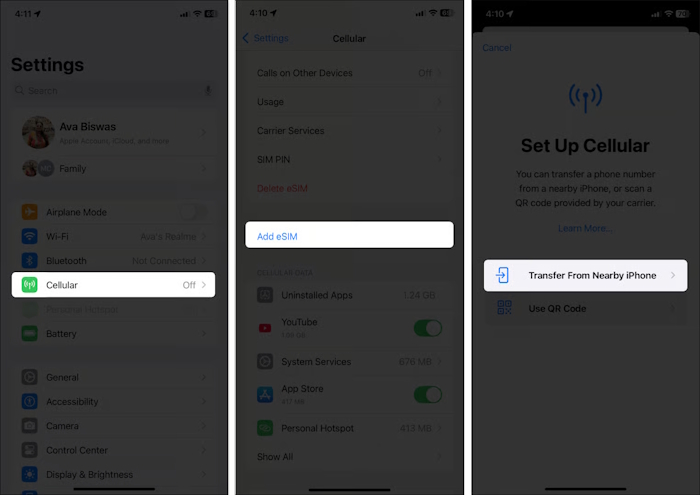
The previous SIM stops providing that plan’s service when the new plan activates. Transfer time varies; do not rely on a guaranteed completion time.
Moving your mobile service is separate from moving photos, apps, and other data. See these iPhone data-transfer options for the rest of the setup.
Transfer after the new iPhone is set up
- On the new phone, open Settings > Cellular or Mobile Data.
- Tap Add eSIM or Set Up Cellular.
- Select the number offered for transfer, or choose Transfer From Nearby iPhone.
- Confirm on the old iPhone and follow any verification prompts.
- If a Finish Setting Up Your Carrier’s Cellular Plan banner appears, open it and complete the carrier’s process.
If Quick Transfer is missing or fails
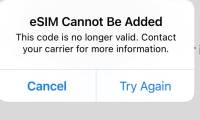
Ask the carrier whether it supports direct transfer for your plan. It may instead use a carrier app, an activation link, a QR code, or account-assisted activation. A previously used QR code may not be reusable; obtain replacement instructions from the carrier rather than deleting the working plan and trying repeatedly.
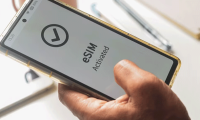
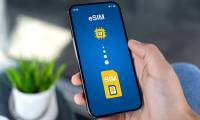
This eSIM activation overview illustrates the QR-code approach, but follow your carrier’s current instructions for your device.
Verify service before erasing the old phone
Check that the intended line is enabled on the new iPhone. Test a call, a text message, and mobile data with Wi-Fi turned off. If you use two lines, check their labels and default call/data choices. Resolve activation problems with the carrier before erasing or trading in the old device.


Reader Comments 0
Sign in with email or Google to join the discussion.