Table of Contents
If an OTP suggestion does not appear on your iPhone, first check that the code arrived and that you have selected the verification field in the intended app or website. For SMS codes, iPhone can show a recognized code above the keyboard; you normally tap that suggestion to fill it.
1. Separate code delivery from AutoFill
Open Messages and look for the latest code. If no message arrived, check the phone number, cellular service, and any message filters. Wait for the service's resend timer before requesting another. Repeated requests can invalidate earlier codes or trigger rate limits.
If the message exists, return to the sign-in form and tap its code field. Enter the newest code manually if necessary. Do not share it with another person or enter it into a page you did not intend to use.
2. Test the system keyboard
If you use another keyboard, use the globe control to switch to Apple's keyboard and test again. This is a diagnostic step, not proof that every third-party keyboard is incompatible.
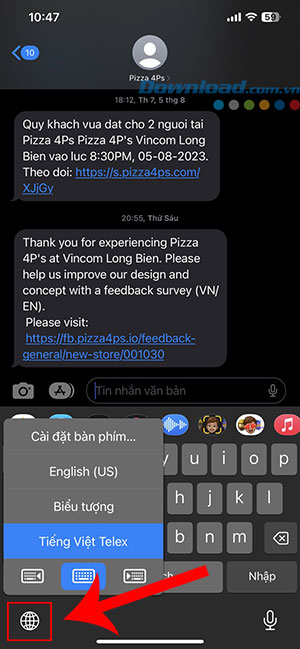
Apple's SMS AutoFill guide describes the suggestion above the keyboard. Message formatting and the app's input field also affect recognition, so no single setting guarantees it will appear everywhere.
3. Distinguish AutoFill settings from Lock Screen access
Review the password and AutoFill settings available on your iOS version if saved credentials or authenticator-generated codes also fail. The older screens below concern passcode/AutoFill access; they are not evidence of a dedicated switch that guarantees all SMS codes will be inserted.
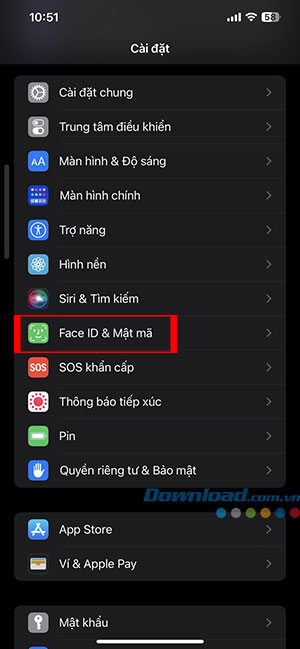
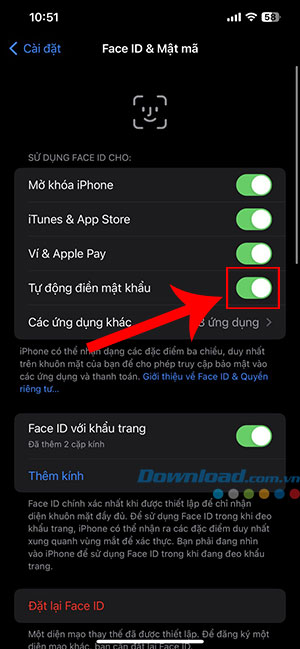
For codes generated in Apple's Passwords app, open the saved account and copy its current verification code if the suggestion is missing. These authenticator codes differ from codes delivered by SMS. See Apple's verification-code instructions.
4. Check notifications only if you are missing alerts
Messages notifications determine whether you see an alert, not whether the message has necessarily arrived. Open Messages directly before concluding that notification settings are blocking AutoFill.
If you want alerts, inspect Settings > Notifications > Messages and the options available for your version.
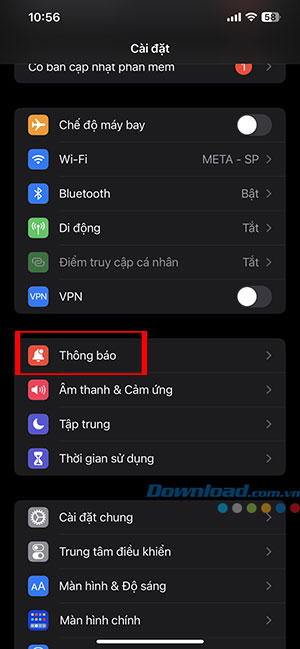
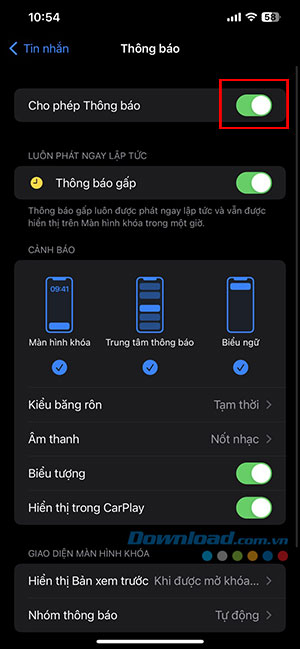
You may also reach those controls through Messages settings. These older screenshots show that alternate route.
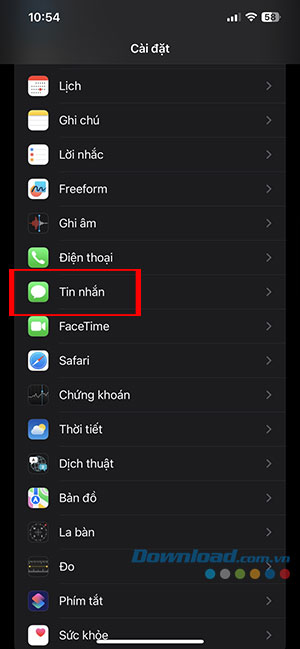
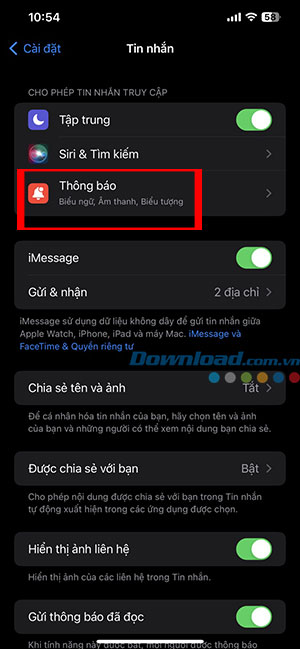
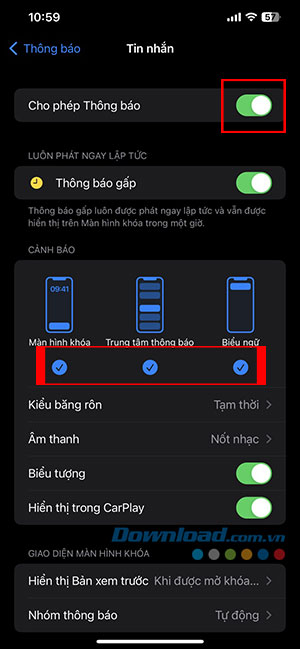
Choose previews according to your privacy needs. You do not need to expose verification codes on the Lock Screen simply to troubleshoot keyboard suggestions.
5. Do not grant keyboard Full Access as an OTP fix
Full Access changes a third-party keyboard's permissions, including network-related capabilities. It is not a documented universal repair for Security Code AutoFill. Prefer testing with the system keyboard before expanding permissions.
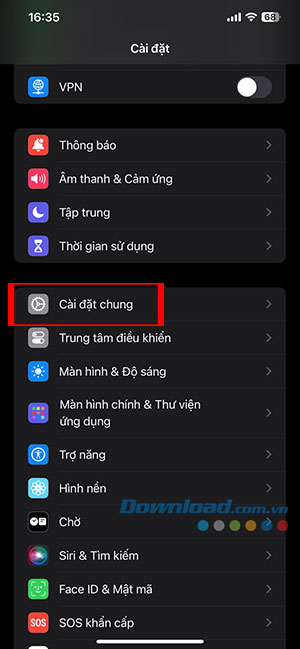
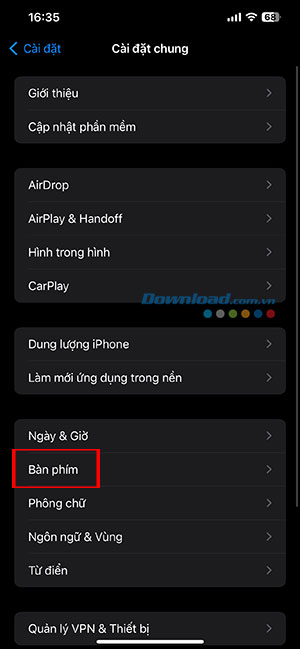
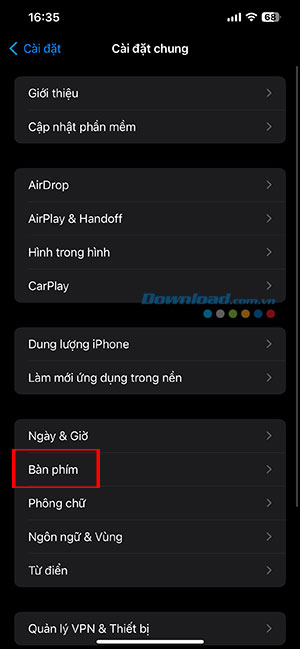
The screenshots show where keyboard permissions are reviewed. Do not enable Full Access merely because an older guide recommends it. Apple's keyboard access documentation explains the implications.
6. Review Focus and filtered-message alerts separately
Focus can silence alerts while the message remains available in Messages. If the issue is a missing notification, review the active Focus and its allowed apps. Turning Focus off does not guarantee that a website will support AutoFill.
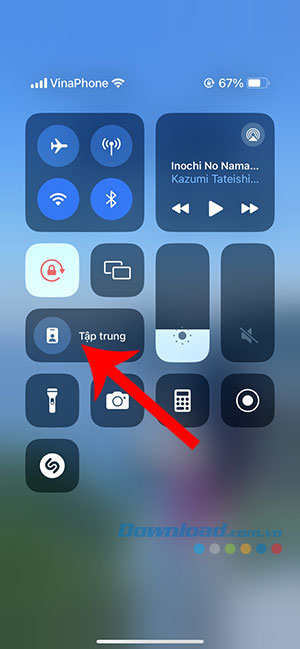
Some iOS versions offer message-category notification controls under Customize Notifications. Review the labels actually shown on your phone.
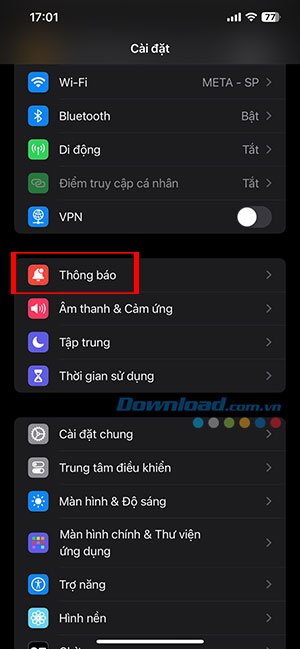
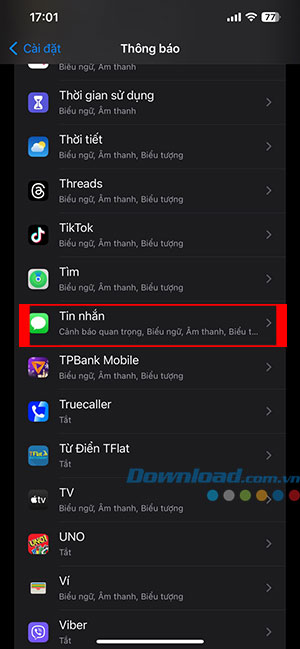
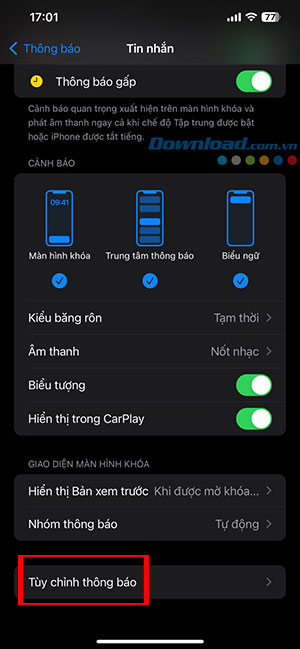
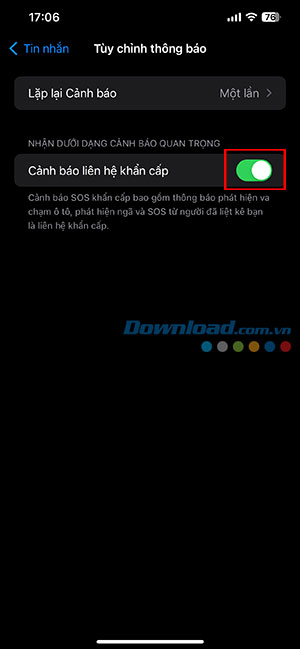
An “Emergency Contact Alerts” label should not be treated as a general OTP setting. Notification categories and their names vary; they do not replace checking whether the code arrived.
7. Isolate an app or system problem
- If only one service fails, update its app or try its supported browser workflow and contact that service if needed.
- If suggestions fail across several services, restart the iPhone and install available iOS updates.
- If SMS never arrives, contact the service or carrier after checking the destination number and signal.
- If a code expires while troubleshooting, request a fresh one using the service's normal process.
For restart steps, see restarting an iPhone. For account protection and recovery habits, see online-security guidance.
Related Articles
 How to Turn Off the Auto Update Feature on iPhone4 minutes read
 What to Do When iPhone Automatically Uninstalls Apps?3 minutes read
 How to Fix the Issue of Office Files Automatically Resetting When You Exit the Application4 minutes read
 How to Automatically Enter Passwords in Android5 minutes read
 How to Prevent iPhone and iPad from Automatically Connecting to4 minutes read
 Instructions to Delete Messages Containing 2FA Codes Automatically on3 minutes read
Reader Comments 0
Sign in with email or Google to join the discussion.