Table of Contents
Before installing an iOS update, make a fresh backup and check that it completed. An iCloud backup is convenient for routine recovery; an encrypted computer backup gives you a local copy that you can archive before a major update or beta installation.
A backup does not guarantee that you can reinstall an older iOS version. It also does not contain every item that already syncs separately through iCloud or another service.
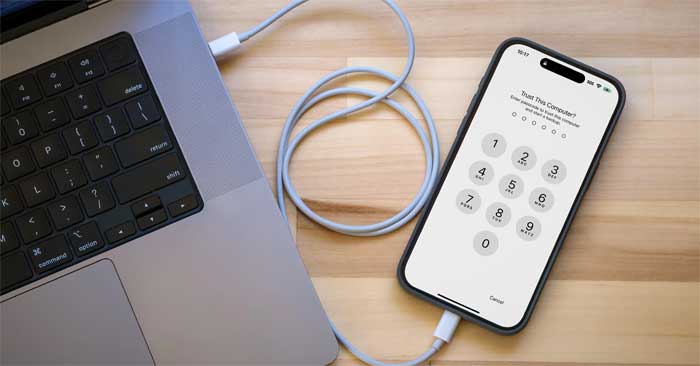
Make a fresh iCloud backup
- Connect your iPhone to Wi-Fi.
- Open Settings > your name > iCloud > iCloud Backup.
- Enable Back Up This iPhone if needed, then tap Back Up Now.
- Keep the connection active until the process finishes and check the latest successful backup time.
If there is not enough space, review the data included in the backup or your storage plan. See ways to manage iCloud storage. Do not delete your only useful backup simply to make room.
Automatic iCloud Backup normally runs when the phone is charging, connected to Wi-Fi, and locked. Before an update, a manual backup and a timestamp check are more dependable than assuming last night's backup succeeded. Apple's iCloud backup guide covers the requirements.
Why encrypt a computer backup?
Computer backups are not encrypted by default. Selecting Encrypt local backup protects the backup with a password and includes data that an unencrypted backup omits, such as saved passwords and Health data.
Create a strong password and store it securely in a password manager or another reliable place. It is separate from your iPhone passcode. You cannot restore an existing encrypted backup without its password; resetting the backup password later does not unlock old backups. See Apple's encrypted backup explanation.
Back up to a Mac with Finder
Use Finder on macOS Catalina or later. Older macOS versions use iTunes instead. You need free storage on the computer and a compatible USB cable that supports data transfer. A faster cable does not guarantee a faster backup because the phone and computer also limit transfer speeds.
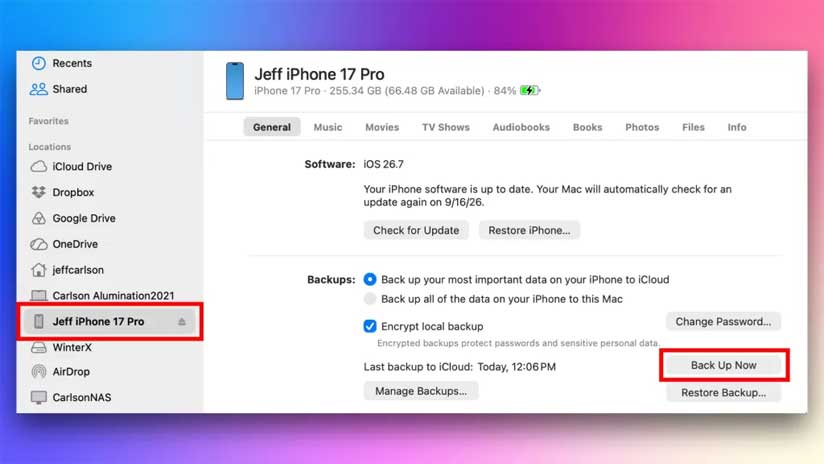
- Connect the iPhone to your Mac, unlock it, and approve the trust prompt if this is your computer.
- Open Finder and select the iPhone under Locations.
- In General, select the option to back up the iPhone's data to this Mac.
- Enable Encrypt local backup and set or enter the password if you want an encrypted backup.
- Select Back Up Now and wait for completion.
- Confirm the latest backup date and time before disconnecting.
Back up to Windows with Apple Devices
Use the Apple Devices app on a supported Windows PC. If it is unavailable on your setup, Apple's instructions also cover iTunes.
- Connect the iPhone with a data-capable cable, unlock it, and follow any trust prompt.
- Select the iPhone in Apple Devices, then open General. In iTunes, use the device button and Summary instead.
- Select the option to back up to this computer.
- Enable Encrypt local backup if required and keep its password securely.
- Select Back Up Now.
- Wait for the backup to finish and confirm its date and time.
Do not mix Apple Devices' General controls with iTunes' Summary interface. Apple's Windows backup guide describes both.
Archive the pre-update computer backup
After a successful backup in Finder or Apple Devices:
- Open General > Manage Backups.
- Locate the backup you just created and verify its date.
- Right-click it and choose Archive.
- Check that the archived entry remains in the list.
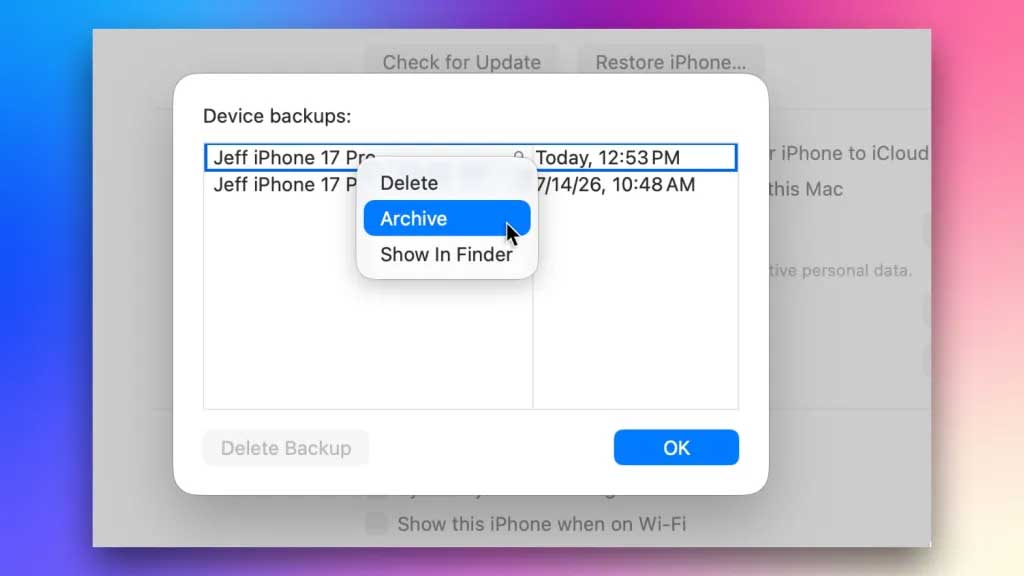
Archiving preserves that backup as a separate pre-update snapshot instead of letting a later routine backup replace it. It does not protect against drive failure, manual deletion, or losing the encryption password. Keep sufficient storage available. Apple's backup management instructions also explain how to locate backups.
Understand the restoration limits
A backup created on newer iOS may require that version or a later compatible version to restore. This applies to computer backups as well as iCloud backups. An archived backup made before an update can preserve earlier data, but it does not make an older iOS release installable.
If you plan to test beta software, review Apple's beta removal instructions before installing it. Returning to supported public software may erase the phone, and data created after your pre-beta backup may not be recoverable from that earlier copy.
Photos, messages, and other information that sync through iCloud need a separate sync check. A device backup is not a complete offline copy of every cloud item. If you intend to erase or restore the phone, review the iPhone reset and erase guide first.
Proceed with the update after you have a successful backup timestamp, a preserved pre-update copy if needed, and the password for any encrypted backup.
Related Articles
 How to Set up the Back Tap Gesture on iPhone5 minutes read
 How to Enable Back Tap on iOS 14, How to Use Back Tap4 minutes read
 Instructions on Turning on the Back of iPhone4 minutes read
 Why Does Back Tap Keep Accidentally Activating the Flashlight on: Key Facts5 minutes read
 How to Back up Photos on iPhone to the Computer2 minutes read
 How to Turn on Dark Mode by Tapping on the Back of iPhone6 minutes read
Reader Comments 0
Sign in with email or Google to join the discussion.