Table of Contents
Safari’s download list shows recent transfers, while the Files app holds the files themselves. Start in Files if an item has disappeared from Safari’s list. Clearing that list does not delete the saved document or free the storage it occupies.
Find a download in Safari or Files
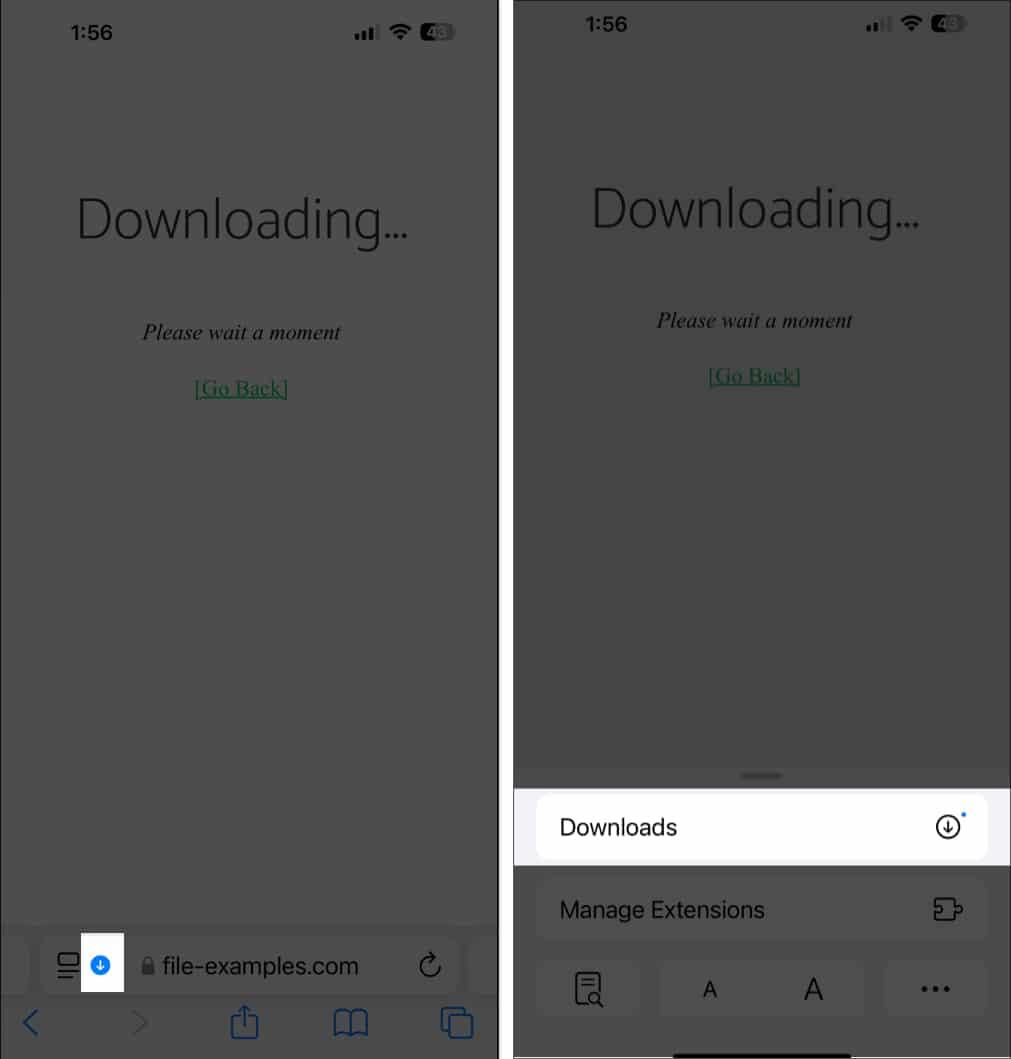
After downloading in Safari, open the Downloads control beside the address/search field, or open the page controls and choose Downloads if that is where your layout places it. Tap a completed item to open it, or its magnifying-glass control to reveal the file in Files.
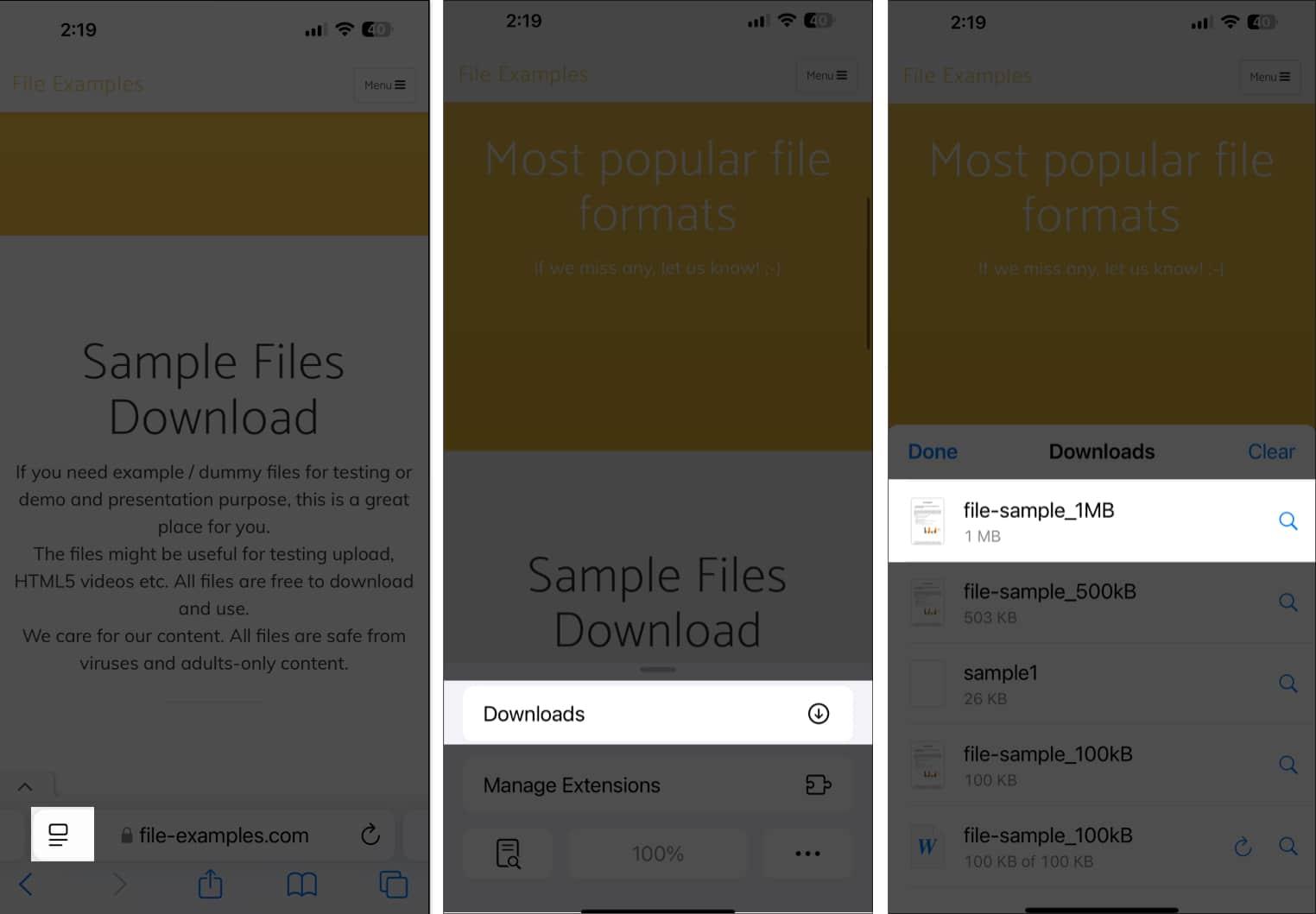
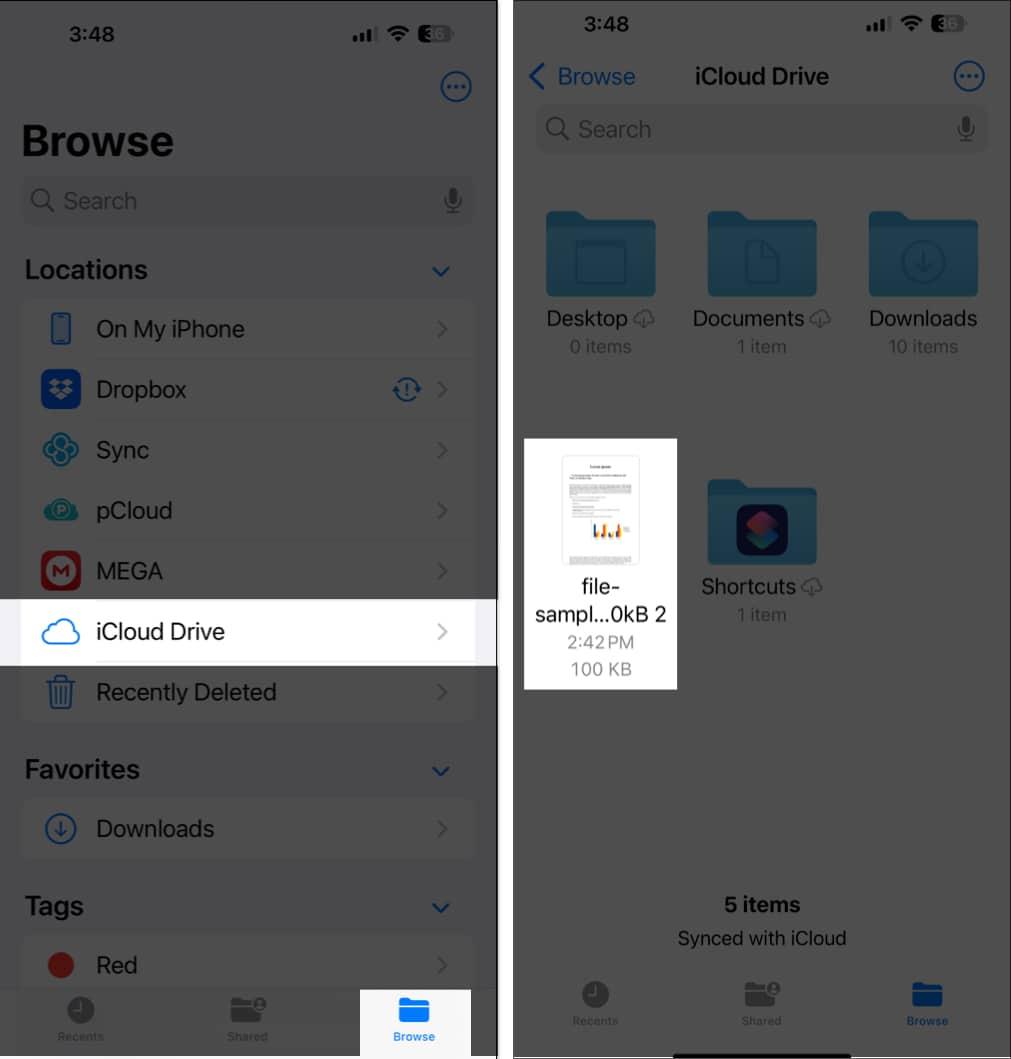
If the list has already cleared, use Files:
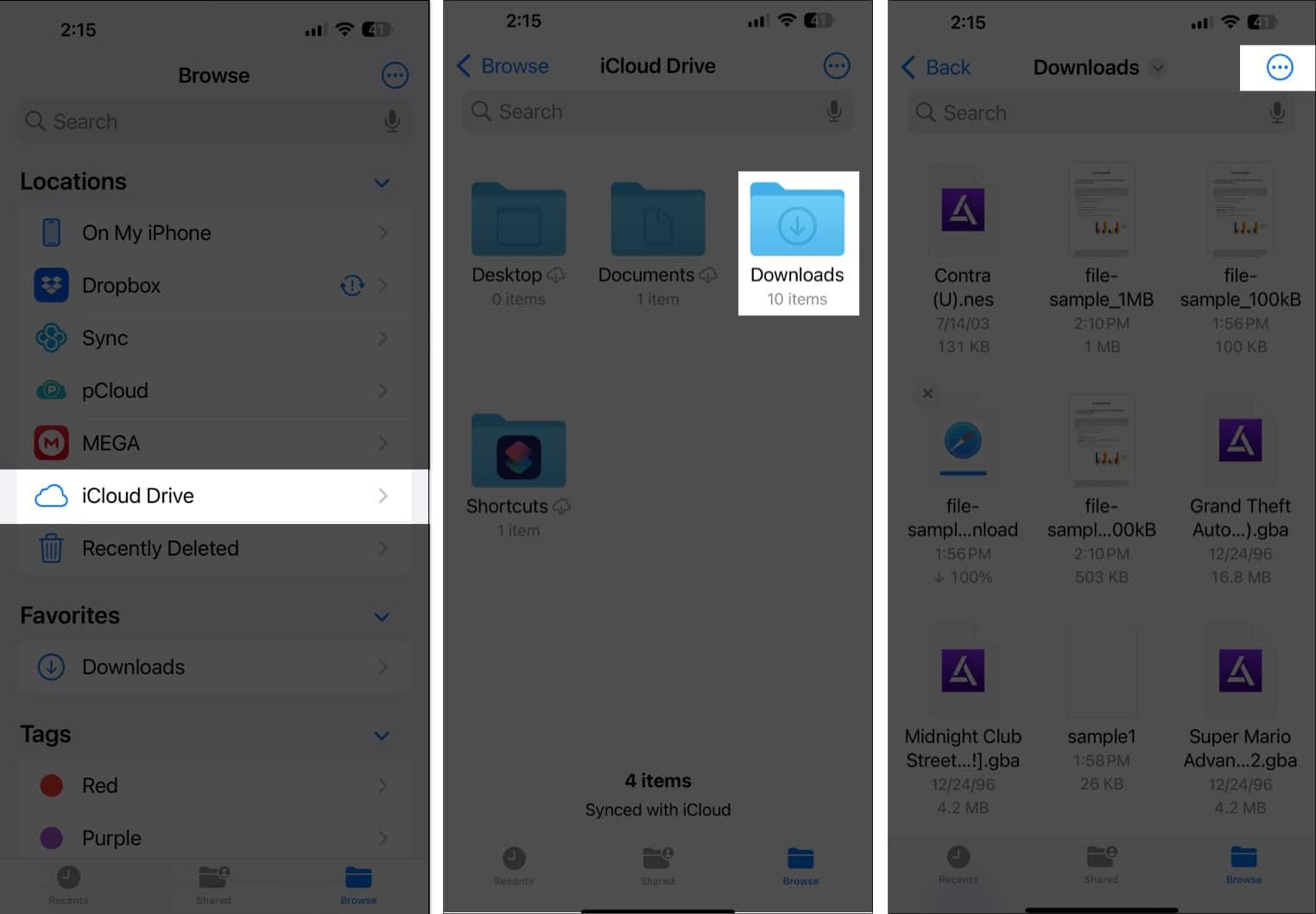
- Open Files and select Browse.
- Check iCloud Drive > Downloads and On My iPhone > Downloads or the corresponding iPad location.
- If you chose another download folder, open that location instead.
- Search for the filename or sort the folder by date if you downloaded it recently.
Photos saved to the photo library and offline media managed by an app may live elsewhere. See where to find different kinds of iPhone and iPad downloads.
Manage an active transfer
Open Safari’s Downloads list to inspect progress. Use the stop/cancel control beside a transfer if you no longer want it. If Safari offers a resume or retry arrow, use it to continue an interrupted download.
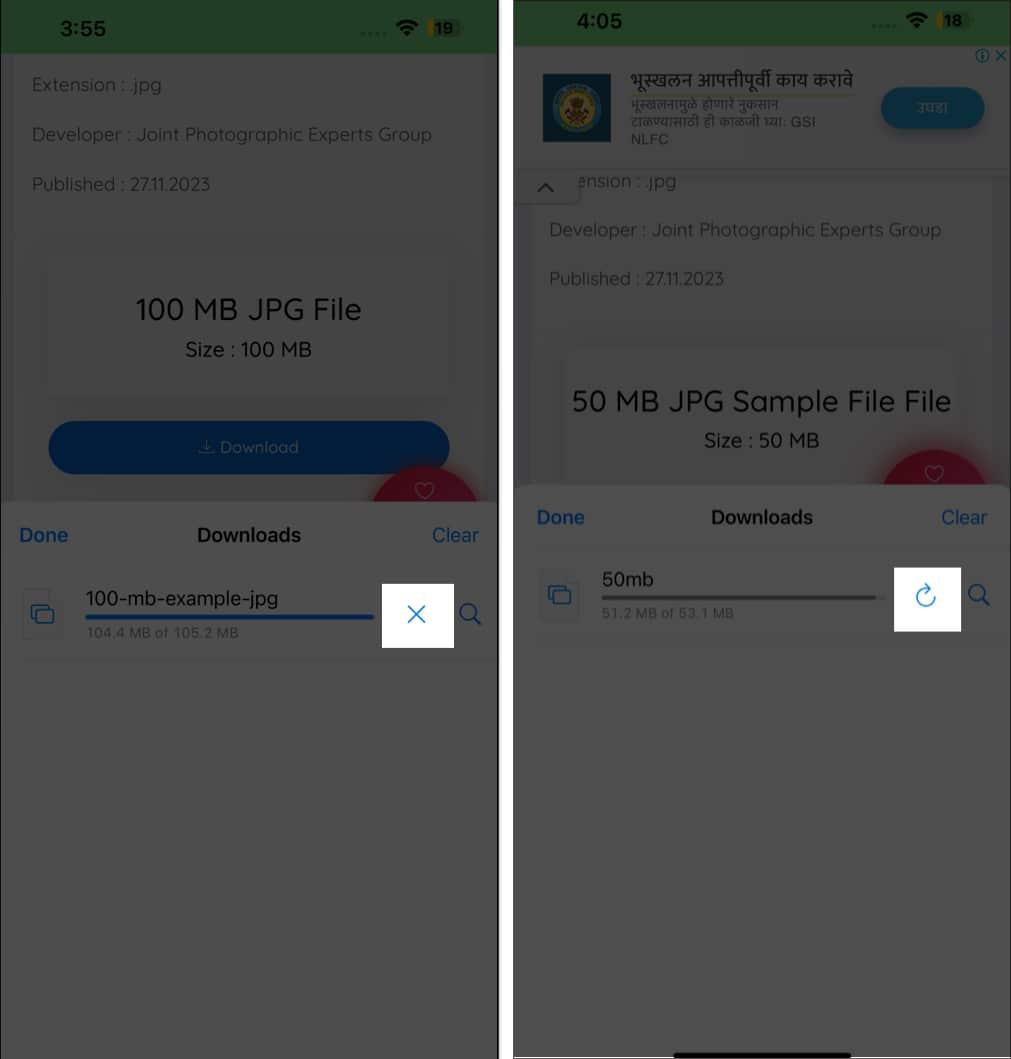
Resuming depends on the source website and the transfer state. If it fails, return to the original download page and start again. Before downloading twice, check whether a complete copy is already in Files.
Choose where future downloads are saved
- Open Settings > Apps > Safari. On older software, Safari may appear directly in Settings.
- Tap Downloads.
- Choose iCloud Drive, On My iPhone/iPad, or Other to select an available folder.
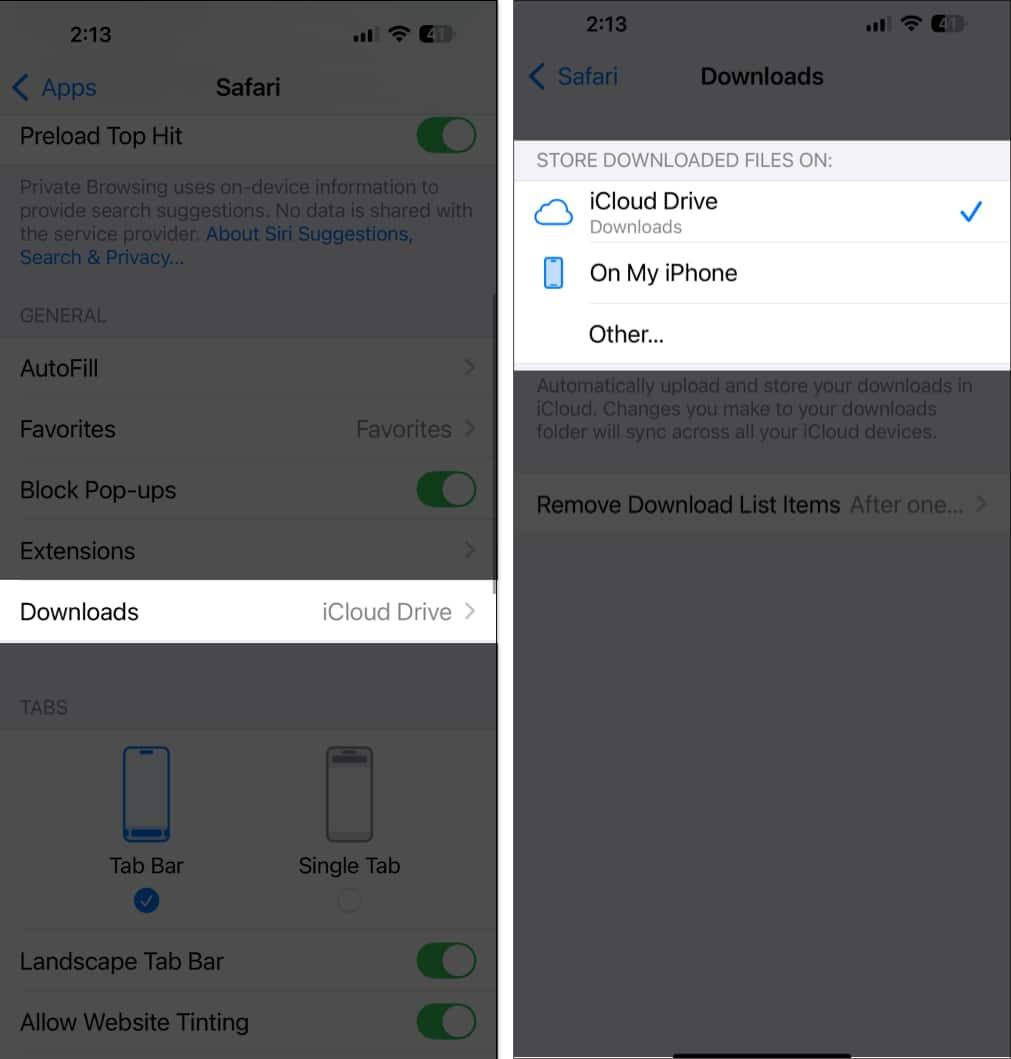
iCloud Drive makes files available on devices using the same Apple Account when syncing is enabled. A local folder keeps the download on that device. Changing this setting affects future downloads; move existing files separately in Files.
Rename, move, or delete saved files
In Files, touch and hold an item to see actions such as Rename, Move, and Delete. For several items, open the More menu, choose Select, select the files, and use the appropriate action.
Deleting from iCloud Drive can remove the file from other synced devices too. Check the location before deleting. Deleted items may remain in Recently Deleted until removed under that service’s retention rules; clearing a Safari list is a separate operation.
For an archive you want to keep and extract, see how to open ZIP files in Files.
Keep the list and the files separate
Safari settings may let you choose when completed entries are removed from the download list. That controls the list, not automatic deletion of the saved files. It is not a privacy guarantee, and reviewing filenames alone cannot establish that downloaded content is safe. Open downloads only when you trust their source and expected purpose.
Related Articles
 How to Find Downloaded Files on iPhone or iPad
 How to add tags for files on iPhone, iPad
 How to add and manage Safari bookmarks on iPhone
 How to change the directory to save the downloaded file from Safari on iPhone
 15 useful tips on Safari for iPhone and iPad users
 How to change download location on Safari iPhone
Reader Comments 0
Sign in with email or Google to join the discussion.