Table of Contents
For iPhone document work, first decide whether you need to find and understand files or move, rename, and organize them. An AI assistant that summarizes a PDF is not necessarily a file manager, and a desktop feature may not be available in the iPhone app.
The seven options below serve different needs. Start with the service where your documents already live, then test the exact action you want on your own account before paying for another subscription.
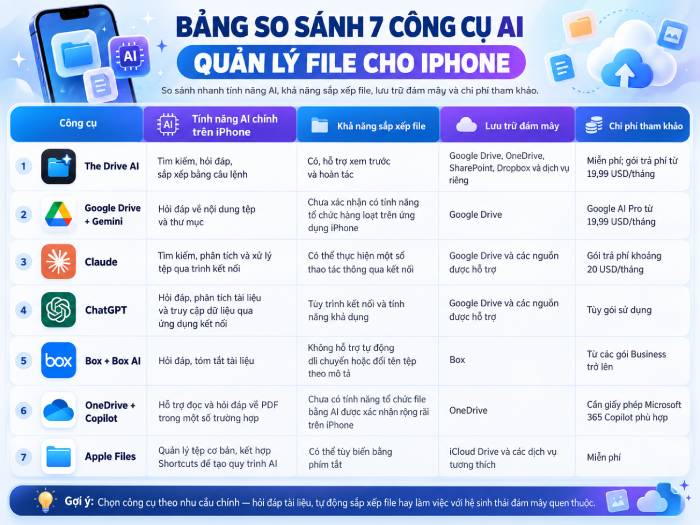
The Drive AI: investigate for command-based organization
The Drive AI describes its mobile app as a file agent that can search document contents, scan pages, and organize files from natural-language requests. Its mobile product page covers the current offering.
A request such as “group these invoices by client” is different from “summarize this invoice.” Test a small sample and inspect the proposed names, destinations, and affected files. Confirm whether the plan covers connected cloud drives or only the app's own workspace, and check how its review and undo controls apply to the action.
Choose it for evaluation if organization itself is your main requirement. Do not assume a free download includes every integration or unlimited AI work.
Google Drive with Gemini: find information in existing Drive files
Gemini in the iPhone Drive app can support natural-language file finding and questions about content for eligible accounts. Ask for a specific document or topic, then open the cited file to verify the result. Check Google's iOS search instructions for account requirements.
Keep this separate from bulk organization: Google's suggested file moves feature is documented for Drive on the web in English. Mobile document questions do not establish that the same app can automatically rename or relocate a folder's contents.
This is a practical first choice to test when your documents are already in Drive and your main need is retrieval or understanding.
Claude: document analysis through supported connections
Claude can work with connected services through its connectors. The available actions depend on the connector, account permissions, and organizational restrictions. Its connector guidance explains mobile availability and setup.
Use it to investigate questions across supported documents when you already work in Claude. Verify the source text behind a summary, and check the connector's actual tools before asking it to move or share files. A conversational interface is not proof that a whole organization task can be reversed in one step.
ChatGPT: combine document work with other tasks
ChatGPT can help analyze supplied files and use supported connected tools. This suits tasks such as turning a report into a checklist or extracting dates for review. OpenAI's web documentation describes file and plugin workflows; check the corresponding options in the iPhone app before assuming a web workflow is available there.
Access and actions vary with the connected service, permissions, plan, and platform. Ask for a small, verifiable result first. Do not treat a generated summary as a substitute for reading the relevant contract or source passage.
Box AI: stay within an existing Box workspace
Box documents mobile AI support for questions and summaries of supported files on eligible business accounts. Open a document, choose Box AI, and ask a focused question. Use the response's citations to compare the answer with the original. See Box's mobile guide for supported file types and account limits.
This is most relevant when your organization already uses Box. Document analysis should not be confused with an automatic folder-renaming or file-moving workflow.
OneDrive with Copilot: verify the iPhone feature first
OneDrive is relevant for documents already in Microsoft 365. However, Microsoft's Copilot in OneDrive overview describes website and Windows availability and notes that rollout varies.
Check the controls shown in your iPhone app and your account's entitlement before subscribing for a mobile PDF or organization task. A Copilot feature demonstrated on Windows is not evidence of equivalent functionality on iOS.
Apple Files: the starting point for ordinary file management
Files provides folder navigation and file operations on the iPhone without requiring an AI assistant. Use it first if you mainly need to find downloads, create a folder structure, tag documents, or scan paper pages.
Start with finding downloaded files on iPhone. For organization, see adding file tags; for paper documents, see scanning in Files. These are ordinary file-management workflows, rather than automatic AI organization.
Run a small comparison before committing
- Select a few non-sensitive sample documents with known contents.
- Test one lookup, one summary, and any file operation you actually need.
- Check citations, filenames, destinations, and permissions.
- Confirm the subscription limits, supported file types, offline behavior, and mobile controls.
- Keep a backup before applying organization changes to a large collection.
For workplace documents, use services approved by your organization and grant only the access required. Prefer the tool that completes your specific task reliably over the one with the broadest AI label.
Related Articles
 11 Most Effective File Management Applications on iOS13 minutes read
 The Best Android Apps9 minutes read
 Top 10 Good File Management Applications on Android8 minutes read
 3 Best File Management Applications for Android TV4 minutes read
 Tips for Faster File Management on Windows8 minutes read
 Are Phone Cleaning Apps Really Effective?4 minutes read
Reader Comments 0
Sign in with email or Google to join the discussion.