Table of Contents
Midjourney generates images from text prompts and optional reference images. You can work directly on the Midjourney website or use the Midjourney Bot in Discord. The old invitation-only beta described in earlier guides has ended; image generation now requires an eligible Midjourney subscription.
Create an image on the Midjourney website
- Open Midjourney, sign in, and make sure the account has an active plan.
- Go to the Create page. Enter a description in the Imagine bar.
- Describe the subject first, then add relevant details such as setting, lighting, composition, color, camera angle, or medium.
- Add parameters at the end only when needed. For example,
--ar 16:9requests a wide aspect ratio. - Submit the prompt and watch the results appear in the creation feed.
Example prompt:
a quiet reading room in a converted railway carriage, morning window light, warm wood, editorial interior photograph --ar 16:9
Open a result to access variations and other modification tools. The image menu also provides the download command. Midjourney's official web-creation guide explains the current interface.
Create an image with the Midjourney Bot in Discord
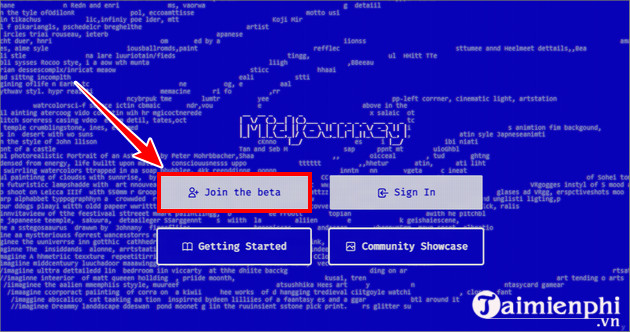
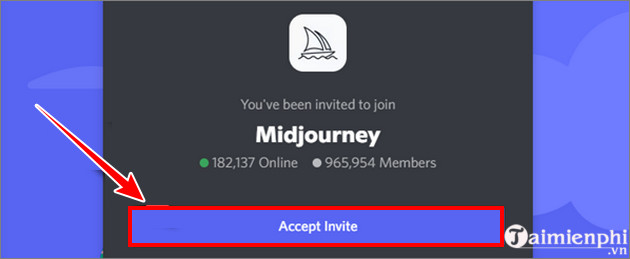
The screenshots below show the older Discord-centered workflow. The layout has changed, but /imagine remains the core command.
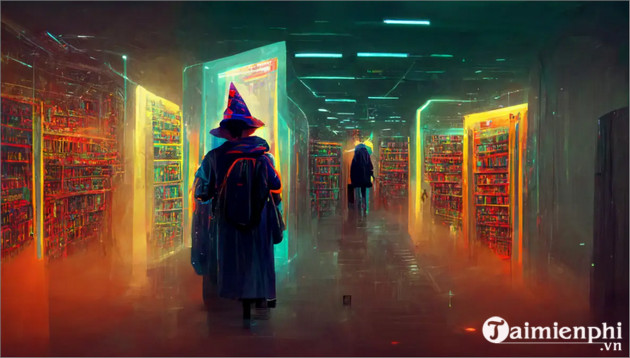
- Join the official Midjourney Discord server from Midjourney's Discord Quick Start. Do not trust an unsolicited server invitation.
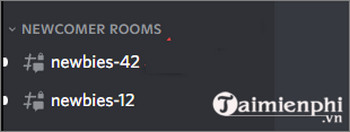
- Choose a designated newbie or general channel, or use a server where the official Midjourney Bot has been added.
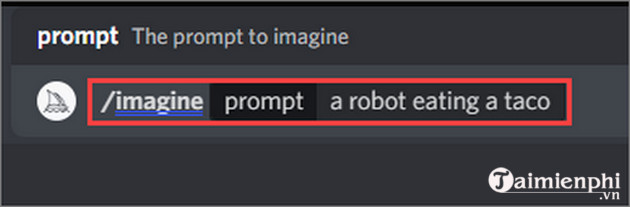
- Type
/imagine, select the command from Discord's menu, enter the prompt, and submit it. - Accept the terms of service if the bot prompts you before the first generation.
Understand the result controls
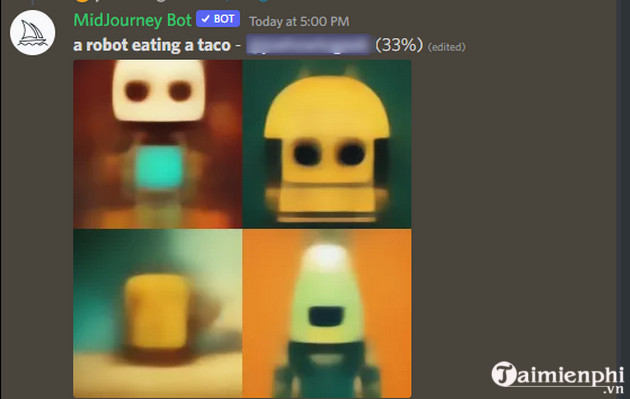
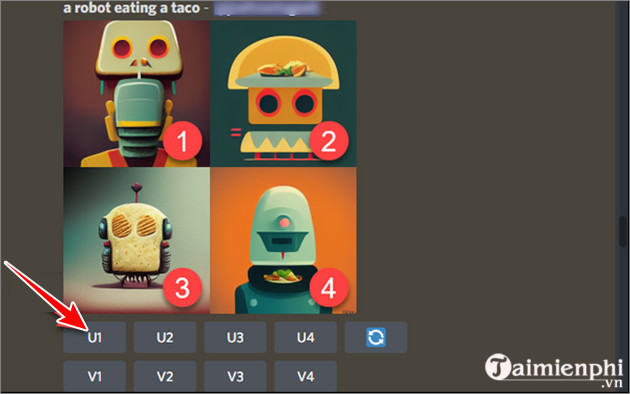
A Discord job normally returns a grid of four choices. Buttons are numbered from left to right and top to bottom.
- U1-U4: separate the selected image from the grid and reveal more tools. In current versions, the U buttons are not simply traditional upscalers because the initial images are already generated at a substantial resolution.
- V1-V4: create variations that retain the general composition and style of the chosen image.
- Reroll: run the same prompt again to get four new choices.
- Pan and editing controls: expand or modify a selected result when those tools are available for the model and interface.
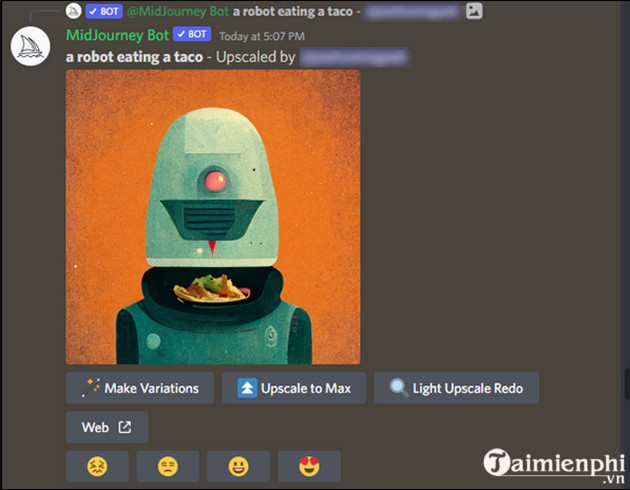
Download the final image
On the website, open the image, select More Options, and choose Download. In Discord, isolate or open the selected image, then use the browser or app's save command. Check that you saved the full result rather than a screenshot of the four-image grid.
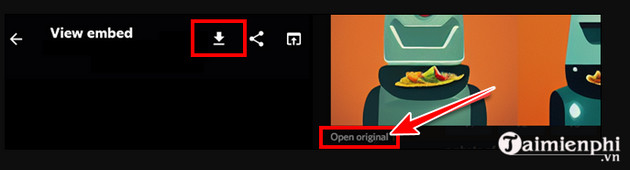
Write a prompt that is easier to control
- Name the main subject and action clearly.
- Specify only details that matter; contradictory adjectives make the direction less predictable.
- Describe composition and lighting instead of relying on vague quality words.
- Use an aspect-ratio parameter when the destination has fixed dimensions.
- Iterate from the closest result rather than repeatedly expanding an overloaded prompt.
Reference images can influence content, composition, and color, but only upload material you are entitled to use. Avoid using AI output to impersonate a real person, mislead viewers, or reproduce protected work without permission. Review Midjourney's current terms and visibility settings before creating sensitive commercial material.
For prompt ideas, see how to find AI image prompts. If Midjourney does not fit your budget or privacy needs, compare these Midjourney alternatives.
Related Articles
 How to Create a Self-portrait Using Midjourney: Clear Instructions10 minutes read
 How to Create a Logo with Midjourney: Clear Instructions8 minutes read
 Differences Between Midjourney V5 and V4: Key Facts9 minutes read
 Anyone Can Try Midjourney for Free (No Discord Required): What You Need to Know5 minutes read
 5 Free Alternatives to Midjourney: Recommended Choices8 minutes read
 Midjourney Is Not Free, but Why Does It Still Attract Many Users Explained5 minutes read
Reader Comments 0
Sign in with email or Google to join the discussion.