Table of Contents
Gickr is a basic online GIF maker for turning a sequence of images into an animation. Its current site also lists options for Flickr images and YouTube conversion, although those external-source features may depend on the source service continuing to allow access. For the most reliable result, upload images you own directly.
Create a GIF from images
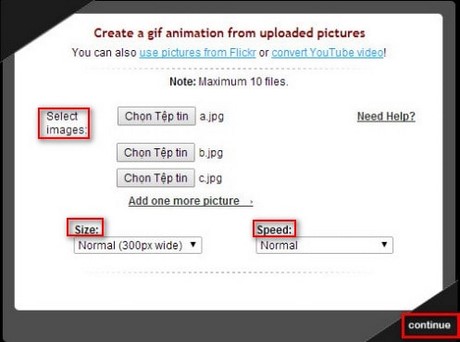
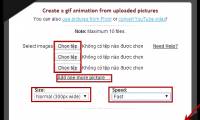
- Open Gickr and stay on the Upload Pictures page.
- Choose the images in the order they should appear. The current page accepts a maximum of 10 files.
- Select Add one more picture until all frames have been added.
- Choose an output Size. Use Custom only when you know the exact width required.
- Set the Speed, or enter a custom delay when the presets do not match the desired timing.
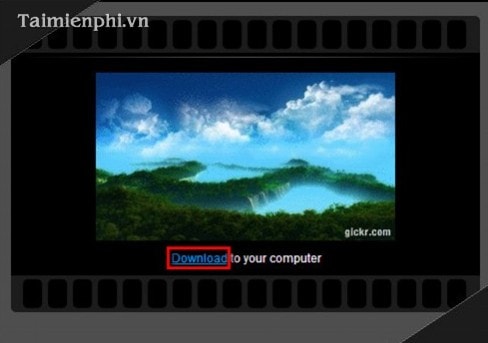
- Continue to generate the animation, preview it, and download the GIF.
Prepare the source frames
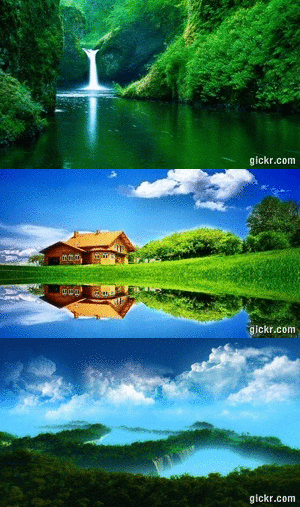
Crop every image to the same aspect ratio before uploading. If frame dimensions differ, the animation may jump or add empty space. Numbering the files in sequence can also make them easier to select in the intended order.
Create a GIF from a YouTube video
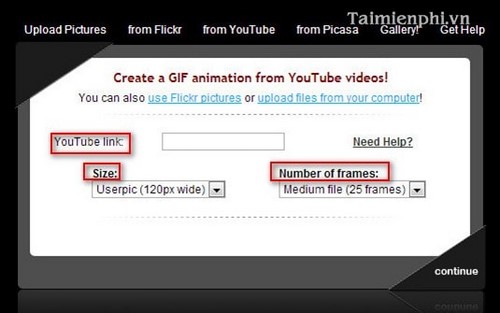
Gickr still lists a from YouTube tool. Use it only with a video you created or have permission to reuse.
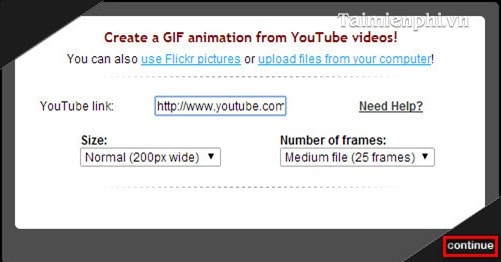
- Open the YouTube conversion section and paste the full video URL.
- Choose the output size and the number of frames.
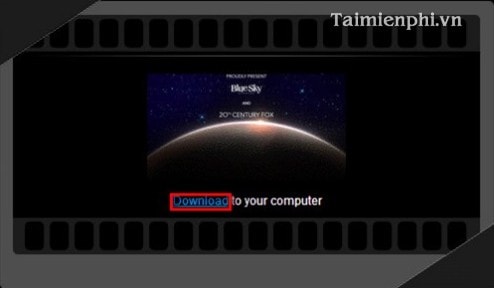
- Select Continue, wait for processing, and preview the result.
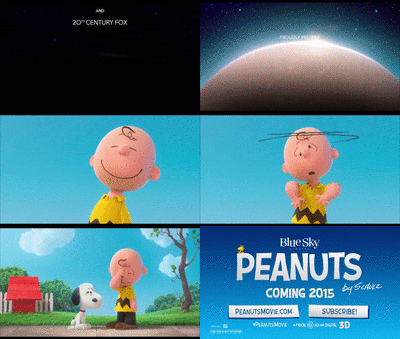
- Click Download if the timing and crop are correct.
If Gickr cannot fetch the video, do not install an extension or disclose account credentials. Download your own source clip through the platform's authorized tools, then use a maintained converter from TipsMake's list of online GIF makers.
Reduce file size and improve playback
- Use fewer frames and smaller dimensions for email or chat.
- Keep each frame visible long enough to understand; very fast slideshows are difficult to follow.
- Optimize the downloaded file if it is larger than the destination allows.
- Use MP4 or WebM instead of GIF for a long, detailed, or audio-dependent clip.
For a more general workflow with additional editors, see how to create a GIF online.
Related Articles
 How to Create Online Animations Using Gickr5 minutes read
 Instructions on How to Create Animations Online with the Gickr Website4 minutes read
 How to Create GIF Online3 minutes read
 Create Animated Images Online with PictureStudio3 minutes read
 Instructions for Creating GIF Images on YouTube Do Not Need Software7 minutes read
 Create Animated Images Online Using Makeagif1 minutes read
Reader Comments 0
Sign in with email or Google to join the discussion.