Table of Contents
A QR code for a PDF, Word document, or Excel workbook normally contains a web link—not the document itself. Upload the file to an approved storage service, set the correct sharing permission, copy the link, and encode that URL in a QR code.

Plan access before creating the code
Decide who should be able to open the document:
- Public link: anyone with the QR code can access the file. Use only for information intended for broad distribution.
- Organization-only link: scanners must sign in with an approved account.
- Named recipients: only explicitly invited accounts can open it; the QR code alone does not grant access.
- Expiring or controlled link: use a storage or document-management system that supports expiry, download restrictions, or access logging.
Test the permission in a private browser window before printing the QR code. If the file is confidential, do not use a public “anyone with the link” setting.
Reliable method: create a QR code from a shared link
- Upload the file to an approved service such as your organization's OneDrive, SharePoint, Google Drive, or document portal.
- Open Share and set the intended viewer permission. Avoid edit access unless recipients must modify the source.
- Copy the sharing link.
- Open a trusted QR-code generator and choose a URL/website code.
- Paste the link and generate the QR code.
- Download PNG for ordinary digital use or SVG/PDF when a printer or designer needs scalable artwork.
- Scan the finished code with at least two devices and test it while signed out.
For a basic generator workflow, see how to create QR codes with QRCode Monkey. The broader QR code guide explains common code types and safety considerations.
Archived upload-to-QR service for PDFs
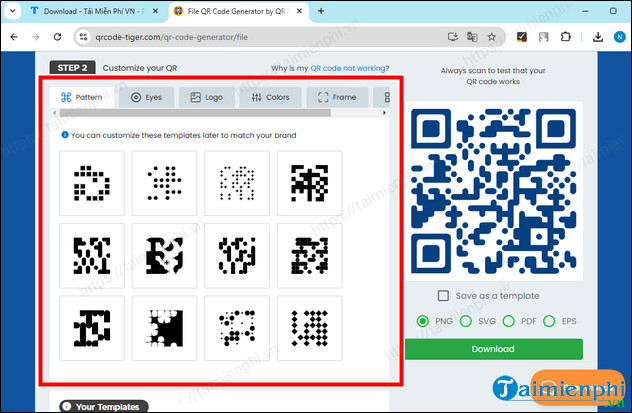
The older interface below combined file hosting and QR generation: upload a PDF, customize the code, choose its size and format, then download it.
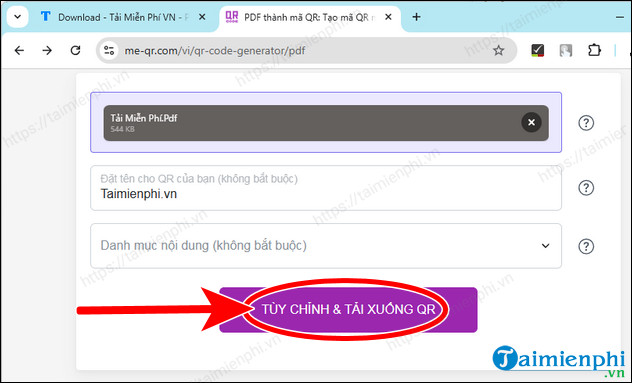
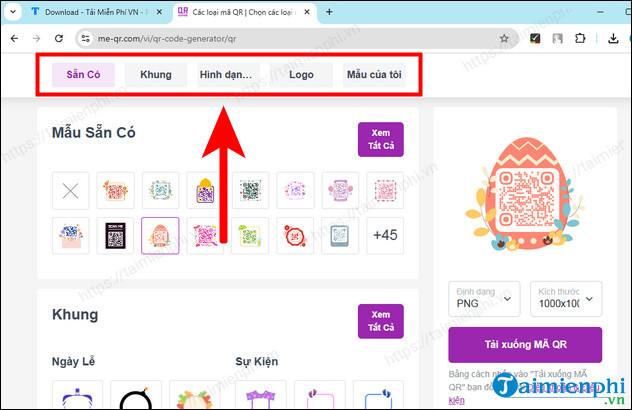
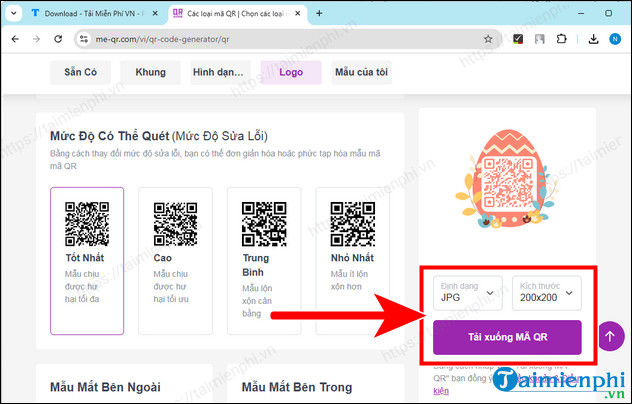
The original article did not identify the service's current domain, publisher, storage duration, access controls, or subscription terms. Do not upload a document based only on these screenshots. A hosted code can stop working if the account expires or the provider removes the file.
Archived workflow for Word and Excel files
The same legacy service accepted a document, generated a dynamic code, offered styles, and downloaded the result:
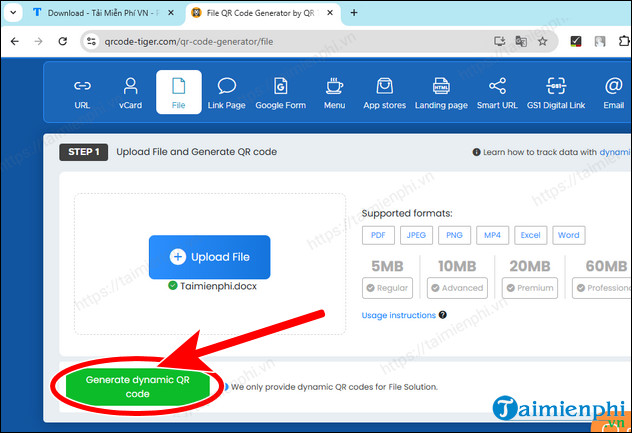
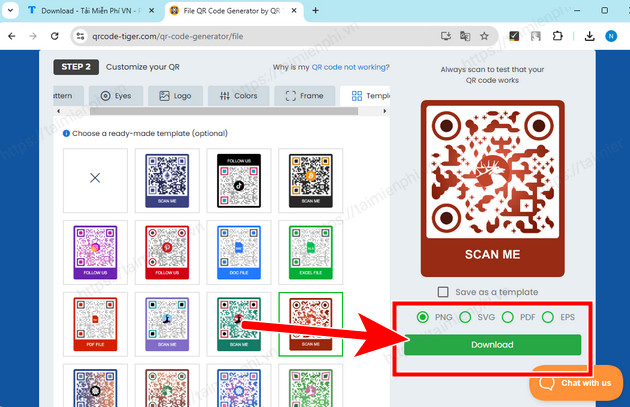
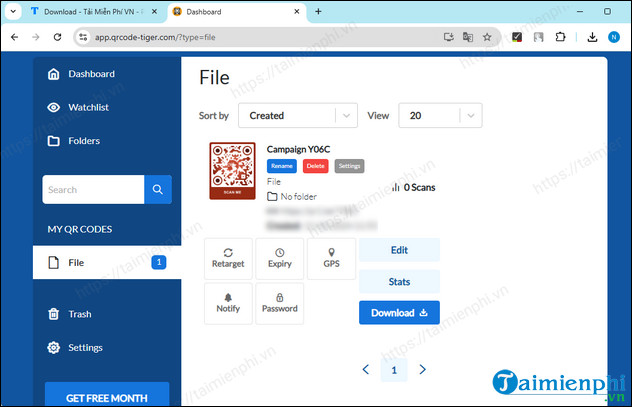
A dynamic QR code usually points first to the QR provider's redirect. That can allow the destination to change and may offer scan statistics, but it also creates a dependency on the provider and can require an ongoing paid plan. A static QR code containing your own stable sharing URL is often more durable.
Design for reliable scanning
- Use dark modules on a light, plain background with strong contrast.
- Keep the quiet zone—the blank border around the code—unobstructed.
- Do not crop, stretch, blur, or heavily compress the image.
- Limit decorative shapes and logos; they reduce the error margin.
- Print it large enough for the expected scanning distance and surface.
- Place a short instruction and human-readable fallback URL nearby.
- Test the final printed piece, not only the downloaded image.
PNG is appropriate for many screens and office documents, but it is not universally “higher quality” than a vector format. SVG or print-ready PDF scales more cleanly for large signage when the generator provides it.
Maintain the document after publishing
When the QR contains a link to a cloud file, replacing the file at the same stable URL lets you update content without reprinting the code. Confirm that the platform preserves the link and permissions when versions change.
- Assign an owner responsible for the file and link.
- Do not move or delete the file without retesting the code.
- Review public-link access periodically.
- Keep a record of where the QR code has been printed.
- Use version history for important documents.
Scan a document QR code safely
Most current phone camera apps can detect QR codes directly; a separate messaging app is not required. Point the camera at the code, inspect the displayed domain, and open it only if the destination is expected. Avoid entering credentials after scanning an unknown or altered code.
A QR sticker can be placed over a legitimate printed code. For public signage, inspect the physical surface and give users a recognizable official domain as a fallback. For more on the risk, review the safety section in what QR codes are and how they work.
Related Articles
 How to Create QR Codes for PDF, Word, Excel Documents for Free4 minutes read
 Instructions on How to Print Text, Print Documents Word, Excel, PDF Details5 minutes read
 How to Insert a Word Document into an Excel File4 minutes read
 How to Use Excel Spreadsheets in Microsoft Word5 minutes read
 Instructions for Typing m2 m3 in Word, Excel, PowerPoint4 minutes read
 MS Word - Lesson 2: Working with Documents: Microsoft Word 20075 minutes read
Reader Comments 0
Sign in with email or Google to join the discussion.