Table of Contents
Touch typing becomes faster and more accurate when each finger has a fixed group of keys and returns to the home row after every keystroke. You can practice this in a browser without installing software; the important part is consistent technique, not the particular website you choose.
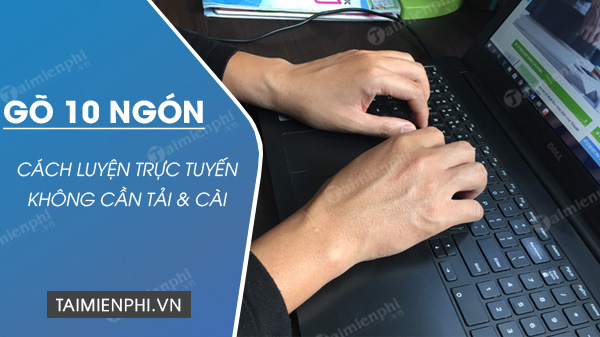
Set up the correct home-row position
Place your left fingers on A, S, D, F and your right fingers on J, K, L, ;. Most keyboards have raised marks on F and J, so your index fingers can find the home row without looking down. Rest your thumbs near the space bar.
- Use the finger assigned to each key instead of whichever finger feels closest.
- After pressing a key, return that finger to its home-row position.
- Keep your wrists relaxed and your hands level; avoid pressing harder than necessary.
- Prioritize accuracy. Speed usually improves once the movements become automatic.
How to practice online
Typingtop organizes practice into short lessons and levels. Its layout may change, but the basic workflow is straightforward: open the site in a browser, choose a beginner lesson, and follow the on-screen finger prompts. An account may be useful for saving results, but it is not required for learning the home-row technique.
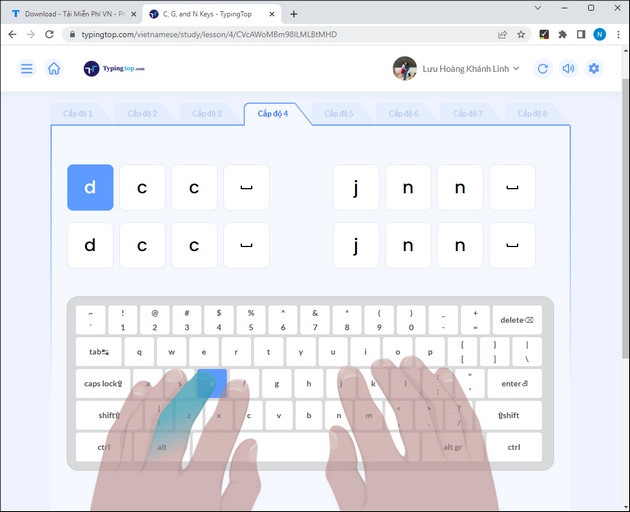
Some versions of the service also provide progress tracking, speed tests, different exercise modes, and class-management features. Treat these as optional tools; a short daily routine is more useful than chasing a high score in one session.
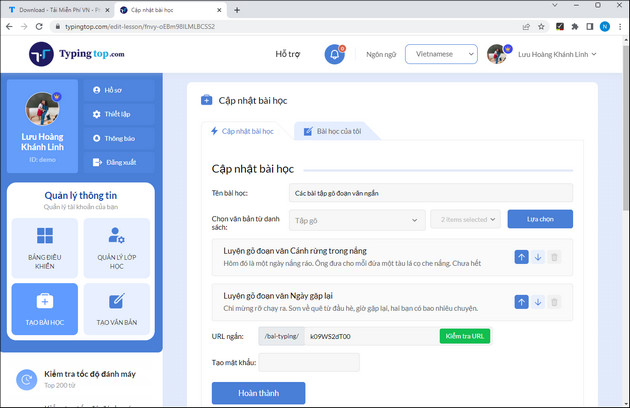
1. Start with F, J, and the space bar
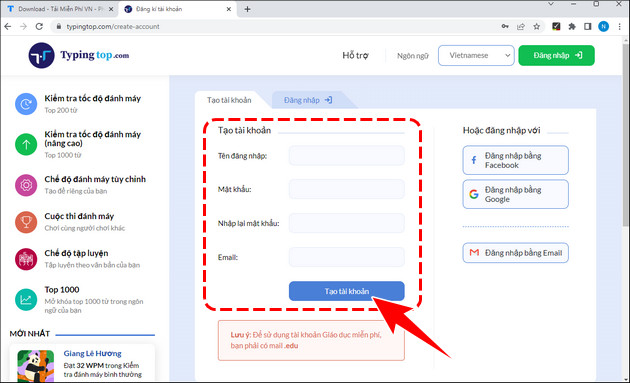
Open the beginner typing section and select the first available lesson. If you create an account, review what information the service asks you to provide before signing up.
Choose the earliest level, which introduces the position of the index fingers and the space bar.
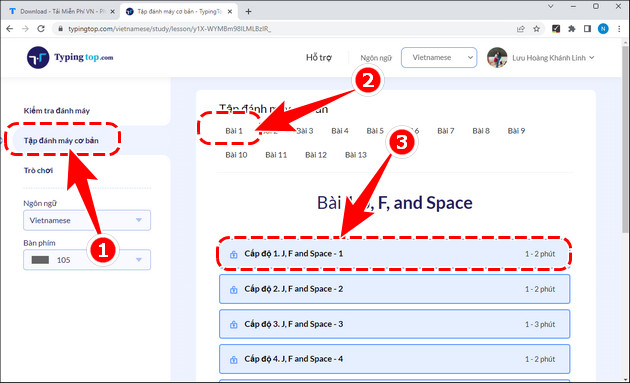
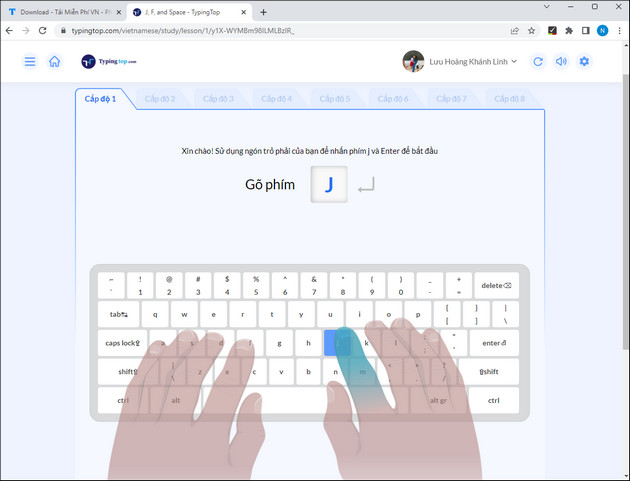
Match the hand position shown on screen. Use your right index finger for J and your left index finger for F; use a thumb for the space bar.
2. Complete the key drills slowly
Begin the exercise and press J with your right index finger. Keep your eyes on the screen rather than the keyboard.
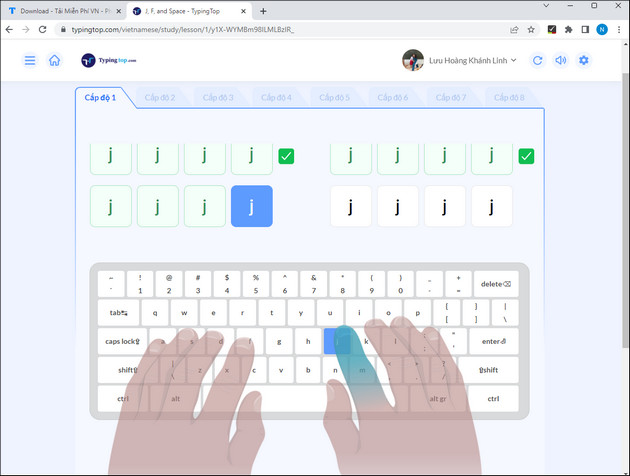
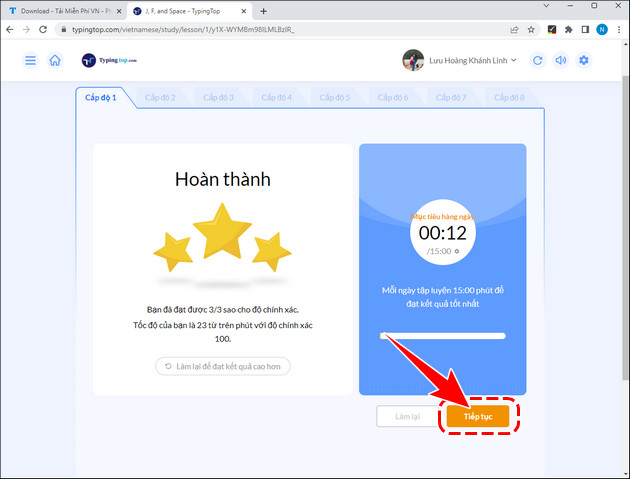
A result or star rating may appear after a drill. Use it as feedback, but repeat the level when errors are frequent even if the service lets you continue.
When F is introduced, press it with your left index finger and return both index fingers to F and J after every movement.
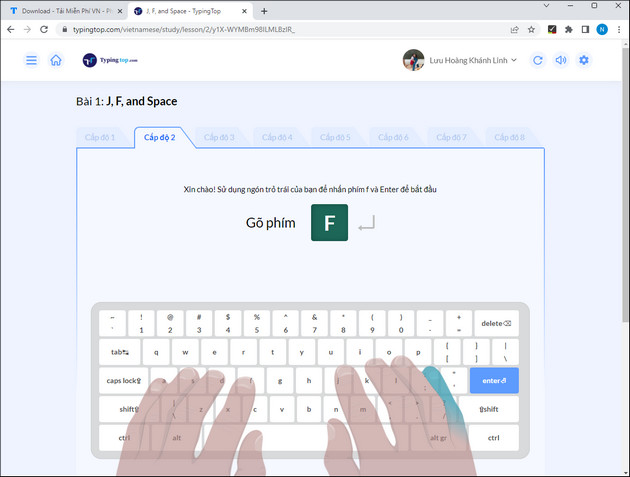
Repeat the drill until the motion feels comfortable. Stop briefly if your hands or shoulders become tense.
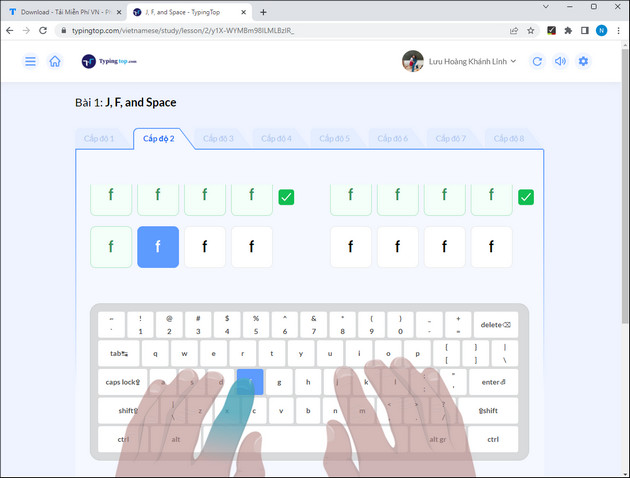
3. Combine keys and add difficulty gradually
Later levels combine F and J, then introduce additional home-row, upper-row, and lower-row keys.
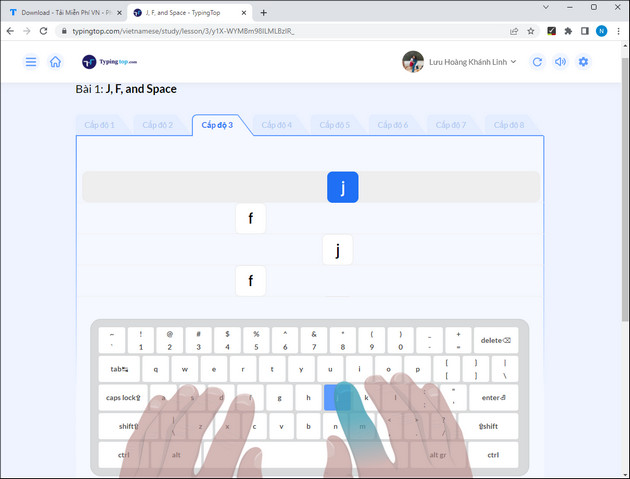
Do not jump ahead simply because a level is unlocked. Move on when you can complete the current exercise accurately without watching your hands.
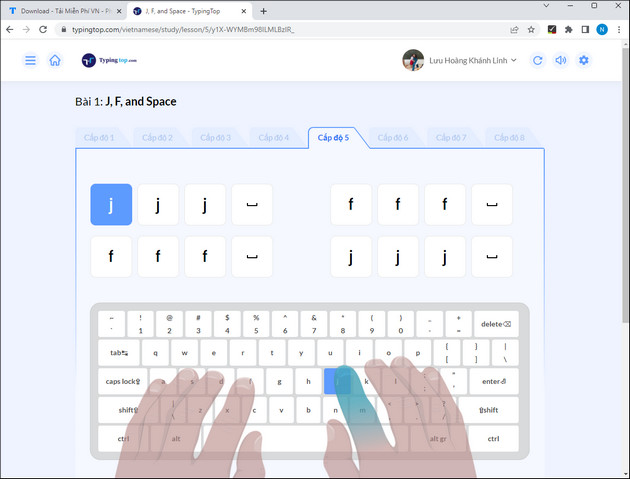
A practical practice routine
- Warm up for 2 minutes: type simple home-row combinations slowly.
- Practice for 10–15 minutes: focus on one small group of keys.
- Review errors: repeat words or letter combinations that caused mistakes.
- Finish with a short speed test: compare accuracy as well as words per minute.
Games can make repetition less monotonous. TipsMake also has guides to practicing with Mario Teaches Typing, using Typer Shark Deluxe, and learning with Tux Typing. Some of these are older programs, so check compatibility before downloading anything.
How to measure improvement
Track both typing speed and accuracy under similar conditions. A higher words-per-minute score is not useful if errors increase sharply. For steady progress, use the same test length, record the result once or twice a week, and spend most practice time correcting weak key combinations.
Related Articles
 Tux Typing - Free Typing Practice Tool for Kids: Main Insights6 minutes read
 Practice Typing with 10 Fingers, Effective 10-Finger Typing Practice Software5 minutes read
 minutes read
 The Most Accurate Way to Check Your Typing Speed20 minutes read
 How to Practicing Fast and Efficient 10-Finger Typing for Beginners7 minutes read
 How to Download and Use Kiran's Typing Tutor to Practice 10-Finger Typing8 minutes read
Reader Comments 0
Sign in with email or Google to join the discussion.