Table of Contents
To create a PayPal account, use PayPal's official website or app, choose a Personal or Business account, enter your legal contact information, and confirm your email address and phone number. You can then link an eligible card or bank account if that option is available in your country. The screens and required checks vary by location, so follow the prompts shown in your own account.
What PayPal does
PayPal is an online payment service that can be used to pay participating merchants and, where supported, send or receive money. It acts as the payment intermediary, so a merchant does not receive your full card details from PayPal. This does not make every transaction risk-free: fees, currency conversion, account limitations, and buyer or seller protection depend on the transaction and the applicable terms.
PayPal's Buyer Protection applies only to eligible purchases and has conditions and exclusions. It is not a guaranteed chargeback for any payment. Review the transaction, recipient, fees, conversion rate, and protection terms before sending money.
What you need before registering
- You must meet the minimum age and residence requirements in the PayPal User Agreement for your country. For an individual account in Vietnam, PayPal states that you must be at least 18 or the age of majority where you live.
- Use an email address and mobile number you control.
- Enter your legal name, date of birth, and residential address exactly as required. They may need to match your identity and financial records.
- If you plan to link a card, it should be in your name, support online transactions, and have the same billing address recorded by the card issuer.
- A Business account may require legal business and ownership information in addition to personal identification.
Do not use invented details, somebody else's card, or a false country. PayPal may request additional identity or business documents to meet regulatory requirements.
Choose Personal or Business
A Personal account suits ordinary shopping and personal payments. A Business account is designed for merchants, freelancers, and organizations accepting customer payments under a business identity. Both may have transaction fees even if account creation itself has no setup fee.
How to create a PayPal account
The images below show an earlier version of PayPal's registration flow. Labels and the order of the steps may have changed, but the information requested is similar.
1. Start at the official sign-up page
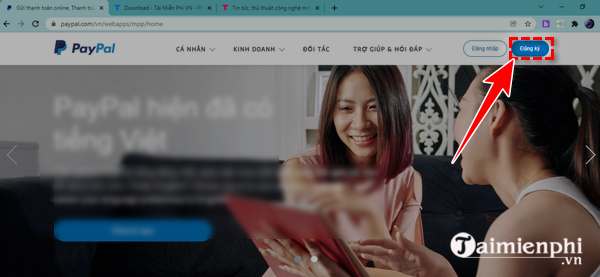
Go directly to the official PayPal account selection page. Check that the address bar uses paypal.com and HTTPS before entering any information. Click Sign Up or Get Started.
2. Select the account type
Choose Personal or Business based on how you will use the account. Do not select Business simply to avoid a Personal-account restriction; use the type that accurately describes your activity.
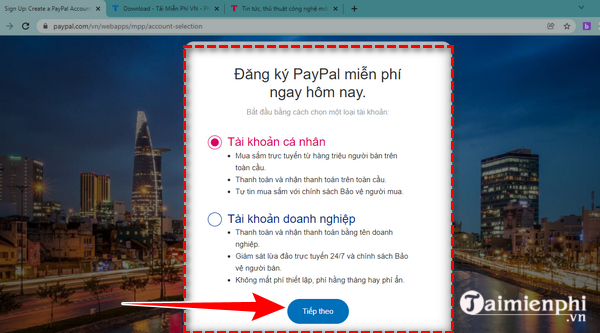
Some versions of the form ask what you plan to use PayPal for. Choose the closest accurate option and continue.
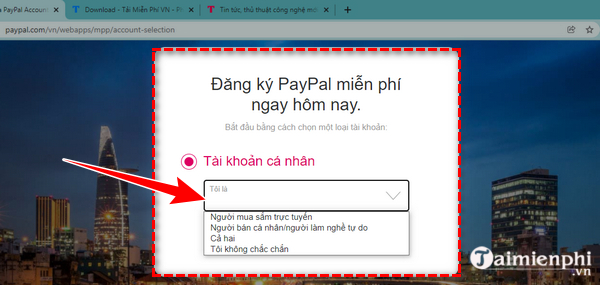
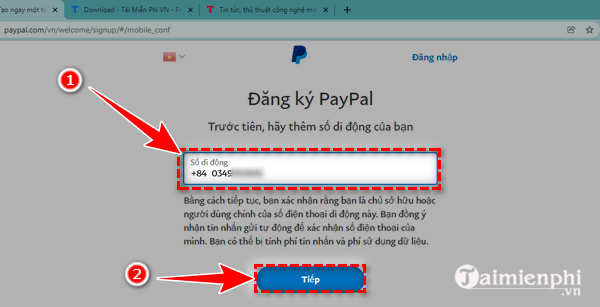
3. Confirm your mobile number
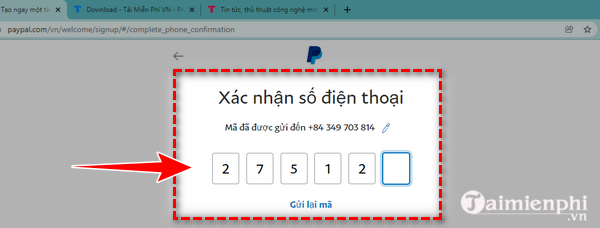
Enter a mobile number you control, including the correct country code. Type the one-time code PayPal sends to that number. Never give this code to a caller, seller, or “support agent.”
4. Create the login
Enter your email address and create a unique password that you do not use on another site. A password manager is safer than reusing a memorable password.
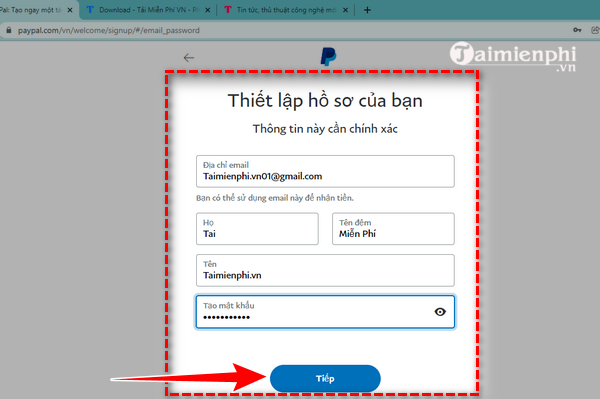
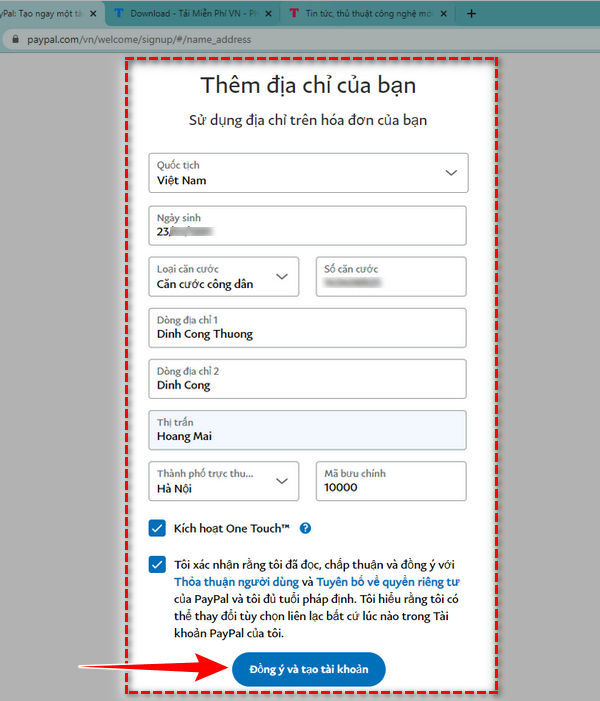
5. Add accurate personal information
Provide the legal information requested on the screen. Use your real residential address and the correct postal code for that address; do not copy an example postal code from an old tutorial. Read the User Agreement and Privacy Statement before accepting them.
If PayPal offers a “stay logged in” or One Touch option, leave it off on shared or public devices.
Confirm the email address
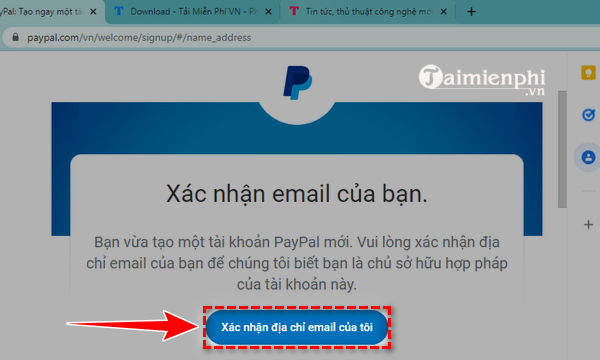
Open the message PayPal sends to the registered address and use the confirmation link. If no message arrives, sign in by typing paypal.com yourself, open account settings, and request another confirmation email. Do not trust a message that asks you to reply with a password, one-time code, or card security code.
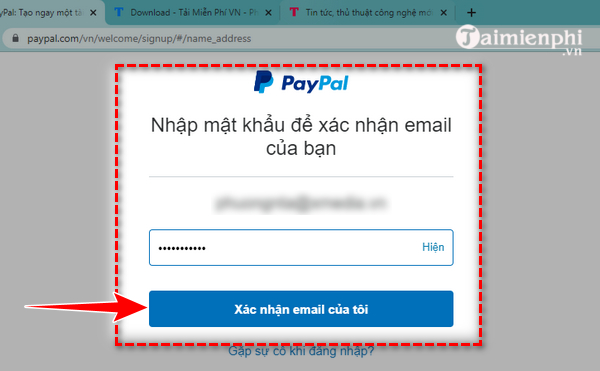
PayPal may ask you to sign in again to complete the confirmation. Check the domain before entering the password.
Link a card or bank account
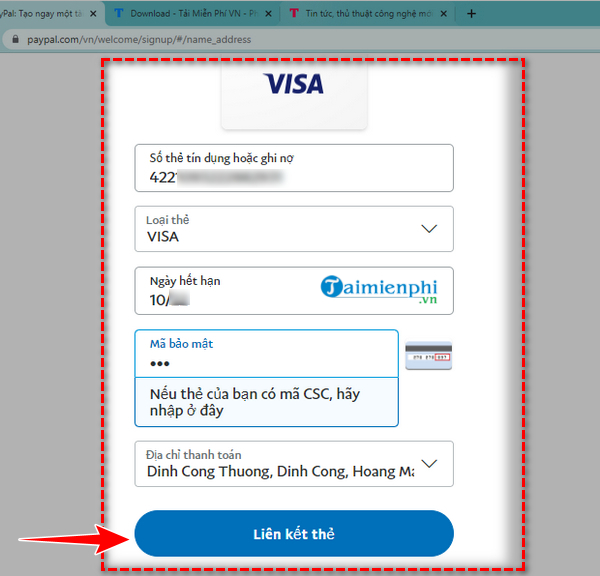
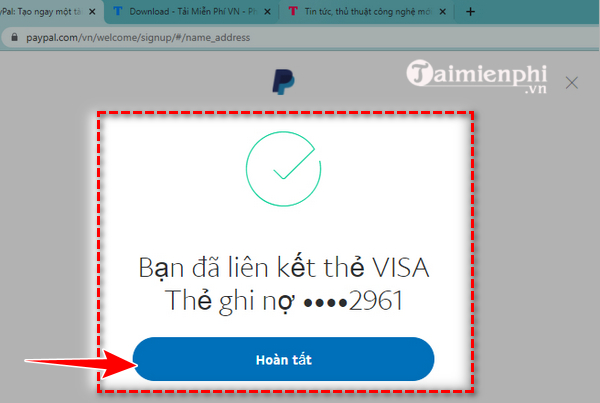
Open Wallet and choose the payment method available in your region. Linking a payment method is separate from confirming the email address, and PayPal may not require every account to complete the same steps immediately.
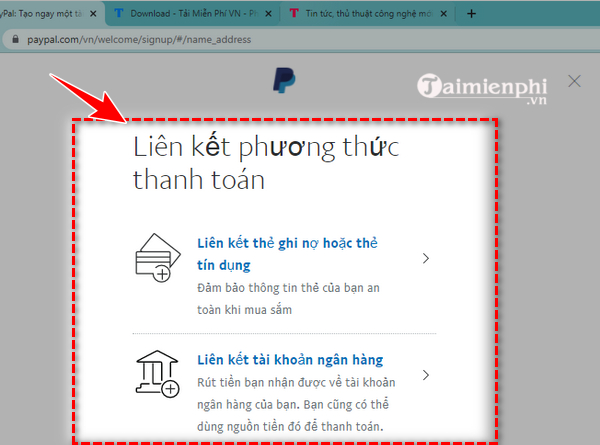
For a debit or credit card, enter the card number, expiration date, security code, and billing address only on the secure PayPal form. The billing address must match the card issuer's records. Never publish these details or send a photo of the card to an unknown person.
Confirm the card only if PayPal asks
If Wallet shows a Confirm Card link, PayPal may place a small charge containing a four-digit code on the card statement. Enter that code in Wallet. If the link does not appear, PayPal says the card may already be confirmed and no further action is needed. The confirmation charge and refund timing are explained in PayPal's official card-confirmation instructions.
Do not guess the code repeatedly. If the charge or code does not appear, contact PayPal through the Help section after signing in and contact the card issuer if needed.
Secure the account before using it
- Enable two-step verification in PayPal's security settings.
- Keep the registered phone number and recovery email current.
- Type paypal.com into the browser or use a saved bookmark instead of signing in through an unexpected email link.
- Check the exact recipient and payment type before sending money. Some transfers cannot be reversed simply because the sender changes their mind.
- Review PayPal activity and card statements regularly; report unrecognized transactions promptly through the Resolution Center.
Phishing messages often imitate payment services and lead to a fake login page. The warning signs in TipsMake's guide to fake account-update emails apply to PayPal messages as well.
If registration or verification fails
- The phone code does not arrive: Verify the country code and number, wait briefly, then request a new code. Avoid repeated rapid requests.
- The name or address is rejected: Enter legal details in the format PayPal requests. Do not create a second account to bypass a limitation.
- The card cannot be linked: Check the billing address, online-payment setting, available balance for an authorization, and whether the card is already linked to another PayPal account.
- PayPal requests documents: Upload them only through the secure Resolution Center or notification area after signing in directly.
- You cannot use PayPal in your location: Services and payment methods vary by country. Do not use a VPN or false address to misrepresent residence.
If PayPal does not fit your needs, compare the service with other online payment options before deciding where to keep payment information.
Related Articles
 How to Create a Paypal Account?4 minutes read
 Utilities Paypal Payment Gateway for You11 minutes read
 What Is PayPal? PayPal Benefits for You14 minutes read
 Whatsapp Account Verification Guide3 minutes read
 Instructions for Opening Visa Prepaid Card, Registering for Paypal8 minutes read
 How to Verifying Facebook Account Identity3 minutes read
Reader Comments 0
Sign in with email or Google to join the discussion.