Table of Contents
If Vietnamese accents work incorrectly in Word or Excel, first test the same text in Notepad. A problem in every app usually points to the active keyboard or Vietnamese input method; a problem in only one Office file is more likely to involve its font, encoding, protection, or formatting.
1. Confirm that Vietnamese input is active
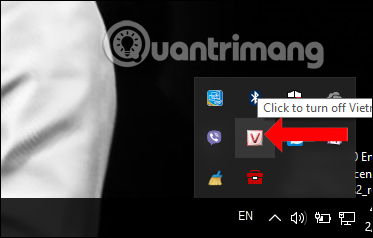
If you use UniKey, check the tray icon. V indicates Vietnamese mode; E indicates English. Click the icon or use the configured toggle shortcut to switch modes.
If you use Windows’ built-in keyboard, press Windows+Space and choose Vietnamese Telex or Vietnamese Number Key-based (VNI). Do not run the Windows keyboard and UniKey simultaneously; two input processors can turn one keystroke into an unexpected character.
2. Match the input method and character set
In UniKey, choose the typing method you actually know—usually Telex or VNI—and use Unicode for modern Word and Excel files. Ordinary Unicode fonts such as Arial, Calibri, Aptos, or Times New Roman can display Vietnamese text.
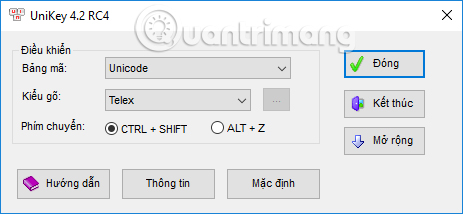
Do not choose the legacy VNI Windows or TCVN3 character set merely because you use the VNI typing method. The typing method controls keystrokes; the character set controls how text is encoded. They are separate choices.
3. Restart one trusted input method
Exit duplicate UniKey processes, reopen one copy, and restart Word or Excel. If an update is needed, download UniKey only from the official UniKey download page; the project states that unikey.org is its only official website.
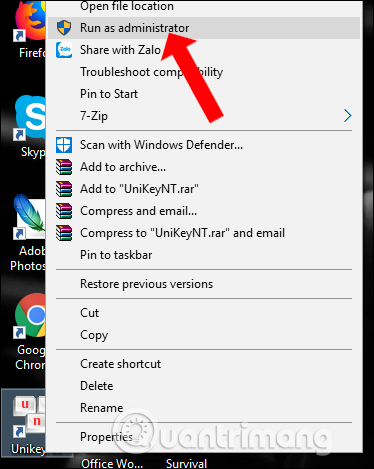
Do not routinely run UniKey, Word, or Excel as administrator. Elevating everyday document software increases risk. If one program was accidentally started with administrator rights, close it and reopen it normally so the input method and Office run at the same privilege level.
4. Check Windows typing and language settings
Open Settings > Time & language > Language & region, make sure Vietnamese is installed, and review its keyboard options. Microsoft documents how to add and select Vietnamese Telex and VNI keyboards.
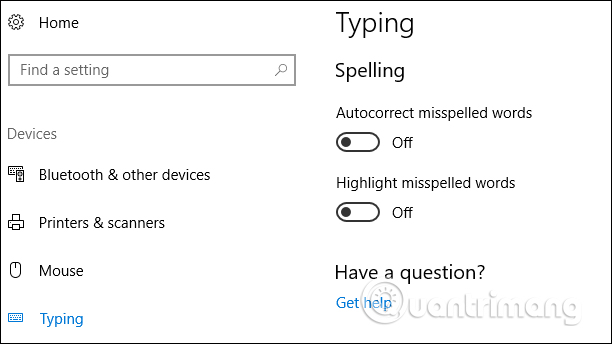
Predictive text or autocorrection can sometimes change a completed word. In Windows typing settings, temporarily disable autocorrect and text suggestions to test. Spell-check underlining normally does not prevent accented input, so turn off only the feature shown to cause the problem.
5. Diagnose a Word-only problem
- Create a blank document and type
Tiếng Việt. If it works, the original file may use a legacy font or restricted editing. - Select the affected text and apply a Unicode-capable font. Changing a font does not convert text that was originally stored in a legacy encoding.
- Check Review > Restrict Editing and whether the file opened in Protected View. Enable editing only when the document is trusted.
- Turn off Word add-ins temporarily if the issue began after installing a grammar, clipboard, or input tool.
- If existing text displays as symbols, use an encoding converter on a backup; retyping settings will not repair already misencoded characters.
6. Diagnose an Excel-only problem
- Double-click the cell or type in the formula bar to distinguish text entry from a display-width problem.
- Set the destination cell to General or Text when Excel is interpreting input as a date or formula.
- Use a Unicode font and widen the column if the value is present but clipped.
- Check sheet protection, data validation, and macros that may replace or reject entered text.
- For CSV files, import and export with UTF-8. A CSV saved with the wrong encoding can damage Vietnamese text even when typing works correctly in the workbook.
7. Isolate conflicts
Close clipboard managers, keyboard-remapping tools, remote-desktop helpers, and any second Vietnamese input app, then test again. Rebooting can clear a stuck text-input process. If the issue affects only one Windows account, compare its language and startup-app settings with a working account.
A malware scan is reasonable when other symptoms exist, but a typing error alone is not evidence of a virus. Start with the active keyboard, Unicode settings, duplicate input methods, and file-specific formatting—the causes that can be tested directly.
Related Articles
 How to Fix Vietnamese Typing Errors in Word, Excel4 minutes read
 How to Type Vni in Windows3 minutes read
 How to Fix Vietnamese Errors in PowerPoint: PowerPoint Font Error4 minutes read
 Instructions for Fixing Errors with Missing Words When Entering5 minutes read
 Typing, Fast Typing in Word4 minutes read
 How to Fix Missing Letters When Typing Accents in Word5 minutes read
Reader Comments 0
Sign in with email or Google to join the discussion.