Table of Contents
Explore 5 ways to convert numbers to words in Excel, with practical guidance, useful examples, and key tips for getting better results.
During the process of processing and entering data into Excel spreadsheets, there will be data that you need to convert from numbers to words. To perform this operation quickly, instead of manually typing it in, you can use some of the tools described in the article below.
1. How to Convert Numbers to Words in Excel Using vnTools
Step 1:
First, download the vnTools software to your computer using the link below, then proceed with the installation as usual.
- Download the vnTools software.

Step 2:
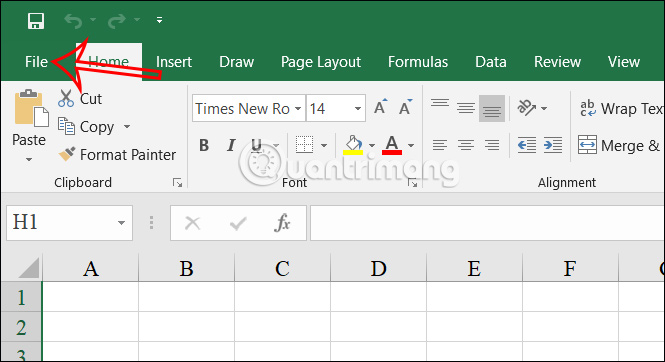
After you have finished installing the software, open Excel and click on the File menu in the upper left corner of the screen.
Step 3:
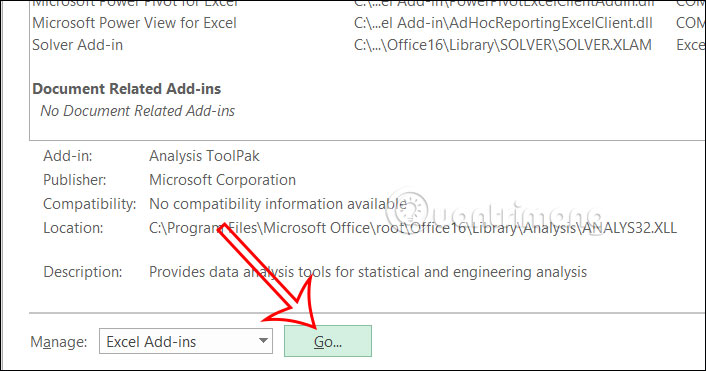
Next, click on Options to open the list of customization options for Excel.

In the list of customizations, we click on Add-ins . Looking at the content next to it, in the Manage section, we select Go...
Step 4:
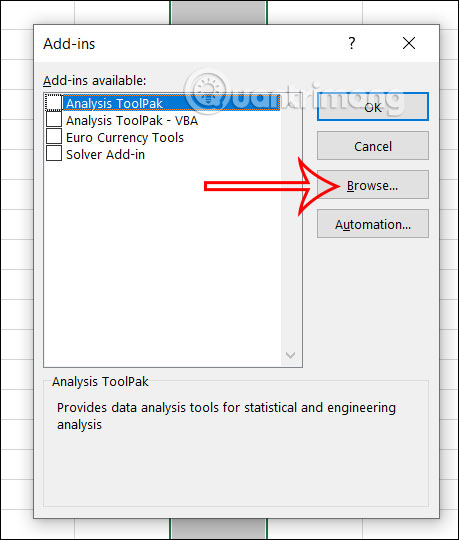
At this point, the Add-Ins window will appear, and we will select Browse .
Step 5:
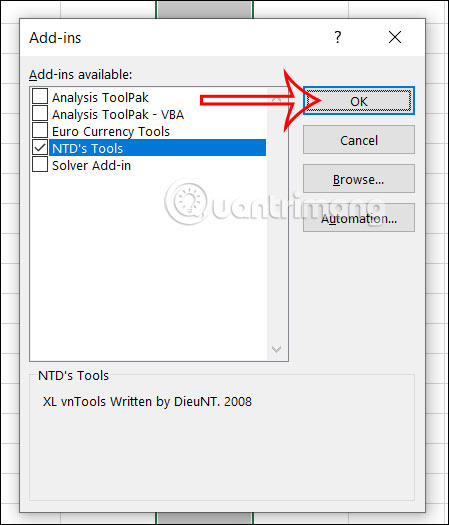
Navigate to the vnTools software folder, select the Ufunctions file , and then click OK.
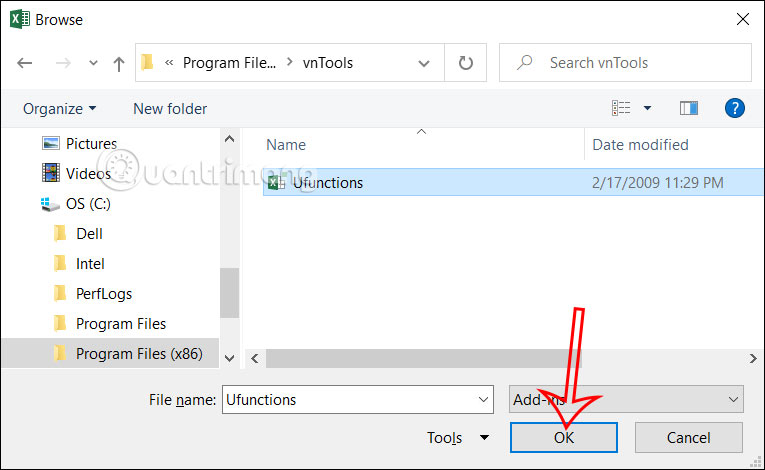
You will now see the Ufunctions add-in . Select it and click OK to use this add-in in Excel.
Step 6:
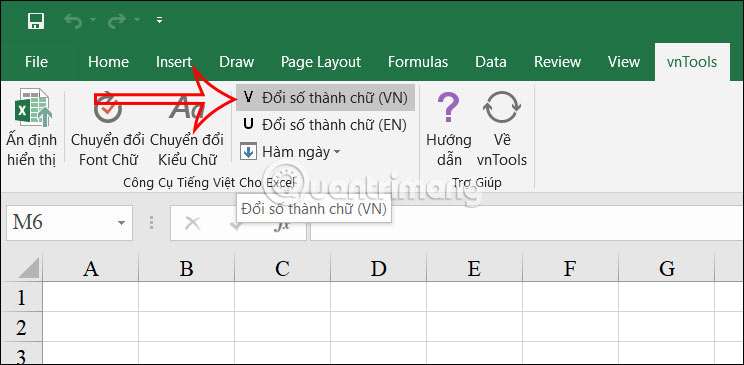
Return to the Excel interface, click on the vnTools tool you just added, then scroll down and select "Convert Numbers to Words ".
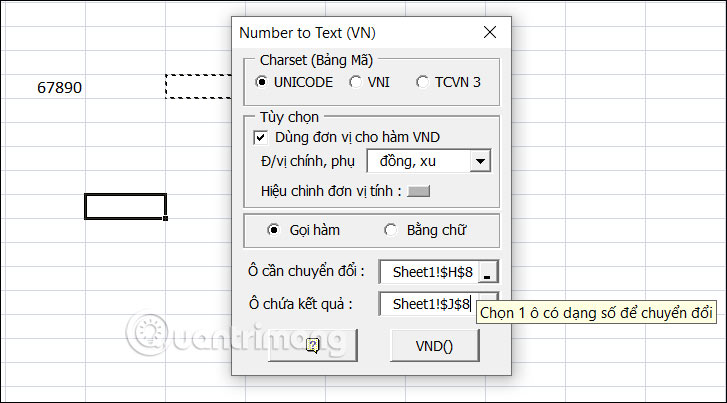
A table will then appear allowing you to select the content you want to convert. In the cell you want to convert, click on the cell containing the numerical value you want to convert to words, and the cell containing the result will be the cell showing the result after converting the number to words .
After entering the number, press VND to convert it to words.
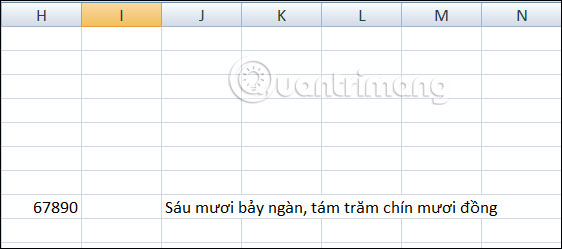
The result is that we convert the number into words as shown in the image below.
2. How to Convert Numbers to Words in Excel Using the =VND Function
Step 1:
First, download the Excel file from the link below to your computer as usual.
- Download VND add-ins file
Step 2:
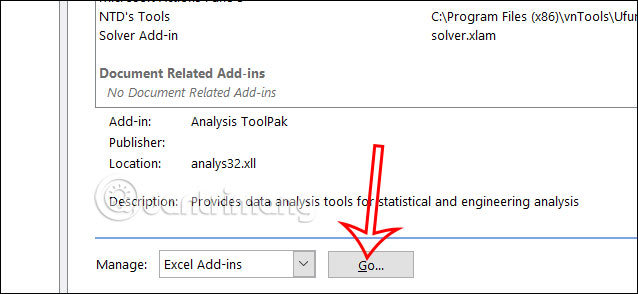
Open Excel, then click Options, and select Add-Ins. Next, look at the content next to it and click Add-Ins. Look at the content next to it again, under Manage, select Go...
Step 3:
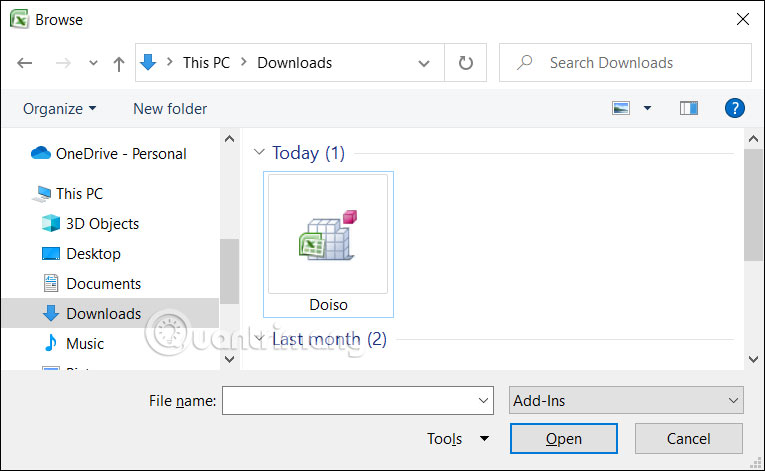
A new window will appear; click Browse to upload the add-in file . We will select the Doiso file .
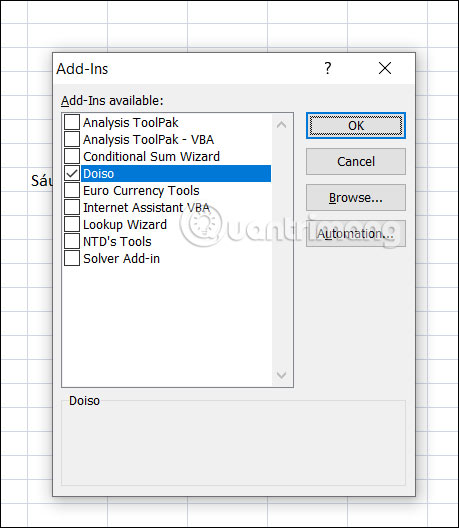
Now, click on the Doiso file in the Add-Ins window and then click OK.
Step 4:
After adding the In-Ins, enter the following function to convert the number to money: Function syntax: =VND(Number_to_convert) .
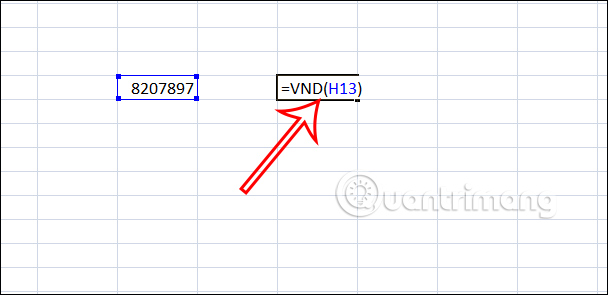
Then you will also see the amount in words as shown below.

3. Use Add-ins to Convert Numbers to Words in Excel
Step 1:
You can download the add-in using the link below.
https://www.fshare.vn/file/GUPQAVCTR52M?token=1743407251Next, in the Excel interface, the user clicks on File , then clicks on More , and then selects Options .

Step 2:
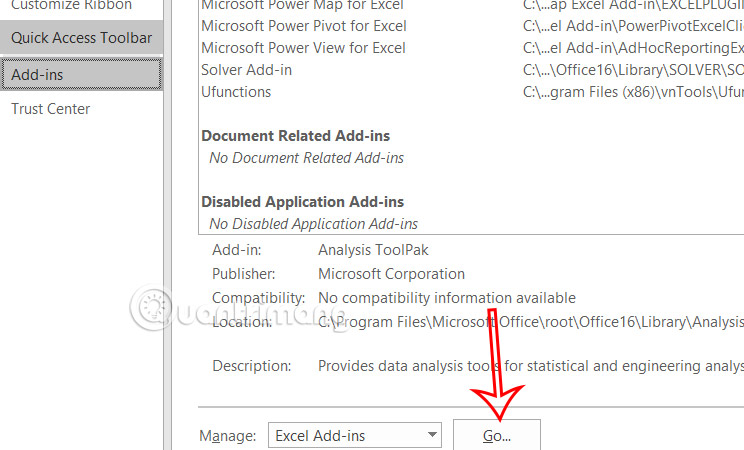
To proceed to the next interface, the user selects Add-In from the left-hand menu, then looks to the right side, and under Manage selects Go...
Step 3:
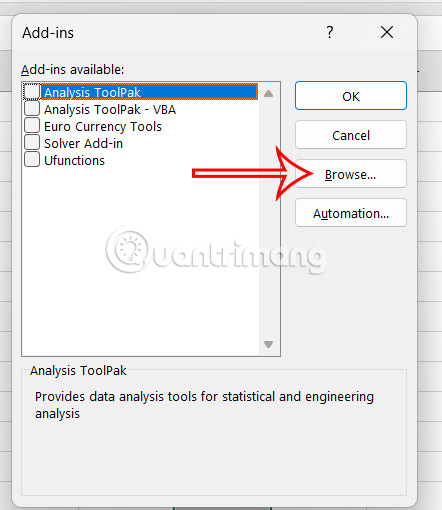
The interface will appear in the folder; the user clicks Browse and locates the newly downloaded Add-Ins file to proceed with the installation.
Step 4:
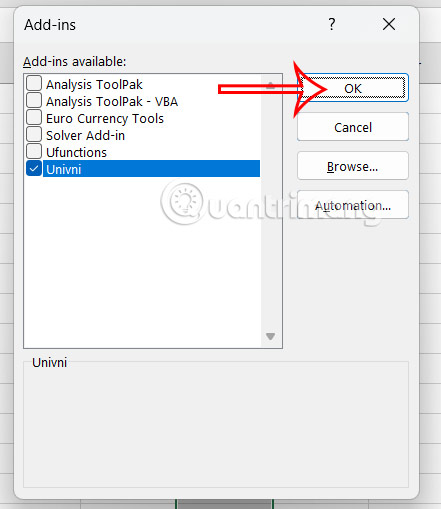
Select the add-ins and then click OK to save and use them.
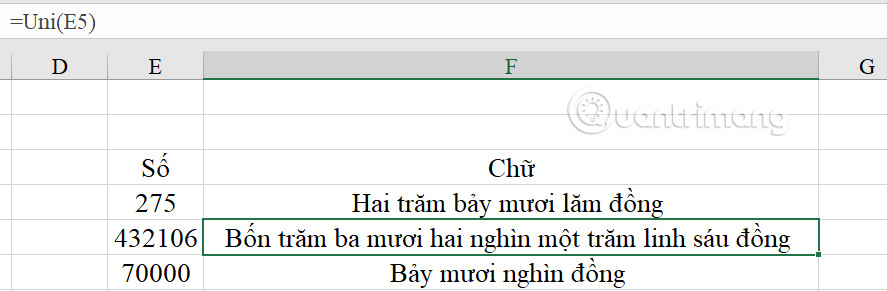
Now you need to use the following functions to convert numbers to words in Excel:
- If your computer uses Unicode fonts, use the function: =UNI(Amount)
- If your computer uses the VNI font, use the function: =VNI(Amount)
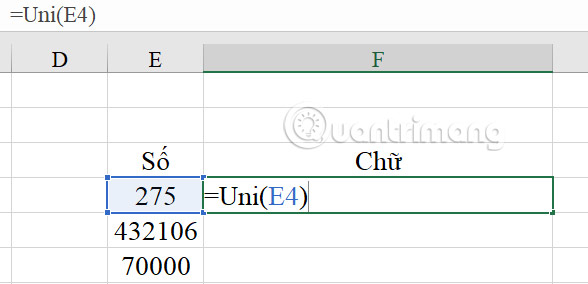
The result is the data converted from numbers to words shown below.
Step 5:
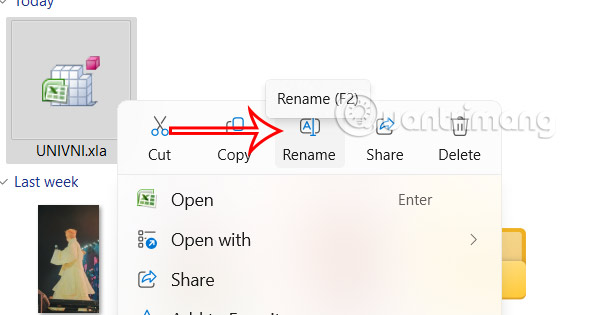
To remove add-ins installed in Excel , open the add-in file you want to delete and then rename it or move the file to a different folder .
Step 6:
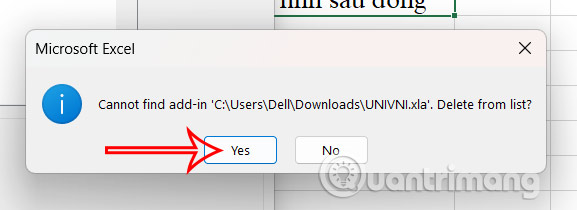
Next, open the Excel file, move your mouse to the Add-Ins file management section in Options, and uncheck Add-Ins to permanently delete it . Click Yes to completely delete the file.
4. Convert Numbers to Words Using the Acchelper App
Step 1:
We can also download the Acchelper app using the link below. After downloading, proceed with the installation as usual.
https://www.mediafire.com/file/xk8kz15hfn8kyq1/AccHelper.zip/fileStep 2:
In Excel, click File, then select More > Options . Next, click Add-Ins on the left side, then on the right side click Manage > Go > Browse .
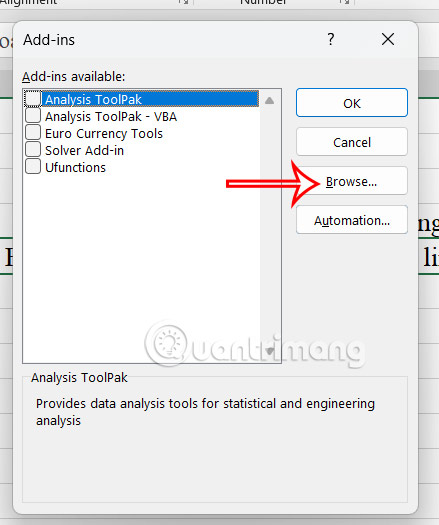
Select the AccHelper file and click OK. If you are using Office 64-bit, select the x64 folder.
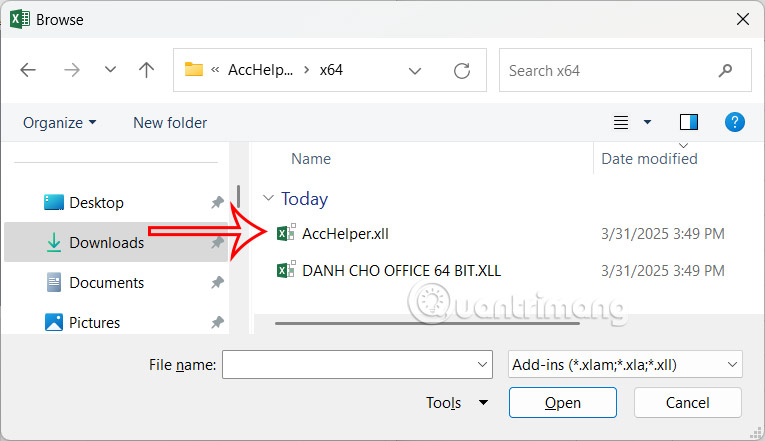
Select the Acchelper file and click OK.
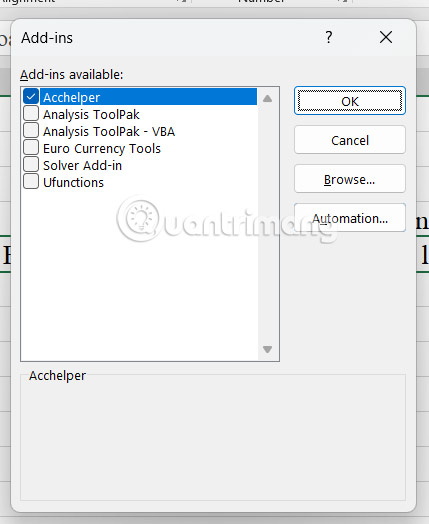
Step 3:
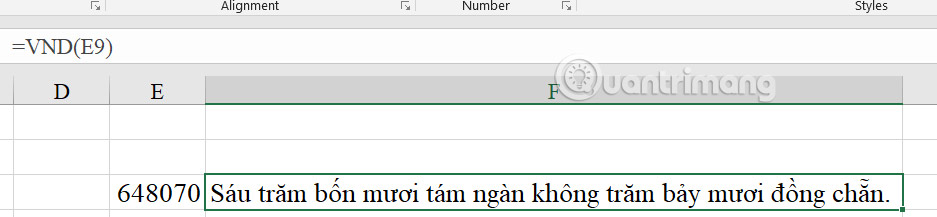
Here, you can use the function =VND(number to convert).
5. How to Convert Numbers to Words in Excel Without Add-ins
There's also another way to convert numbers to words without using add-ins. Follow the detailed instructions in the article below.
- How to convert monetary amounts to words in Excel, without add-ins, supporting both 32-bit and 64-bit Excel.
FAQ
What is the best way to 5 ways to convert numbers to words in excel?
Explore 5 ways to convert numbers to words in Excel, with practical guidance, useful examples, and key tips for getting better results.
What should you prepare before you 5 ways to convert numbers to words in excel?
Key takeaway: Explore 5 ways to convert numbers to words in Excel, with practical guidance, useful examples, and key tips for getting better results.
What common mistakes should you avoid?
During the process of processing and entering data into Excel spreadsheets, there will be data that you need to convert from numbers to words.
Related Articles
 How to Convert Numbers to Words in Excel5 minutes read
 How to Convert Money into Words in Excel, Without an Add-in4 minutes read
 Convert Numbers to Text in Excel4 minutes read
 How to Convert Numbers into Words in Excel?3 minutes read
 How to Convert Money Amounts to Words in Excel, No Add-in Needed5 minutes read
 How to Convert Apple Numbers Documents to Microsoft Excel5 minutes read
Reader Comments 0
Sign in with email or Google to join the discussion.