Table of Contents
This updated guide explains how to use Google calendar from a - > z with clear steps, practical tips, and useful context. Google Calendar is a free calendar management tool from Google that helps you create, track, and share events easily. This article will guide you through how to use Google Calendar from A to Z in the most detailed and easy-to-understand way.

I. What Is Google Calendar?
Google Calendar is a free online calendar tool developed by Google, which helps you manage, organize and track events, appointments, and daily activities. Google Calendar provides many useful features such as helping you view your calendar in many different modes, create calendars, create events, schedule tasks, meetings, share calendars, events with others easily.

Google Calendar also integrates with other Google services such as Google Meet, Gmail, convenient for creating online meetings in events, sending and receiving emails related to appointments or events. Besides, Google Calendar also has many other useful features to help you use the calendar most effectively.
Google Calendar is not only available on the web platform, but it is synchronized with the Google Calendar application on your phone, allowing you to work with it anytime, anywhere, as long as you have an Internet connection.
II. How to Use Google Calendar from A ➔ Z
1. Change Calendar View on Google Calendar
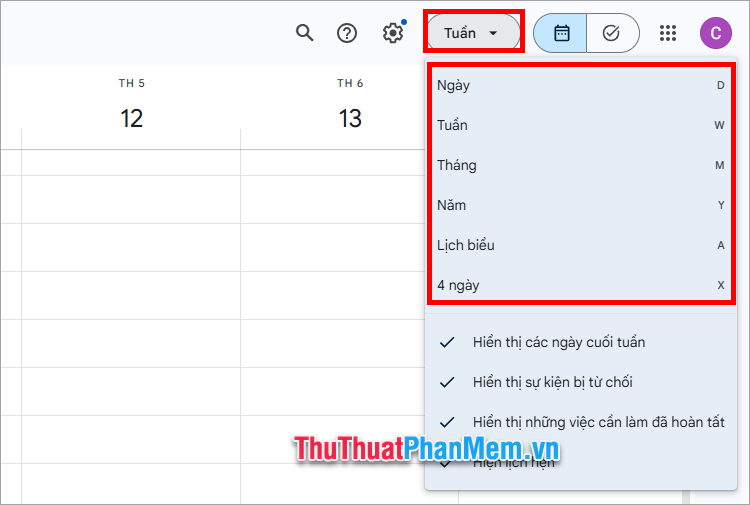
Google Calendar offers different views: Day, Week, Month, Year, Schedule. You can change the view using the buttons on the top right corner of the screen as shown below.
2. Create a New Calendar on Google Calendar
To create a new calendar on Google Calendar, do these:
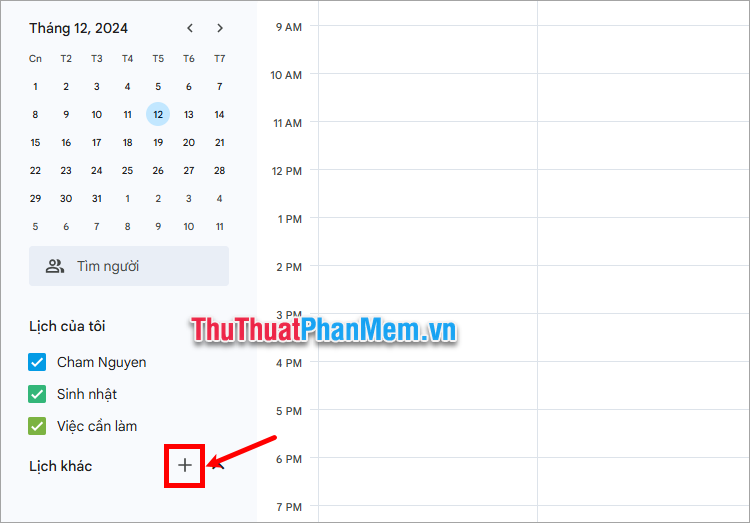
Step 1: Select the + icon next to Other Calendars .
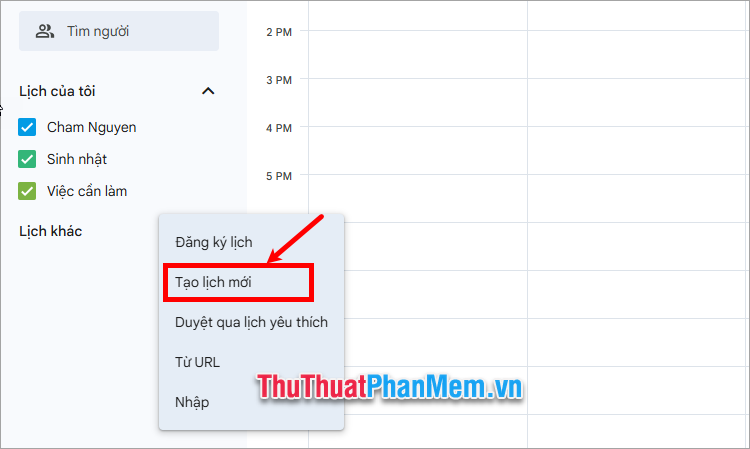
Step 2 : Select Create new calendar .
Step 3 : Enter a name and description for the new calendar and select Create calendar .
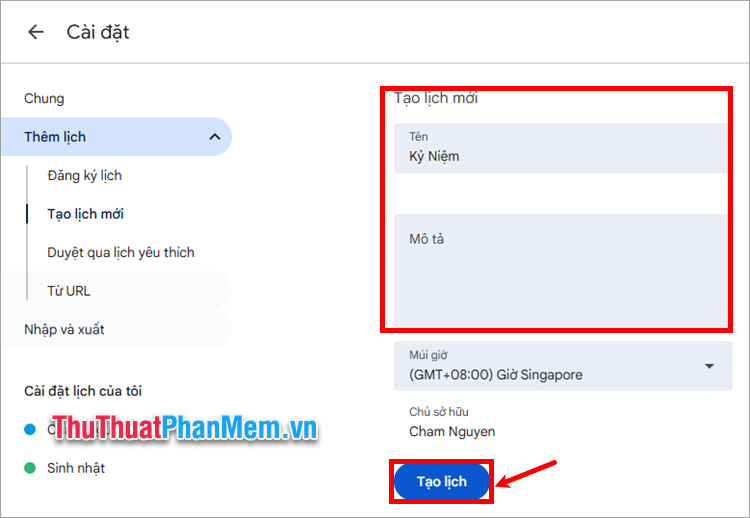
Now a new calendar has been created, you will see the calendar name in the My Calendars section.
3. Change Color According to Each Calendar Type
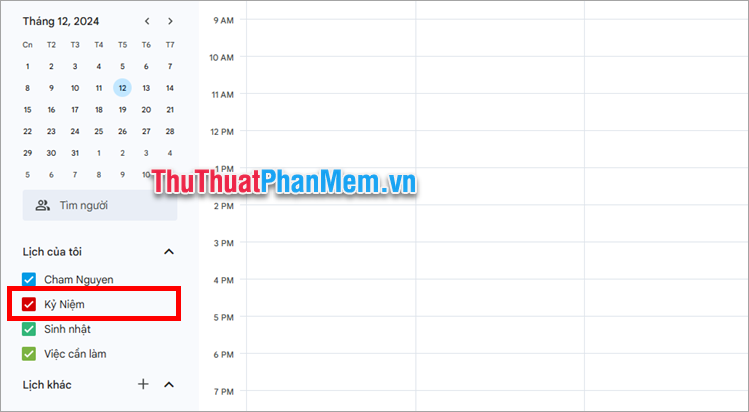
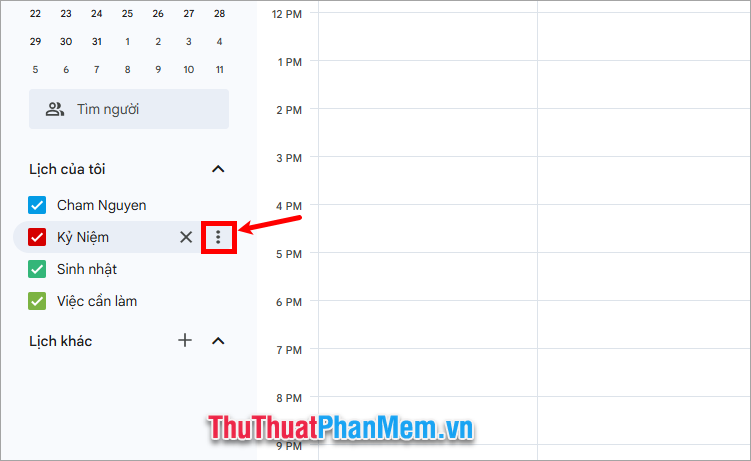
To change the color of any calendar type (events, birthdays, to-dos), selecting the vertical three-dot icon next to the calendar type.
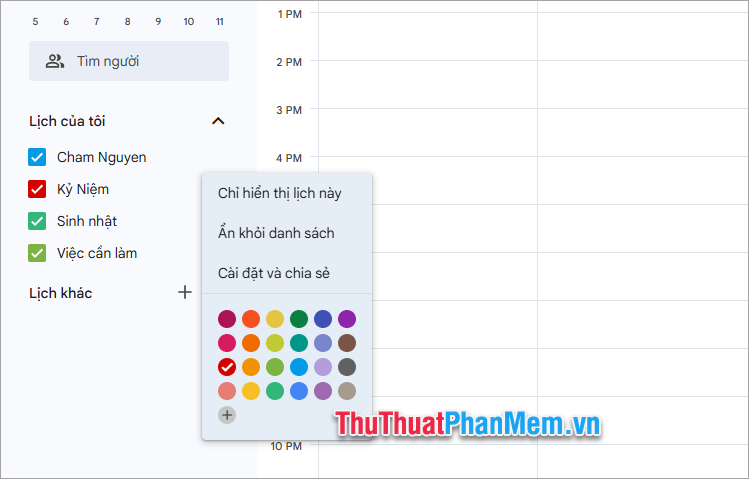
Then select the color you want to change.
4. Share Calendar on Google Calendar
To share a calendar with specific people or groups, in the My Calendars section, select the vertical three-dot icon next to the calendar you want to share and select Settings and sharing .
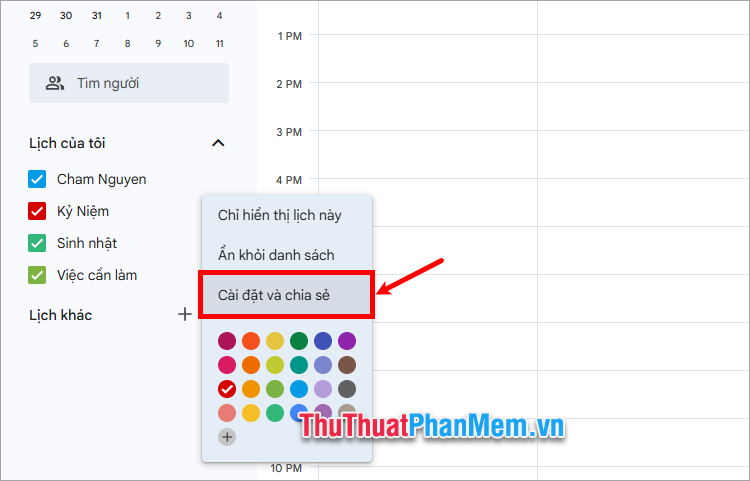
In the My calendar settings section, select Share with specific people or groups → Add users and groups .
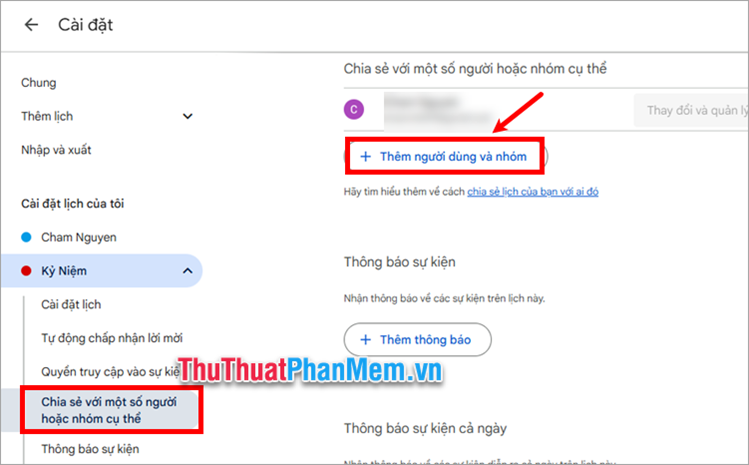
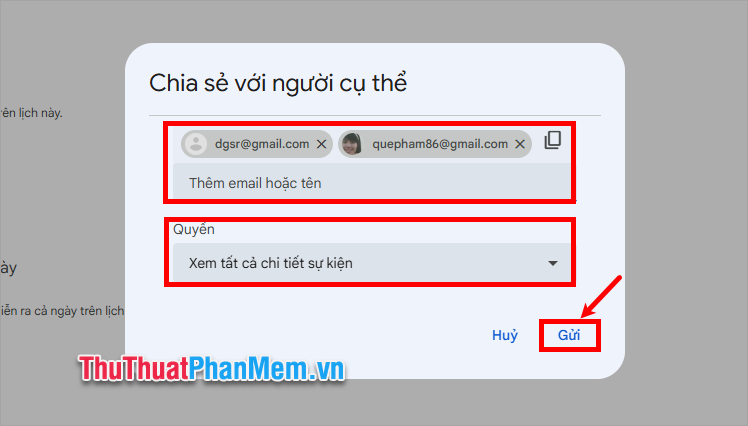
Add a person's or a Google group's email address, select Permissions for them, and select Send .
5. Delete a Calendar on Google Calendar
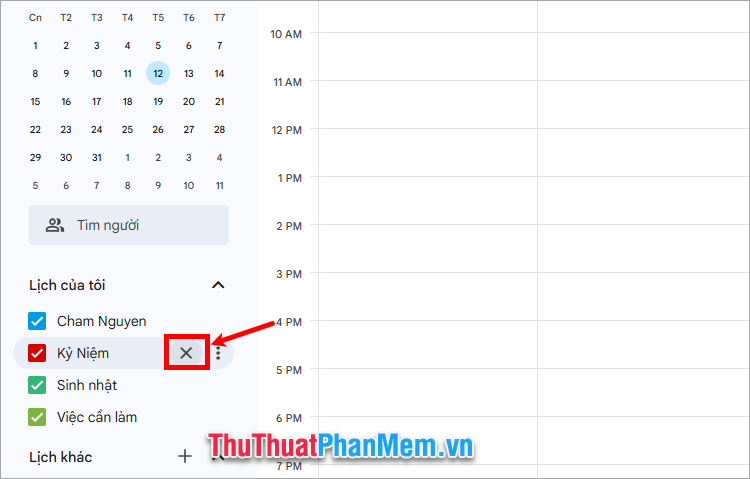
To delete a calendar event or to-do, select the calendar and select the X icon.
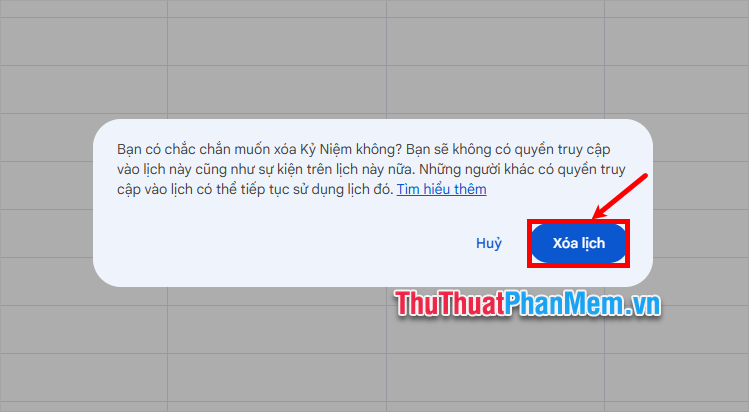
Next select Delete calendar .
Alternatively, you can select the Settings icon → Settings .
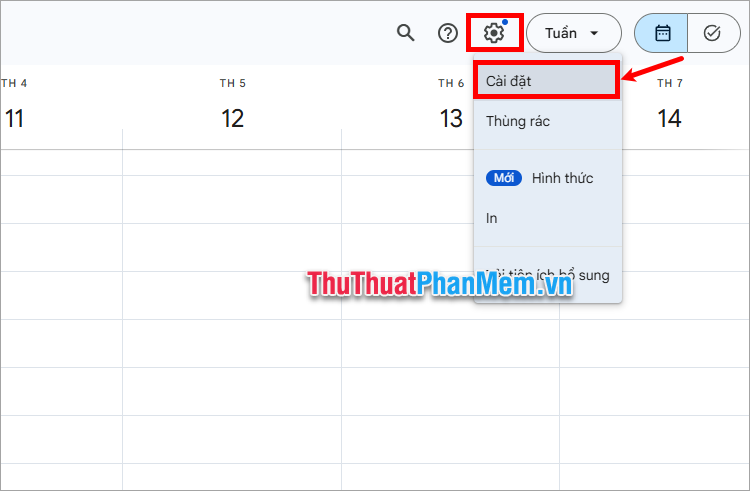
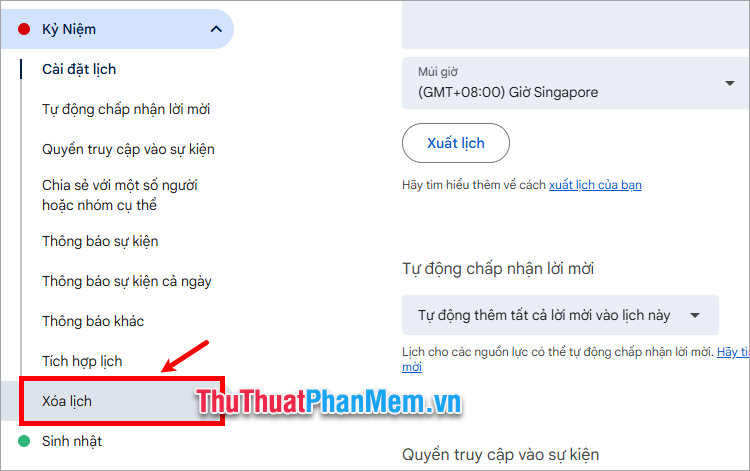
Select the calendar you want to delete in the left menu, select Delete calendar .
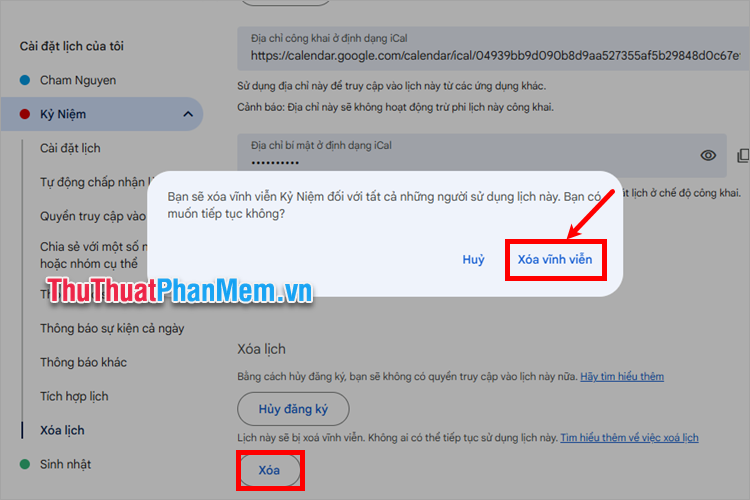
Select Delete → Delete permanently .
6. How to Create a New Event on Google Calendar
You create a new event on Google Calendar as follows:
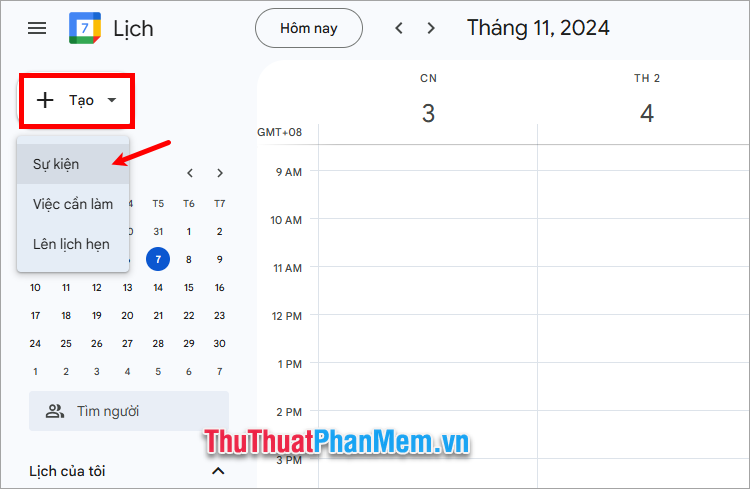
Step 1 : Open Google Calendar and log in to your Google account, on the Google calendar interface, select Create → select calendar type (Event, to-do, schedule appointment).
Step 2 : The new event creation section appears, you enter the title for the event, change the time.
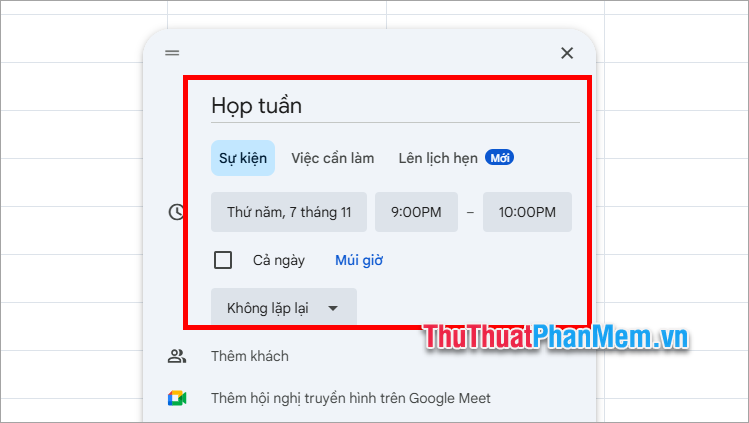
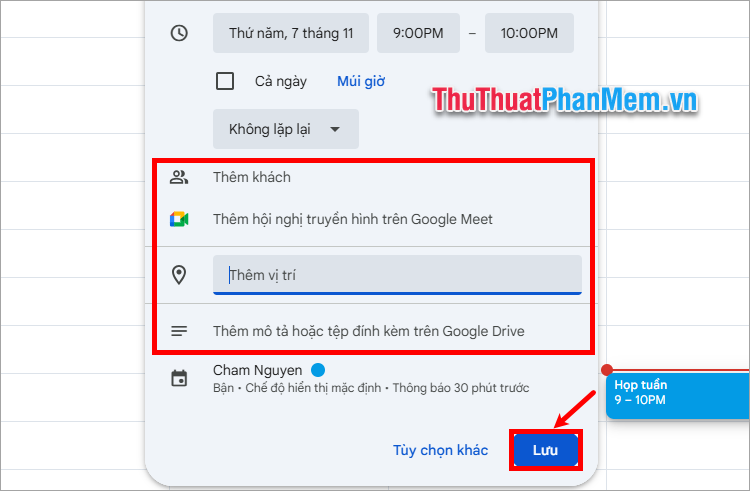
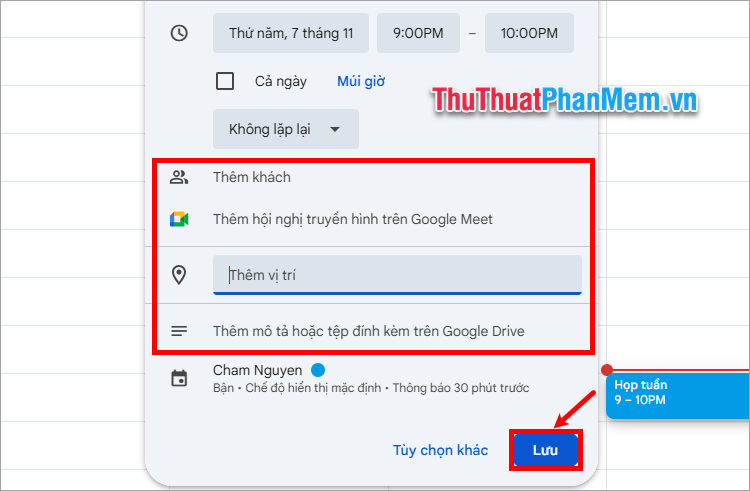
Step 3 : In creating a new event, there will be many other customizations such as adding guests, adding video conferences on Google Meet, adding locations, adding descriptions or attachments. Then you select Save to create the event.
So you have created a new event on Google Calendar.
7. Edit Events in Calendar
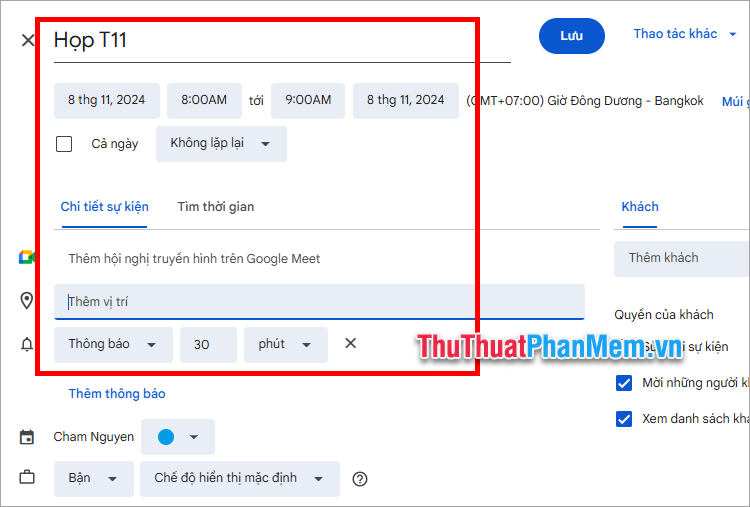
to edit an event, double left select the event you want to edit.
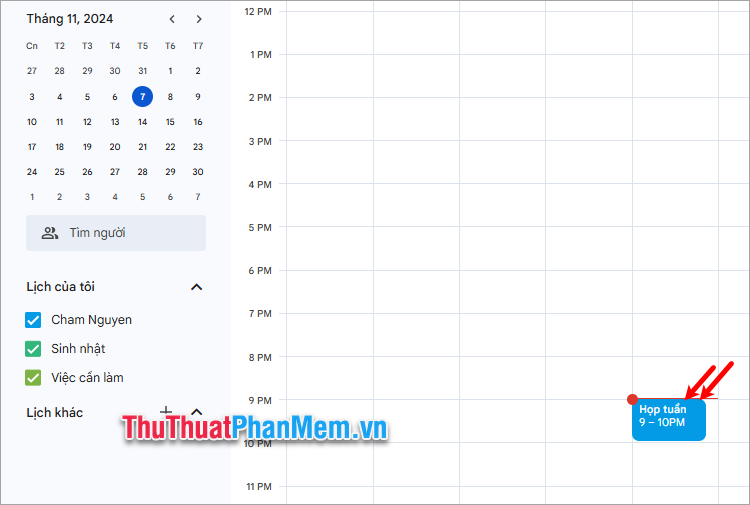
The event editing window appears, you can change the time for the calendar, edit the video conference, location.
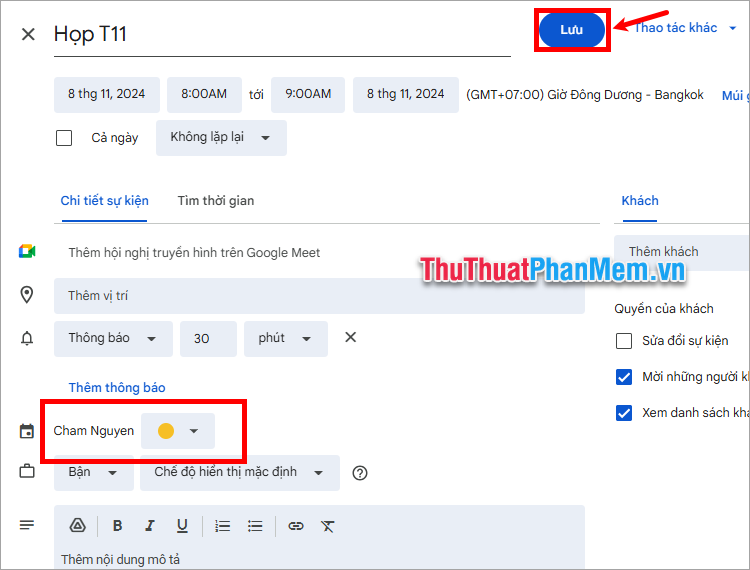
Change the color for the event in the color selection section as shown below. After editing, select Save to close event editing.
8. Share Events via Email, Link
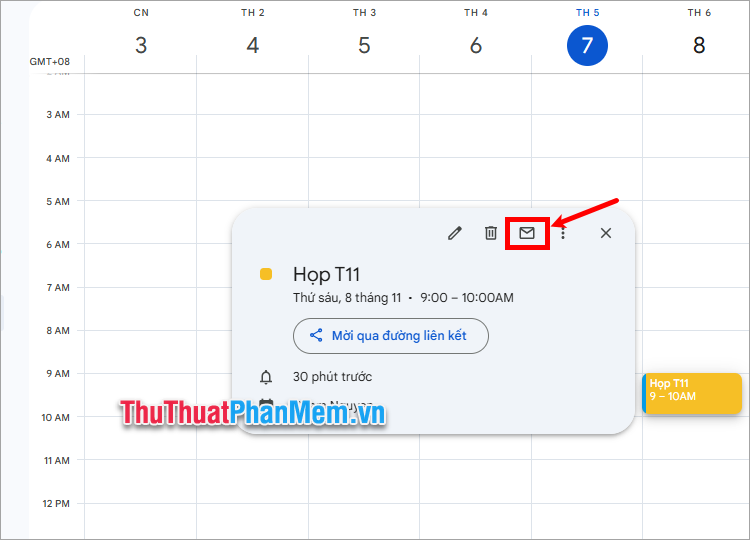
to email your invitees, select the event calendar, then select the email inbox icon.
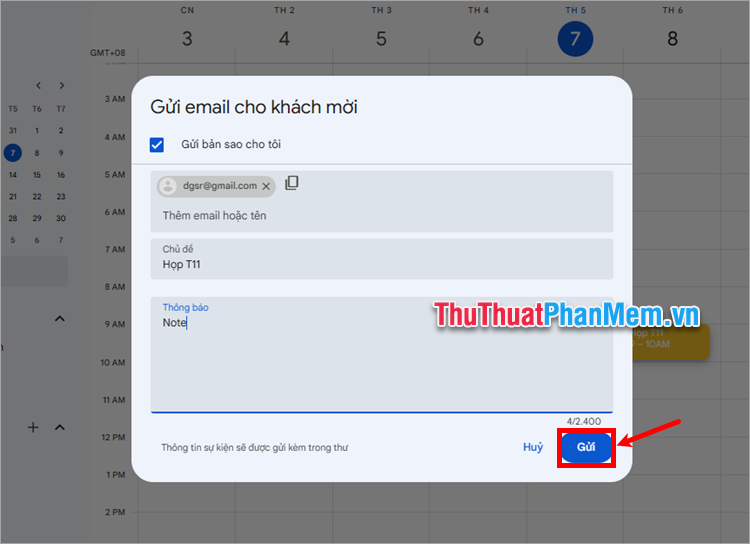
Add emails and select Send .
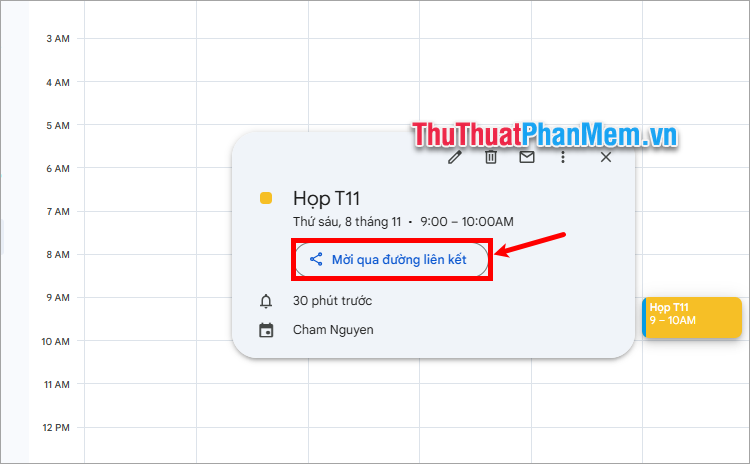
You can select the event calendar and choose Invite via link .
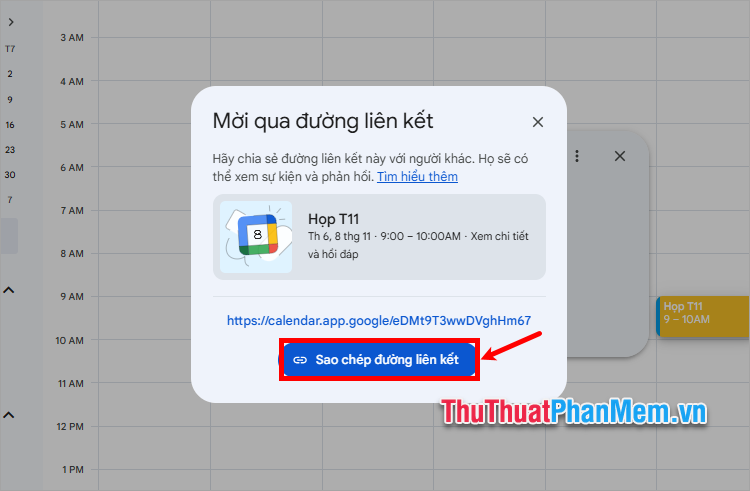
Then copy the link and send it to the person you want to share it with.
9. Create a Google Calendar Shortcut on the Desktop
Create a Google Calendar icon on your desktop so you can access Google Calendar quickly. Do these:
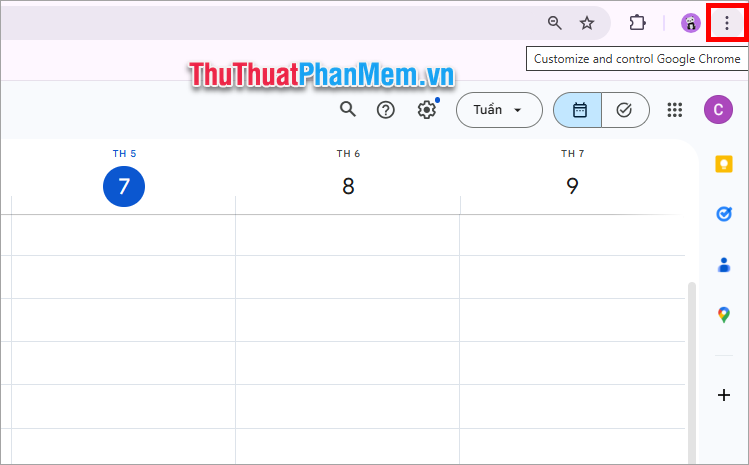
Step 1 : Open your Google Calendar on your web browser, select the Customize and Control icon (Customize and control - different browsers have different icons)
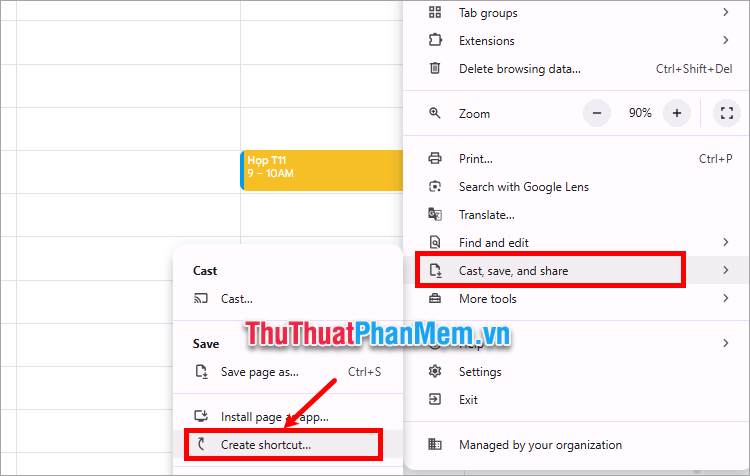
Step 2 : Select Cast , save and share → Create shortcut.
Step 3 : Name the shortcut and select Create .
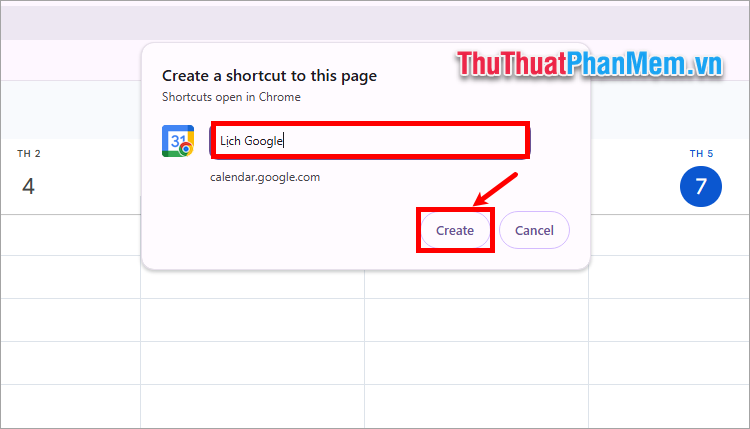
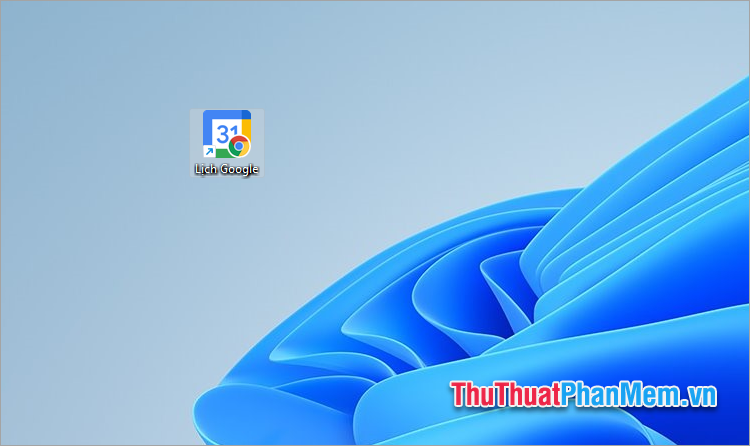
So you have created a quick Google Calendar shortcut.
Above, TipsMake.com has shared with you how to use Google Calendar from A ➔ Z. Thus, you can easily use Google Calendar from how to create, edit, share and delete calendars to create new events, tasks, edit and share specific events. Hopefully after reading this article, you will better understand how to use Google Calendar, to use Google Calendar most effectively, Thank you for your interest and following this article.
FAQ
What should I prepare before I use google calendar from a - > z?
Review the requirements and options in the guide first. Having the correct device, app version, account access, or materials ready helps prevent avoidable errors.
How long does it take to use google calendar from a - > z?
The time depends on the task and your setup. Most basic steps can be completed quickly, while downloads, updates, scans, or troubleshooting may take longer.
What should I do if the steps do not work?
Repeat the instructions in order, confirm that your software or device is supported, and check permissions, connectivity, and available updates before trying again.
Related Articles
 List of Shortcuts for Google Calendar3 minutes read
 Instructions for Adding Color to the Calendar on Google Calendar4 minutes read
 Making Google Calendar More Useful with These Free Calendar7 minutes read
 Instructions for Using Calendar with Google Calendar in Windows4 minutes read
 Guide to Managing Jobs with Google Calendar in Gmail5 minutes read
 How to Remove Spam in Google Calendar3 minutes read
Reader Comments 0
Sign in with email or Google to join the discussion.