Table of Contents
“Remove table formatting” can mean three different things in Excel. You can clear only the Table Style and keep table features, clear cell formatting while preserving values and formulas, or Convert to Range to remove the table object itself. Choose the result you need before clicking Clear.
Choose the correct operation
- Clear the Table Style: keeps filters, structured references, calculated columns, and automatic expansion, but removes the visible table style.
- Clear Formats: removes fonts, fills, borders, number formats, and other formatting from selected cells while keeping their contents. It can also remove useful visual rules, so test a copy.
- Convert to Range: turns the Excel Table into ordinary cells. Values, formulas, and current formatting remain, but table-specific behavior and structured references stop expanding automatically.
- Clear All: removes contents as well as formatting and other cell information. Do not use it when the data must remain.
Clear the table style but keep the Excel Table
Step 1: Click any cell in the table. The contextual Table Design tab appears; older versions may label it Design. You do not need to select the whole table manually.
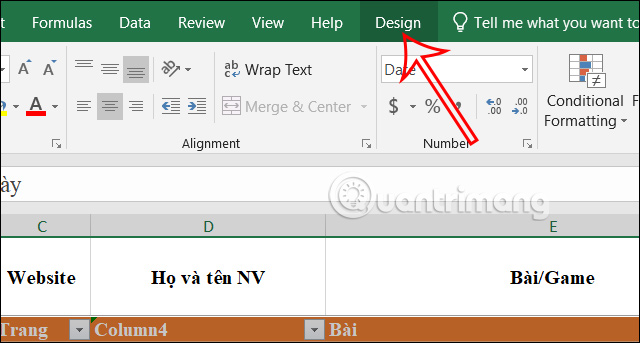
Step 2: Expand the Table Styles gallery and choose Clear.
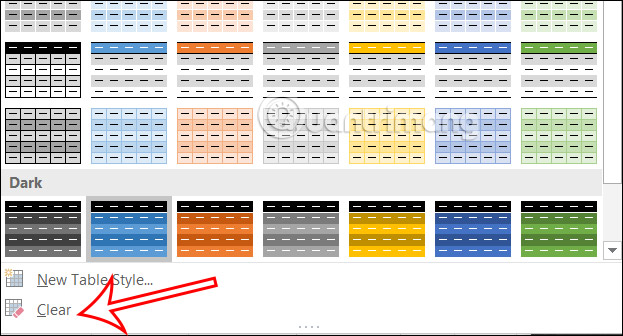
The visual style is removed, but the range is still an Excel Table. Filter arrows and table behavior may remain. Direct formatting applied to individual cells can also remain.

Remove cell formatting but keep values and formulas
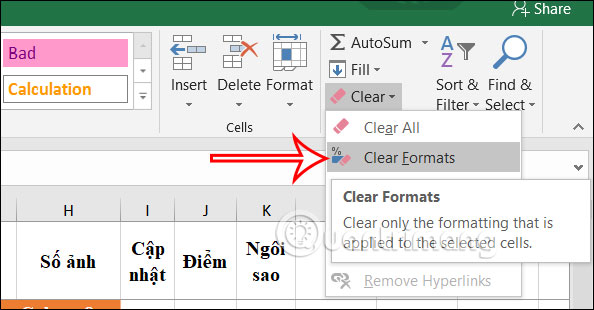
Select the exact range. On the Home tab, open Clear in the Editing group and choose Clear Formats.
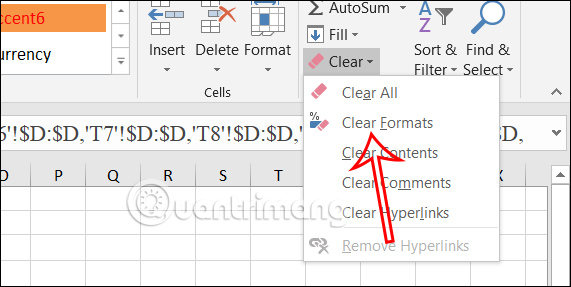
Do not choose Clear All unless you intend to delete the cell contents. Also check dates, percentages, currency, leading zeros, conditional formatting, and borders afterward; removing formats can make unchanged underlying values look very different.
Pressing Ctrl+A once may select the current data region and twice may select the entire sheet, depending on context. Confirm the highlighted range before clearing anything.
Convert an Excel Table to a normal range
Step 1: Click inside the table, right-click, choose Table, then Convert to Range. The same command is available on Table Design.
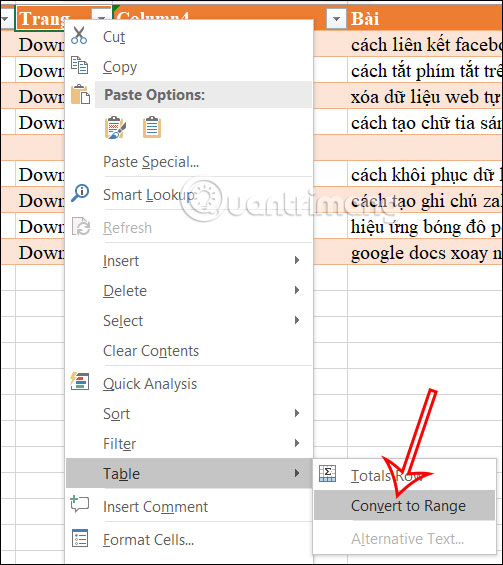
Step 2: Confirm the conversion. Save a backup first when formulas, charts, PivotTables, Power Query, data validation, or other sheets refer to the table by name.
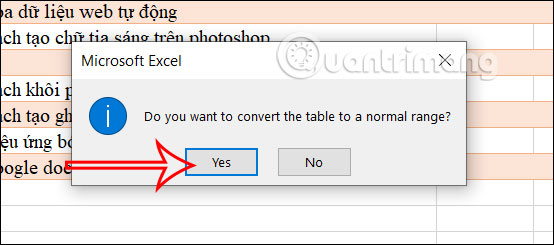
The filter buttons supplied by the Table disappear, although a separate Data > Filter can still exist. The cells keep their current formatting.
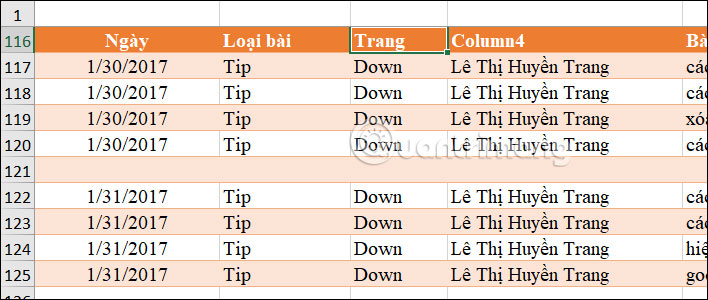
If you also want plain formatting, select the converted range and use Home > Clear > Clear Formats.
Automate conversion with VBA
VBA is unnecessary for one table, but it can support a controlled repetitive workflow. Save the workbook as .xlsm, use only reviewed macros, and test a copy. Press Alt+F11, insert a standard module, and add the macro.
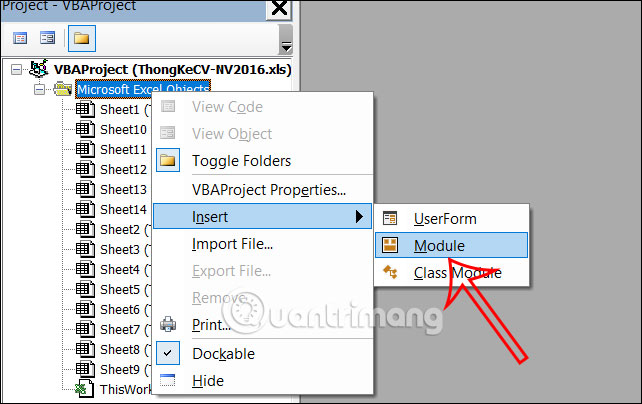
This macro converts the table containing the active cell to a normal range; it does not clear the visible cell formats:
Sub ConvertActiveTableToRange()
    Dim tbl As ListObject

    On Error Resume Next
    Set tbl = ActiveCell.ListObject
    On Error GoTo 0

    If tbl Is Nothing Then
        MsgBox "Select a cell inside an Excel Table.", vbExclamation
        Exit Sub
    End If

    If MsgBox("Convert table '" & tbl.Name & "' to a normal range?", _
              vbYesNo + vbQuestion) = vbYes Then
        tbl.Unlist
    End If
End Sub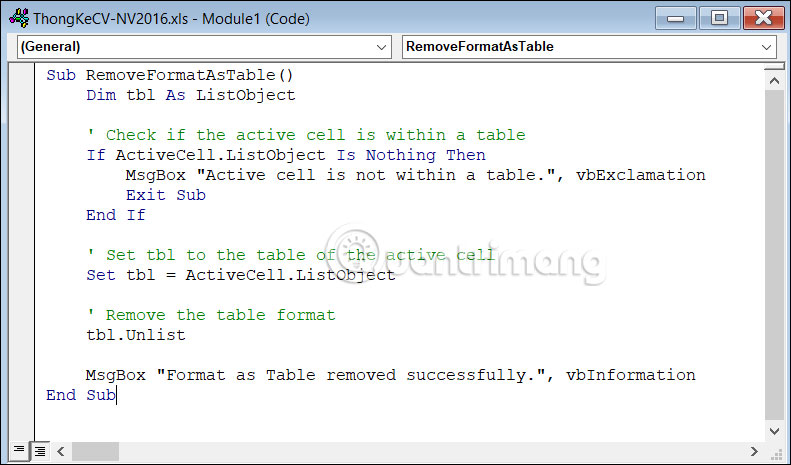
Run it from the Macros dialog or the VBA editor only after selecting a cell in the intended table. Verify the table name in the prompt.
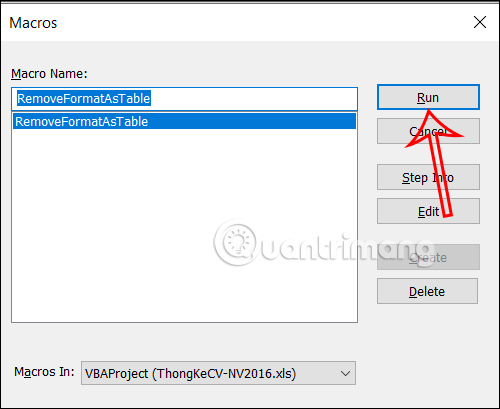
If the goal is merely to clear a style while retaining the table, do that through the Table Styles gallery. A bulk VBA operation can affect structured formulas and should not be used without a workbook-specific test.
Clear formatting in Excel on a phone or tablet
- Select the cells whose formatting should be removed.
- Open the Home or editing menu; in some versions this is behind a three-dot button.
- Find Clear and choose Clear Formats.
- Confirm that values and formulas remain and that number display is still appropriate.
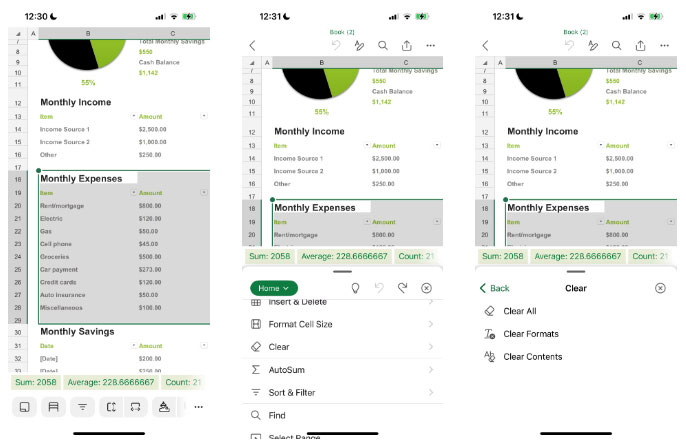
The mobile app may not expose every Table Design command. Use desktop Excel when you need to convert a table to a range or inspect workbook dependencies.
Check the result before saving
- Sort or filter a copy to confirm rows remain aligned.
- Inspect formulas for structured references such as
Table1[Amount]. - Check number formats, especially dates, percentages, identifiers, and currency.
- Review conditional formatting, totals rows, named ranges, charts, and queries.
- Use Undo immediately if contents disappear or the wrong range was affected.
Related Articles
 6 Microsoft Excel Formatting Habits to Break5 minutes read
 Excel 2019 (Part 21): Tables6 minutes read
 10 Useful Table Formatting Tips in Microsoft Word12 minutes read
 How to Naming Excel Tables4 minutes read
 The Most Detailed Way to Format Borders for Excel Tables3 minutes read
 How to Convert Excel to Word 2003 Simply and Easily4 minutes read
Reader Comments 0
Sign in with email or Google to join the discussion.