Table of Contents
Google Maps can show the general elevation of mountains, valleys, and other terrain through contour lines. It does not normally give an exact elevation when you tap any arbitrary point. For a specific location, Google Earth on a computer is the better consumer tool because it displays the ground altitude under the pointer.
Quick method: Search for the area, open Layers, select Terrain, and adjust the zoom until gray elevation labels appear on the contour lines.
What the Terrain layer shows
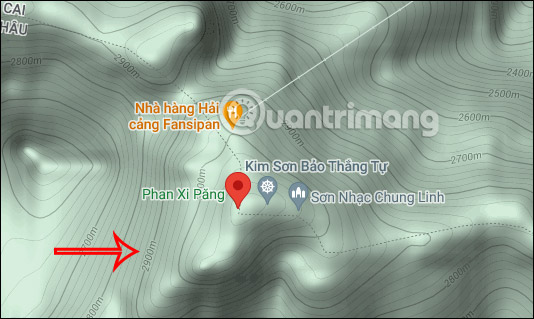
A contour line connects places at the same elevation. Closely spaced lines indicate a steeper slope; widely spaced lines indicate gentler terrain. The gray number printed on a major contour line is its elevation, not necessarily the elevation of the place marker you searched for.
Terrain coverage and label density vary by location. Labels may disappear when you zoom too far in or out, so change the zoom level if you can see shaded relief but no elevation numbers.
View elevation in Google Maps on a phone
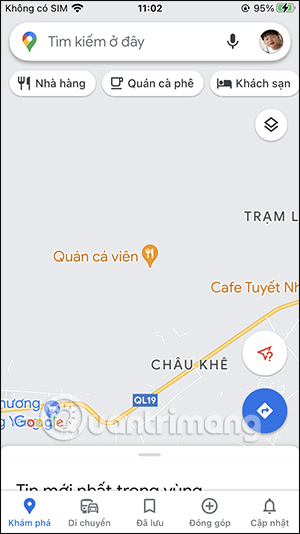
1. Search for the area
Open Google Maps and search for the mountain, pass, park, or region you want to inspect. Select the correct result, then return to the map view.

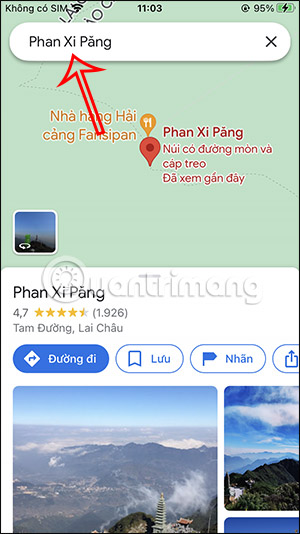
2. Open map layers
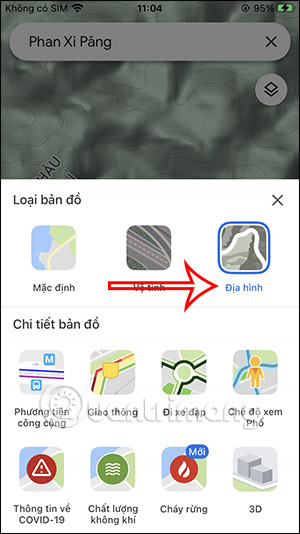
Tap the map to close any large place card if necessary, then tap the Layers button near the upper-right corner.
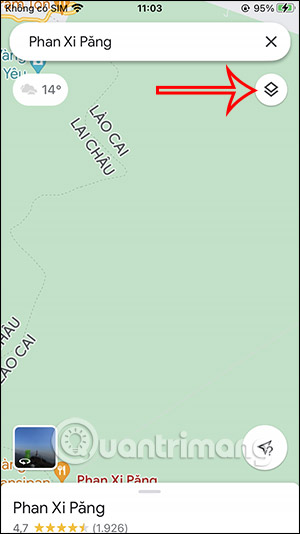
3. Select Terrain
Under map type or map details, choose Terrain, then close the layer panel.
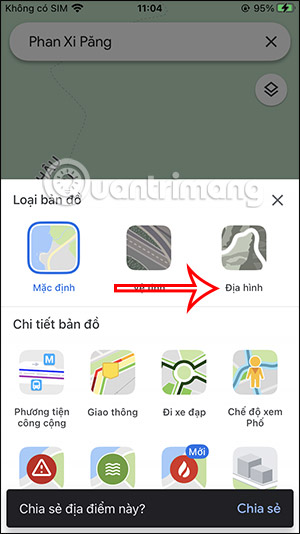
4. Read the contour labels
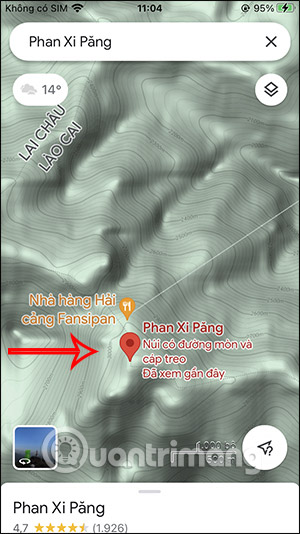
Pan around the area and zoom until contour lines and gray altitude numbers are visible. Read a nearby labeled contour line to estimate the location’s elevation. Do not assume the nearest label is an exact reading for a building, trail point, or road.
View elevation in Google Maps on a computer
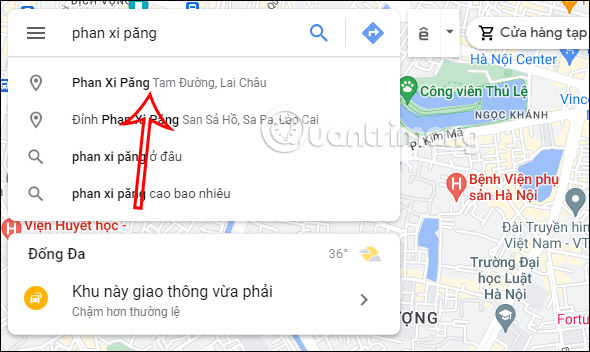
1. Find the location
Open Google Maps in a browser and search for the area. Terrain information is easiest to see in a mountainous or hilly region rather than a dense city.
2. Turn on Terrain
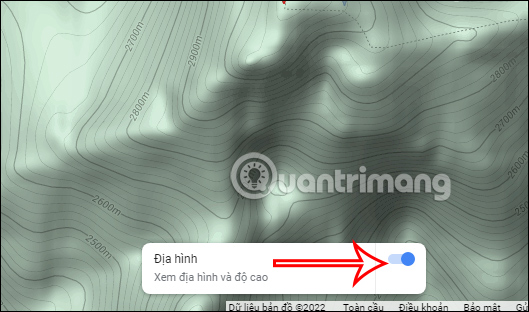
Click Layers in the lower-left corner. If Terrain is not immediately visible, select More, then choose Terrain.

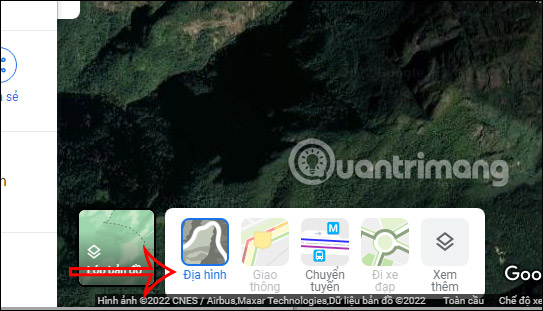
3. Adjust the zoom and interpret the map
The map switches to shaded terrain with contour lines. Move around and change the zoom until elevation labels appear. Use the labels to understand the shape and approximate height of the landscape.
Use the Terrain toggle in the Layers panel to return to the standard map when you are finished.
Google’s map layers guide confirms that Terrain uses contour lines and gray numbers to show landscape elevation. TipsMake’s roundup of lesser-known Google Maps features includes other useful ways to inspect and plan with the map.
Get an approximate altitude for a specific point
If you need a reading for one point rather than a contour estimate, open Google Earth on a computer, search for the place, and move the pointer over the exact spot. The lower-right corner shows the ground altitude and the camera altitude. Make sure you read the ground value, not the viewing height.
Google explains this distinction in its Google Earth altitude instructions. The value is suitable for general planning, not surveying, construction, flood certification, or other safety-critical decisions.
If no elevation labels appear
- Confirm that Terrain, not Satellite, is selected.
- Zoom out one or two levels; contour numbers often disappear at very close zoom.
- Move to a hillier area, because flat regions may have few visible contours.
- Try Google Maps on a desktop screen, where more map detail is visible.
- Use Google Earth for a point estimate when Maps only shows general relief.
For hiking or mountain travel, treat Google Maps as a planning aid. Cross-check a dedicated topographic map, official trail information, weather, closures, and local guidance before relying on an elevation estimate.
Related Articles
 3 Simple Steps to Change How You Use Google Maps on Android7 minutes read
 How to Use Google Maps to Find Your Way: Step-by-Step Guide5 minutes read
 Useful Features on the Google Maps App That You Don't Know Yet7 minutes read
 How to Turn Off Google Maps Location Notification5 minutes read
 How to Use Google Maps Immersive View on Android and iOS5 minutes read
 4 Things You Can Do with Your Google Maps Location History: Best Options7 minutes read
Reader Comments 0
Sign in with email or Google to join the discussion.