Table of Contents
Google Maps navigation uses the screen, GPS, mobile data, and background processing at the same time. On Pixel 10 models, Maps has a dedicated low-power driving display. On other phones, the most reliable savings come from lowering screen brightness, downloading the route area in advance, and avoiding graphics you do not need.
Do not force-stop Maps or block location access during an active journey. Aggressive app restrictions can delay directions or make the location marker inaccurate.
Use Google Maps Power saving mode on Pixel 10
Google Maps Power saving mode is currently limited to Pixel 10, Pixel 10 Pro, Pixel 10 Pro XL, and Pixel 10 Pro Fold. It works for driving navigation, not walking or cycling directions, and is enabled by default on supported devices.
To confirm the setting, open Google Maps and tap your profile picture, then select Settings > Navigation. Under Driving options, turn on Power saving mode.
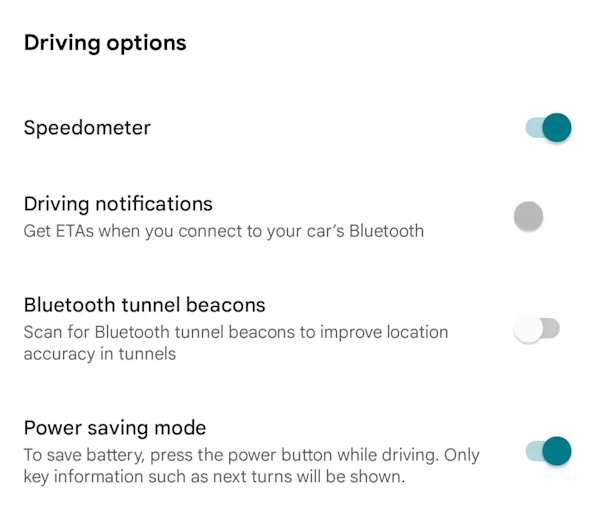
Start a driving route and press the phone’s Power button. The lock screen changes to a simplified, low-power navigation map with essential information such as the next turn. Tap the screen or press the Power button to return to the standard map. The mode ends automatically when navigation finishes.
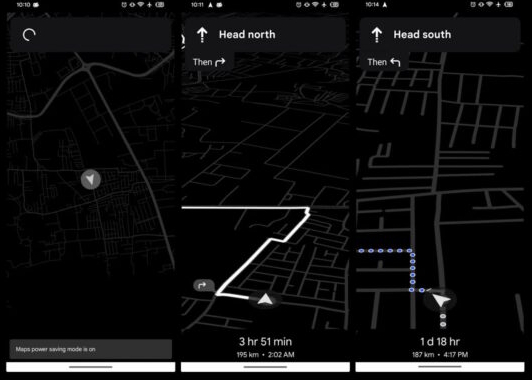
Google says the mode can significantly extend navigation time, but actual results depend on brightness, traffic, signal strength, and other conditions. Follow the official Pixel power-saving instructions for current device and travel-mode requirements.
Download the route area before leaving
An offline map reduces mobile-data use and helps when coverage is weak. It does not turn off GPS or the screen, so it is not a complete battery-saving mode, but it can prevent repeated network activity in poor-signal areas.
- In Google Maps, tap your profile picture and choose Offline maps.
- Select Select your own map, position the box over the route area, and tap Download.
- Update the download on Wi-Fi before a long trip and confirm that the destination lies inside the saved area.
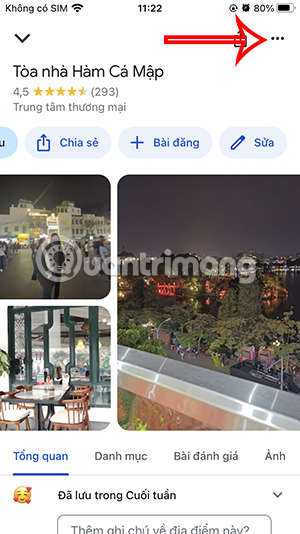
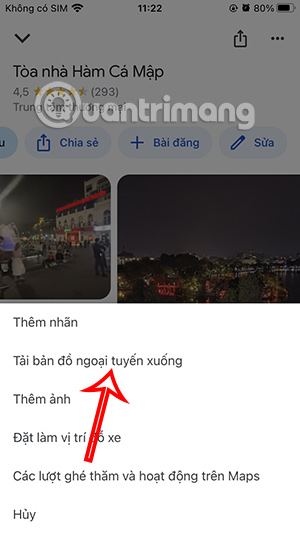
Some live features, alternate routes, and transit or cycling details may still require a connection. TipsMake’s list of apps that work offline includes the preparation steps for Google Maps.
Reduce screen power without hiding directions
- Lower brightness to the lowest comfortable level and keep adaptive brightness on if it works well in your vehicle.
- Use voice guidance and turn the screen off on long, simple road segments when it is safe to do so.
- Keep the phone out of direct sunlight. Heat can reduce performance and make the screen increase brightness.
- Use a secure mount and connect a suitable car charger for long journeys; set everything before driving.
Dark mode may reduce display power on phones with OLED screens, but brightness and screen-on time usually matter more than color alone.
Limit background activity only when you are not navigating
If Google Maps continues using noticeable power when no route is active, review its background permissions. Do not make these changes during navigation, location sharing, or a trip that depends on live updates.
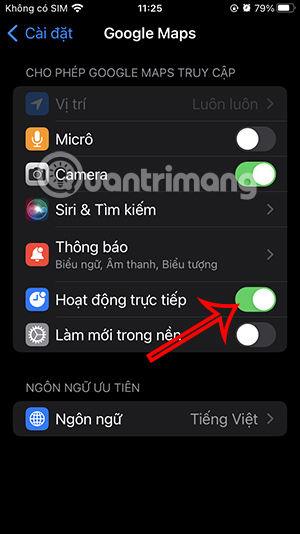
On iPhone
Open Settings > Apps > Google Maps and turn off Background App Refresh if you do not need Maps updating in the background. Menu placement differs on older iOS versions.
On Android
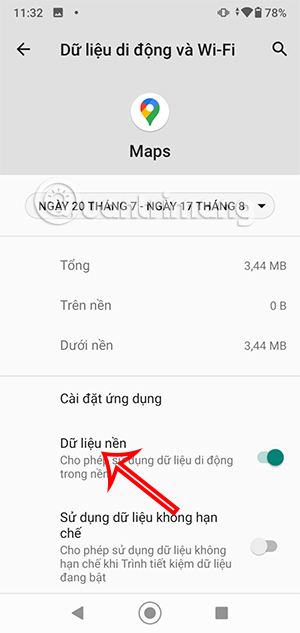
Open Settings > Apps > Google Maps. Depending on the manufacturer, background controls may appear under Mobile data & Wi-Fi, Battery, or App battery usage.
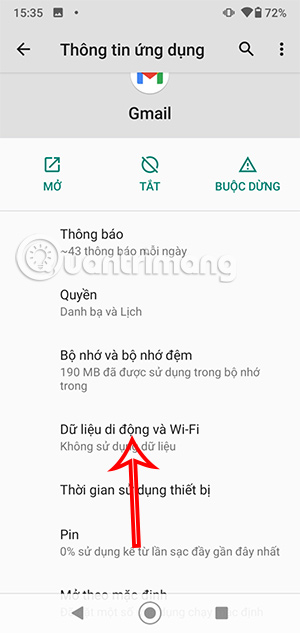
Restrict background data only if you understand the tradeoff. It can delay traffic updates, shared-location updates, or navigation behavior when Maps is not in the foreground. On Android, the balanced choice is usually the system’s Optimized battery setting rather than Restricted.
Turn off Google Maps Live Activities on iPhone if unused
Live Activities can keep trip information visible on the Lock Screen or Dynamic Island. If you do not want this, open Settings > Apps > Google Maps > Live Activities and turn the feature off. This changes only the selected app; there is no need to disable Live Activities globally.
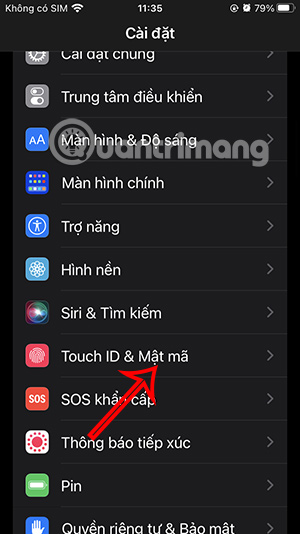
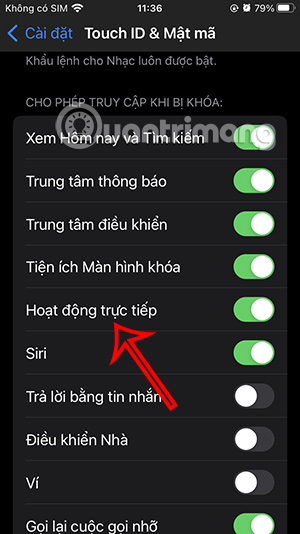
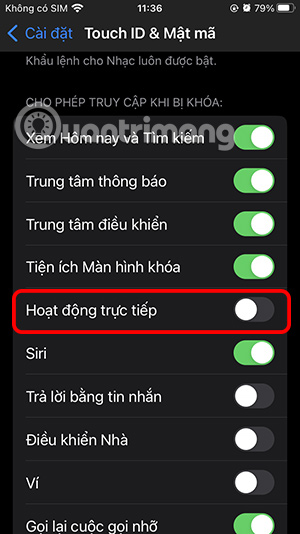
Apple’s Live Activities settings guide explains the current per-app controls.
Use a simpler map layer
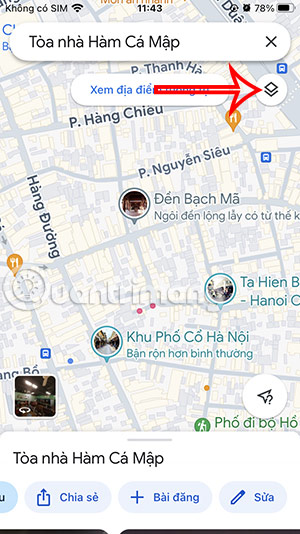
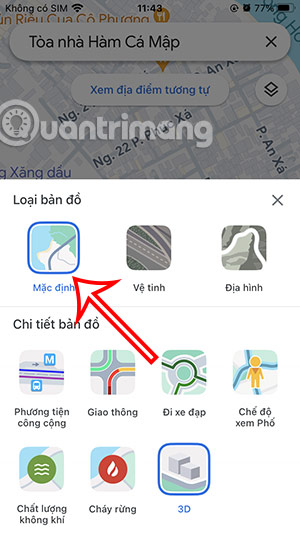
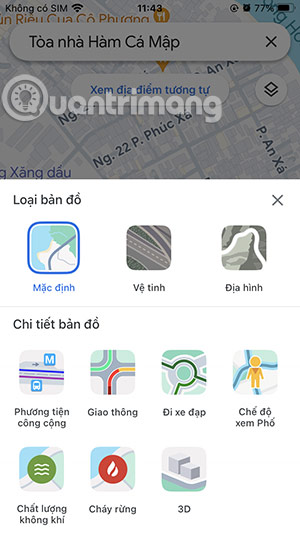
Satellite imagery and 3D detail require more graphics and network data than the standard map. For turn-by-turn driving, the Default layer usually provides the information you need.
Tap Layers, choose Default, and turn off extra details that are not relevant to the journey.
What not to disable during a trip
- Precise location: Navigation needs accurate location access.
- All background activity: Overly strict limits can interrupt directions when the screen locks.
- Mobile data before an offline map is ready: The route may need live traffic or an area outside the download.
- Safety alerts or audio guidance: Saving a small amount of power is not worth missing a turn or handling the phone while driving.
If location starts jumping or directions lag after enabling a phone-wide Battery Saver, restore normal battery settings for Maps and test again. For a broader view of offline navigation and other strengths, see TipsMake’s guide to useful Google Maps navigation features.
Related Articles
 Google Maps Displays the Battery Life on the Device When Sharing Location3 minutes read
 How to Find Your Way with Google Maps on Your Phone5 minutes read
 How to Find the Way to Google Maps for Motorcycles5 minutes read
 How Does Google Maps Work?: Why Google Created Google Maps12 minutes read
 Tips for Using Google Maps on Android11 minutes read
 How to Preview Images Where Needed on Google Maps6 minutes read
Reader Comments 0
Sign in with email or Google to join the discussion.