Table of Contents
A low-profile USB-C flash drive can add room for documents, photos, and media without a dangling cable. The SanDisk Extreme Fit is one option designed to stay connected to a laptop. It is useful for extra file storage, but it does not enlarge the internal SSD, add RAM, or guarantee that you will never run out of space.
If your laptop is full, first identify what is using the space and whether you need faster working storage or simply somewhere to keep less frequently used files. That distinction determines whether a small flash drive is the right purchase.
What makes the Extreme Fit different
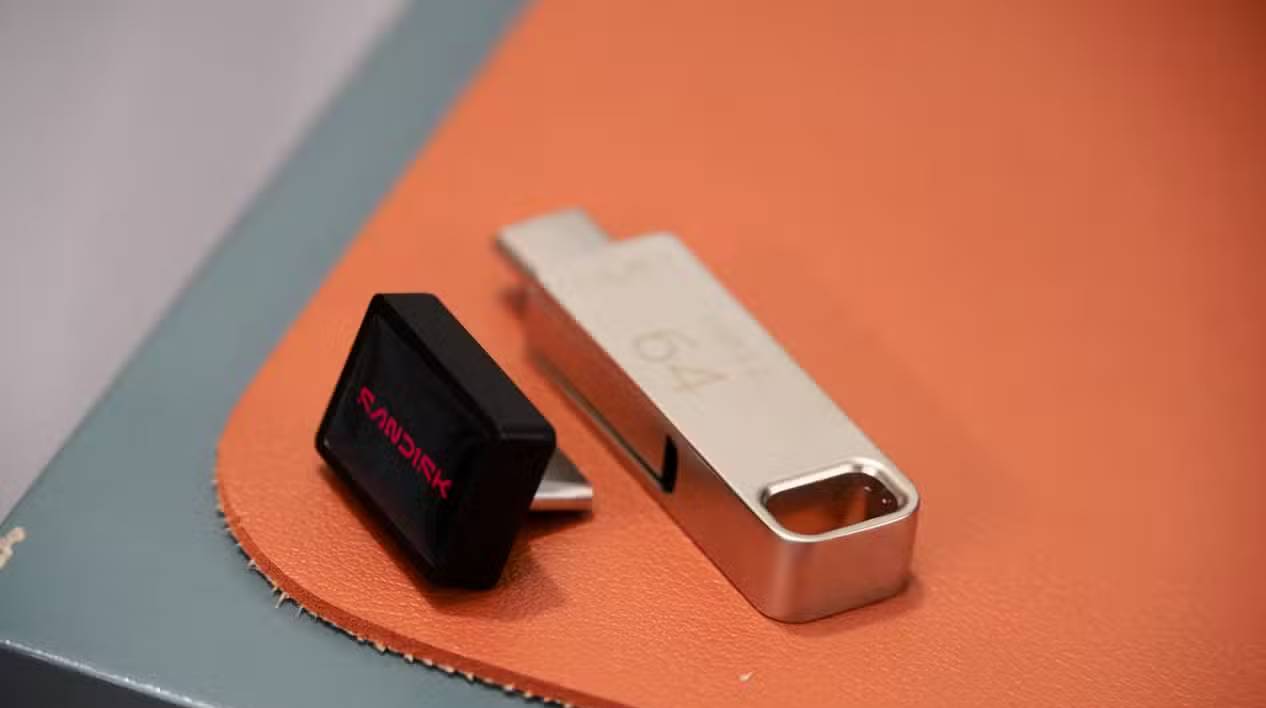
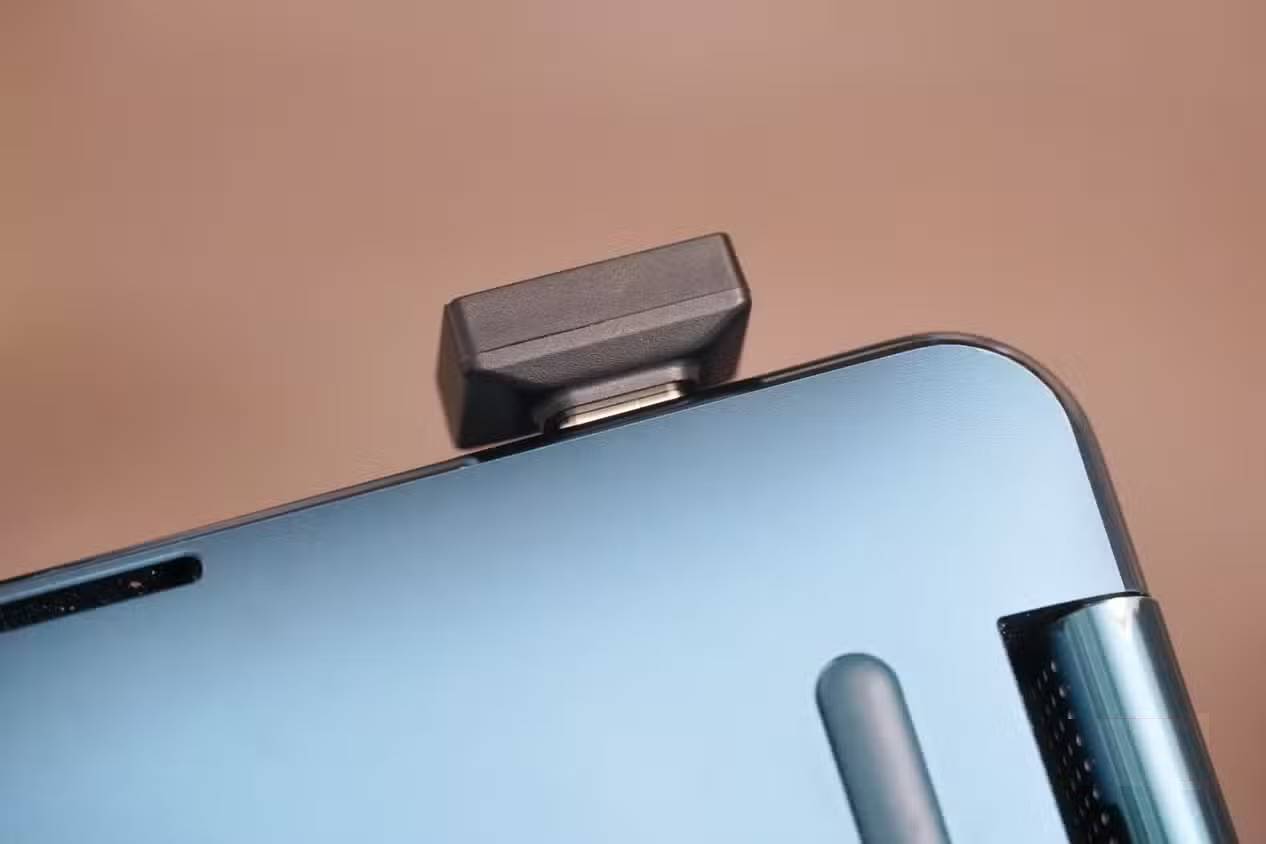
The main advantage is its compact shape. Unlike a portable SSD connected by a cable, the drive plugs directly into USB-C and occupies little space outside the laptop. Check the fit on your particular computer: a neighboring port, thick case, or tightly fitting sleeve can still interfere.
According to SanDisk's product specifications, the drive measures approximately 18.54 × 13.72 × 16 mm and is available in capacities up to 1TB. It uses USB 3.2 Gen 1. The advertised maximum sequential read speed is 400MB/s for the 128GB–1TB versions; this is not a guaranteed write speed or a promise that every transfer will reach that rate.
The specification lists a five-year limited warranty. Check the terms for your market and purchase, and maintain a separate backup: a hardware warranty is not a substitute for recovering lost files.
Extra capacity remains a separate drive
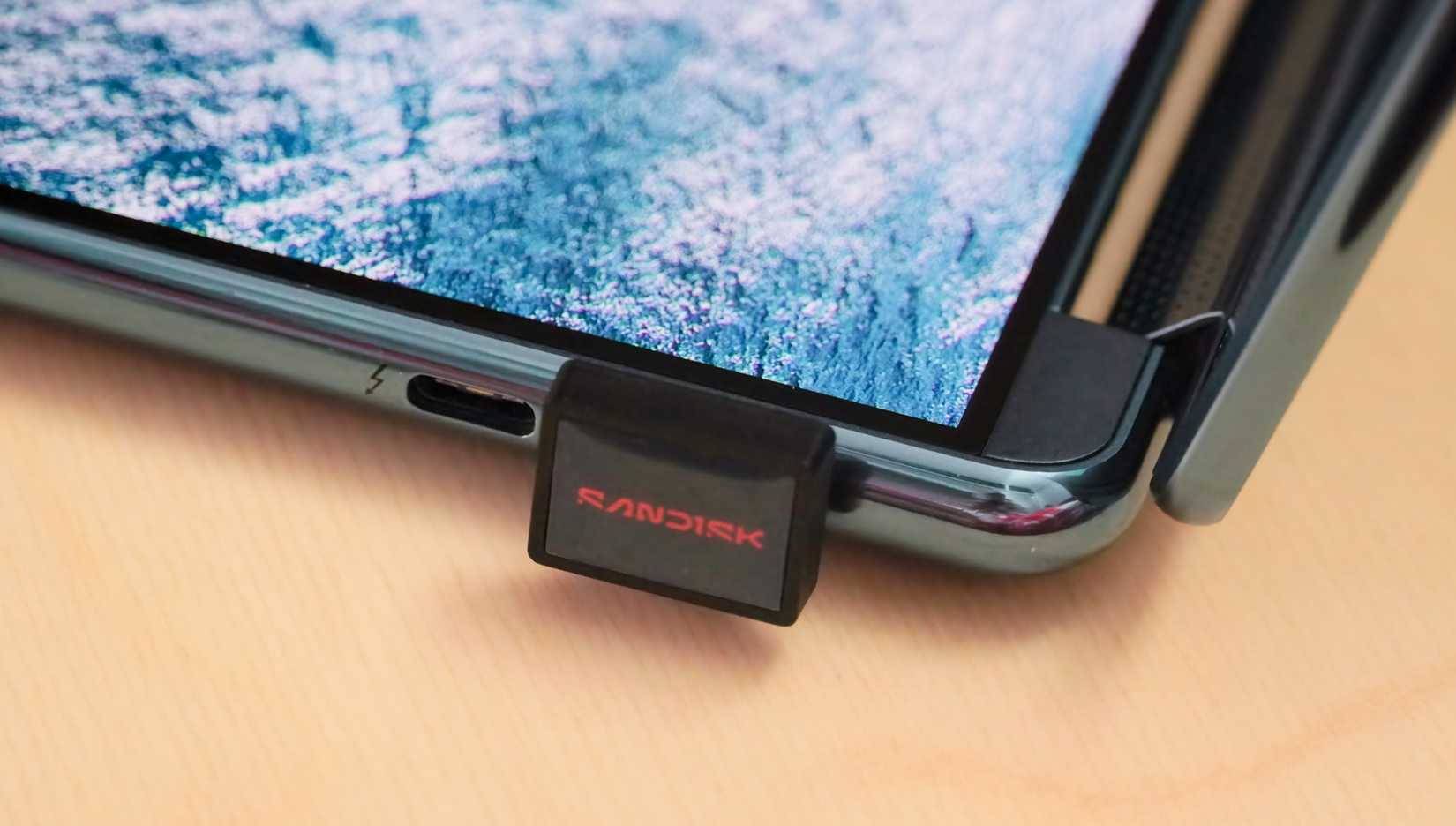
Adding a 512GB USB drive to a laptop with a 512GB SSD provides additional nominal storage across two devices. It does not turn the system drive into a single 1TB SSD. The operating system will show the USB drive separately, and applications may continue writing downloads, updates, and temporary files to the internal drive.
To free internal space safely:
- Choose files you can store separately, such as completed projects or a media collection.
- Copy them to the USB drive and verify that the copies open.
- Create another backup on a different device or suitable service.
- Only then remove the internal copies if you no longer need them there.
- Update any application paths that pointed to the old location.
Do not confuse moving a file with backing it up. If the USB drive holds the only copy, losing or damaging it can mean losing that file. A drive left attached also travels with the laptop, so it does not protect against theft of the whole computer.
When a flash drive is—and is not—a good fit
It suits ordinary file access and situations where compactness matters more than sustained performance. For frequent large writes, video-editing scratch space, virtual machines, or a demanding game library, compare a portable SSD's sustained performance and endurance specifications instead.
Read speed, write speed, small-file performance, temperature, and the laptop's USB connection all affect real use. See ways to troubleshoot slow USB file transfers. Avoid interpreting a peak read figure as an overall benchmark result.
Use the operating system's eject function before removing the drive, especially after writes. Avoid pressure on the connector when carrying the laptop, and follow the drive's operating-temperature and handling instructions.
Compare the alternatives before buying
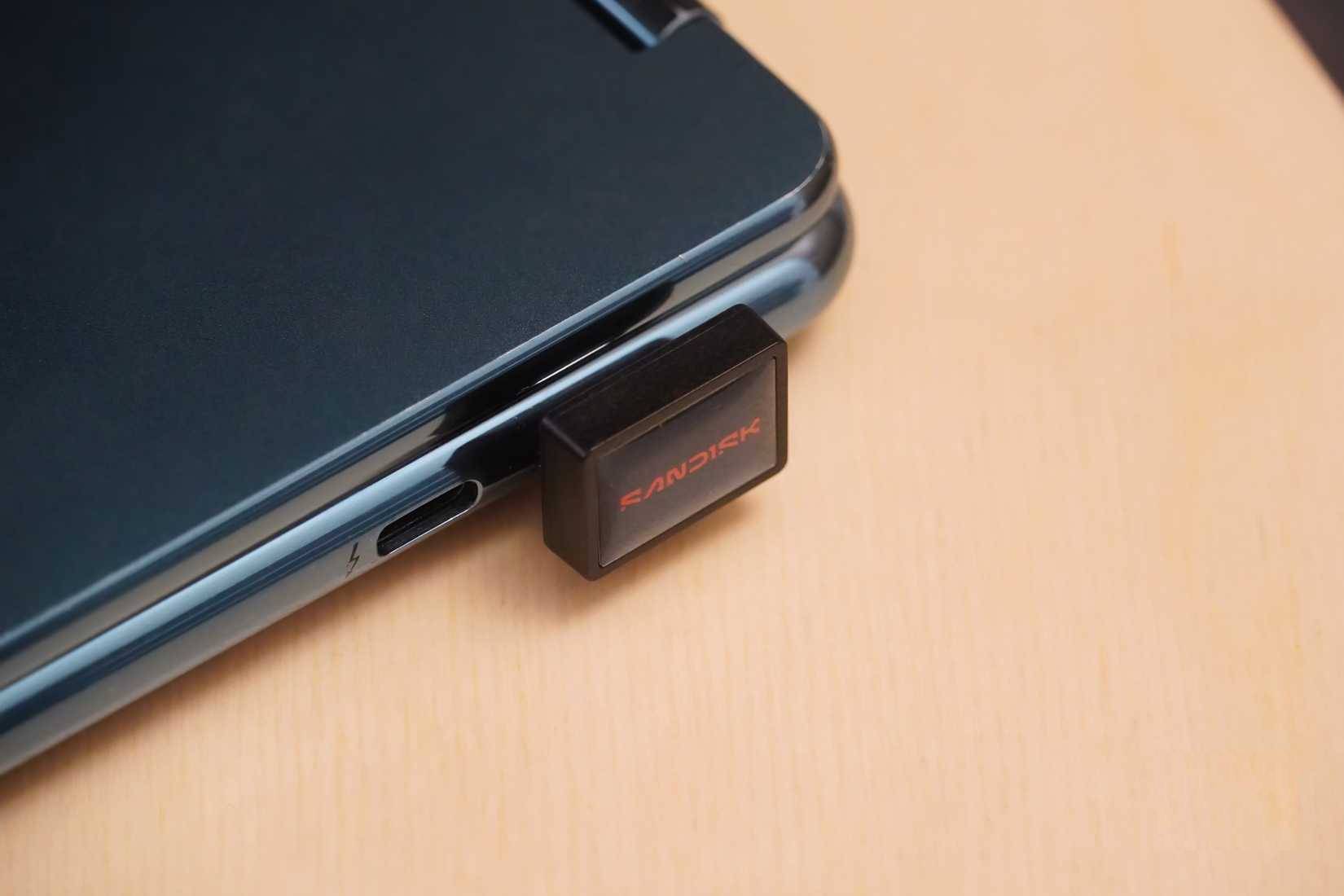
Some laptops have replaceable internal SSDs; others use soldered storage. RAM and storage upgradeability are separate questions. Check your exact model's service manual rather than assuming all modern laptops are unupgradeable. The guide to laptop SSD types and compatibility explains what to match.
Compare the current price per capacity against a portable SSD, a supported internal upgrade, and cloud storage if that fits your workflow. The Extreme Fit's strongest selling point is convenient, compact file storage. Buy it for that role, with a backup plan and realistic speed expectations.
Related Articles
 5 Simple Ways to Regain Storage Space on Your Android Device6 minutes read
 Don't Rush to Spend Money on Upgrades: Do This When Your Linux Storage Is Running Low10 minutes read
 Change Storage Space in Storage Pool on Windows 103 minutes read
 Which ICloud Storage Plan Is Right for You?8 minutes read
 Free up Storage Space on Your Android Device with Just 1 Tap5 minutes read
 How to Use Storage Sense Windows to Free up Disk Space4 minutes read
Reader Comments 0
Sign in with email or Google to join the discussion.