Table of Contents
Rapid battery drain or the need for frequent charging are signs that many people want to check the condition of their laptop battery, especially when buying a used machine. Let's take a look at how to check battery health, cycle count, etc., in the following article from TipsMake.
A battery-health screen is an estimate, not a laboratory measurement. Use several signals together: design capacity, current full-charge capacity, cycle count when reported, real runtime under a repeatable workload, operating-system service status, charging behavior, and physical condition.
Windows: generate the built-in battery report
- Open Terminal, PowerShell, or Command Prompt.
- Run
powercfg /batteryreport. Windows writes an HTML report and shows its path. - Open that file in a browser and compare Design Capacity with Full Charge Capacity. An approximate capacity ratio is
Full Charge Capacity ÷ Design Capacity × 100. - Review recent usage, capacity history, and runtime estimates for trends. A missing cycle count is common when firmware does not provide it.
Microsoft's powercfg reference documents /batteryreport, including optional output and duration parameters. The reported capacity can vary with temperature, calibration, firmware, workload, and battery-management behavior, so do not make a replacement decision from a single reading.
macOS: check condition, capacity, and cycles
- Open Apple menu > System Settings > Battery and review Battery Health. Depending on the Mac and macOS version, this area can show condition and maximum capacity.
- For cycle count, hold Option while opening the Apple menu, choose System Information, then select Power under Hardware.
- Compare the cycle count with Apple's maximum-cycle table for that exact Mac model, and give more weight to a Service Recommended status or unacceptable real runtime than to the cycle number alone.
Apple explains how to find the cycle count and model limit and what Service Recommended means. Optimized Battery Charging can deliberately delay charging or limit time spent at full charge to reduce aging.
Do not apply one percentage to every laptop
An 80% figure is often discussed because some manufacturers use it in product or service expectations, but it is not a universal failure line for every Windows laptop or Mac. Replace or service the battery when the manufacturer reports a fault, usable runtime no longer meets your needs, the computer shuts down unexpectedly, charging is unreliable, or a qualified diagnostic identifies a problem.
Battery swelling or overheating is different from normal wear
If the case or trackpad is lifting, the battery is swollen, the laptop becomes unusually hot while idle or charging, or there is an odor, leak, or hissing sound, stop normal use. Shut the laptop down if it is safe to do so, disconnect power, keep it away from flammable material, and contact the manufacturer or a qualified battery service. Do not press, puncture, bend, or attempt to remove a swollen internal battery.
TipsMake also provides a local Windows battery-report analyzer, a comparison of battery-health tools, and a guide to laptop temperature monitoring.
Battery-health checks at a glance
- Check your Windows laptop battery health using the command `powercfg /batteryreport` without installing any additional software.
- Check your MacBook's battery by looking at the Cycle Count and Maximum Capacity in the System Report.
- Compare the design capacity and the actual charge capacity to calculate battery degradation.
- Consider replacing the battery when the degradation exceeds 25-30% or when the system displays a service warning.
- Using readily available tools is the safest and most reliable way for the average user to check security.
1.
Battery degradation refers to the decrease in battery capacity over time. Li-ion batteries naturally wear down after multiple charging cycles and prolonged use. Regular checks help you accurately assess your laptop's condition, rather than relying solely on the feeling of a low battery.

Regular checks help to accurately assess the actual condition and performance of the battery.
You should check your laptop battery when:
- The battery drains unusually quickly, and the usage time decreases noticeably even though usage habits remain unchanged.
- The battery percentage display is unstable, the phone shuts down suddenly, or the battery drains quickly after being unplugged.
- The device takes a long time to charge, requires frequent plugging in, or the operating system displays battery warnings.
- You're looking for a laptop that's about 2-3 years old, or you're planning to buy a used Windows laptop or MacBook.
- Perform regular checks every 3-6 months to monitor battery condition.
Note: These signs are only initial warnings. In reality, some machines may display incorrect information due to the operating system or drivers. Therefore, further checks using system tools are recommended before drawing any conclusions.
You should check your computer if the battery drains unusually fast.
2. Check battery health in Windows
2.1. Generate the battery report
- Step 1: Open Command Prompt or PowerShell with administrator privileges.
- Step 2: Enter the following command and press Enter: powercfg /batteryreport
- Step 3: Windows will return the path containing the battery-report.html file.
- Step 4: Open that file using a browser to view the battery report.
If you don't see the file, double-check the path that Windows displayed after running the command.
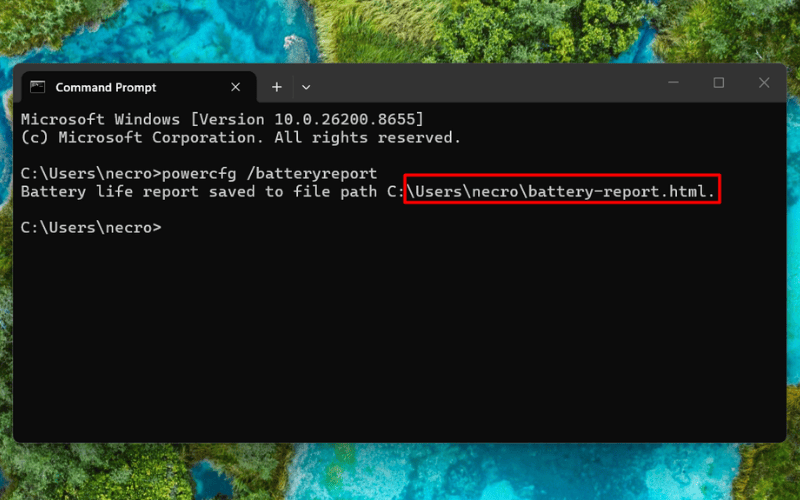
Enter the command powercfg /batteryreport and press Enter to check.
3.2. How to read battery indicators on Windows to determine if your computer's battery is worn out
- Installed batteries: Information about the installed batteries, including the most important indicators.
- Battery capacity history: The history of battery capacity over time.
- Recent usage: Recent usage patterns and battery discharge levels.
For the average user, the most important thing is to compare the Design Capacity and Full Charge Capacity, as well as paying attention to the Cycle Count.
- Design Capacity: The default battery capacity when the device is new.
- Full Charge Capacity: The actual battery capacity currently shown when fully charged.
- Cycle Count: The number of charging cycles completed on the battery (some older models may not show the number of charging cycles).
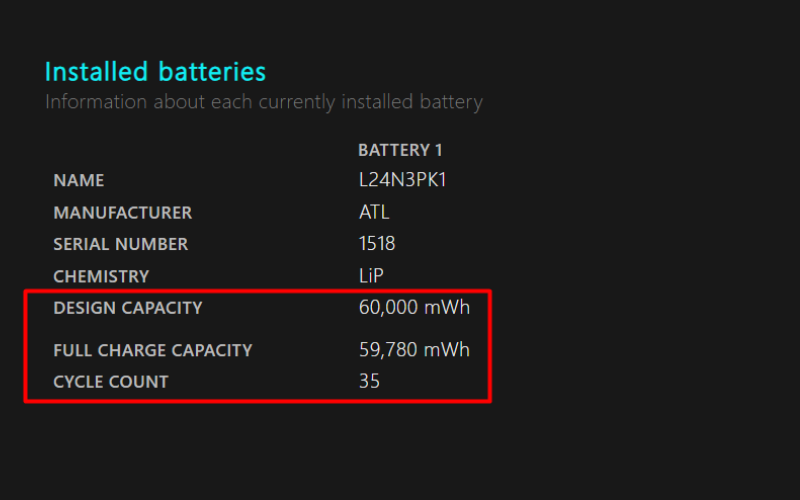
Key metrics that average you should pay attention to.
How to quickly calculate battery degradation:
Battery capacity ≈ (Design capacity - Full charge capacity) / Design capacity × 100%
The larger the difference, the more the battery drains. However, you shouldn't draw conclusions based solely on one number. It's important to combine Windows reports with actual usage time, battery drain levels, and system alerts.
4. How to check the number of charging cycles and battery status of your MacBook
MacBooks have a built-in battery testing tool in macOS. For basic needs, you don't need to install an external application. The three metrics users usually need to check are cycle count, condition, and maximum capacity.
3.1. Open Battery Health and System Information
- Step 1: Go to About This Mac or System Settings.
- Step 2: Open System Report, select the Power section.
- Step 3: Check the Health Information section to read the battery information.
The interface may differ slightly between macOS versions, but the names of the main items are usually similar.
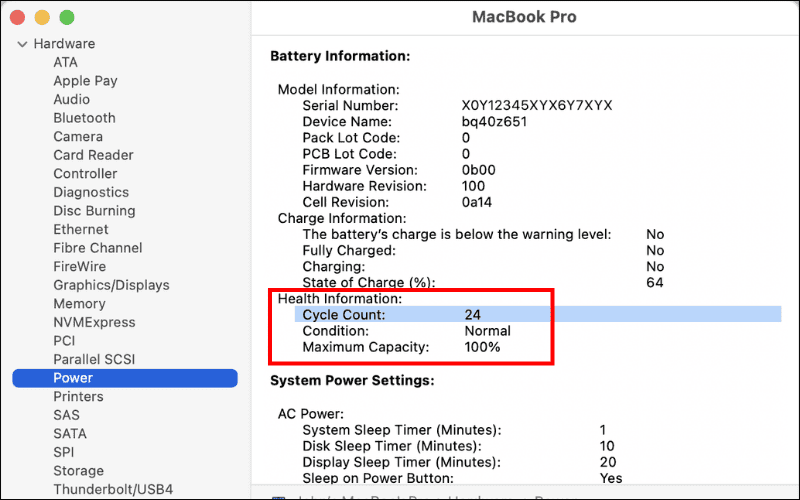
See the Health Information section to read battery information.
3.2. Interpret condition, capacity, and cycles
- Condition: The overall status of the battery.
- Cycle Count: The number of charging cycles used.
- Maximum Capacity: The percentage of maximum capacity remaining compared to a new battery.
- Service Recommended or Replace Soon: The system is warning that further checks are needed.
If the maximum capacity is low but the actual user experience is still good, there's no need to replace it immediately. You should still compare the battery life, stability, and warnings of the device.
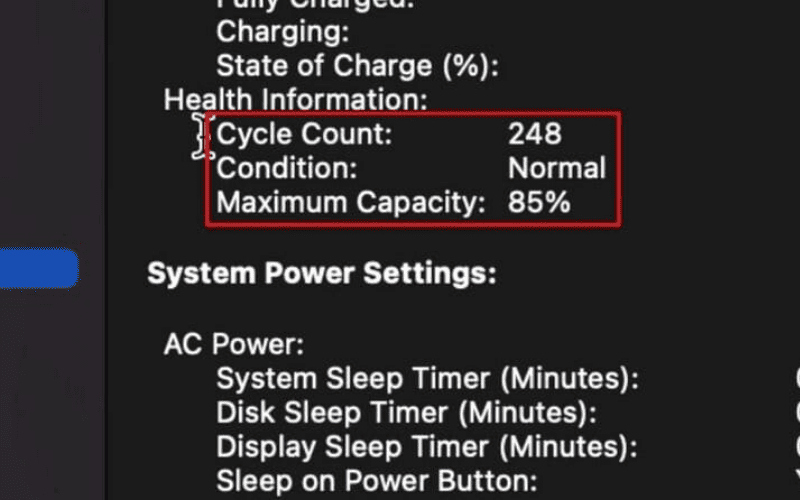
You should read the data and compare it with the actual condition of your device to assess battery degradation.
5.
|
Status |
Reference signs |
Conclude |
|---|---|---|
|
|
Low consumption, no warnings, and the battery life remains good. |
Continue using and performing regular checks. |
|
Battery level has dropped. |
The bottle's capacity is noticeably reduced by about 25-30% or maximum, resulting in a shorter usage time than before. |
Monitor further, adjust charging habits and temperature accordingly. |
|
You should check/replace the battery. |
High battery level, service warning, sudden shutdown, abnormal battery drain. |
You should check the battery carefully and consider replacing it if necessary. |
5. When third-party battery tools are useful
For basic needs, you don't necessarily need external software. The tools available on Windows and macOS are sufficient for most quick checks. You should only install additional software if you want to look into more in-depth issues.
- HWMonitor: View additional temperature and some hardware parameters.
- BatteryMon: Monitor your charging and discharging process in more detail on Windows.
- CoconutBattery: Take a closer look at your MacBook's battery health.
You should only install third-party software if you want to see more details.
7. Tips to help your laptop and MacBook battery last longer after testing
- Avoid letting the device overheat while charging or running demanding tasks.
- Use a charger that meets the correct standards, power rating, and is from a reputable source.
- Avoid letting the battery drain completely and causing the device to shut down automatically.
- Enable optimized battery charging if your device supports it.
- If you frequently charge your device, place it in a well-ventilated area.
- Update your operating system when necessary to improve battery management.
- Regular cleaning of the machine is essential for the cooling system to function properly.

Place the device in a well-ventilated area while charging to prevent battery degradation.
7. Capacity, cycle-count, and Windows power questions
8.1. Why is the battery still degrading even though the cycle count is low?
Cycle Count only reflects the number of charge-discharge cycles of the battery, and is not the sole factor determining battery degradation. High temperatures, the habit of continuously charging for long periods, battery age, and battery cell quality can also cause battery capacity to decrease even if the Cycle Count is low.
8.2. How do I re-enable the Hibernate option on Windows?
You can open Command Prompt or Windows Terminal with administrator privileges, then type the command powercfg /hibernate on and press Enter. After enabling it, the Hibernate option will usually reappear in Windows power settings.
Related Articles
 How to Check MacBook Battery Status: Clear Instructions5 minutes read
 How to Turn Off Battery Management on Mac?4 minutes read
 Instructions on How to Check MacBook Battery Are Extremely Simple Explained8 minutes read
 6 Best Tools for Analyzing Laptop Battery Health11 minutes read
 9 Best Tools to Analyze Laptop Battery Health16 minutes read
 How to Check the Battery of a MacBook Air or Pro3 minutes read
Reader Comments 0
Sign in with email or Google to join the discussion.