Table of Contents
The right laptop SSD is the one your computer can physically fit and electrically support. Start with the laptop manufacturer's service manual or storage specifications, then match the drive's form factor, interface, length, capacity, and connector key. Do not buy an M.2 drive based on its shape alone: an M.2 slot may support SATA, PCIe/NVMe, both, or neither for storage.
What an SSD upgrade can and cannot improve
A solid-state drive stores data in flash memory and has no spinning platters. Replacing a hard disk drive (HDD) with an SSD can make booting, launching applications, installing updates, searching files, and general storage access feel much more responsive. SSDs are also silent and less vulnerable to damage from everyday movement than mechanical drives.
An SSD does not replace the processor, memory, or graphics hardware. It will not solve slow performance caused primarily by too little RAM, thermal throttling, a weak CPU, malware, or software running in the background. Diagnose the bottleneck before spending money.
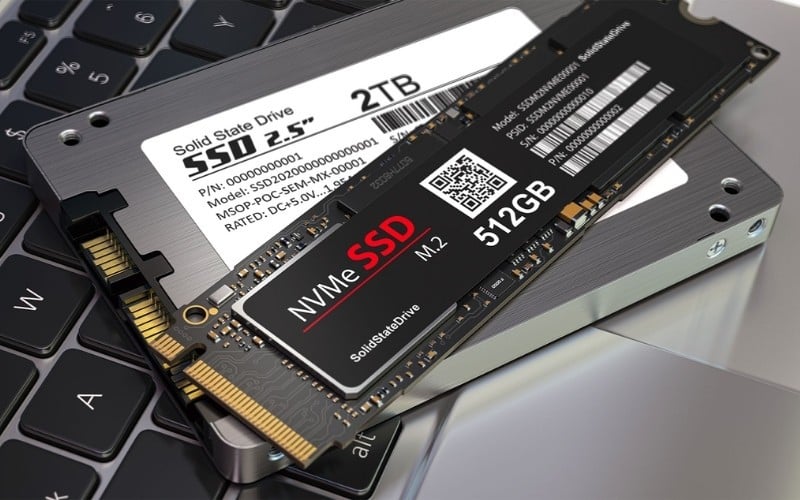
An SSD uses flash memory rather than the moving parts found in an HDD.
Good reasons to upgrade
- The laptop still uses a 2.5-inch HDD and storage activity is the main source of delays.
- The existing SSD is almost full and routine cleanup no longer creates enough space.
- You need more room for applications, games, media, virtual machines, or project files.
- A compatible faster drive would benefit frequent large-file transfers or storage-heavy work.
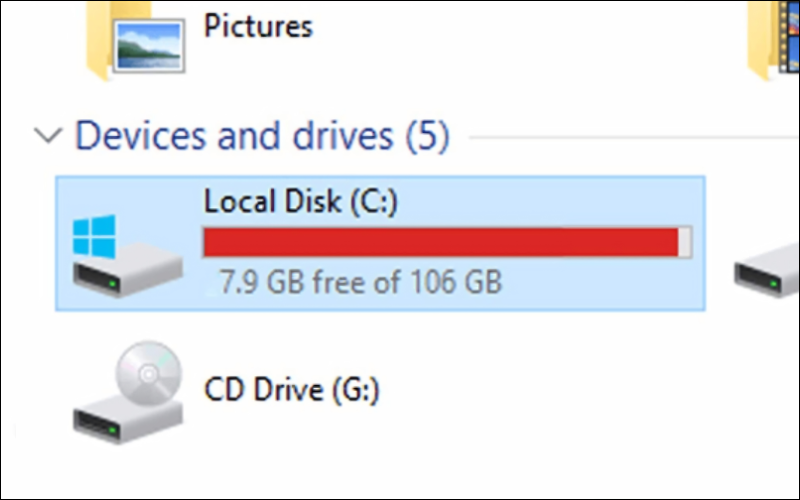
Check both capacity pressure and the actual performance bottleneck before upgrading.
The four SSD formats commonly found in laptops
2.5-inch SATA SSD
A 2.5-inch SATA SSD resembles a thin laptop hard drive and connects through separate SATA data and power connectors, or a combined laptop connector and caddy. It is often the simplest replacement for an HDD in an older laptop. Performance is limited by the SATA interface, but the jump from an HDD is still substantial in normal desktop use.
Confirm the drive thickness, caddy, interposer, cable, and mounting screws. Some laptop models have space for a 2.5-inch drive but were sold without the required cable.
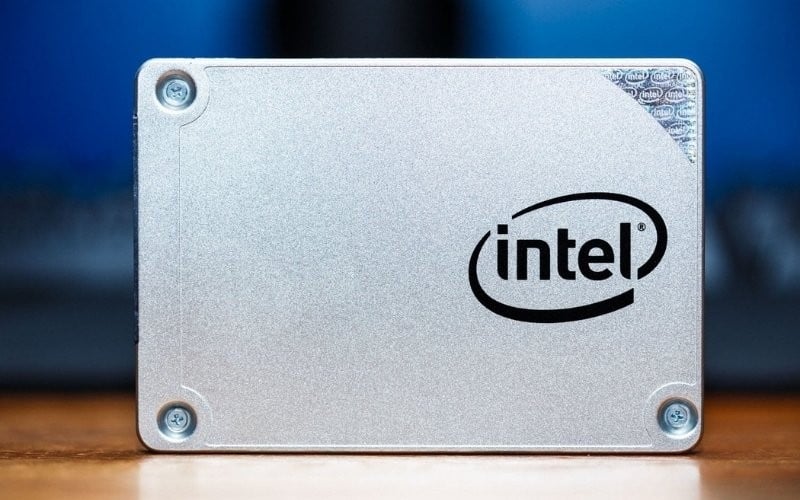
A 2.5-inch SATA SSD is a common replacement for a laptop HDD.
mSATA SSD
mSATA is a compact, older SATA format used in some ultrabooks and business laptops. It is not the same connector as M.2 even though both drives are small circuit boards. Buy mSATA only when the service manual or the existing drive confirms that standard; it is uncommon in current laptops.
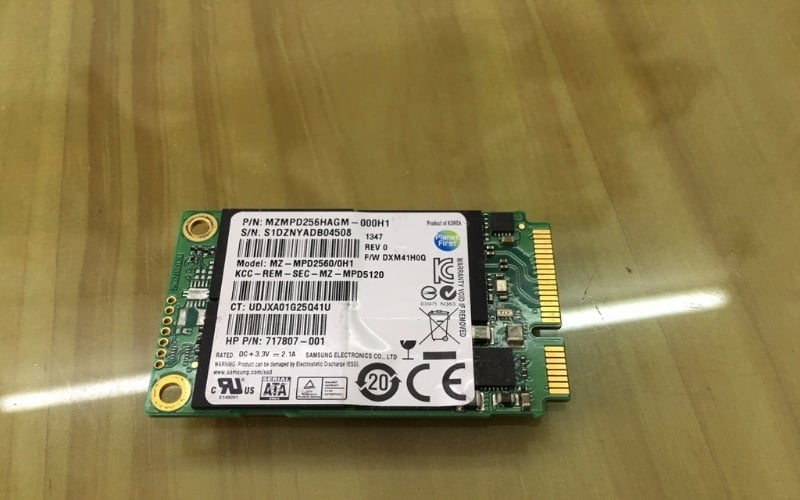
mSATA is an older format and is not interchangeable with M.2.
M.2 SATA SSD
An M.2 SATA SSD uses the compact M.2 form factor but communicates through SATA. Its maximum interface performance is therefore similar to a 2.5-inch SATA SSD. It is useful in laptops whose M.2 storage slot supports SATA but not PCIe/NVMe.
Connector notches can provide clues, but they are not enough to guarantee compatibility. Check the laptop documentation and the exact drive specification.
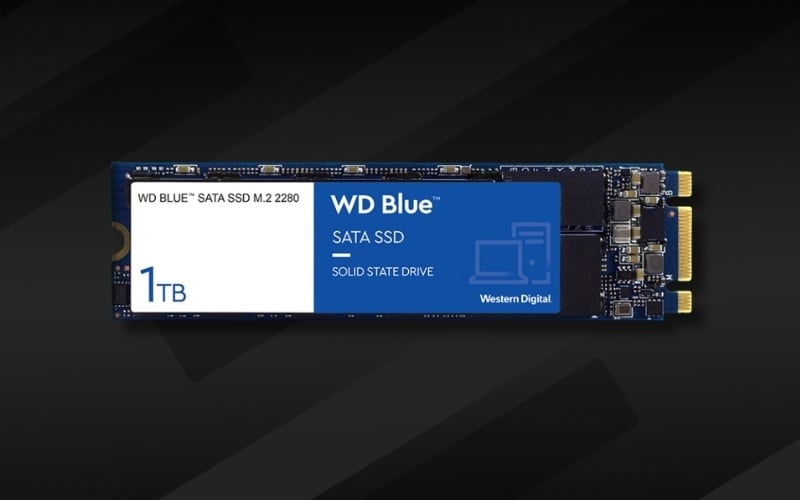
M.2 describes the compact form factor; this drive still uses the SATA interface.
M.2 PCIe NVMe SSD
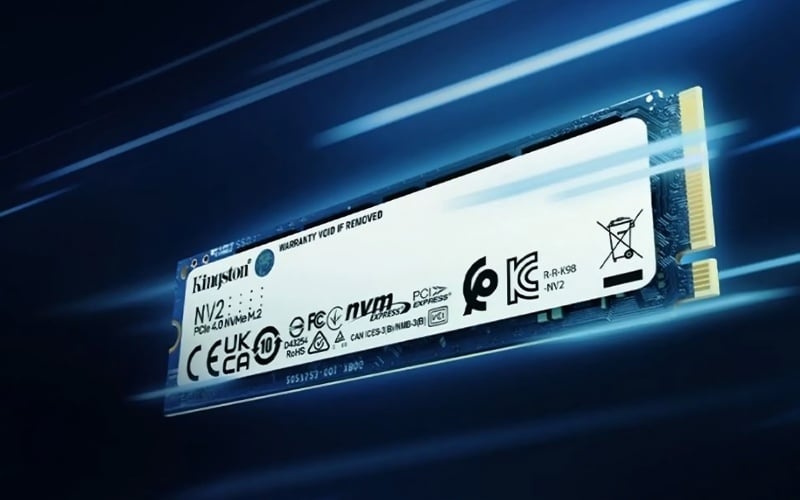
Most performance-oriented modern laptop SSDs use an M.2 form factor, a PCI Express connection, and the NVMe protocol. NVMe defines how host software communicates with non-volatile storage and is not limited to M.2 devices. The NVM Express technical FAQ confirms that M.2 can support SATA or PCIe, while NVMe SSDs also exist in other form factors.
An NVMe drive may be backward-compatible with an older PCIe generation, but it will operate within the laptop's supported link and firmware limits. Buying the fastest advertised drive may provide little benefit if the laptop, workload, power settings, or cooling cannot use that performance.
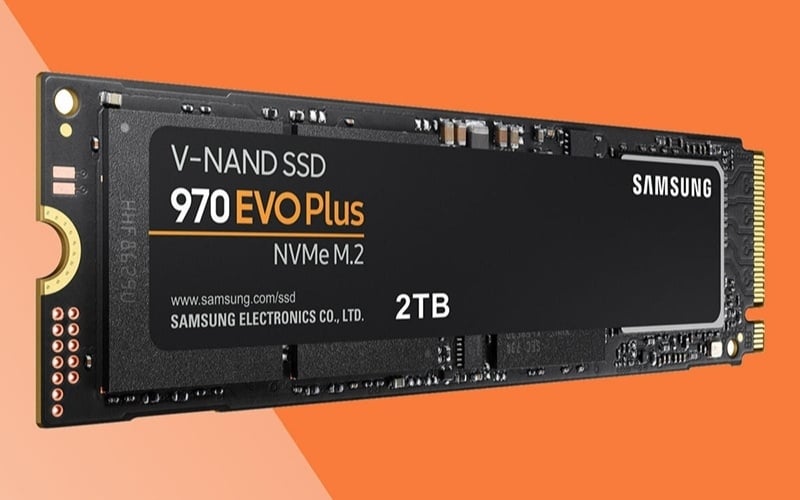
An M.2 NVMe SSD uses PCIe and the NVMe protocol.
M.2, SATA, PCIe, and NVMe are different layers
- M.2: a family of physical form factors and connectors used for storage and other devices. Common SSD lengths include 2242, 2260, and 2280; the first two digits indicate width and the remaining digits indicate length in millimeters.
- SATA: a storage interface used by 2.5-inch SATA, mSATA, and some M.2 drives.
- PCI Express (PCIe): the connection used by typical laptop NVMe SSDs.
- NVMe: a protocol designed for non-volatile storage, commonly carried over PCIe in consumer laptops.
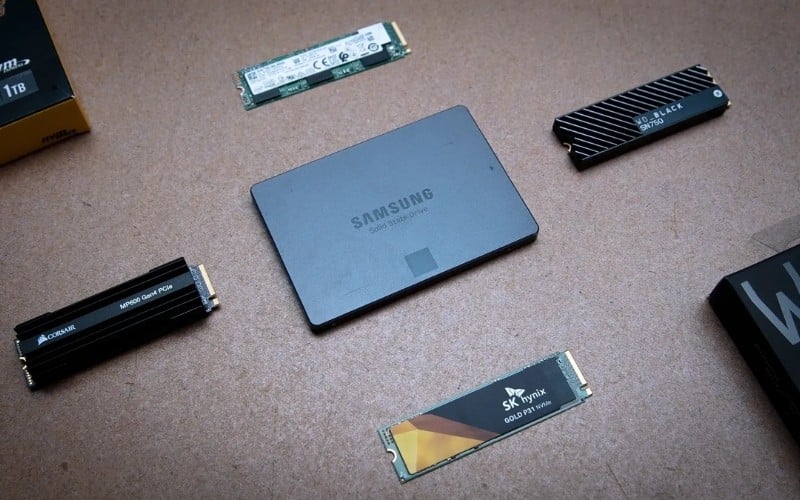
Form factor, connector, interface, and protocol must all be checked separately.
Quick laptop SSD comparison
| Drive type | Physical format | Interface/protocol | Typical use | Main compatibility check |
|---|---|---|---|---|
| 2.5-inch SATA SSD | 2.5-inch enclosure | SATA | Replacing an older laptop HDD | Bay, thickness, cable, caddy, and connector |
| mSATA SSD | mSATA card | SATA | Specific older ultrabooks and business laptops | A genuine mSATA slot |
| M.2 SATA SSD | M.2 card | SATA | Thin laptops whose M.2 slot supports SATA | Slot protocol, keying, and supported length |
| M.2 NVMe SSD | M.2 card | PCIe/NVMe | Modern laptops and storage-intensive work | PCIe/NVMe support, length, keying, generation, and firmware |
How to check laptop compatibility
1. Identify the exact model and configuration
Use the model or service-tag label on the laptop, the BIOS/UEFI information page, or the operating system's system-information tool. A product family name is often too broad: two configurations sold under the same family can have different motherboards, drive brackets, or available slots.
2. Read the manufacturer's service manual
Look for the storage section and confirm:
- Whether the machine has a 2.5-inch bay, an M.2 storage slot, or both.
- Whether an M.2 slot accepts SATA, PCIe/NVMe, or both.
- The accepted M.2 length, such as 2242 or 2280.
- Any capacity, single-sided/double-sided, heatsink, firmware, or shared-lane restrictions.
- Whether a cable, bracket, thermal pad, or mounting screw is required.
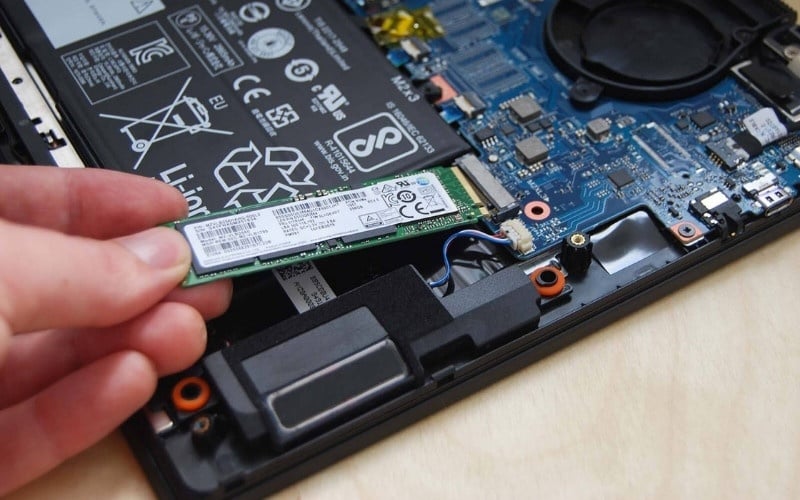
Not every M.2-shaped slot supports every M.2 SSD.
3. Compare with the installed drive
A hardware-information utility can identify the current drive model and interface without opening the laptop. If access is safe and warranty terms allow it, a visual inspection can also confirm the connector, drive length, mounting point, and missing accessories. Shut down the laptop, disconnect power, and follow the manufacturer's battery-disconnection and electrostatic-discharge instructions.
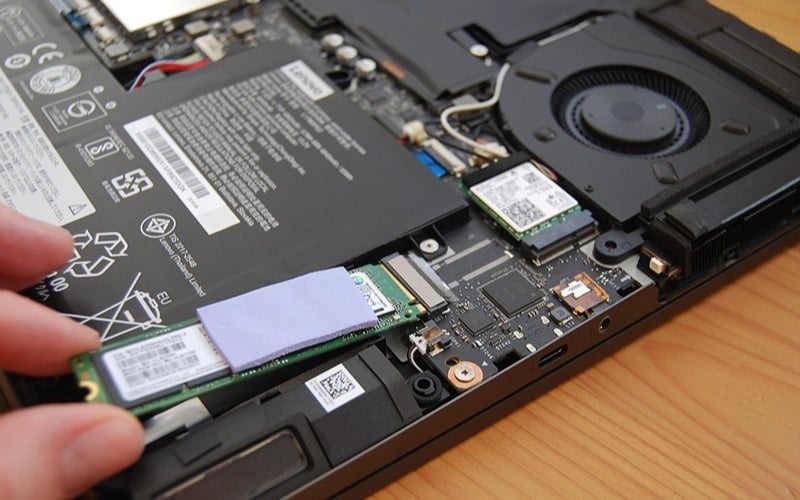
Match the replacement against both the manual and the existing hardware.
TipsMake's laptop SSD installation guide covers the physical upgrade process. If any specification is ambiguous, ask the laptop manufacturer or a qualified technician before buying the drive.
Choose capacity for your files and growth
Capacity needs vary more than job titles suggest. Check how much space you currently use, then allow room for the operating system, applications, updates, temporary files, and future projects.
- Light office or study use: a smaller drive may be adequate if most files are stored elsewhere and few large applications are installed.
- General use and multitasking: extra headroom reduces constant cleanup and makes room for local documents and applications.
- Games: check the installed size of the games you actually play; a few modern titles can consume substantial space.
- Photo, video, virtual machines, or development: estimate active project data, caches, source trees, and scratch space. External or network storage may still be appropriate for archives and backups.
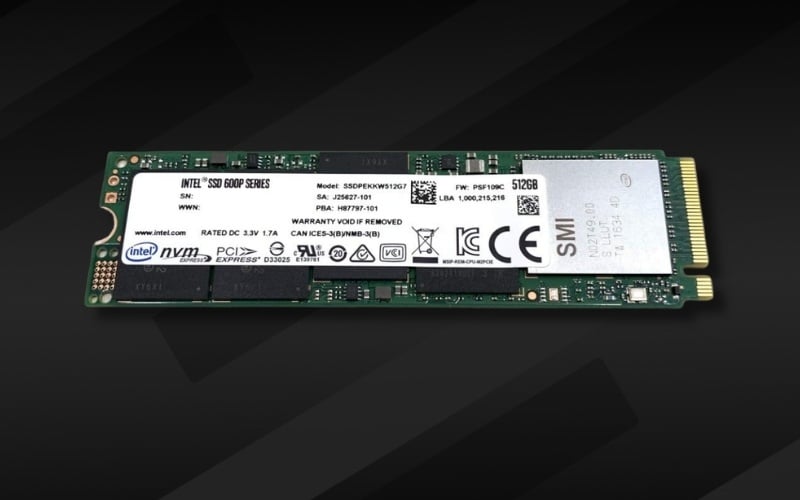
Choose capacity from real usage rather than a fixed rule for every student or worker.
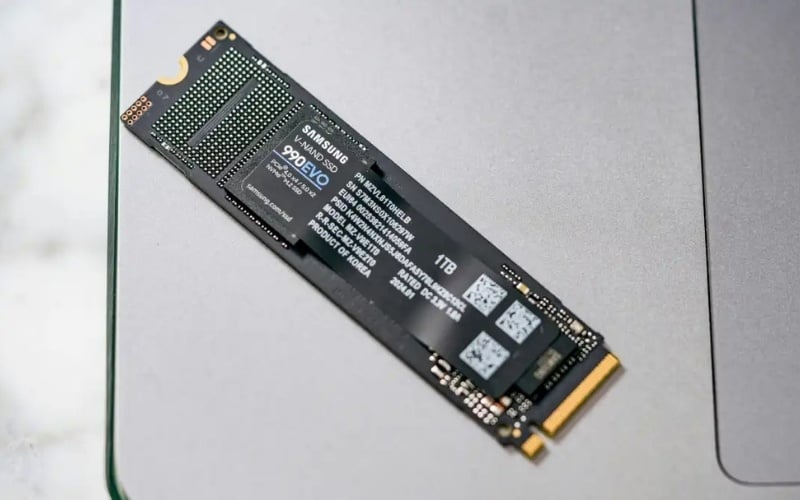
Large creative projects need space for source media, caches, and exports.
Performance, endurance, and quality criteria
Sequential read and write numbers describe only one workload. Everyday responsiveness also depends on random access, sustained performance after caches fill, firmware, available free space, temperature, and the laptop's interface. Compare independent tests for the exact capacity you plan to buy because different capacities in one product line may use different components.
Also consider:
- Endurance rating: usually expressed as total bytes written (TBW) or drive writes per day under specified warranty terms.
- Warranty: check both the time and workload limits, plus the local return process.
- Power and heat: a high-performance NVMe drive may throttle in a thin laptop without suitable cooling.
- Hardware encryption and management: relevant only when the laptop, operating system, and organizational policy support the required feature correctly.
- Controller, NAND, and cache design: these affect consistency and cost. TipsMake's guide to DRAM and DRAM-less SSDs explains one part of that trade-off.
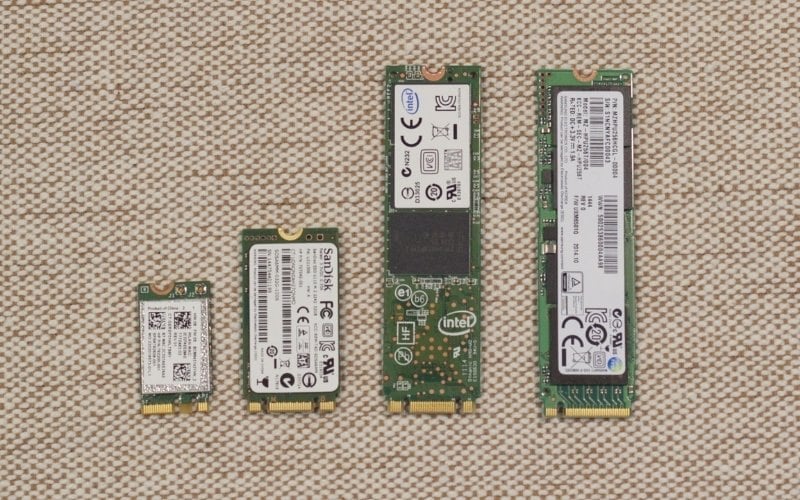
Balance capacity, sustained performance, endurance, power, and price.
Prefer clearly documented products with usable warranty support.
Plan the migration before opening the laptop
- Back up important files to a separate device or service and verify that the backup opens.
- Decide whether to clone the old drive or perform a clean operating-system installation.
- If cloning, make sure the used data fits on the new drive and obtain the correct USB enclosure or adapter.
- Save recovery keys for device encryption such as BitLocker and know how to sign back into the operating system.
- Create recovery or installation media when appropriate.
- After installation, confirm that the drive is detected, the system boots, encryption is active as intended, and health monitoring reports no errors.
Keep the old drive unchanged until the new installation and your essential files have been verified. A fast SSD is useful, but compatibility and a recoverable migration matter more than the largest benchmark number.
Related Articles
 What Is an SSD?10 minutes read
 Should I Choose SATA or PCIe SSD?7 minutes read
 Laptops Using SSDs Are Not Selling Well6 minutes read
 Don't Buy a Portable SSD Just Because of the Speed Rating Printed on the Box7 minutes read
 How to Check If Your Laptop Supports an M.2 SSD8 minutes read
 You're Unknowingly 'Killing' Your SSD: Explained8 minutes read
Reader Comments 0
Sign in with email or Google to join the discussion.