Table of Contents
This updated guide explains how to view Windows 11 laptop capacity with clear steps, practical tips, and useful context. Checking the hard drive capacity on a Windows 11 laptop helps you control memory and plan upgrades when necessary. Software Tips will guide you on how to check the capacity of a Windows 11 laptop quickly and accurately.
1. How to View Windows 11 Laptop Capacity in This PC
The simplest way to check the capacity of Windows 11 Laptop is to use This PC. In This PC, the hard drive capacity is always notified to the user to have an effective usage plan. For This PC, users can easily know the remaining capacity, used capacity to make a suitable plan for upgrading.
You open This PC on your computer through the icon on the screen. If the screen does not have This PC, open any folder and select This PC on the left toolbar.

2. How to View Windows 11 Laptop Capacity in Task Manager
Task Manager allows users to manage various information, including the capacity of physical hard drives on Win 11 Laptops. To check the capacity of Win 11 Laptops, do these:
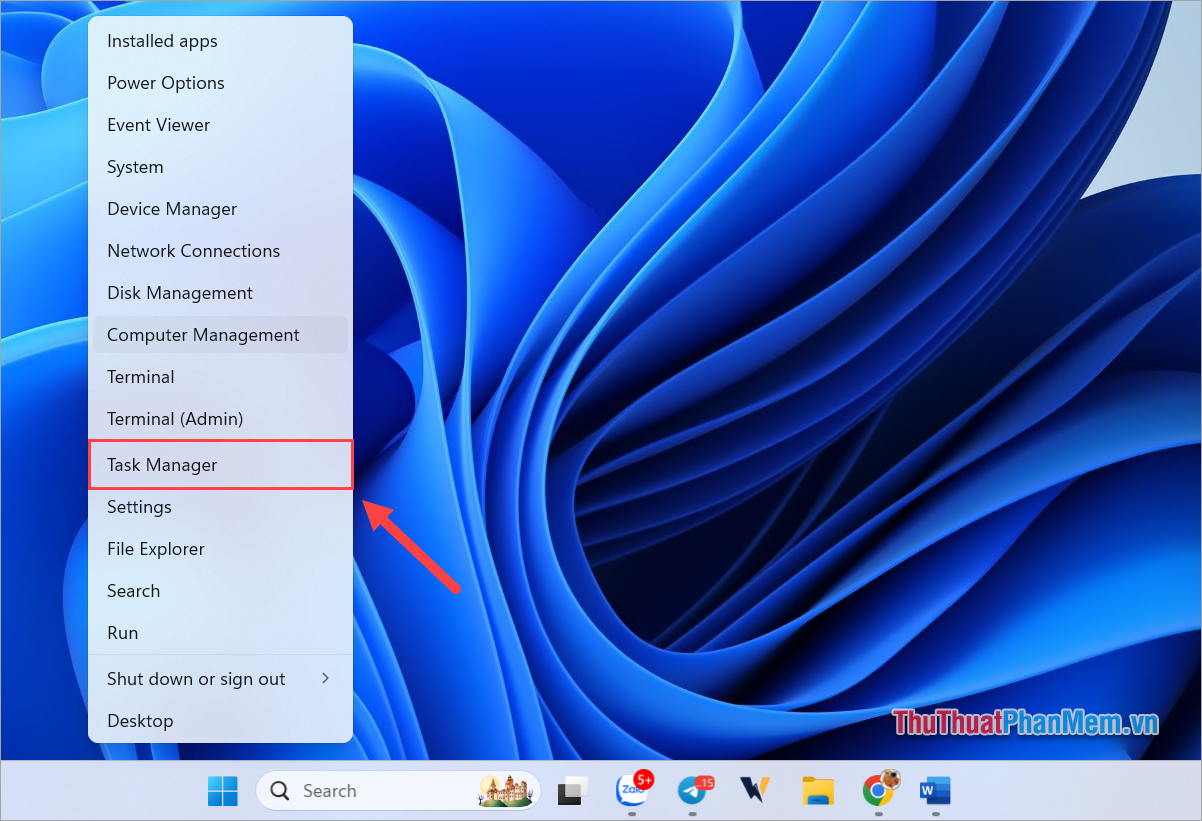
Step 1 : Right-select the Start button on your Laptop and select Task Manager .
Step 2 : Then, select Performance → Disk and see the total capacity of each drive in the Capacity section.

3. How to View Laptop Win 11 Storage Capacity in Disk Manager
Disk Manager is a capacity and drive manager on Windows 11 computers that is currently used by many people. With Disk Manager, you can easily view the storage capacity of each hard drive and each partition on your Laptop quickly and simply.
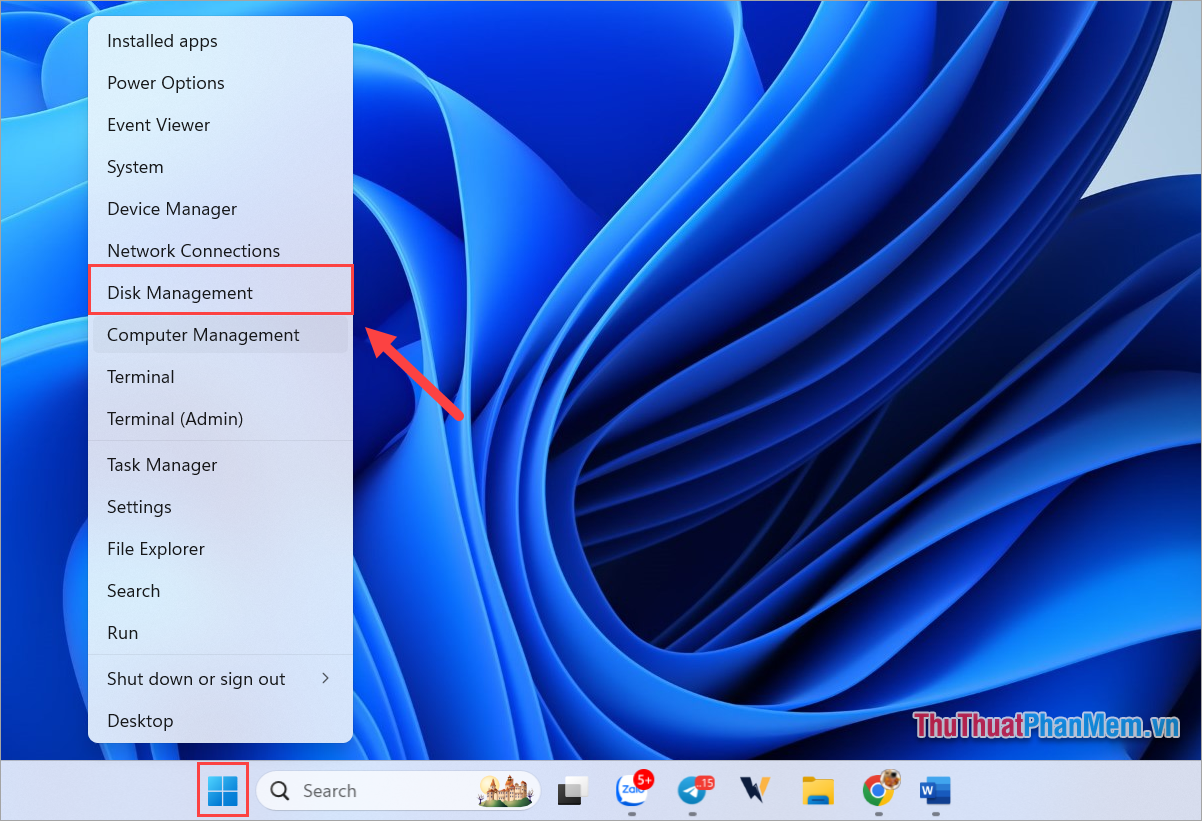
Step 1 : Right-select the Start icon and select Disk Management .
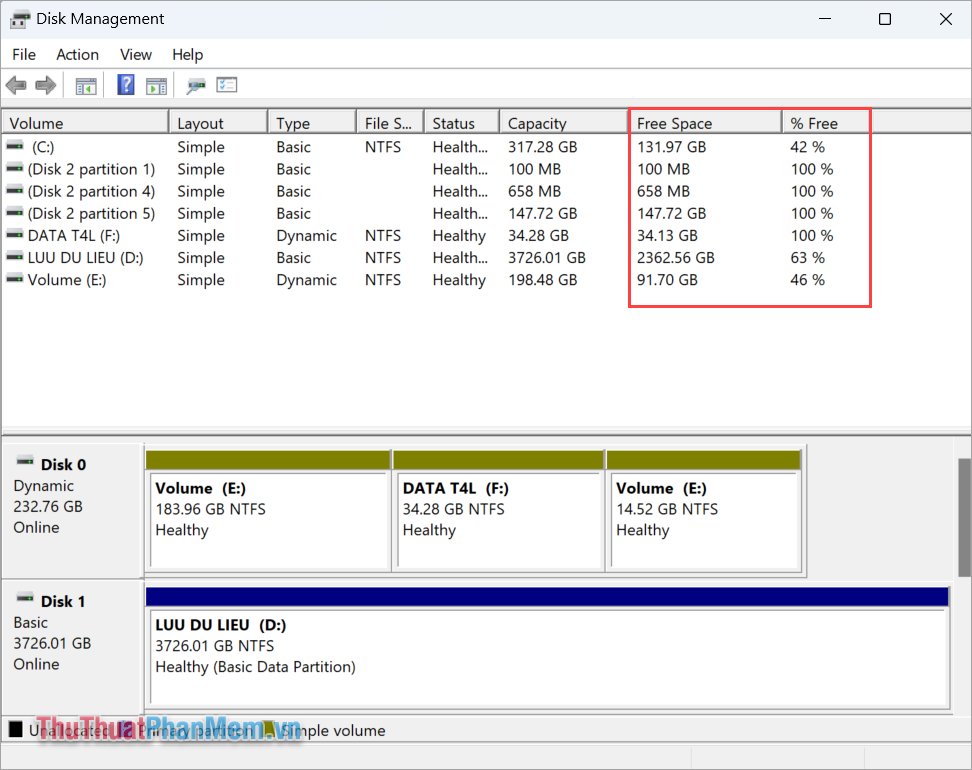
Step 2 : In the Disk Management window, you will see a list of all hard drives and partitions on your Win 11 Laptop.
Here, you check the capacity of each partition and hard drive through the columns:
- Capacity : Total capacity
- Free Space : Free space
- % Free : Percentage free
4. How to Check Windows 11 Laptop Hard Drive Capacity in Settings
Settings on Windows 11 computers control almost all information on the Laptop, including checking the Laptop hard drive capacity. To check the used hard drive capacity on a Windows computer, do these:
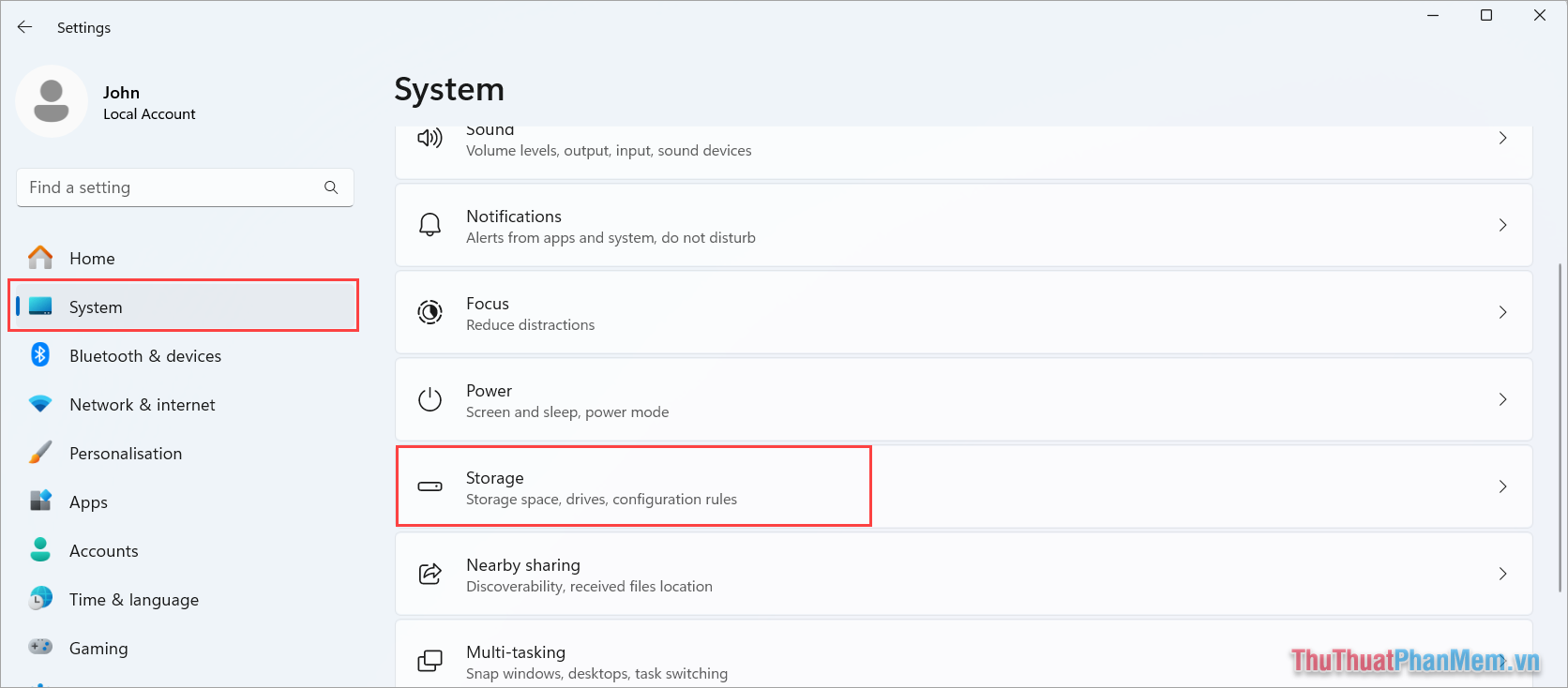
Step 1: Open Settings by typing Settings in the search bar or pressing Windows + I to open.
Then, select System → Storage to see the storage capacity on your Laptop.
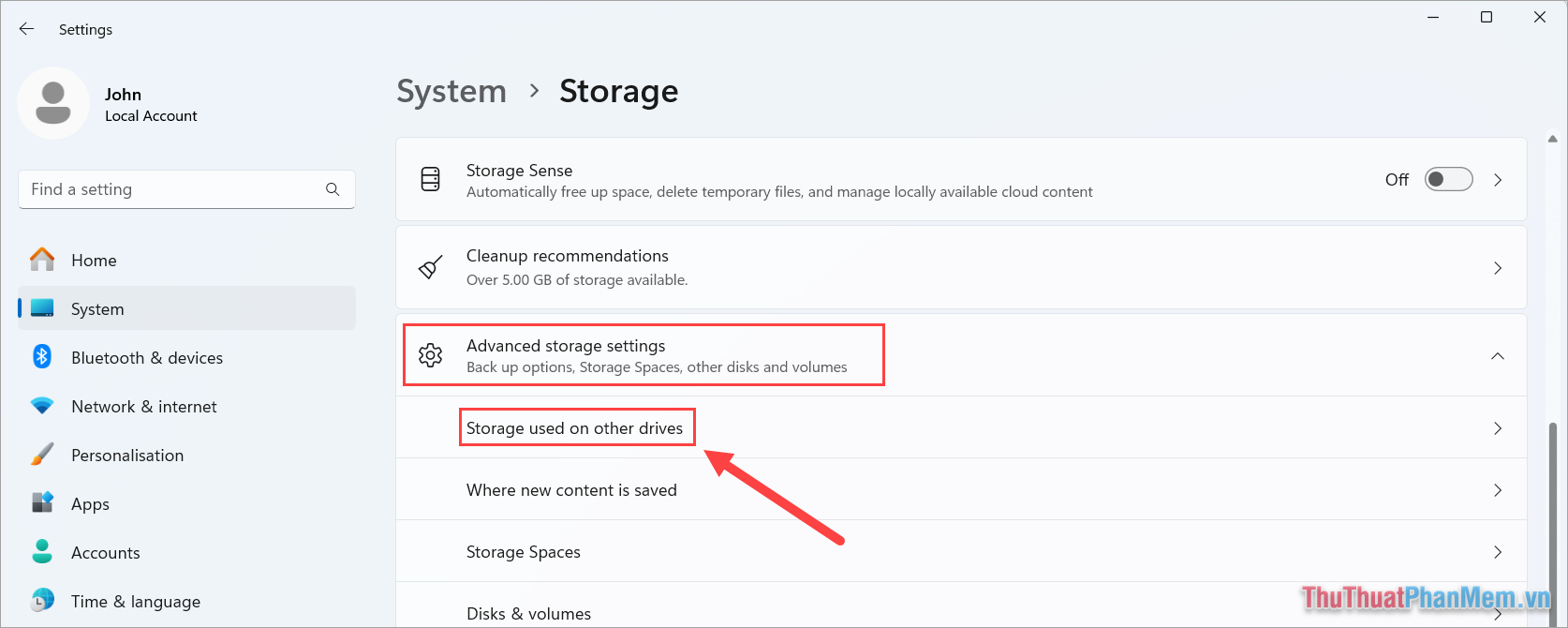
Step 2 : In Settings, select Advanced storage settings and select Storage used on other drives .
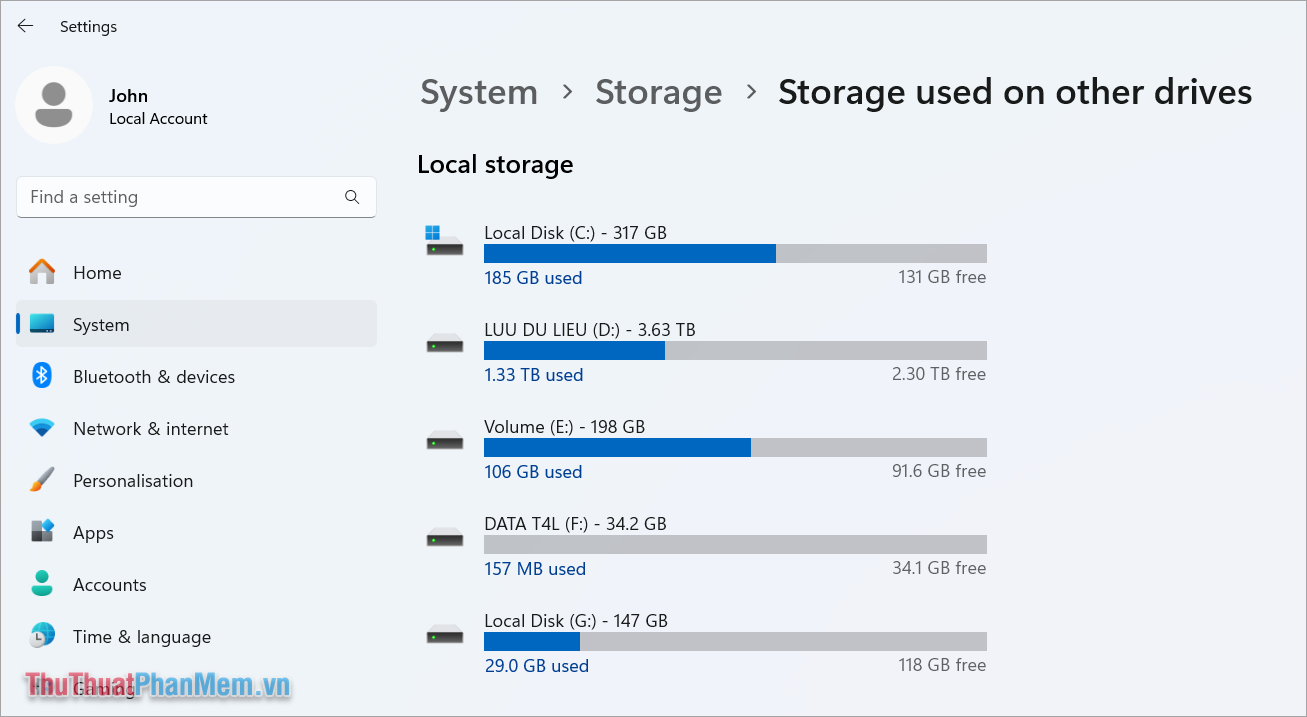
Step 3 : In this window, you will see all the hard drives stored on your Windows 11 Laptop and see the free space on each hard drive stored on your Laptop.
The green part represents the used capacity and the gray part represents the free capacity on each hard drive.
In this guide, Software Tips has shared with you how to view Windows 11 Laptop capacity quickly and simply. Have a nice day!
FAQ
What should I prepare before I view windows 11 laptop capacity?
Review the requirements and options in the guide first. Having the correct device, app version, account access, or materials ready helps prevent avoidable errors.
How long does it take to view windows 11 laptop capacity?
The time depends on the task and your setup. Most basic steps can be completed quickly, while downloads, updates, scans, or troubleshooting may take longer.
What should I do if the steps do not work?
Repeat the instructions in order, confirm that your software or device is supported, and check permissions, connectivity, and available updates before trying again.
Related Articles
 How to Check Laptop Storage Capacity on Windows and MacBook8 minutes read
 Frame View in SQL8 minutes read
 4 Best Disk Capacity Analysis Tools on Windows 108 minutes read
 Laptop Has Capacity of 300 Kg4 minutes read
 Instructions on How to See the Connected Wi-Fi Password on3 minutes read
 How Much C Computer Drive Capacity to Be Reasonable?4 minutes read
Reader Comments 0
Sign in with email or Google to join the discussion.