Table of Contents
Before changing a Windows 11 sign-in credential, identify whether you use a Microsoft account password, a local account password, or a Windows Hello PIN. A PIN is tied to one device; changing it does not change your Microsoft account password.
You do not need to rotate a strong password on an arbitrary schedule. Change it when it may have been exposed, reused, forgotten, or when an organization requires a change.
Method 1: Use Ctrl + Alt + Delete
This method works for many local, work, school, and domain accounts when Windows presents the option.
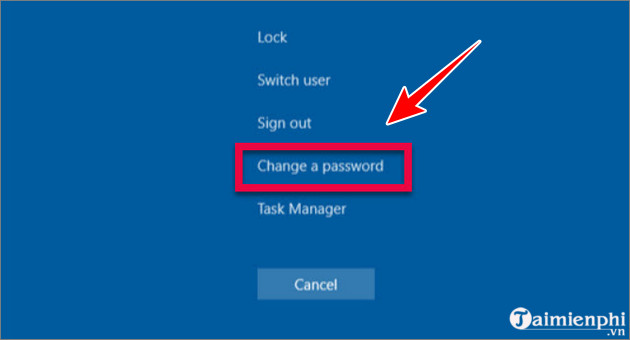
Step 1: Press Ctrl + Alt + Delete.
Step 2: Select Change a password.
Step 3: Enter the current password, then enter and confirm the new password. If several accounts are shown, verify the username or domain before submitting.
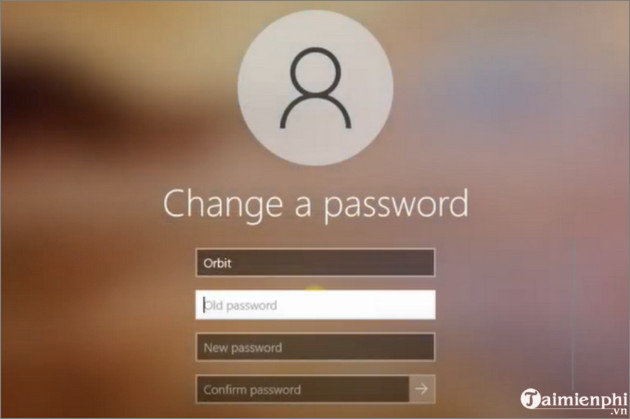
The new password normally takes effect immediately; a restart is not required. A work account may need access to the organization’s network or VPN for all systems to receive the change.
Method 2: Change a local account password in Settings
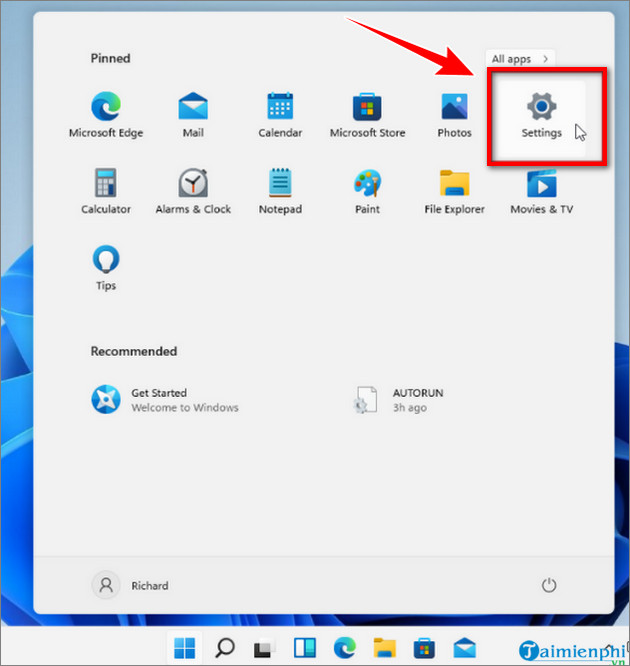
Step 1: Press Windows + I to open Settings.
Step 2: Open Accounts > Sign-in options.
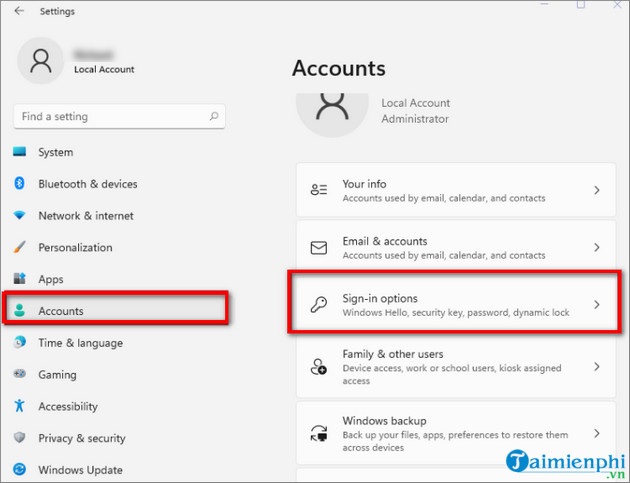
Step 3: Expand Password and select Change.
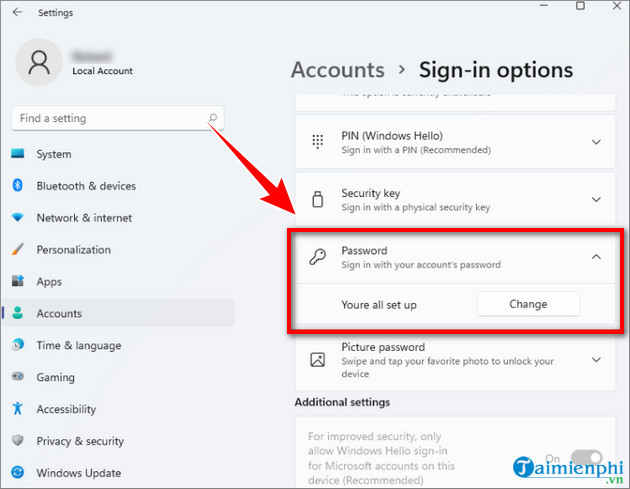
If the Password section is hidden for a Microsoft account, the setting For improved security, only allow Windows Hello sign-in for Microsoft accounts on this device may be enabled. Windows Hello has not been removed from Windows 11; the original article’s statement was incorrect.
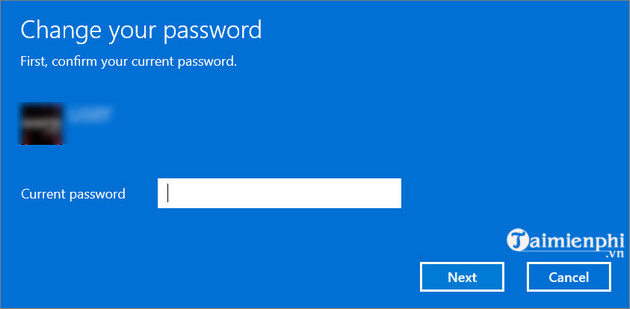
Step 4: Enter the current local-account password and select Next.
Step 5: Enter and confirm a strong new password. Add a hint that helps only you and does not reveal the password.
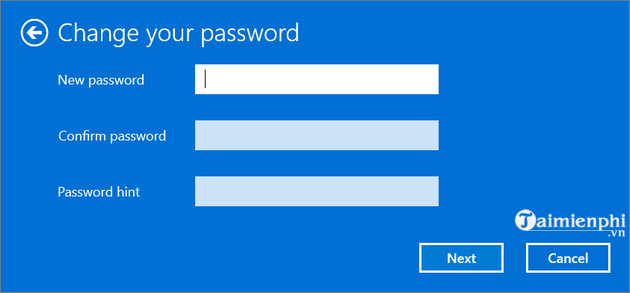
Select Finish.
Change a Microsoft account password
A Microsoft account password is managed through Microsoft account security, not only on one PC. Open the Microsoft account page in a browser, sign in, choose the password-security option, and follow the identity-verification prompts. Never share a verification code or recovery code with another person.
After changing it, Windows, OneDrive, Outlook, Xbox, and other Microsoft services may ask you to sign in again. The Windows Hello PIN can continue to work on the PC because it is a separate device credential.
Change the Windows Hello PIN
- Open Settings > Accounts > Sign-in options.
- Expand PIN (Windows Hello).
- Select Change PIN.
- Enter the current PIN and the new PIN, then confirm it.
If you forgot the PIN, use I forgot my PIN and complete Microsoft’s identity verification. Do not confuse this with resetting the account password.
Why Control Panel is not the best method
The original third method opened Control Panel and used Change account type. These screens are retained for context, but this route is designed mainly for managing another local account and can have side effects when an administrator resets a password without the user’s old password.
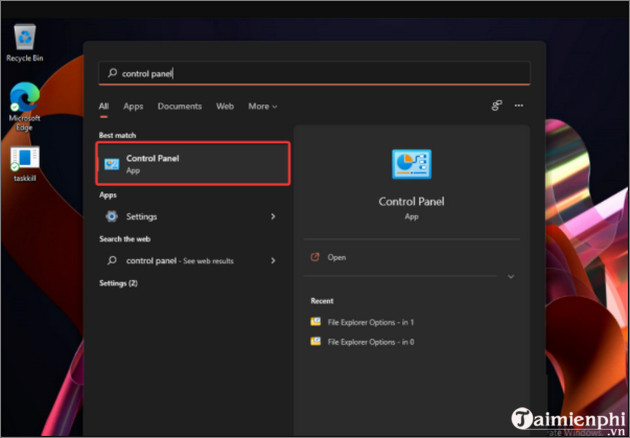
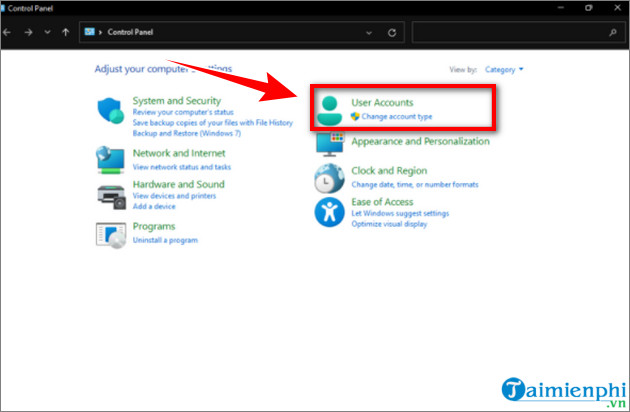
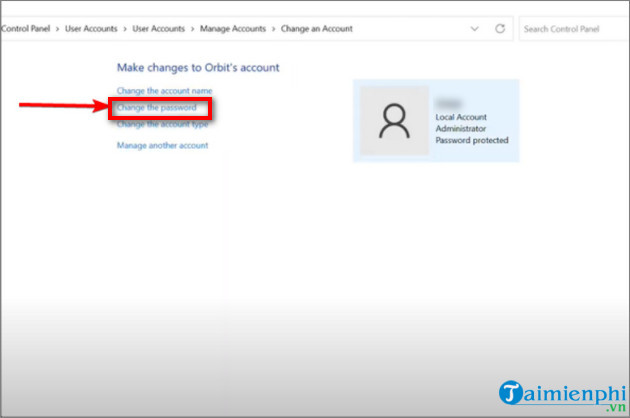
An administrator reset can cause loss of access to EFS-encrypted files, stored credentials, or personal certificates for that local account. Prefer the account owner changing the password with the current password.
Choose a better password
- Use a long, unique passphrase that is not reused on another account.
- Store it in a reputable password manager rather than a plain text file.
- Do not reveal the password in a hint.
- Enable multifactor authentication for the Microsoft account.
See TipsMake’s guide to setting a secure password. If you cannot sign in, use the account’s official recovery path and the guide to recover access after forgetting a Windows password.
Related Articles
 How to Change Your Computer Password for the Most Popular Operating Systems7 minutes read
 Instructions for Changing Windows Passwords Without Having to3 minutes read
 How to Change Your Windows User Account Password on a Computer5 minutes read
 How to Change Your Computer, Phone and Mac Passwords4 minutes read
 How to Change the Password of a Computer Running Windows 73 minutes read
 Top 3 Simple Ways to Change Computer Password on Windows6 minutes read
Reader Comments 0
Sign in with email or Google to join the discussion.