Table of Contents
Microsoft's Copilot app for Windows is now a native XAML application rather than the earlier progressive web app. It keeps the chat features found on copilot.com and adds Windows-specific tools such as keyboard launching, screen sharing through Copilot Vision, file search, screenshots, Windows Settings guidance, and an optional wake phrase.
What “native” means here
The native app uses a Windows interface with a conversation sidebar, system-tray integration, and quick-launch behavior. The change improves how Copilot fits into Windows, but it does not mean every AI task runs locally. Chat responses and many Copilot features still depend on Microsoft's online services.
How to open Copilot
On a new Windows 11 PC, Copilot may already be installed and pinned to the taskbar or Start menu. If it is missing, install the official Microsoft Copilot app from Microsoft Store. Sign in with a personal Microsoft account to use chat history and account-linked features.
Depending on your Windows and app version, the Copilot key or Windows key + C can open either the full application or Quick View. Configure the shortcut under Copilot > Account > Settings > Copilot Keyboard Shortcuts.
Useful Windows-specific features
Copilot Vision
Vision can view a browser, app window, or—in supported versions—the desktop after you explicitly share it. It can explain visible content or guide you through a task. Stop sharing when finished, and avoid exposing passwords, private messages, or confidential documents.
File search
With permission, Copilot can find supported files on the PC and in locally synced OneDrive folders, open them, and answer questions about their contents. Review the file-access settings before enabling this for a shared or work computer.
Windows Settings help
Copilot can answer device questions and provide links to relevant Settings pages. For example, it may help locate display, Bluetooth, or accessibility controls. Treat its answer as guidance and verify important changes before applying them.
Voice and wake word
The optional “Hey Copilot” wake phrase provides hands-free access. Because availability rolls out gradually and varies by region, update both Windows and the Copilot app if the option is not shown.
Privacy and availability
Features such as Vision, connectors, file access, and PC insights have separate permission controls. Enable only what you need and check the sharing indicator before discussing on-screen content. Some capabilities are previews, may not be available on every device, and can change independently of the core app.
Microsoft's Copilot for Windows support page lists current features and controls. If you do not want the app, Windows 11 allows it to be removed from Settings > Apps > Installed apps; see how to remove Copilot and related AI features.
What changed from the original preview
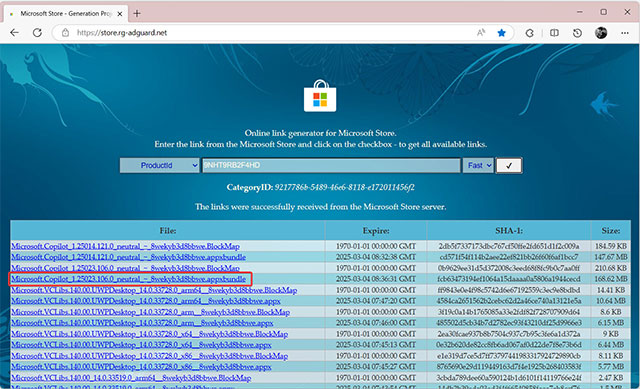
Version 1.25023.101.0 began the native XAML rollout to Windows Insiders in March 2025, adding the new interface and operating-system-aware answers. The app has received many updates since then, so that version number should be treated as historical—not as the version users should seek today. Install the latest Microsoft Store release instead of sideloading an old package.
Related Articles
 Microsoft Again Urges Users to Leave Windows 10 and Switch to Pcs Running Arm4 minutes read
 What Are Copilot Labs: Clear Explanation5 minutes read
 Don't Miss These 8 Little-known Features of Microsoft Copilot9 minutes read
 Microsoft Upgrades Copilot with a Series of New Features: from Bing4 minutes read
 Microsoft May Remove Unnecessary AI Features from Windows 11 Following5 minutes read
 The Truly Useful Features Make Copilot Irresistible to Users8 minutes read
Reader Comments 0
Sign in with email or Google to join the discussion.