Table of Contents
On Windows 11, turn off the weather display by disabling Widgets in Taskbar settings. On Windows 10, right-click the taskbar and choose News and interests > Turn off. These built-in controls are the safest methods and are easy to reverse.
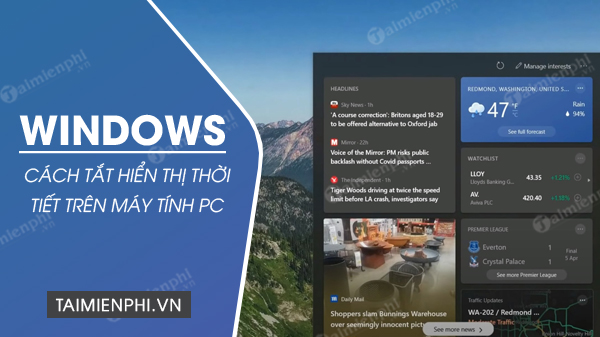
Turn off weather on Windows 11
Use Taskbar settings
Step 1: Right-click an empty area of the taskbar and select Taskbar settings. You can also open Settings > Personalization > Taskbar.
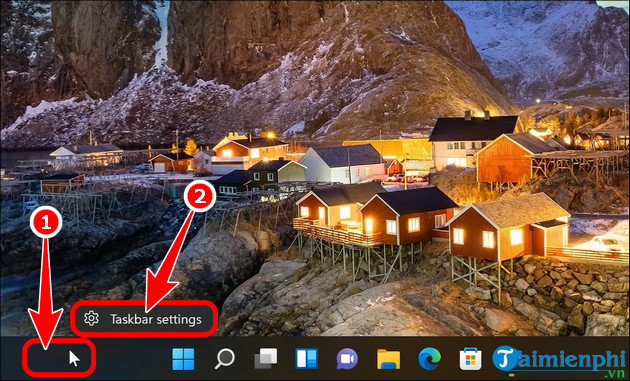
Step 2: Under Taskbar items, switch Widgets off.
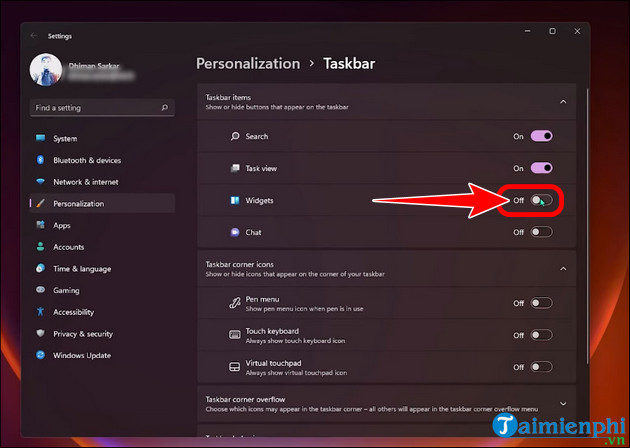
This removes the Widgets button and its weather label from the taskbar. It does not uninstall Microsoft Edge, remove the Weather app, or significantly change overall PC performance.
Windows 11 policy Registry setting
Use this only when the normal toggle is unavailable or an administrator must enforce the setting. Back up the Registry key first. A policy may affect all users and may be ignored on builds that use a different administrative template.
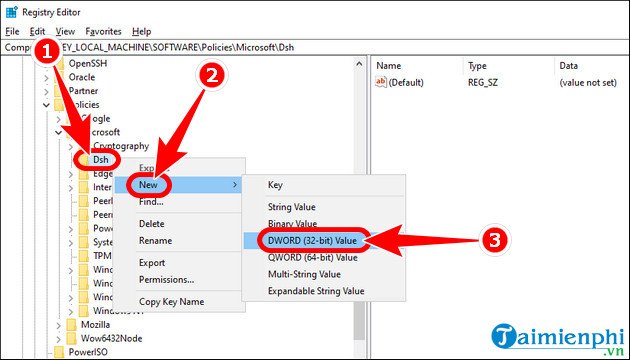
Open Registry Editor as an administrator and go to:
HKEY_LOCAL_MACHINESOFTWAREPoliciesMicrosoftCreate a key named Dsh if it does not exist.
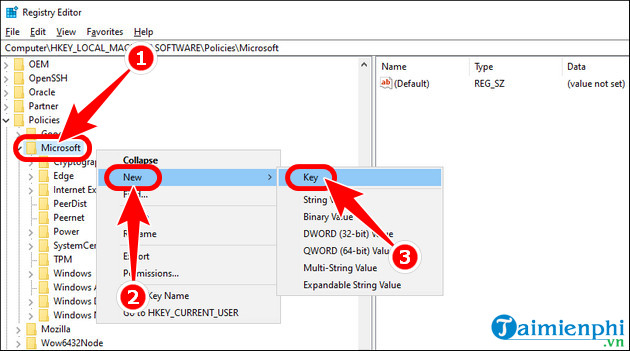
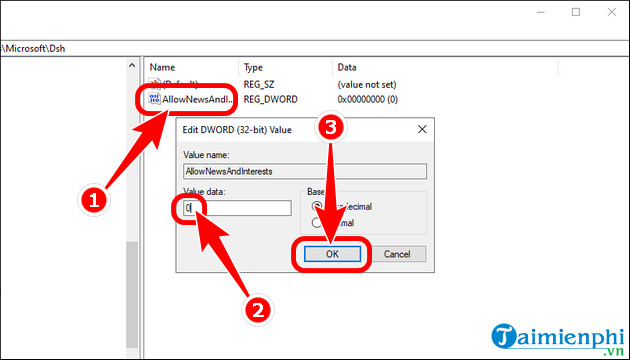
Inside Dsh, create a DWORD (32-bit) Value named AllowNewsAndInterests.
Set its value data to 0, close Registry Editor, and restart Windows or sign out and back in. Delete the value or set the applicable policy to Not configured to reverse it.
Turn off weather on Windows 10
Use the taskbar menu
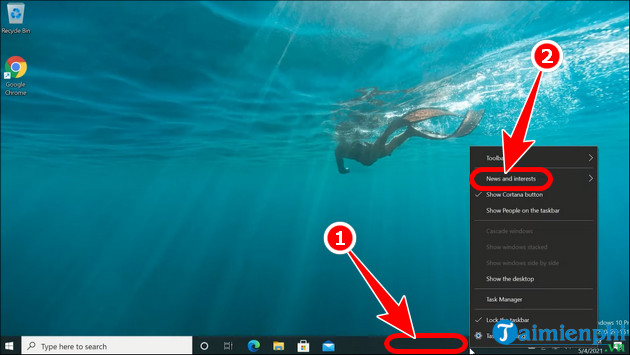
Step 1: Right-click an empty area of the taskbar and point to News and interests.
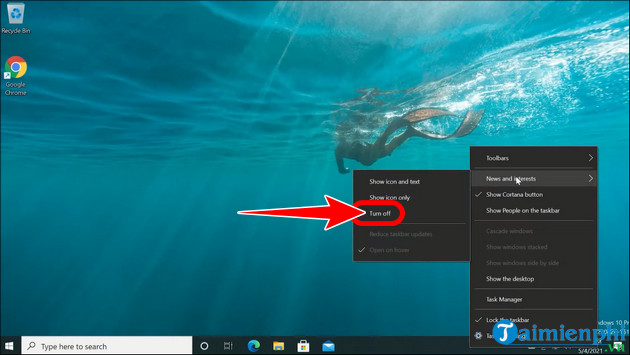
Step 2: Select Turn off. If you only want to save space, choose an icon-only display instead.
Use the per-user Registry value
The taskbar menu is preferable. If it is unavailable, open Registry Editor from Windows Search.
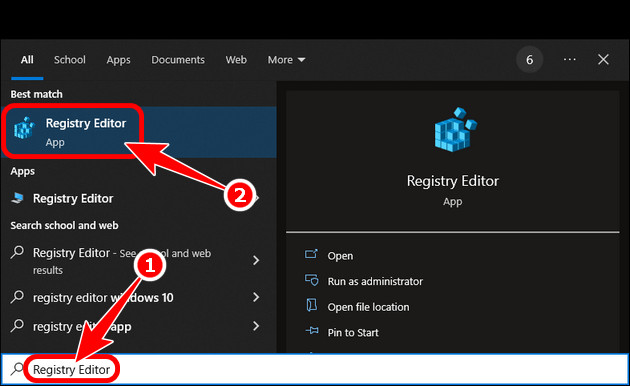
Go to:
HKEY_CURRENT_USERSoftwareMicrosoftWindowsCurrentVersionFeedsIn the Feeds key, create a DWORD (32-bit) Value.
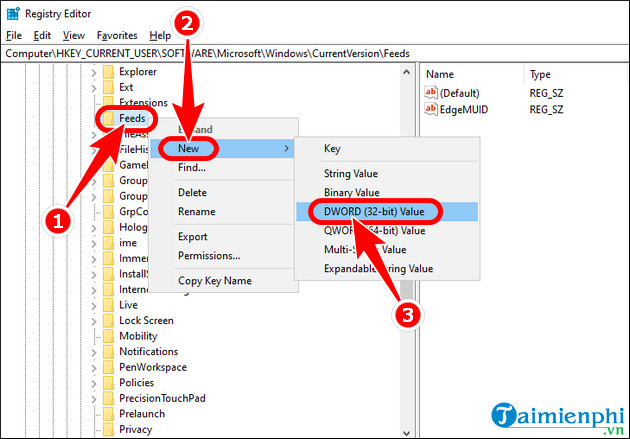
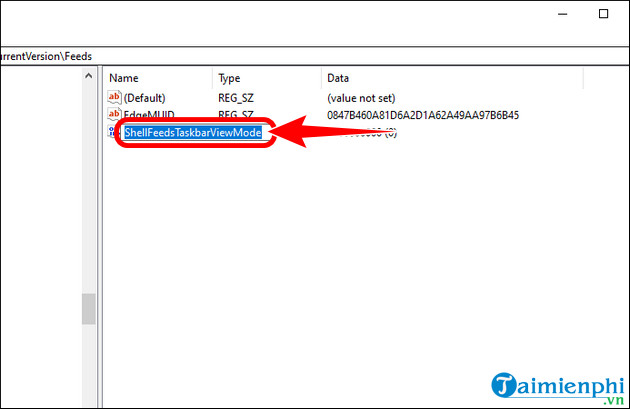
Name it ShellFeedsTaskbarViewMode.
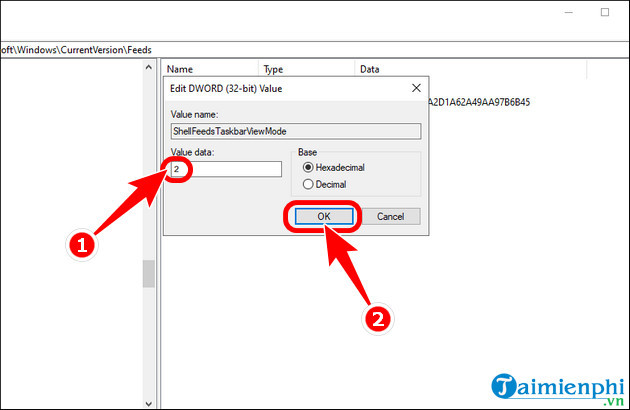
Set the value data to 2, then restart Windows Explorer, sign out, or restart the PC. If the value is already present, record its previous data before changing it.
Use Local Group Policy on Windows 10 Pro or Enterprise
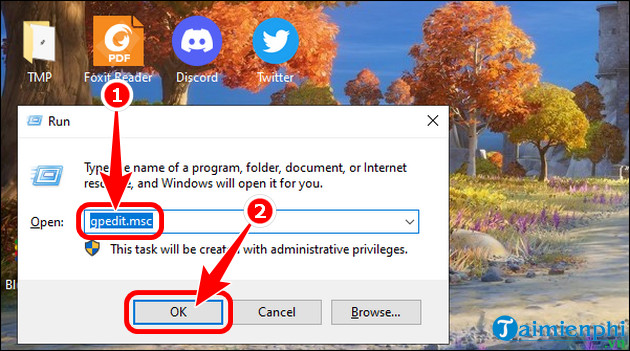
Windows 10 Home does not normally include Local Group Policy Editor. On a supported edition, press Windows + R, enter gpedit.msc, and select OK.
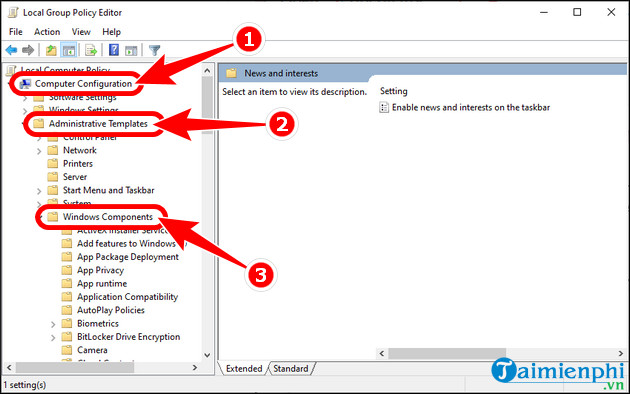
Go to Computer Configuration > Administrative Templates > Windows Components.
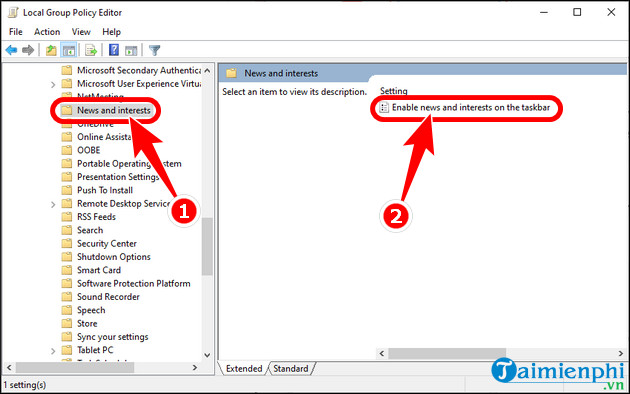
Open News and interests, then open Enable news and interests on the taskbar.
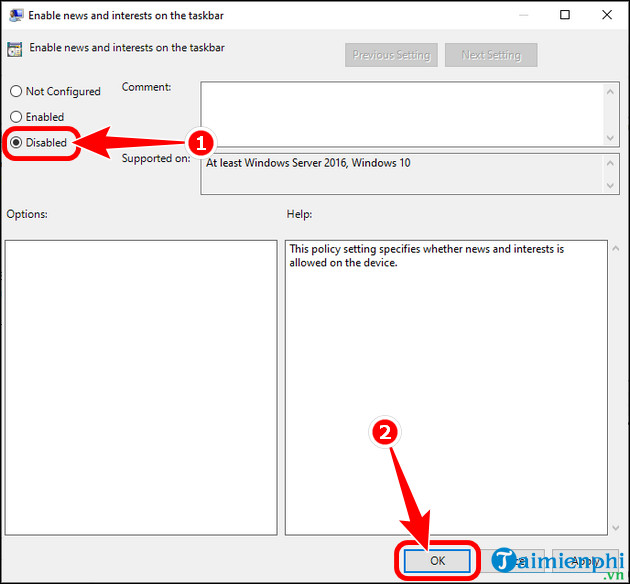
Select Disabled, apply the policy, and restart or sign out. Choose Not Configured to return control to the user interface.
If the weather icon comes back
- Check whether a Windows update reset taskbar preferences.
- On a work or school PC, an administrator policy may override the local setting.
- Confirm you changed the setting for the correct Windows user.
- A third-party taskbar replacement may use its own weather control.
Keep Widgets but reduce clutter
If you still use the Widgets board, you can leave the taskbar button enabled and remove individual cards from the board. For ideas worth keeping, see Windows 11 productivity widgets and useful Windows 11 widgets.
Related Articles
 How to Turn Off Weather Display on Windows 11, 10 Quickly4 minutes read
 How to Turn Off Weather on Windows 115 minutes read
 How to Turn Off the Weather Widget on Windows 113 minutes read
 How to See the Weather on a Windows 10 Computer4 minutes read
 7 Best Weather Apps for Windows 10/116 minutes read
 Display Weather Forecast on the Computer Screen2 minutes read
Reader Comments 0
Sign in with email or Google to join the discussion.