Table of Contents
AI Actions adds shortcuts to the Windows 11 File Explorer context menu. Right-clicking a supported file can send it directly to Photos, Paint, Bing Visual Search, or Microsoft 365 Copilot for a relevant task.
The feature is included with Windows 11 version 25H2 and was introduced to version 24H2 through KB5065789, but Microsoft rolls Windows features out gradually. Availability can still depend on the installed update, region, app versions, account, file type, and license.
What AI Actions can do
For JPG, JPEG, and PNG images, the available actions can include:
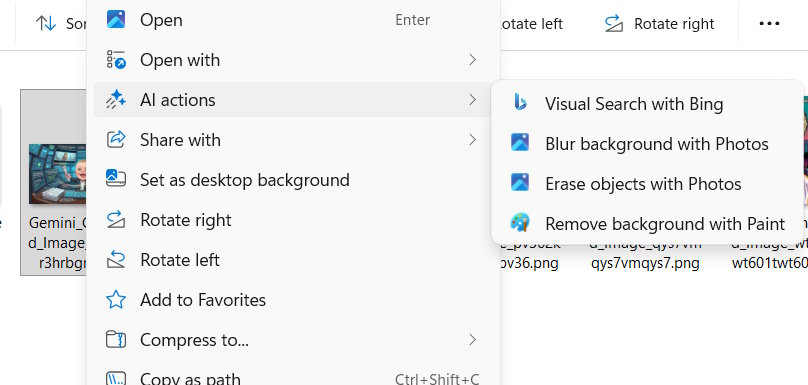
- Visual Search: searches the web using the image.
- Blur Background: opens Photos with the subject selected so you can adjust background blur.
- Erase Objects: opens the Generative Erase tool in Photos to remove a selected distraction.
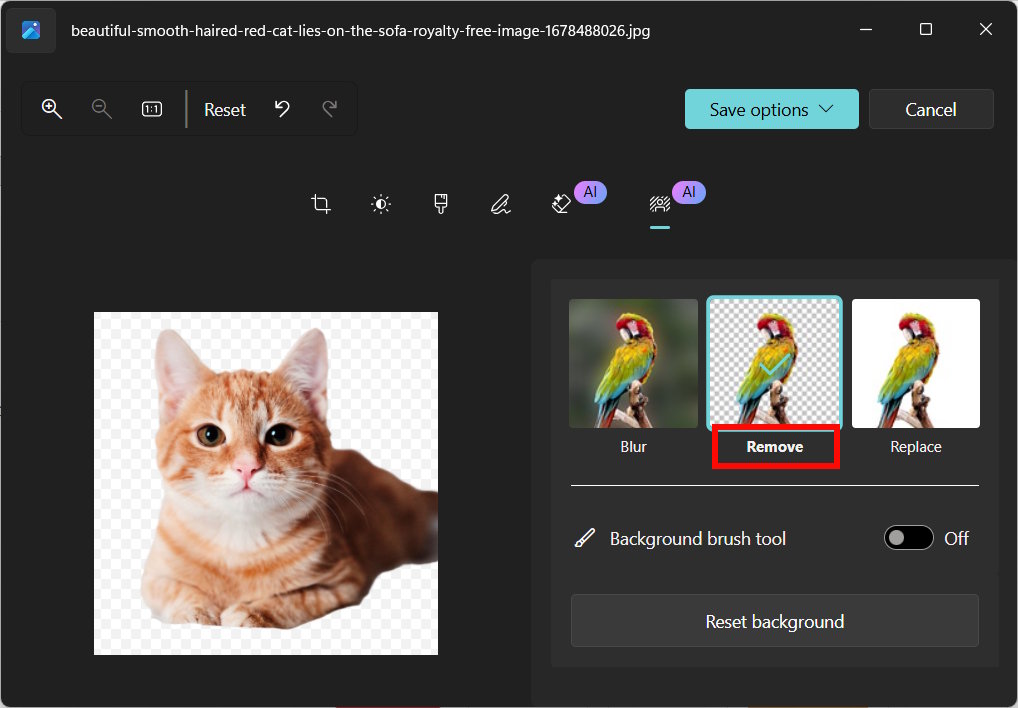
- Remove Background: opens Paint and creates a cutout of the detected subject.
Microsoft 365 can also offer document actions such as Summarize for supported files stored in OneDrive or SharePoint. These document actions require an active Microsoft 365 subscription and a Copilot license; the commands shown can vary by account and file.
AI Actions is therefore a launcher, not one separate AI editor. The result opens in the app or service that provides the chosen action.
Check whether AI Actions is available
- Open Settings > System > About and check the Windows version and OS build.
- Open Settings > Windows Update, install available updates, and restart the PC.
- Update Microsoft Photos and Paint through Microsoft Store.
- Right-click a supported image in File Explorer and look for AI actions. You can also select the file and press Shift+F10.
If the menu or the Actions settings page is absent on an up-to-date PC, the feature may not yet be enabled for that device. Avoid forcing a controlled rollout with unofficial feature IDs.
Manage action providers in Settings
On builds that expose the management page:
- Open Settings.
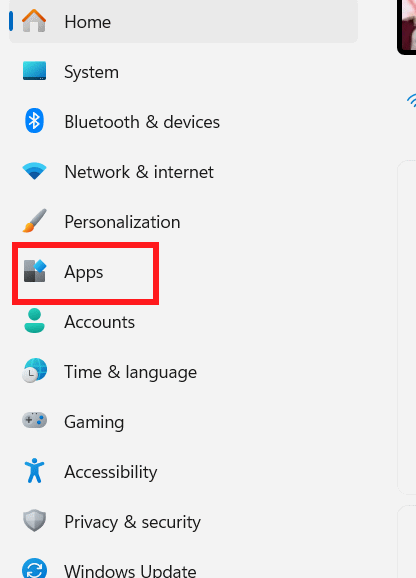
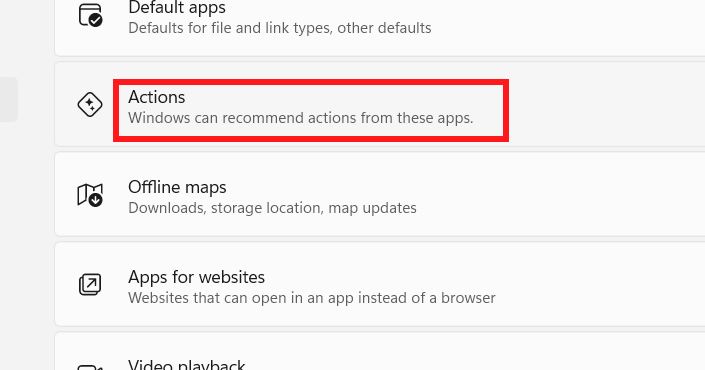
- Select Apps, then Actions or Actions management. The label can differ by Windows build.
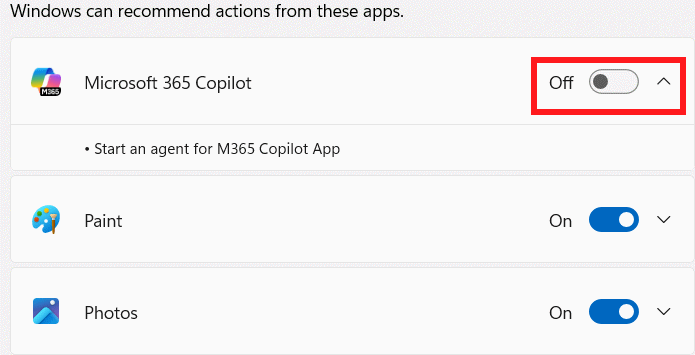
- Expand Photos, Paint, Microsoft 365 Copilot, or another listed provider.
- Turn individual actions on or off.
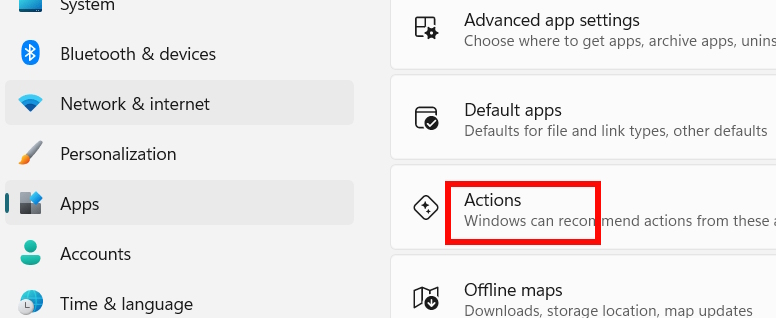
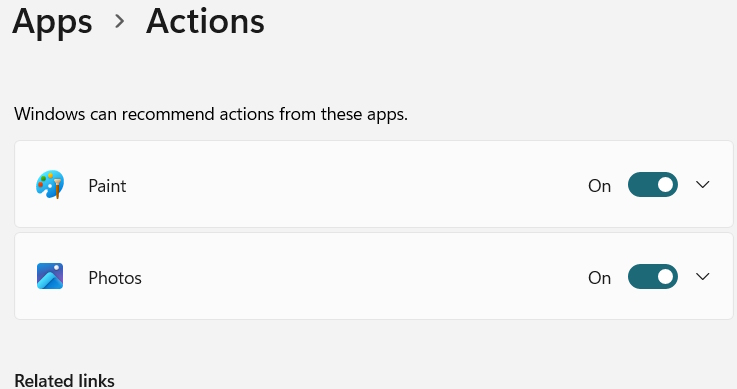
Disabling a provider removes its commands from the useful part of the AI Actions submenu. On some builds, the top-level submenu may remain and display “No actions available” when every provider is off.
Run an image action
- In File Explorer, right-click a JPG, JPEG, or PNG file.
- Select AI actions.
- Choose an available command, such as Remove Background.
- Review the result in Photos, Paint, or the service that opens. Refine the selection if the automatic result missed part of the subject.
- Use Save as when you want to protect the original file.
Turn off image actions you do not use
- Open Settings > Apps > Actions or Actions management.
- Open the provider whose commands you want to hide.
- Switch off the unwanted action or disable all actions for that provider.
- Return to File Explorer and open the context menu again. Restart File Explorer or sign out and back in if the menu has not refreshed.
Avoid unofficial removal commands
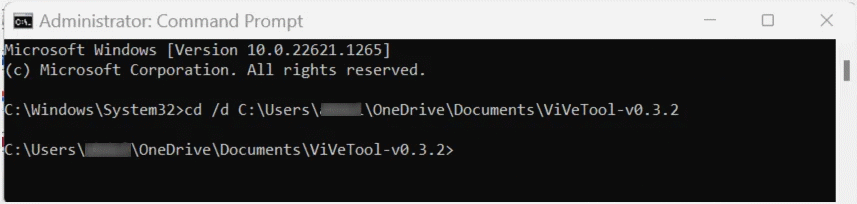
Some early guides suggested ViVeTool feature IDs or third-party “Windows AI removal” utilities. Those instructions are not a supported Windows setting, can be build-specific, and may reverse meaning as internal feature definitions change. They can also be undone by an update or interfere with other Windows components.
The screenshots below are retained only to identify the older methods you may encounter; do not copy their commands as a current procedure.
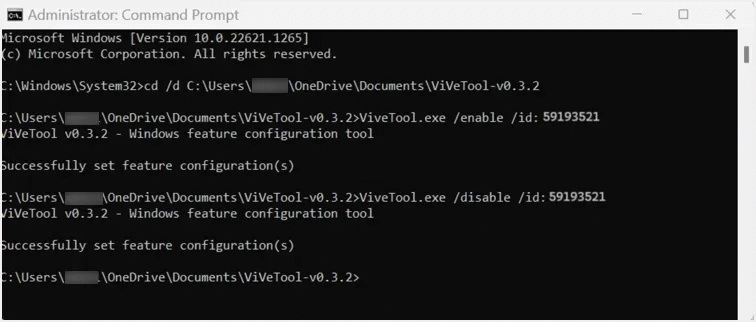
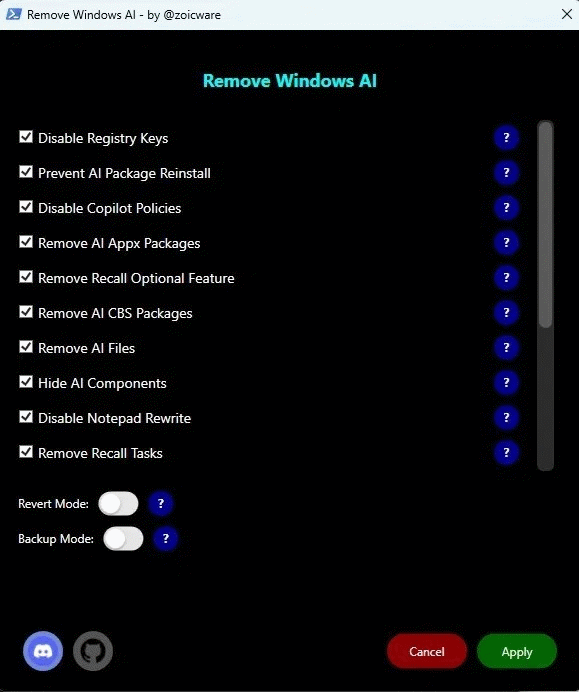
Use the per-provider controls in Settings when available. On managed work or school PCs, ask the administrator because policy may determine which actions appear.
Official availability details
Microsoft documents AI Actions under What's new in Windows 11 version 25H2. Because the feature and its providers can evolve through normal Windows updates, that page and the descriptions shown in Settings are more reliable than an internal feature ID from a particular preview build.
Related Articles
 How to Enable AI Actions in Windows 11 File Explorer6 minutes read
 How to Enable Copilot Actions on Windows 11: Step-by-Step Guide3 minutes read
 How to Enable / Disable TLS 1.3 in Windows 104 minutes read
 How to Disable DHCP in Windows 104 minutes read
 Enable or Disable Secure Sign-In on Windows 10, Windows 11: Step-by-Step Guide8 minutes read
 How to Enable / Disable Clipboard Sharing with Windows Sandbox on Windows3 minutes read
Reader Comments 0
Sign in with email or Google to join the discussion.