Table of Contents
Windows 11 lets you align taskbar icons to the left or center through Settings. This changes the icon alignment; it does not move the taskbar itself away from the bottom edge. Current Windows 11 versions do not provide a supported setting for a top, left-side, or right-side taskbar.
Move Windows 11 taskbar icons to the left
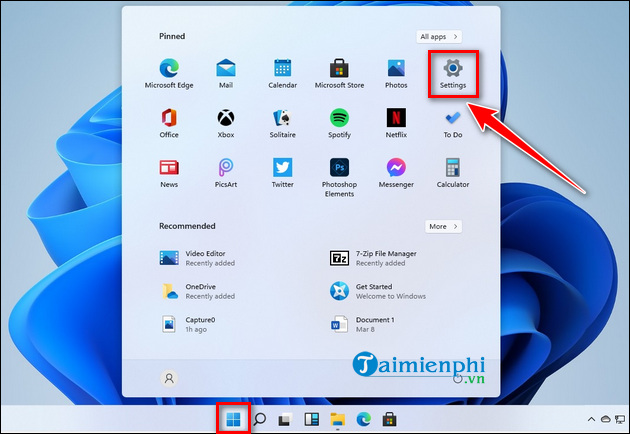
Step 1: Press Windows + I to open Settings, then select Personalization > Taskbar. You can also right-click an empty taskbar area and choose Taskbar settings.
Step 2: Expand Taskbar behaviors. In Taskbar alignment, select Left. Choose Center to restore the Windows 11 default.
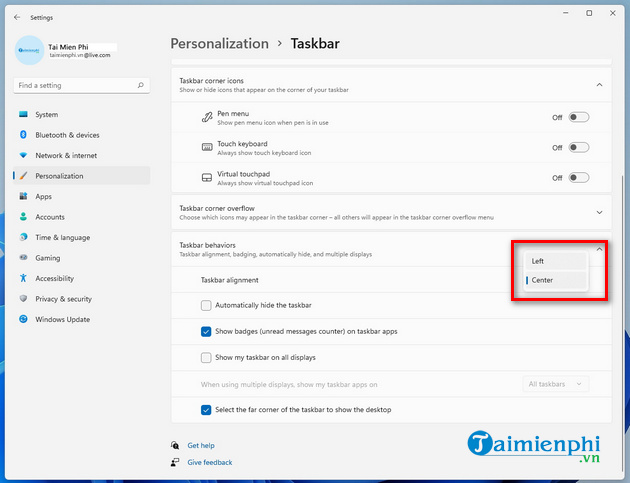
The change takes effect immediately and does not require a restart.
Can the Windows 11 taskbar move to the top or sides?
Not through a supported Windows 11 setting. Windows 10 allowed the full taskbar to attach to different screen edges, but Windows 11’s taskbar was redesigned and officially remains at the bottom.
Third-party shell-modification tools may add other positions, but they can break after a Windows update, interfere with the Start menu, or require recovery steps. Use them only if you accept those maintenance risks and can undo the change.
Why the old StuckRects3 Registry hack is not recommended
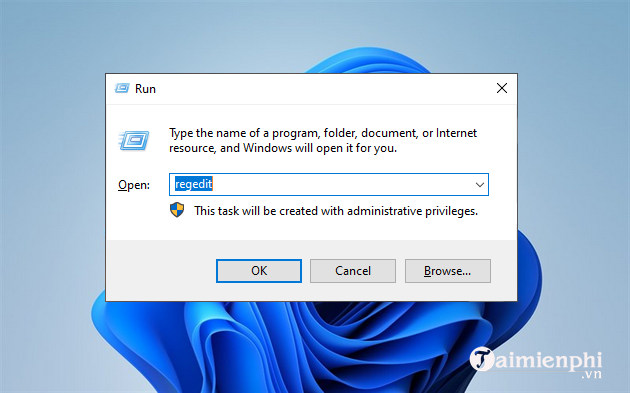
Early Windows 11 builds sometimes responded to a binary Registry edit under the StuckRects3 key. The screenshots below document that old experiment; they are not current instructions.
The method began by opening Registry Editor.
It navigated to:
HKEY_CURRENT_USERSoftwareMicrosoftWindowsCurrentVersionExplorerStuckRects3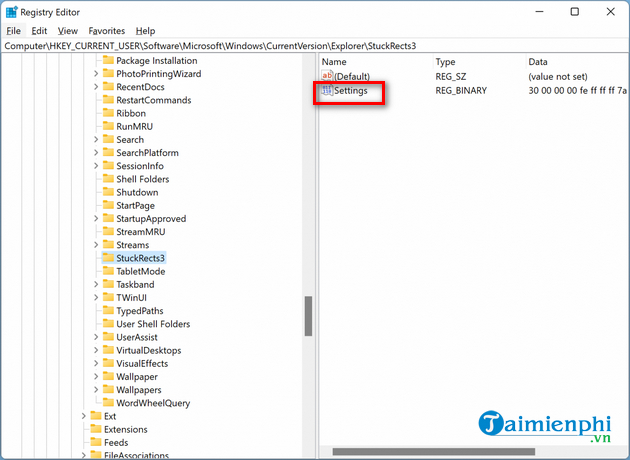
The procedure modified a byte inside the binary Settings value.
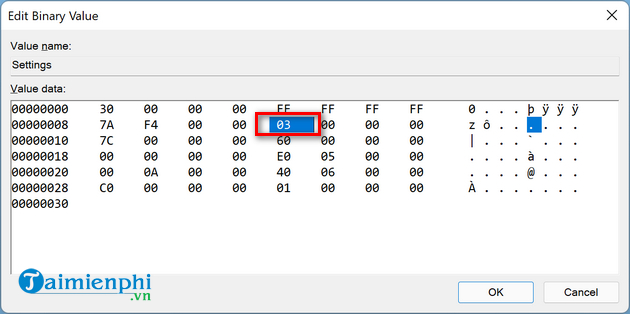
Values were presented as top, bottom, left, or right positions.
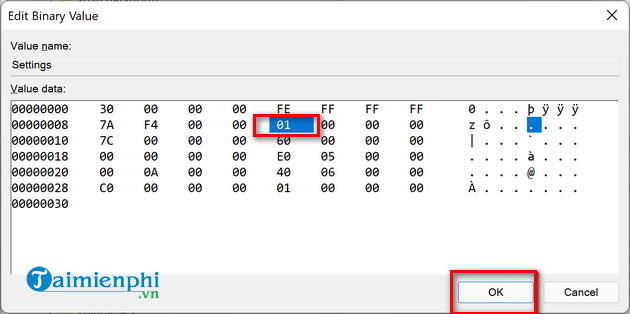
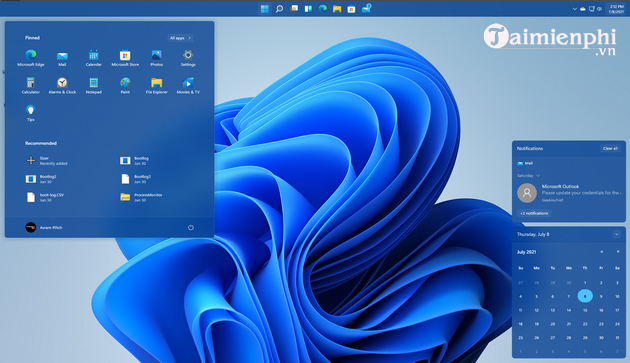
On newer Windows 11 builds, the shell may ignore the change or render the taskbar incorrectly, and an update can overwrite it.
If a Registry experiment already broke the taskbar
- Return the modified binary value to the recorded original data, if you saved it.
- Restart Windows Explorer from Task Manager or sign out and back in.
- If the shell remains damaged, use System Restore or remove the affected user setting after creating a Registry backup.
For most users, left alignment provides the familiar Windows layout without replacing or patching the taskbar.
Related Articles
 How to Change the Position of the Taskbar in Windows 74 minutes read
 How to Left Align the Windows 11 Taskbar Icon3 minutes read
 How to Change the Position of the Taskbar on Windows 115 minutes read
 How to Move Windows 11 Start Menu to the Left6 minutes read
 How to Customize the Taskbar in Windows 7, Change the Location, Hide the3 minutes read
 Steps to Change Taskbar Position on Windows 114 minutes read
Reader Comments 0
Sign in with email or Google to join the discussion.