Table of Contents
Windows can sign in to a chosen account automatically at startup, but doing so removes an important physical-access barrier. Use it only on a device kept in a controlled location, such as a dedicated kiosk or a home desktop that contains no sensitive data. Do not enable it on a laptop, shared PC, work or school device, or any computer that provides access to private files or organizational networks.
The preferred method for most suitable PCs is Microsoft’s Sysinternals Autologon utility. It stores the supplied password as an encrypted LSA secret rather than a plain-text Winlogon value. That is an improvement, not complete protection: a local administrator can still retrieve and decrypt the secret.
Windows 10 note: general support ended on October 14, 2025. A Windows 10 PC still works, but unless it is covered by an applicable Extended Security Updates program, it does not receive the normal operating-system security fixes. Microsoft’s Windows 10 end-of-support guidance explains the available paths.
Before enabling automatic sign-in
- Confirm that you know the account’s actual password. A Windows Hello PIN is device-specific and is not the account password.
- Create a current backup of important files.
- Make sure the selected account has only the permissions it needs. A standard account is safer than an administrator account for a kiosk-style setup.
- Confirm that disk encryption, network access, browser sessions, password managers, and synced files do not expose unacceptable data after sign-in.
- Plan how to disable autologon if the account password changes.
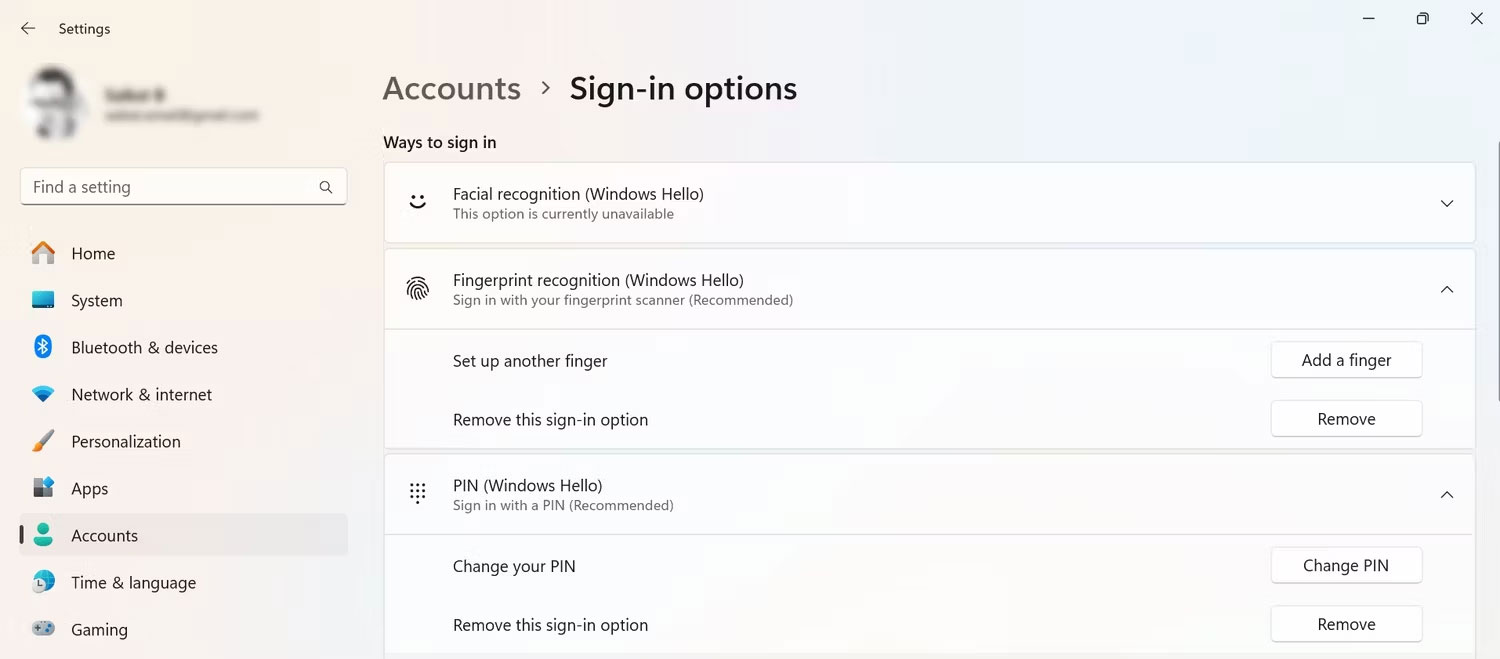
You normally do not need to remove every Windows Hello method just to use Sysinternals Autologon. The Windows Hello settings are under Settings > Accounts > Sign-in options.
Method 1: Use Microsoft Sysinternals Autologon
This is the clearest method because it avoids manually placing a password in the plain-text DefaultPassword Registry value.
- Download Autologon from Microsoft Sysinternals. Do not download a repackaged copy from an unrelated site.
- Extract the archive and run the appropriate Autologon executable as an administrator.
- Read and accept the license terms.
- Verify the user name and domain or computer name. Enter the account password—not a Windows Hello PIN.
- Select Enable.
- Restart the PC and confirm that the intended account signs in.
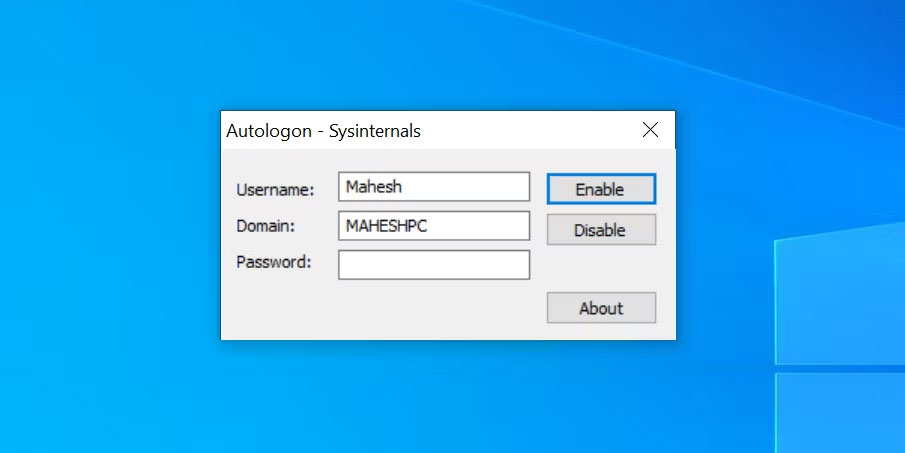
To turn the feature off, run Autologon again and select Disable. You can also hold Shift while Windows is performing autologon to bypass the automatic sign-in for that startup.
Method 2: Configure autologon with netplwiz
The classic User Accounts dialog is convenient when the relevant checkbox is available. Its behavior can vary with Windows Hello and device policy, so managed PCs should be left to their administrator.
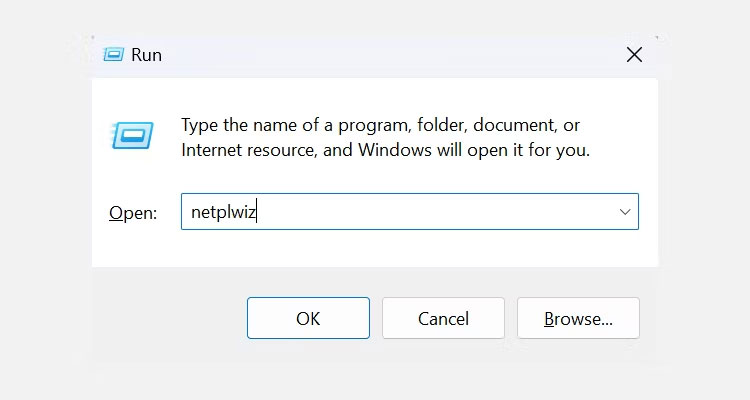
- Press Windows + R, type
netplwiz, and press Enter.
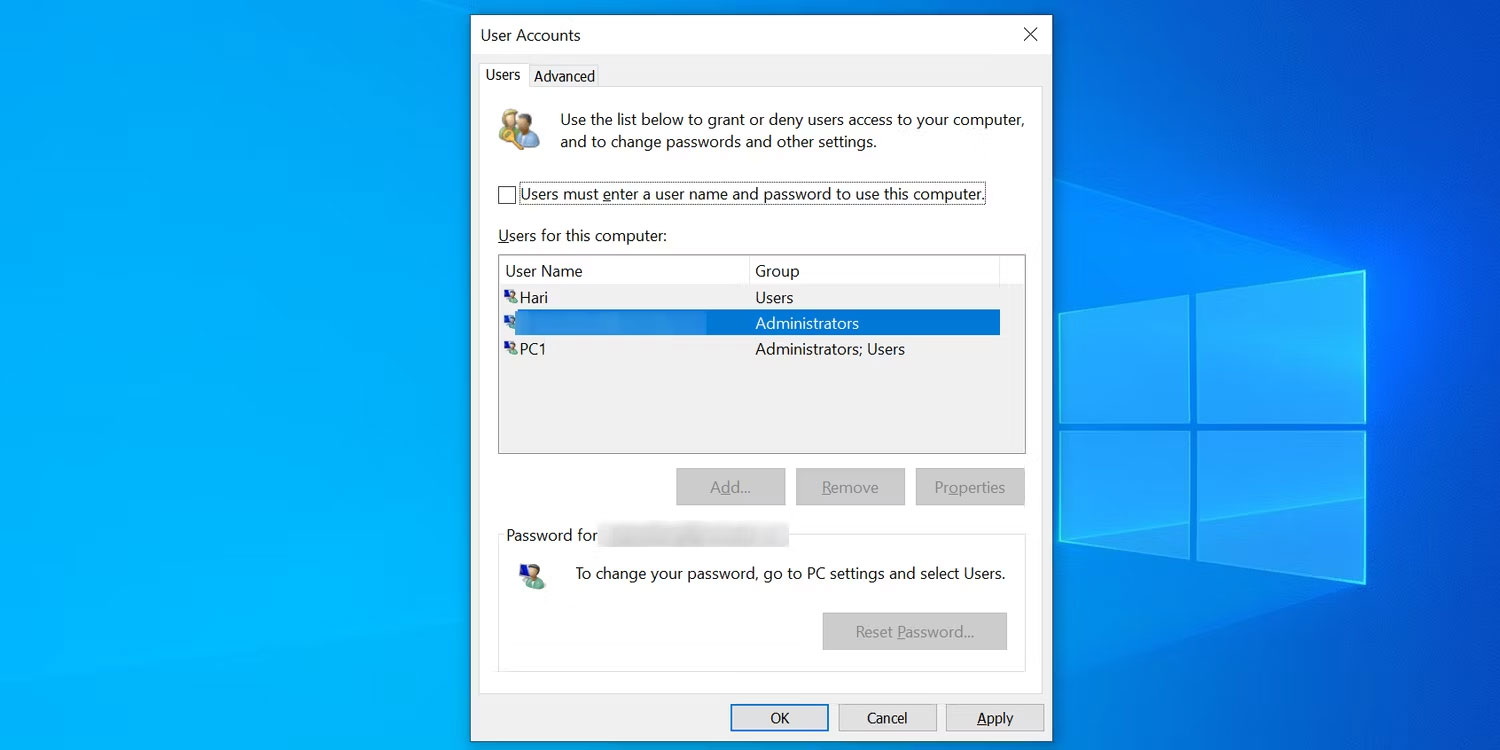
- On the Users tab, select the exact account that should sign in automatically.
- Clear Users must enter a user name and password to use this computer, then select Apply.
- In the confirmation dialog, enter the account name and password carefully. For a Microsoft account, the user name may be the account email address and the password is the Microsoft account password.
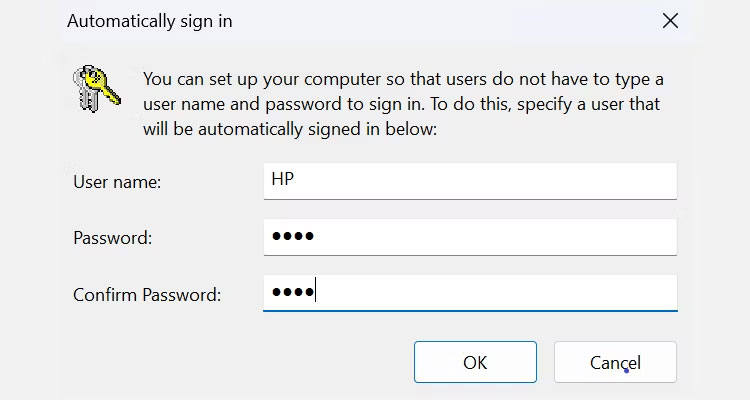
- Select OK in the remaining dialogs, restart, and test.
If the checkbox is missing, check Settings > Accounts > Sign-in options for the setting that allows only Windows Hello sign-in for Microsoft accounts on the device. Turning that setting off may restore the legacy checkbox, but it also relaxes a security preference. If policy controls the setting, do not try to override it; use the organization’s approved configuration.
To disable this method, reopen netplwiz, select the account, restore the Users must enter… checkbox, apply the change, and restart.
Method 3: Edit AutoAdminLogon Registry values
Use the Registry method only when the other options are unsuitable and you accept its larger credential risk. Microsoft’s documented procedure stores DefaultPassword as plain text under Winlogon. Microsoft warns that anyone with physical access can use the signed-in account, and that the value can be remotely readable to authenticated users in some configurations.
Back up the affected key before editing it. TipsMake’s Registry Editor guide explains how to export a backup. Incorrect Registry edits can prevent Windows from signing in normally.
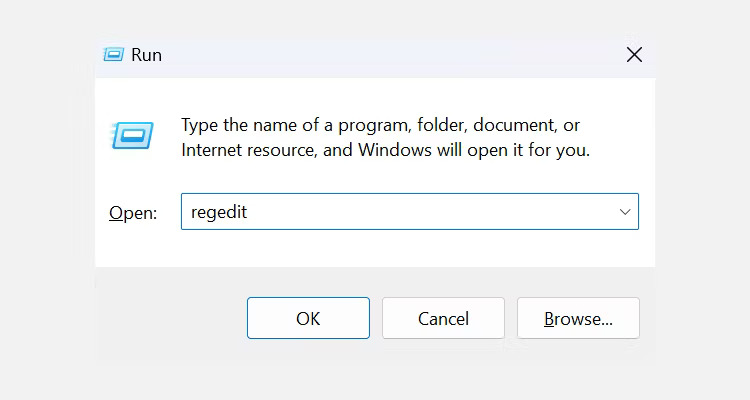
- Press Windows + R, type
regedit, press Enter, and approve User Account Control.
- Navigate to
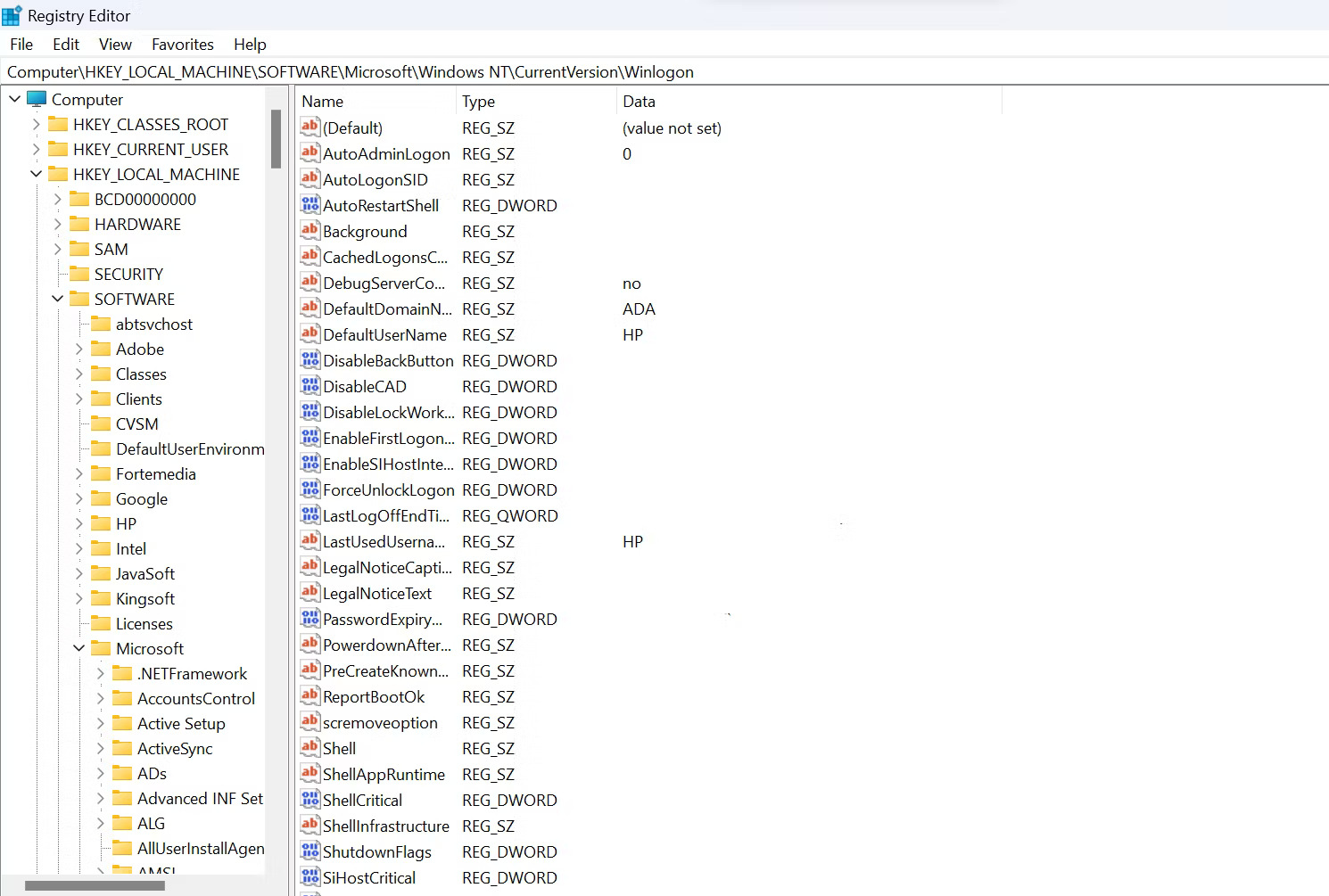
HKEY_LOCAL_MACHINE\SOFTWARE\Microsoft\Windows NT\CurrentVersion\Winlogon. - Set the
DefaultUserNamestring to the intended account name.
- Create or edit the
DefaultPasswordstring and enter the account password. Understand that this value is stored in plain text.
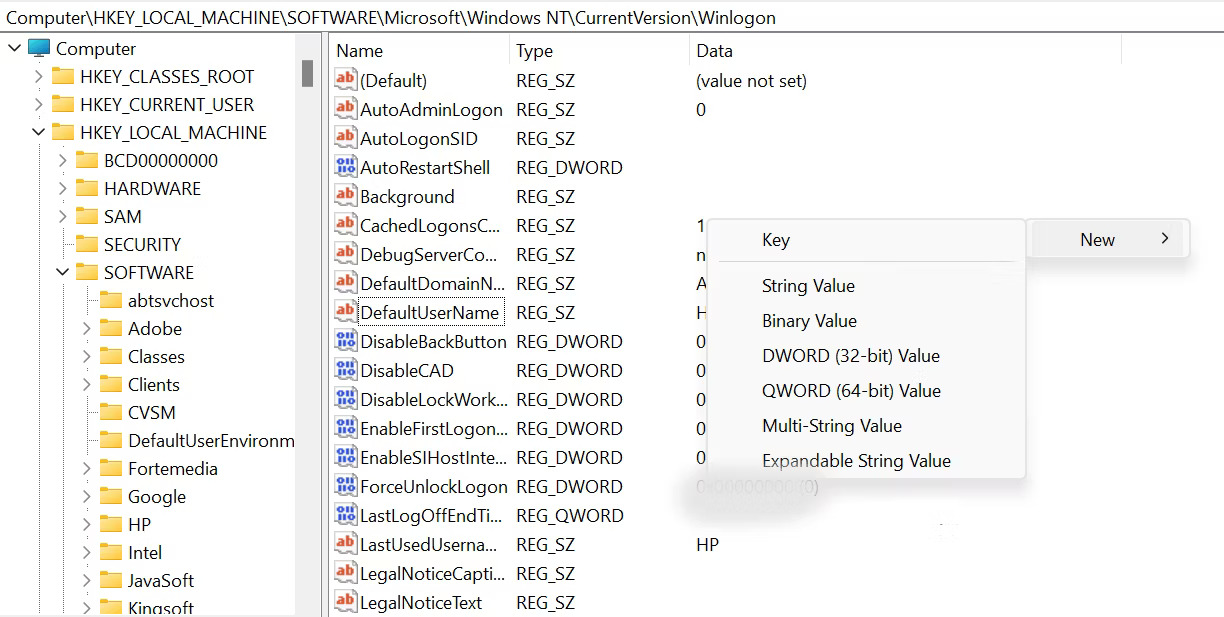
- Create or edit the
AutoAdminLogonstring and set its data to1. - For a domain-joined account, the documented configuration may also require
DefaultDomainNameset to the fully qualified domain name. - Close Registry Editor and restart to test.
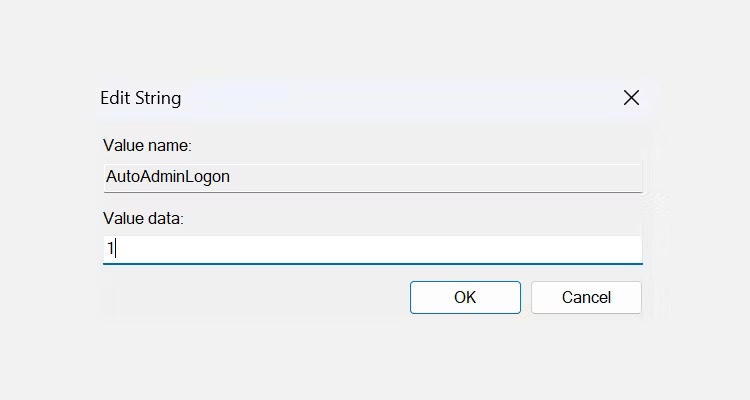
The full warnings and values are in Microsoft’s AutoAdminLogon Registry documentation.
To disable Registry-based autologon, set AutoAdminLogon to 0 and remove DefaultPassword. Also remove values that were created solely for this setup and are no longer required. Restart and verify that Windows requests sign-in.
Startup sign-in and wake-from-sleep sign-in are different
AutoAdminLogon applies to an interactive startup or restart. It does not necessarily remove the lock screen after sleep. That separate protection is under Settings > Accounts > Sign-in options, where Windows can be configured to require sign-in after the device wakes.
Leaving the wake requirement enabled is safer. If you disable it, anyone who reaches the sleeping PC may gain access without restarting it. A better compromise is to keep automatic startup sign-in off and use a quick Windows Hello PIN, face recognition, or fingerprint. You can also lock the current session instantly with Windows + L; see the TipsMake guide to locking a Windows computer.
Troubleshooting automatic sign-in
Windows signs in to the wrong account
Disable autologon first. Recheck the user name, domain or local computer name, and account type. Do not keep restarting while an unintended administrator account is configured.
Autologon stops after a password change
The stored credential no longer matches. Run Sysinternals Autologon again with the new password, or disable the feature. Never keep an obsolete plain-text DefaultPassword value.
The sign-in screen still appears
Check for an incorrect password, a missing DefaultPassword, an account or domain-name mismatch, a logon banner, or organizational policy. A work or school administrator may intentionally block autologon. Some configurations also stop autologon after another user signs in interactively.
Windows Hello options disappeared or changed
Restore the original Sign-in options setting if you changed the Windows Hello-only preference for netplwiz. Re-add the approved Hello method and verify that normal manual sign-in works before relying on it.
Is automatic sign-in worth using?
For most personal PCs, no. Windows Hello usually removes most of the inconvenience without leaving an unlocked desktop after every restart. Automatic sign-in is reasonable only for a narrow, physically protected use case whose owner has evaluated what the account can access.
If the PC leaves a secure room, stores sensitive information, uses an administrator account, or connects to business resources, keep interactive sign-in enabled. Convenience at startup is not worth exposing the entire signed-in session to anyone who can power on or restart the device.
Related Articles
 Guide 5 Ways to Delete User Accounts on Windows 106 minutes read
 Steps on How to Create a Local User Account in Windows 108 minutes read
 How to Change the Name of the User Profile Folder in Windows 105 minutes read
 How to Change User Accounts in Ubuntu Bash Shell Windows 108 minutes read
 How to Turn Off Notifications of User Account Control in Windows?3 minutes read
 Cannot Create a New User Account on Windows 10, 8.1 and 8, This5 minutes read
Reader Comments 0
Sign in with email or Google to join the discussion.