Table of Contents
Microsoft has deeply integrated Copilot into its computer systems, but not everyone wants to use this AI tool. With an April update, Microsoft added a way to uninstall Copilot instead of just hiding it. The "Remove Copilot" option in Group Policy will completely uninstall Copilot from the system. If this method doesn't work, you can still try some of the methods below.
Method 1: Uninstall Copilot using Group Policy Editor
Once set up, Remove Copilot will take effect 28 days after you stop using any Copilot features.
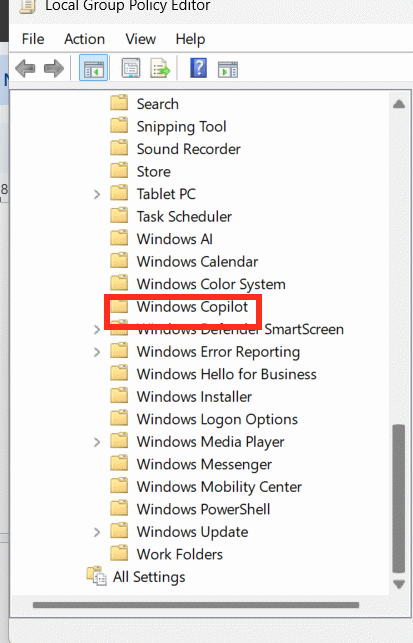
Type gpedit.msc into the Run dialog box and then click OK to access it. Next, in the Group Policy interface, navigate to the following path.
User Configuration > Administrative Templates > Windows Components > Windows CopilotNext, double-click the "Remove Microsoft Copilot app" option and then click "Enabled" to activate this mode. Click "Apply" to save the settings.
Method 2: Uninstall Copilot using Registry Editor
This method applies to Windows 11 Home and also requires 28 days to completely remove Copilot once the features are no longer in use.
Step 1:
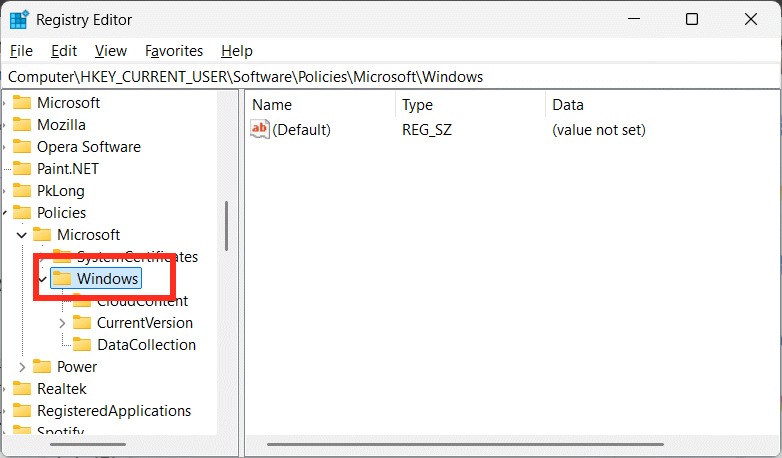
Type "regedit" into the search bar and then access it. Next, navigate to the link below.
HKEY_CURRENT_USERSoftwarePoliciesMicrosoftWindowsYou can paste this address directly into the address bar at the top for quick access.
Step 2:
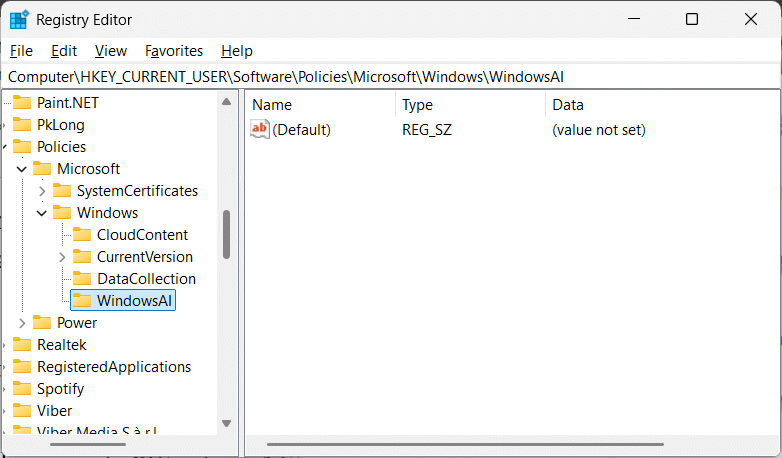
Right-click on the Windows folder, then select New, then select Key . Name the new key WindowsAI .
Step 3:
To unlock the newly created key, right-click on the empty space on the right and select New, then select DWORD (32-bit) Value .
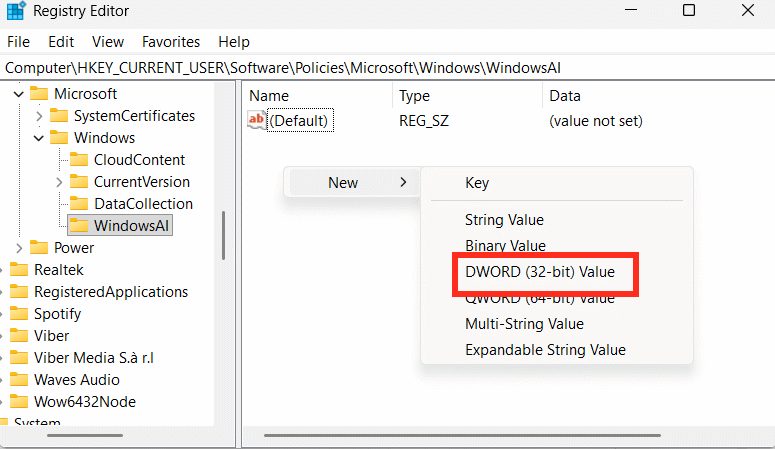
Name this newly created value RemoveMicrosoftCopilotApp .
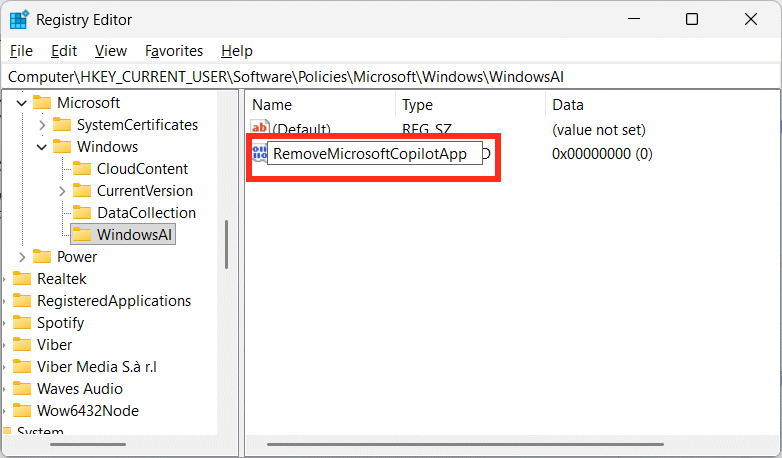
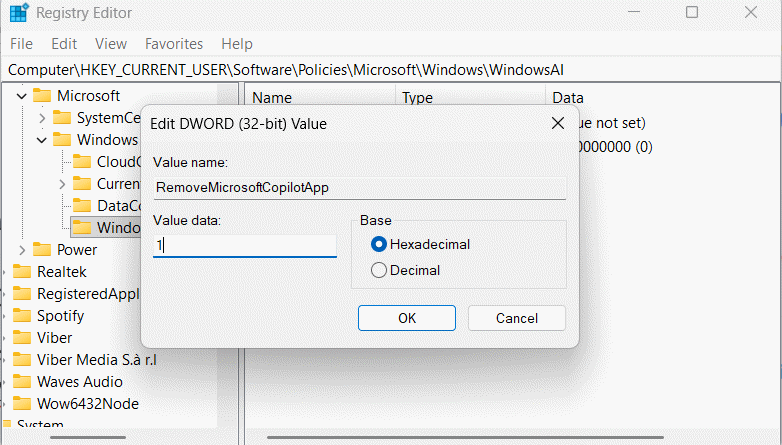
Double-click on this value and enter 1 to activate the Copilot uninstall mode on your computer. Then restart your computer to apply the changes.
Method 3: Uninstall Copilot using PowerShell
If you don't want to wait for the two methods above to take effect automatically, the command below will uninstall the Copilot application immediately.
Step 1.
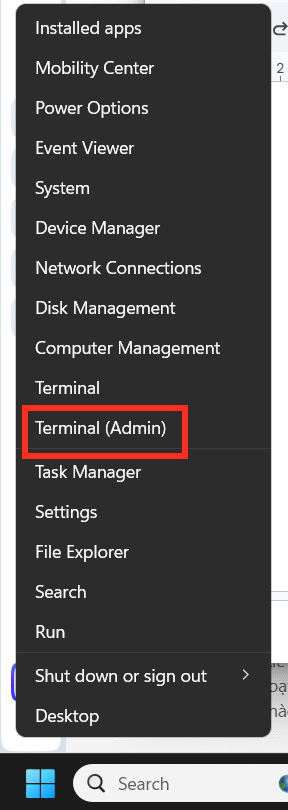
Right-click the Start icon and select Terminal (Admin) from the list that appears.
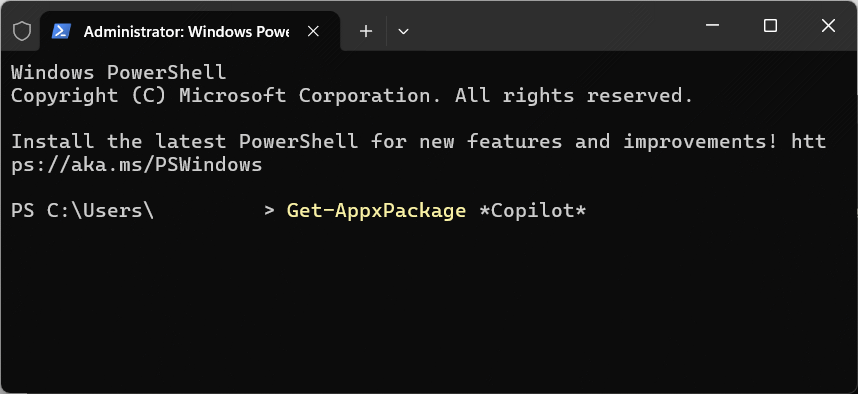
Now run the command below to find out which Copilot package you are using.
Get-AppxPackage *Copilot*
Step 2:
At this point, you will see the system return the name of the Copilot package currently in use. Enter the command below to proceed with uninstalling it.
Get-AppxPackage -AllUsers -Name "" | Remove-AppxPackage -AllUsersNote: Replace with the package name returned above.
Restart your computer to confirm that Copilot has been uninstalled.
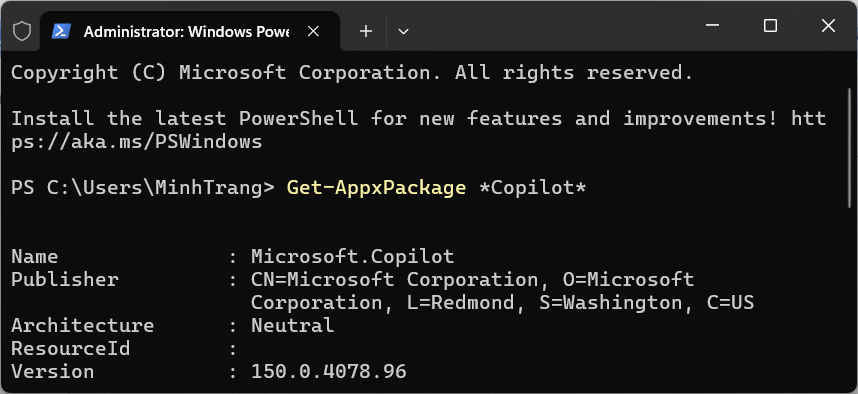
This method will uninstall the application immediately, but you should combine it with the Registry or Group Policy settings mentioned above to prevent Windows from automatically reinstalling Copilot after future updates.
If you only want to hide Copilot but still keep the option to turn it back on later, follow the instructions below.
This method only hides the icon and prevents you from accessing Copilot; the application remains installed, but users cannot launch Copilot through the Windows interface.
Disable Copilot in Edge using the Registry
Step 1:
First, type "registry editor" in the search bar , then access the following path.
HKEY_LOCAL_MACHINESOFTWAREPoliciesMicrosoftWindows
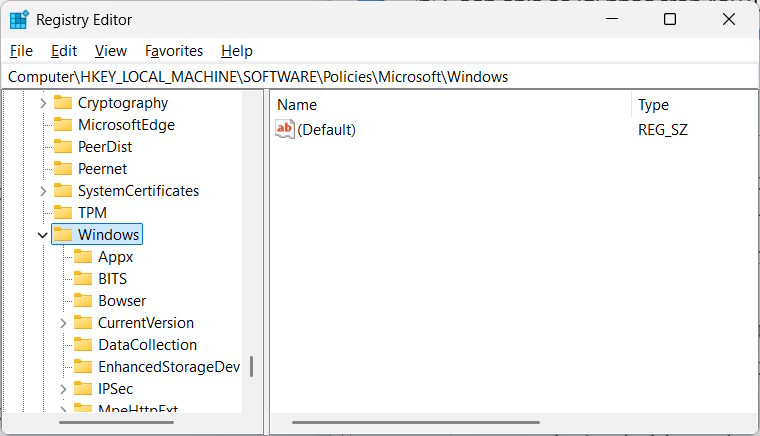
Step 2:
Right- click on the Windows key , select New > Key, and name it WindowsCopilot .
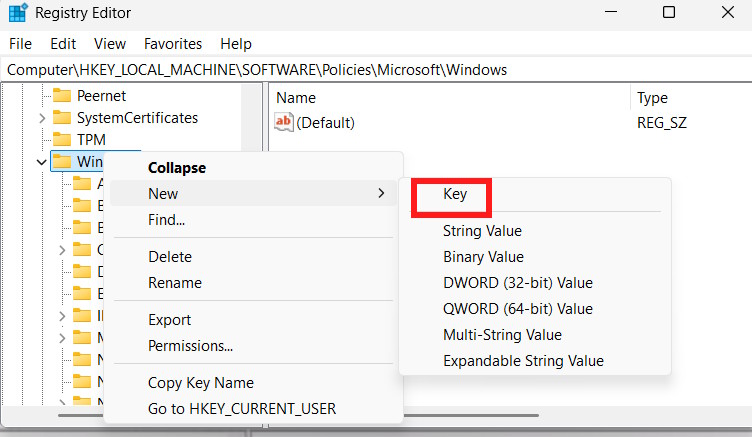
Step 3:
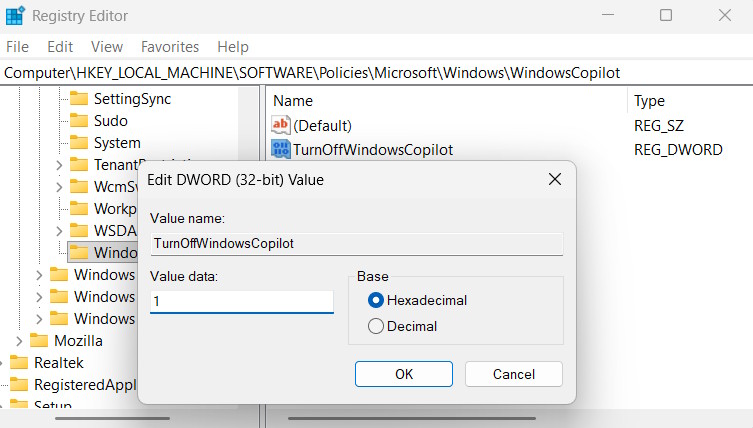
Next, right-click on the new WindowsCopilot key and select D-WORD 32-bit Value . Name the value TurnOffWindowsCopilot .
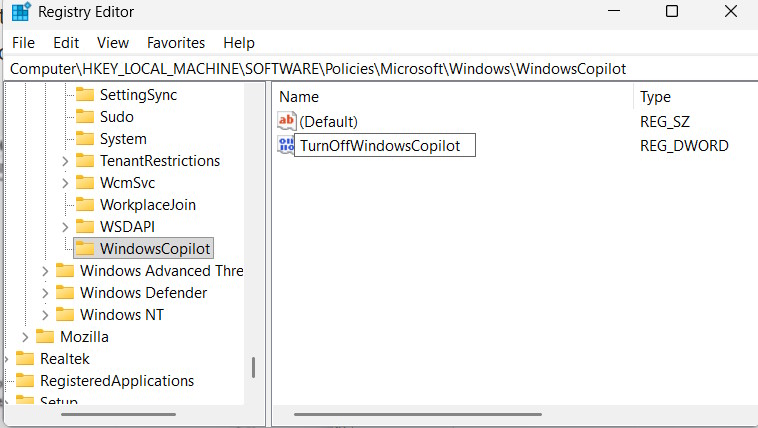
Double-click on the selected value 1 to enable Copilot disabling mode on Windows.
Step 4:
Continue accessing via the link below.
HKEY_CURRENT_USERSoftwareMicrosoftWindowsCurrentVersionContentDeliveryManager
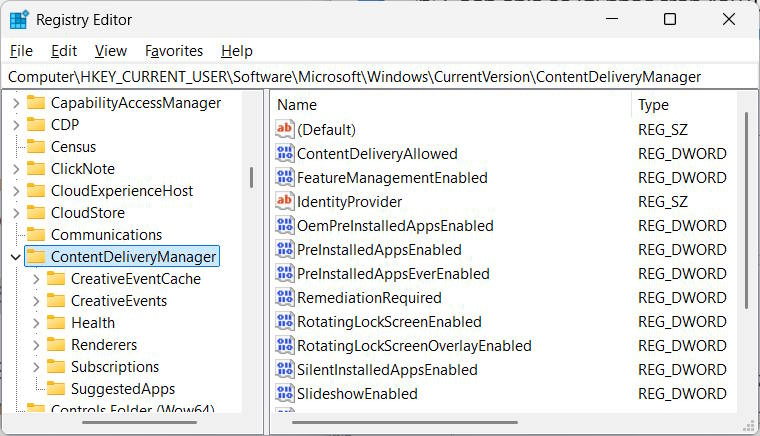
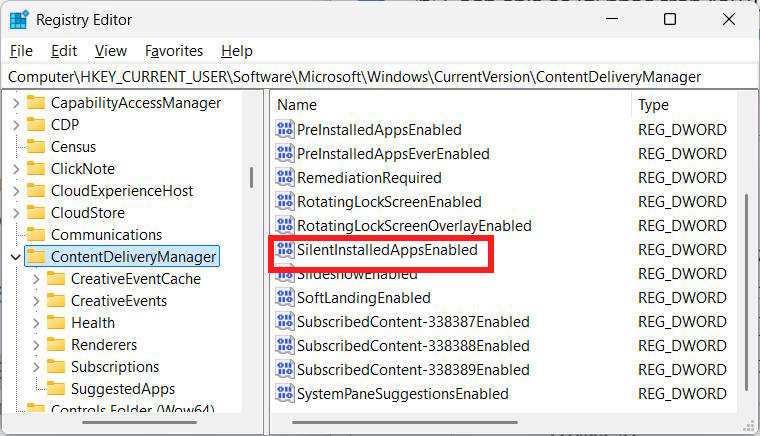
Look to the right, find the value for SilentInstalledAppsEnabled , and double-click to change it.
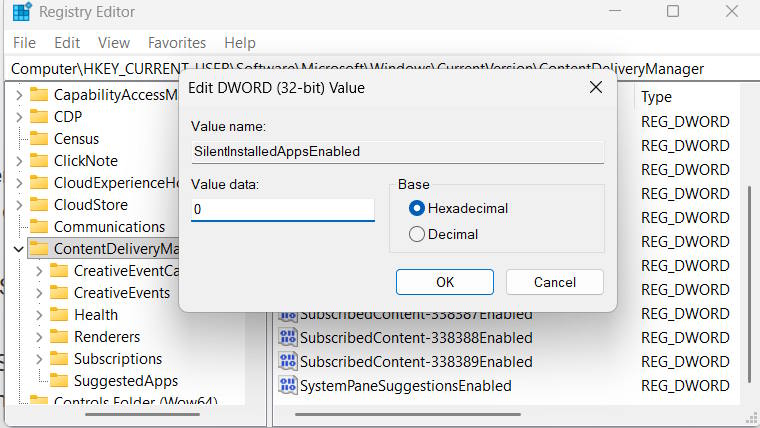
Enter 0 to disable Microsoft from secretly installing Copilot on your computer.
Related Articles
 How to Completely Disabling Copilot in Windows5 minutes read
 How to Turn Off Copilot in Windows 11: Step-by-Step Guide4 minutes read
 How to Completely Uninstall WSL on Windows 10/114 minutes read
 How to Uninstall LinkiDoo6 minutes read
 How to Uninstall the Driver Completely on Windows4 minutes read
 How to Turn Off or Remove Windows Copilot on Windows 11: Practical Guide6 minutes read
Reader Comments 0
Sign in with email or Google to join the discussion.