Table of Contents
Windows 11 includes Disk Management, a built-in tool that can shrink an existing volume and use the unallocated space to create a new partition. The process normally keeps the files on the volume you shrink, but partition changes are never completely risk-free. Back up important files before you begin.
Before partitioning the drive
- Make a separate backup. A second partition on the same physical drive is not a backup: a failed drive can make every partition inaccessible.
- Check the drive and free space. Confirm that the existing volume has enough unused space for the partition you want. If storage is tight, free space first rather than shrinking the volume to its limit.
- Save your BitLocker recovery key. If Device Encryption or BitLocker is enabled, make sure you can recover the drive if Windows asks for the key after a storage change.
- Keep the computer powered. Connect a laptop to its charger and do not force a restart while Windows is resizing or formatting a volume.
It is also worth understanding the advantages and disadvantages of partitioning a hard drive before deciding how much space to allocate.
1. Open Disk Management
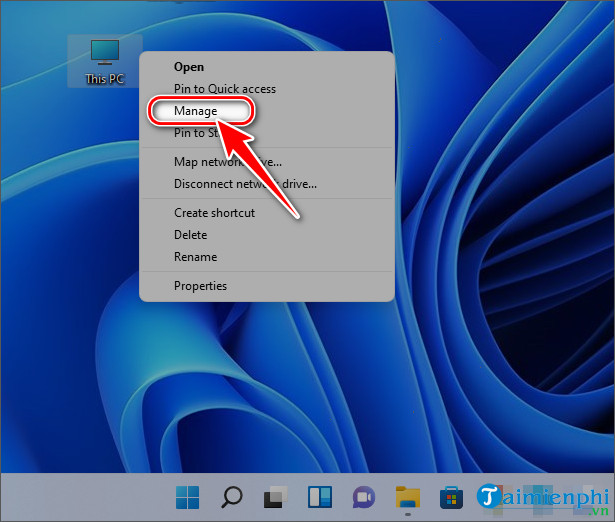
Right-click This PC and select Manage. In Computer Management, open Storage > Disk Management. You can also right-click the Start button and choose Disk Management.
2. Shrink an existing volume
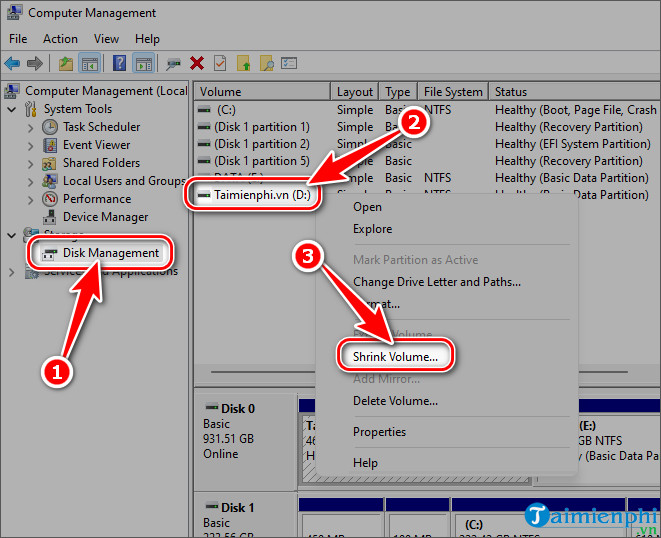
In the lower pane, identify the correct volume by its drive letter, capacity, and available space. Right-click that volume and select Shrink Volume. Do not select a small EFI, Recovery, or System Reserved partition.
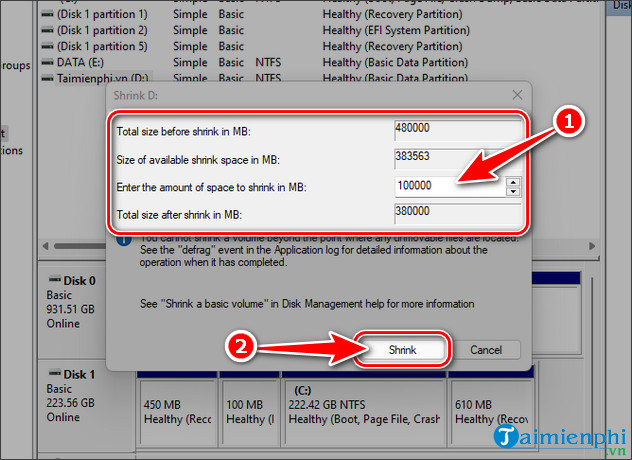
Enter the amount to shrink in megabytes, then select Shrink. For reference, 1 GB is approximately 1,024 MB. Leave enough free space on the original volume for Windows, applications, updates, and normal file growth.
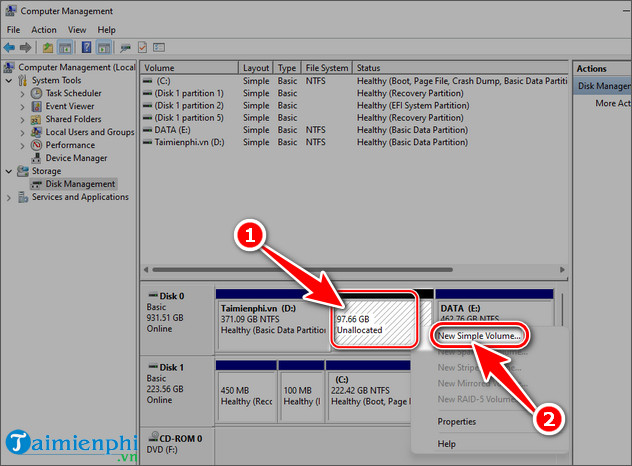
Disk Management will show the released capacity as Unallocated. If Windows offers much less shrink space than the volume's free-space figure, unmovable system files may be near the end of the volume. Avoid disabling protection features or using unknown partition tools solely to force a larger shrink; back up first and investigate the limitation carefully.
3. Create the new partition
Right-click the unallocated area and choose New Simple Volume. Follow the wizard and select how much of the unallocated space to use. Using the full amount creates one new partition; using less leaves room for another volume later.
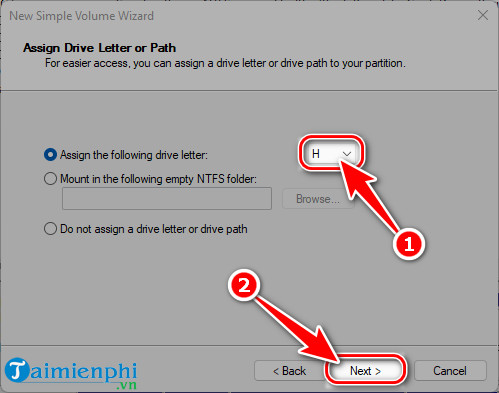
Assign an available drive letter. Windows will use this letter in File Explorer and in file paths.
4. Format the volume
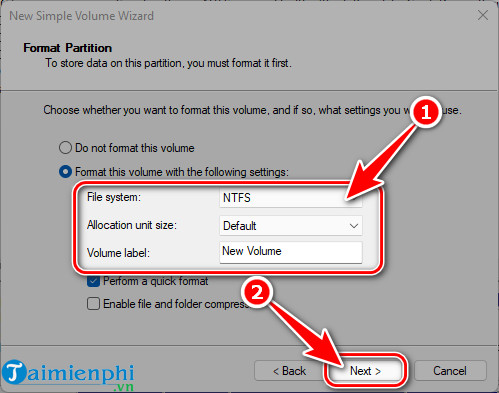
For a normal internal Windows data volume, choose NTFS, keep the default allocation unit size, and enter a descriptive volume label such as Data or Projects. Quick Format is appropriate for a healthy drive in most routine cases. FAT32 has a 4 GB maximum individual file size and is generally a poor choice for a large Windows data partition.
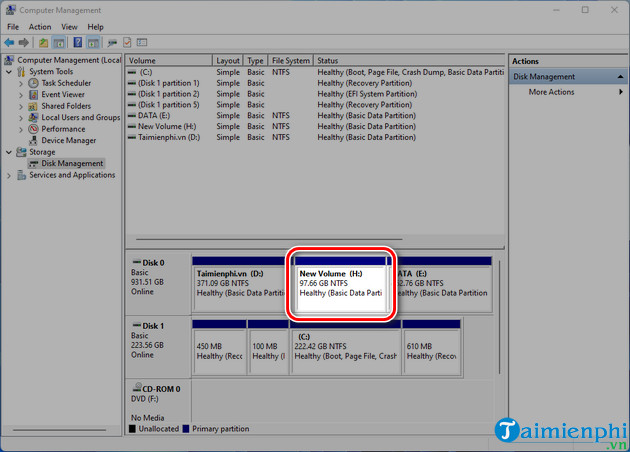
Review the wizard summary, then select Finish. Disk Management should display the new volume with the assigned letter and a Healthy status.
5. Verify the new drive
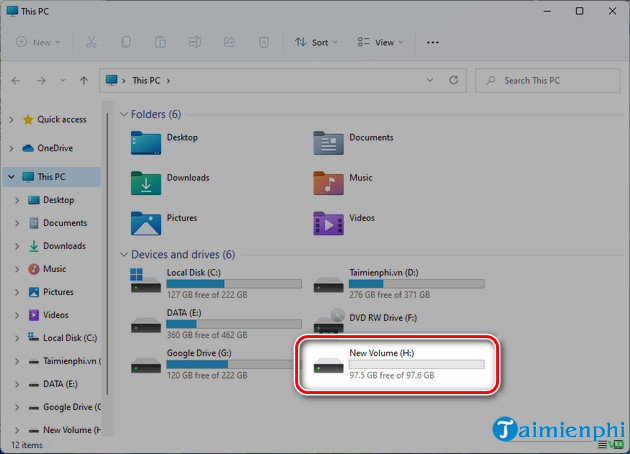
Open File Explorer and select This PC. Confirm that the new drive appears, open it, and create a test folder. If it does not appear, return to Disk Management and check whether the volume has a drive letter and shows a recognized file system.
Important deletion warning
Delete Volume is not a way to resize a partition safely. It removes the volume and makes its files inaccessible. Use it only after verifying that you selected the correct volume and copied every needed file elsewhere. Never delete EFI, Recovery, or System Reserved partitions as part of this procedure.
If you are changing partitions in preparation for reinstalling Windows, review the Windows installation and recovery guides first so you understand which volumes the setup process may modify.
Related Articles
 How to Split the Hard Drive, Merge the Partition on Windows XP8 minutes read
 How to Partition Hard Drive without Losing Data on Windows 10, 117 minutes read
 How to Safely Partition an SSD on Windows Without Losing Data10 minutes read
 How to Partition a Hard Drive in Windows 11, 10, 8, and 7 Without Losing Data6 minutes read
 5 Simple Ways to Partition Hard Drive without Losing Data on Windows9 minutes read
 How to Format MBR Hard Drive to GPT Safely Without Losing Data6 minutes read
Reader Comments 0
Sign in with email or Google to join the discussion.