Table of Contents
Office 2016 lets you change more than its color. You can place frequently used commands on the Quick Access Toolbar, build custom Ribbon groups, control the Start screen, and choose a display or editing language. Most changes are made separately in each Office application.
Before you begin: The screenshots below show the Windows edition of Office 2016. Microsoft 365 and newer perpetual versions have similar controls, but available themes and menu wording can differ.
1. Customize the Quick Access Toolbar
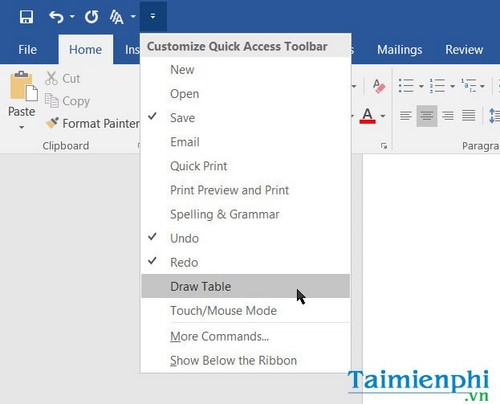
The Quick Access Toolbar keeps commands such as Save, Undo, and Redo available regardless of the active Ribbon tab.
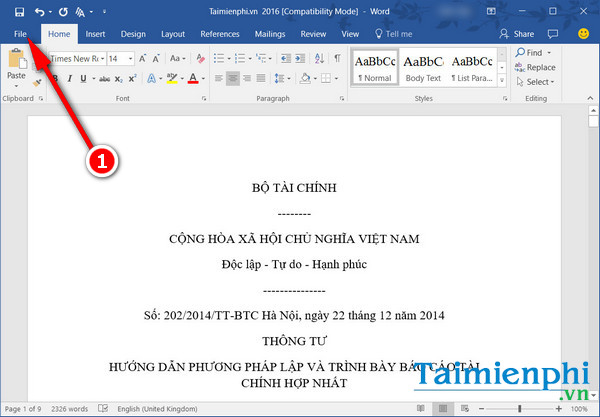
- Select File > Options.
Open the Office application's Options window.
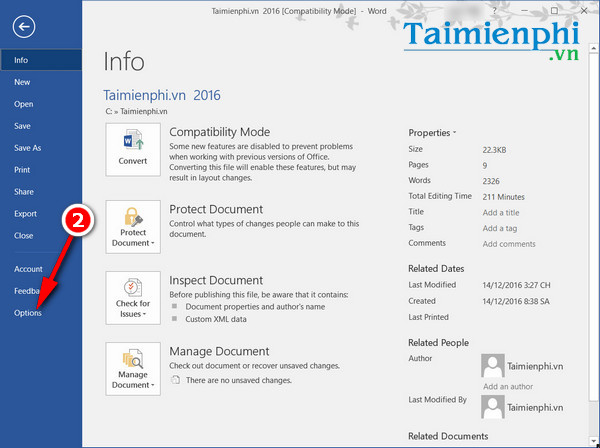
- Select Quick Access Toolbar.
- Use Choose commands from to find a command. Select All Commands if it is not in the default list.
- Select the command, choose Add, and use the up or down arrows to set its position.
- Select OK.
Quick Access Toolbar settings are application-specific, so repeat the change in Word, Excel, or PowerPoint as needed.
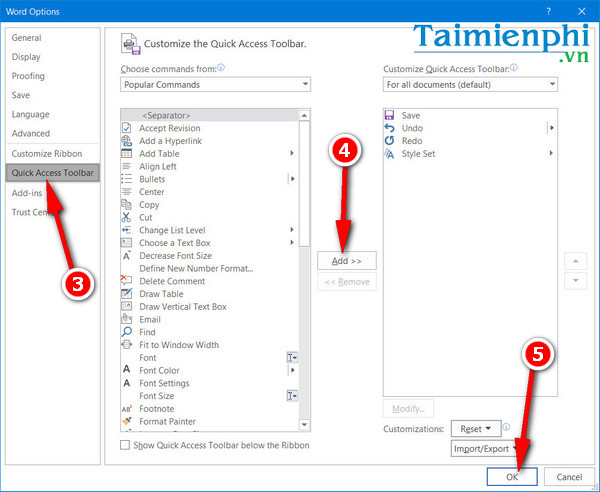
Example toolbar customization in Word.
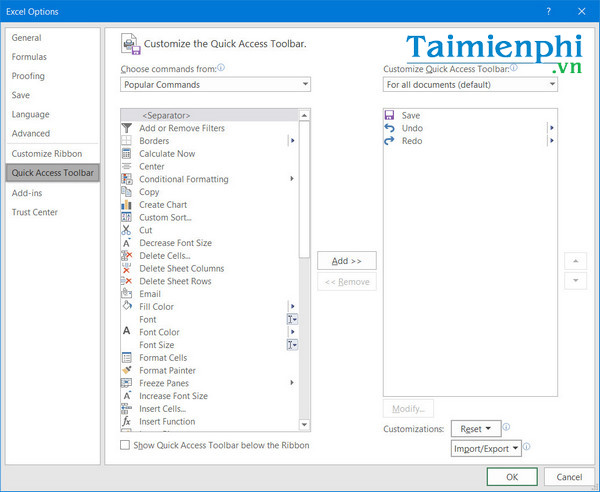
Example toolbar customization in Excel.
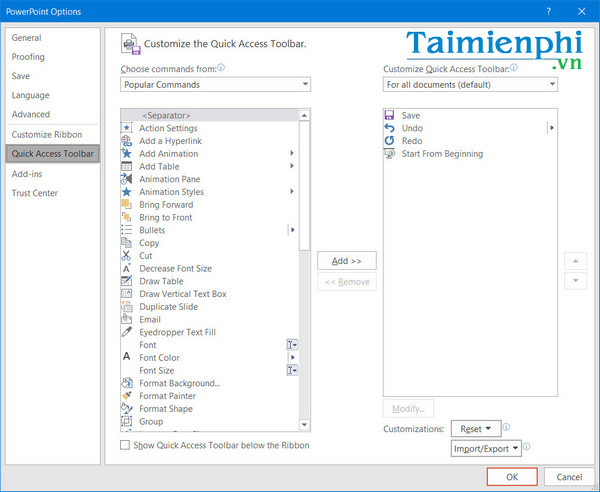
Example toolbar customization in PowerPoint.
For more options, see Microsoft's Quick Access Toolbar documentation.
2. Change the Office background and theme
- Select File > Account.
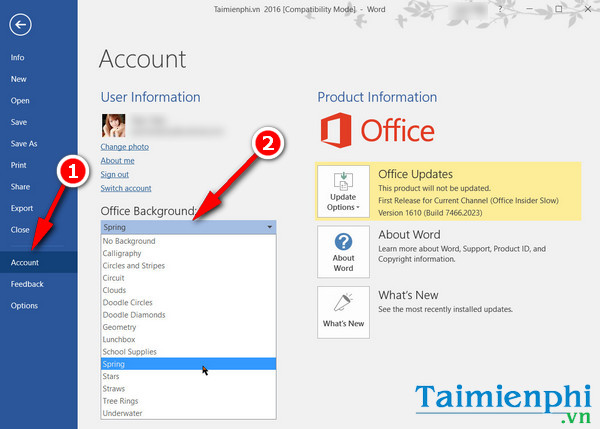
- Open Office Background to choose a decorative background, or select No Background.
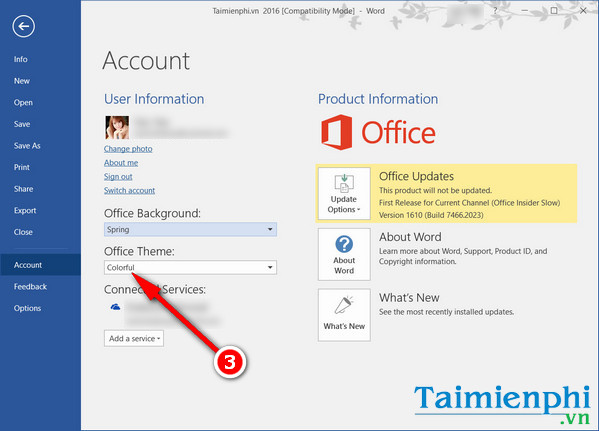
- Open Office Theme and choose one of the themes available in your installation.
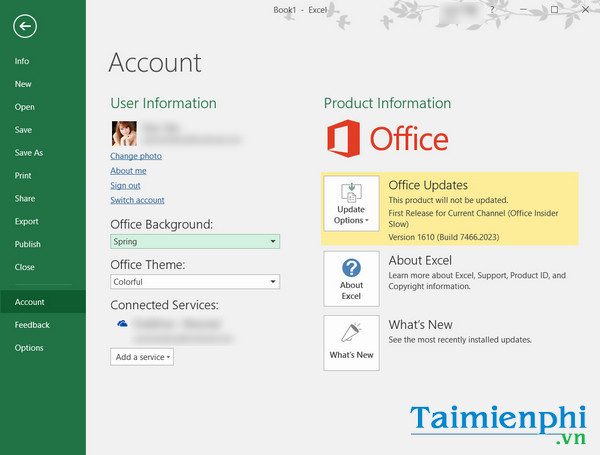
The theme changes the overall color scheme across compatible Office applications signed in with the same account. If you prefer less glare, use the darkest theme offered by your Office 2016 build. Availability can depend on the product edition and update level.
3. Show or hide the Start screen
The Start screen displays recent files and templates when an Office application opens. Disable it if you prefer to open directly to a blank file.
- Select File > Options.
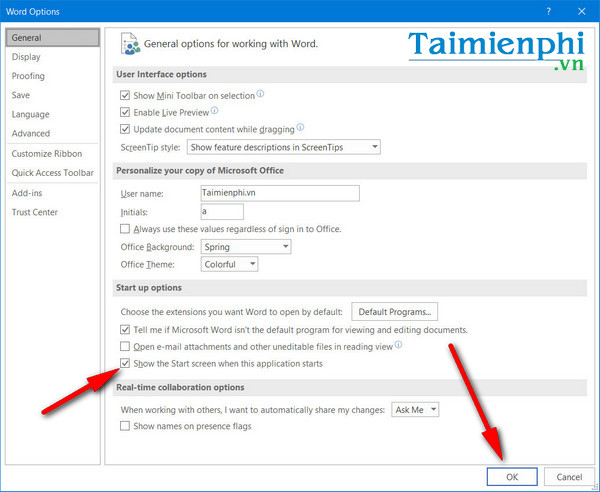
- Under General, find the startup options.
- Select or clear Show the Start screen when this application starts.
- Select OK and restart the application to check the result.
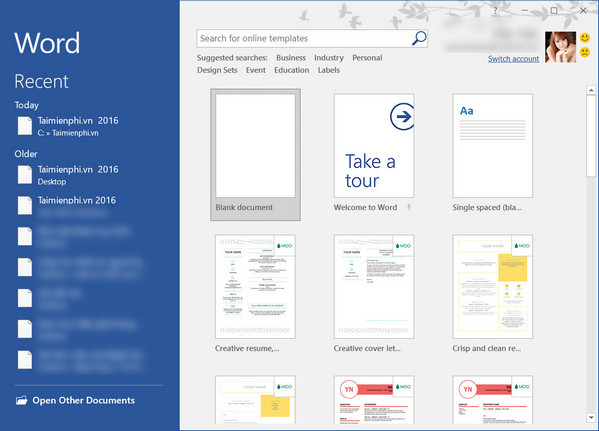
This preference may need to be changed separately in Word, Excel, and PowerPoint.
4. Customize the Ribbon
Use Ribbon customization for commands you want grouped on a dedicated tab. Built-in commands cannot always be added directly to an existing built-in group, so create a custom group first.

- Select File > Options > Customize Ribbon.
- In the right column, select an existing tab and choose New Group, or create a New Tab.
- Select the custom group, find a command in the left column, and choose Add.
- Use Rename and the arrow buttons to label and order the group.
- Select OK.
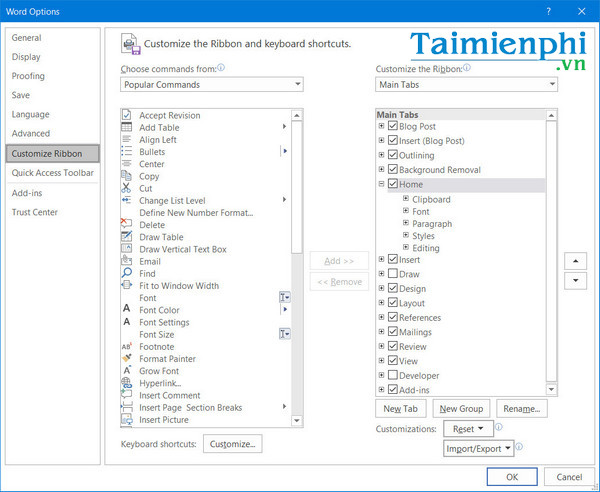
Word Ribbon customization:
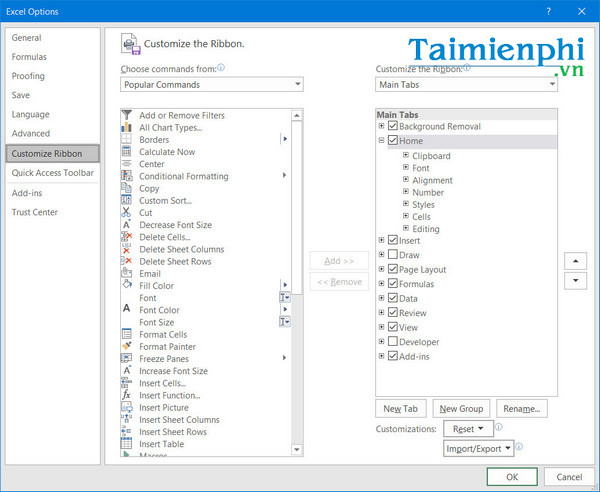
Excel Ribbon customization:
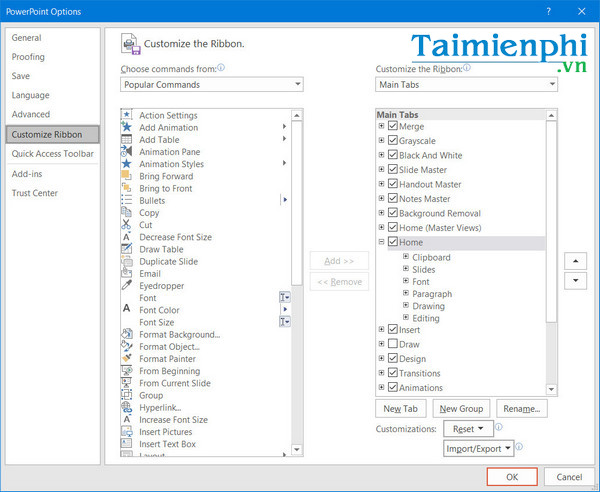
Changes apply only to the application being customized. You can export Ribbon and Quick Access Toolbar settings before a major reset or migration; TipsMake explains how to export and restore Office Ribbon customizations. Microsoft's Ribbon customization guide lists supported controls and limitations.
5. Change the display and editing languages
The display language controls menus and buttons. The editing language controls proofing tools such as spelling and grammar. Installing one does not always install the other.
- Select File > Options > Language.
- Add Vietnamese or another language under the editing-language settings.
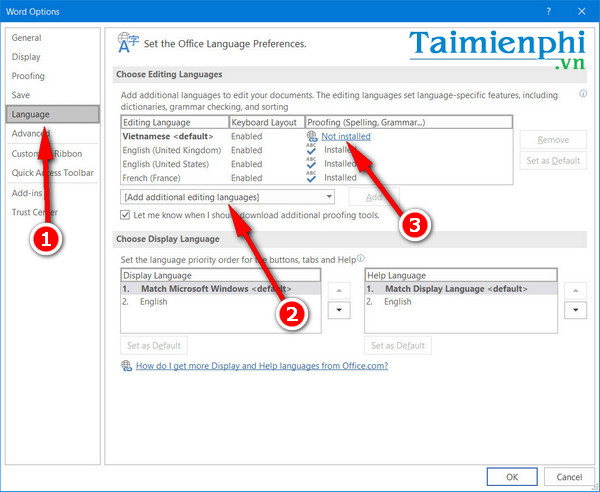
- If the language is marked as not installed, follow the language-pack option shown by Office.
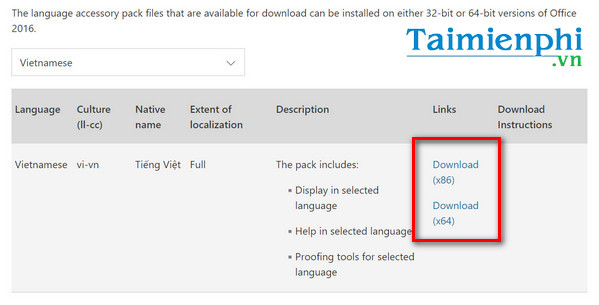
- Download the package that matches the Office installation and follow Microsoft's installer instructions. Use a Microsoft source rather than an unofficial language-pack download.
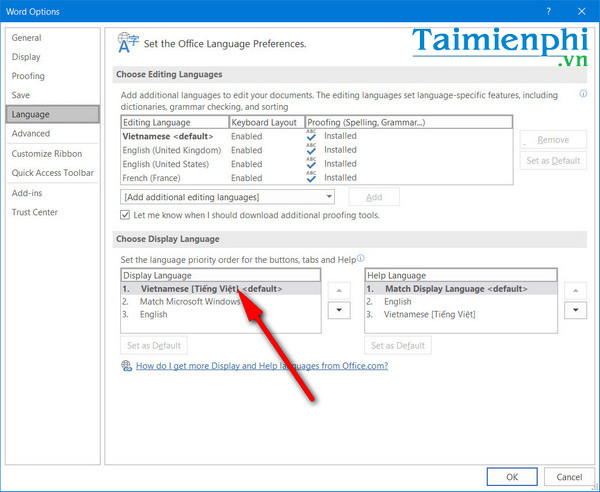
- Return to the Language options, set the preferred display and Help language, select OK, and restart every Office application.
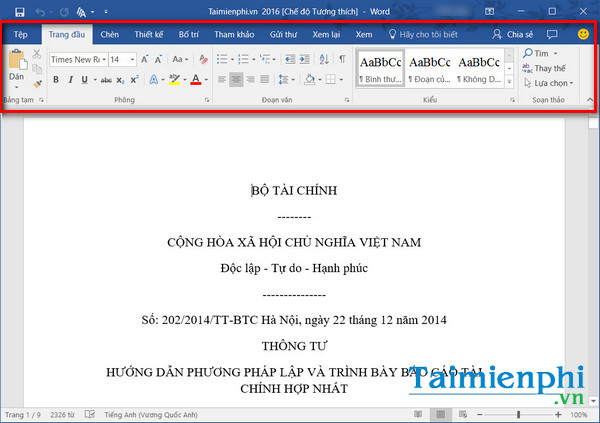
The Ribbon and menus should now use the selected display language.
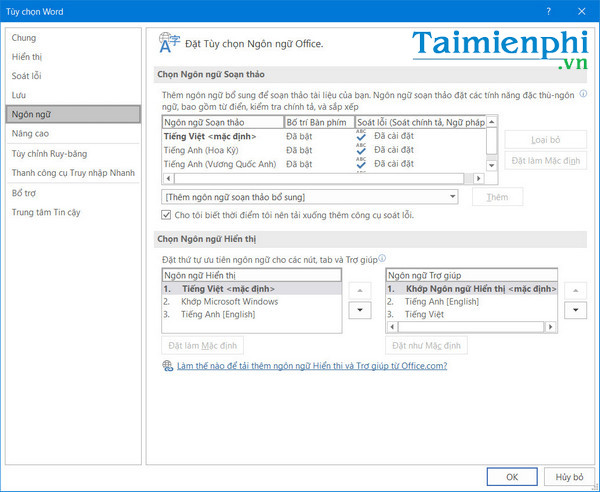
For the complete Vietnamese setup sequence, see how to install the Vietnamese interface in Office 2016.
Keep customizations manageable
- Add only commands you use often; an overloaded toolbar or Ribbon is slower to scan.
- Use the Quick Access Toolbar for a small set of commands needed on every tab.
- Use custom Ribbon groups for related workflows.
- Export customizations before resetting them. Importing a customization file can replace existing changes.
- Review broader defaults such as save format, AutoRecover, and proofing separately; TipsMake's guide to useful Microsoft Office default settings covers those options.
If a setting is missing, confirm the exact Office edition, update level, and whether you are using desktop Office or the web apps. Not every Office 2016 build exposes the same theme or language choices.
Related Articles
 How to Change the Microsoft Office Interface3 minutes read
 How to Install Vietnamese Interface for Microsoft Office 20104 minutes read
 Here It Is! New Interface of Microsoft Office4 minutes read
 How to Customize the Look and Feel in Office 20164 minutes read
 Turn Every iPhone Interface into iOS 6 Without Jailbreak5 minutes read
 Office Beta: Beautiful but Not Completely Backward Compatible6 minutes read
Reader Comments 0
Sign in with email or Google to join the discussion.