Table of Contents
If Adobe Acrobat Reader will not open a PDF, first determine whether the problem affects one file or every PDF. A single failing file is often incomplete, damaged, password-protected, or incorrectly named; if all PDFs fail, Reader's installation, update state, or file association is more likely responsible.

1. Check the PDF file itself
- Confirm that the download finished and the file size is not 0 KB.
- Save the attachment or browser download to a local folder, then open it from File Explorer.
- Verify that the filename ends in .pdf. Renaming another file type to .pdf does not convert it.
- Try a different known-good PDF in Reader.
- Open the problem file in a current web browser. If no program can read it, download it again or ask the sender to export a fresh copy.
Do not upload a confidential PDF to a third-party repair or conversion website. If the document requires a password, obtain it from the owner rather than attempting to bypass protection.
2. Update Acrobat Reader
Open Reader and choose Help > Check for Updates, then install available updates and restart the application. In managed workplaces, updates may be controlled by the administrator.
If the built-in updater fails, use Adobe's official installer rather than a software-download mirror. Adobe's Reader update troubleshooting page explains the current update and reinstall process.
3. Repair the Reader installation on Windows
- Open Acrobat Reader without opening the problem PDF.
- Select Help > Repair Installation.
- Allow the repair to finish, restart Windows if prompted, and test a known-good PDF.
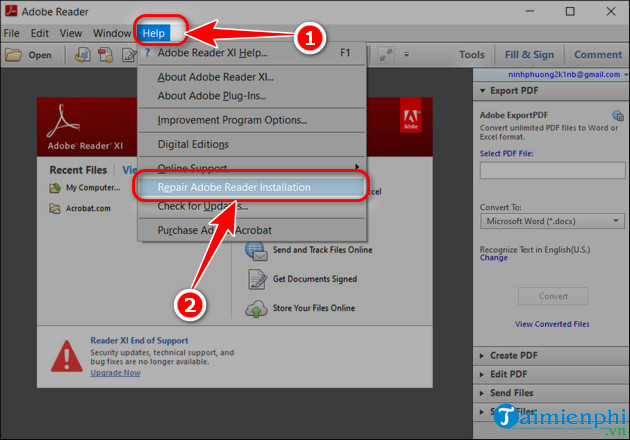
If Reader will not start at all, repair or uninstall it from Windows Settings, then reinstall the latest supported version from Adobe. TipsMake's broader Acrobat Reader startup troubleshooting guide covers additional Windows checks.
4. Set Acrobat Reader as the PDF app
If double-clicking a PDF opens nothing or launches the wrong application:
- Right-click a PDF in File Explorer and choose Open with > Choose another app.
- Select Adobe Acrobat Reader.
- Enable the option to always use that app for .pdf files, then confirm.
You can also change the .pdf default under Settings > Apps > Default apps. See how to open PDF files on Windows and other devices for alternative readers and file-association guidance.
5. Test Protected Mode only for an Access Denied error
Protected Mode isolates PDF content to reduce the risk from malicious files. Do not disable it simply because a PDF will not open. If Reader specifically reports Access Denied, the file comes from a trusted source, and earlier checks did not help, a temporary test can identify a Protected Mode conflict.
- In Reader, press Ctrl+K to open Preferences.
- Select Security (Enhanced).
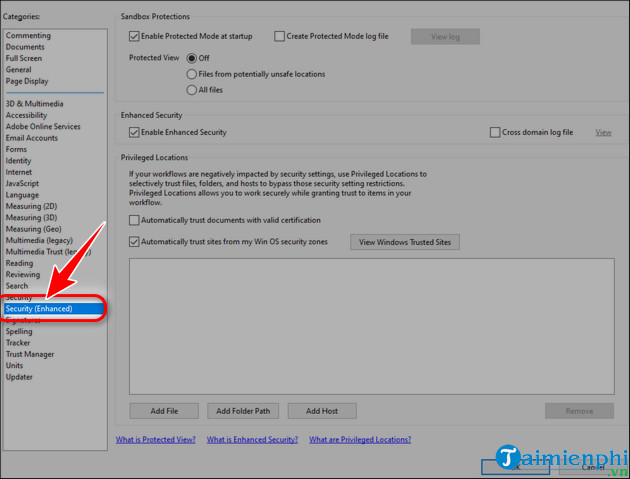
- Temporarily clear Enable Protected Mode at startup, confirm the warning, close Reader, and reopen it.
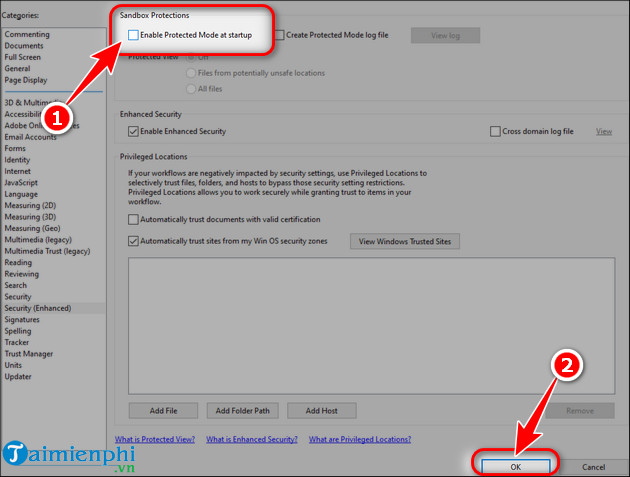
If the PDF opens, close it and re-enable Protected Mode. Then update Reader and investigate the file location, permissions, or enterprise security policy rather than leaving the protection disabled. Adobe's official “Can't open PDF” guide documents this test for the Access Denied case.
6. Check file permissions and location
- Copy the PDF to your Documents folder if it is on a network share, removable drive, or restricted temporary folder.
- Right-click the file, open Properties, and use Unblock if Windows shows that option and you trust the source.
- Confirm that your account can read the folder and that security software has not quarantined the file.
- Avoid running Reader permanently as administrator; correct the file or folder permission instead.
7. Re-create a damaged PDF
If you created the file, return to the source document and export it again using a current PDF exporter. Do not print and resave a signed, tagged, form-enabled, or archival PDF unless you understand what information may be lost. If someone else created it, ask for a new export rather than repeatedly converting a damaged copy.
Which fix matches the symptom?
- Only one PDF fails: download it again, check its size and password, or request a new export.
- Every PDF fails: update and repair Reader, then check the default app.
- Reader says Access Denied: verify the source and perform the limited Protected Mode test.
- The file opens in a browser but not Reader: update or repair Reader.
- The file opens but text or pages are missing: re-export the PDF or test a different standards-compliant reader such as one described in TipsMake's PDFgear overview.
Related Articles
 12 Fixes for Adobe Acrobat Reader Not Opening PDFs13 minutes read
 Adobe Reader Windows 10 Version XI 11.0.239 minutes read
 Why Don't You Need Adobe Reader Anymore?5 minutes read
 Adobe Reader DC 2020.006.200428 minutes read
 Steps to Fix Adobe Acrobat Reader Not Opening PDF Files on9 minutes read
 6 Open PDF Applications for Windows: Open Applications PDF5 minutes read
Reader Comments 0
Sign in with email or Google to join the discussion.