Table of Contents
Overview
This guide explains how to hide all photos on Facebook in clear, practical terms. It covers the key concepts, recommended steps, common limitations, and useful checks so you can make a better-informed decision.
For some reason, users want to hide all images on Facebook, do not want to show their private, personal images on Facebook. Depending on each person's needs, we can hide albums on Facebook, or hide photo posts on Facebook. After you perform the action of hiding all images on Facebook, others cannot see those images in your Facebook account. Below are detailed instructions for hiding all images on Facebook.
How to hide all Facebook photos in album
Step 1:
On the personal Facebook interface, users will click on See more as shown below. Next, you will select Photos to see all images on Facebook.

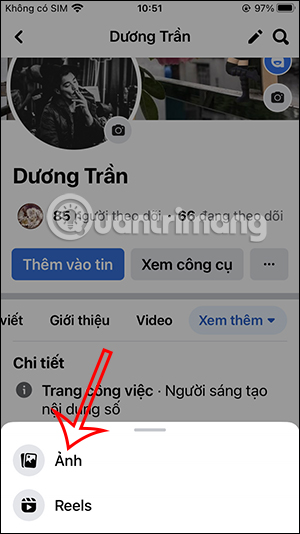
Step 2:
Then at the Facebook Photos interface, the user clicks View all to see all photo albums created on Facebook. At this time, the user will see the existing albums on Facebook. We click on the album in which the user wants to hide all Facebook images.
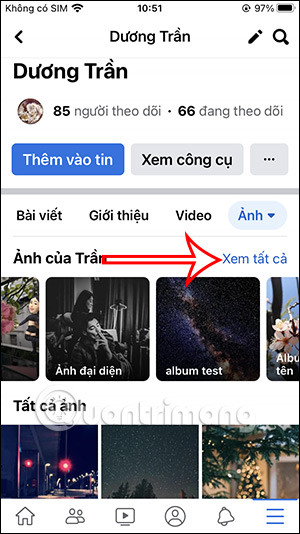
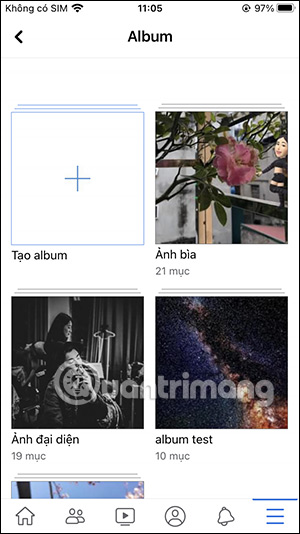
Step 3:
At the album interface on Facebook, we click on the 3 dots icon in the top right corner. Next, the user selects Edit album.
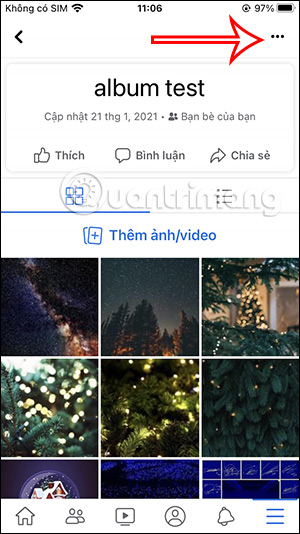
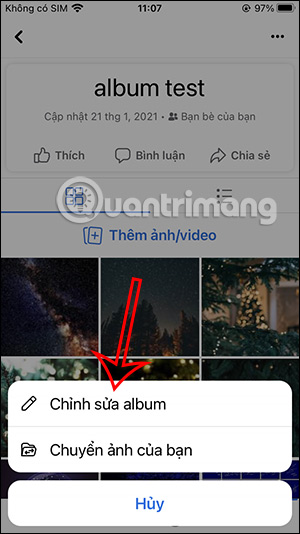
Step 4:
In the editing interface, you will be able to change the album name, below adjust the display rights of this album. Users will switch to Only Me mode to hide all Facebook images in this album.
Immediately all the pictures in this album are hidden and no one can see them.
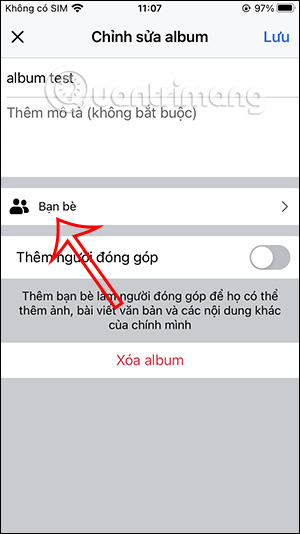

How to hide individual Facebook photos
You can also hide individual photos on Facebook. Facebook photos with hidden options include Your photos, hidden Facebook profile photos, Facebook cover photos, photos posted on Facebook Timeline, photos posted from mobile devices.
Step 1:
On the Facebook interface, click on the 3-dot icon and then select Activity Log in the interface as shown below.

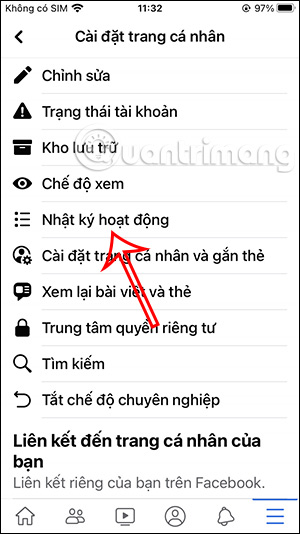
Step 2:
Next, users will go to the Your Posts section and select the Photo and video post category to adjust.
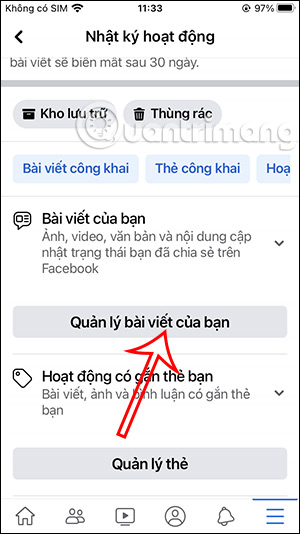
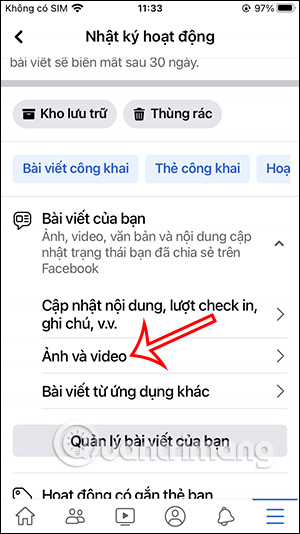
Step 3:
The user will then see all the photos and videos that the user has posted to your Facebook account, including your Facebook profile picture.
Click on the Facebook photo you want to hide, then select the 3 dots icon. At this time, the user clicks on Change object. Click Continue to continue the operation.

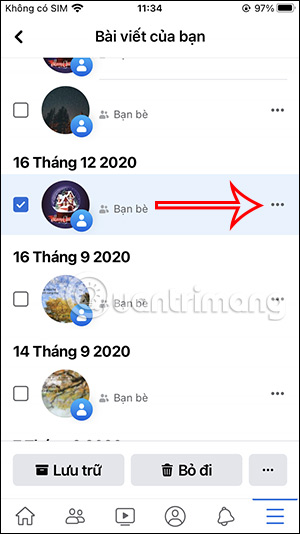


Step 4:
At this point, we just need to switch to Only Me mode. The image will be hidden from Facebook so that no one can see it.


How to hide Facebook profile picture
If you access Facebook albums and hide all profile photo albums as above, it will not be possible. Users will have to hide each Facebook profile photo.
Click on the avatar you want to hide, then click on the 3 dots icon in the right corner of the screen and select Edit privacy.


Then the user also switches to Only Me mode. You do the same with the Facebook cover photo you want to hide.

Video tutorial to hide all images on Facebook
Key Takeaways
Use the guidance above as a practical reference for instructions to hide all images on Facebook. Check compatibility, follow the steps carefully, and verify important details with official documentation when software, security, accounts, health, or purchases are involved.
FAQ
How do I hide all photos on Facebook?
Follow the steps in this guide in order, confirm each setting before continuing, and save, restart, or reconnect the device when the instructions require it.
What should I check before I begin?
Confirm the correct device, account access, software version, compatibility, and a current backup whenever the process could affect files, settings, or security.
What should I do if the process does not work?
Repeat the steps carefully, check for model or version differences, install available updates, and consult the manufacturer's official support documentation.
Related Articles
 How to Turn Off / Hide Facebook Nick Even When Online4 minutes read
 How to Hide Facebook Profile Picture: How to Hide Facebook Avatar2 minutes read
 Instructions on How to Hide Personal Information on Facebook9 minutes read
 How to Hide Birthdays on Facebook: Step-by-Step Guide3 minutes read
 Instructions for 'Stealthy' Completely on Facebook5 minutes read
 How to Hide All Old Posts on Timeline Facebook: Facebook Timeline4 minutes read
Reader Comments 0
Sign in with email or Google to join the discussion.