Table of Contents
Many people do not want others to find your Facebook account through phone number, so follow the instructions below to block Facebook search through phone number.
When you sign up for Facebook, you have the option to sign up via email or phone number. And through that phone number, others can also search for your account. Many people do not want others to find your Facebook account through your phone number, so follow the instructions below to block Facebook searches through your phone number.
Block Facebook search by phone number on Android, iPhone
Step 1:
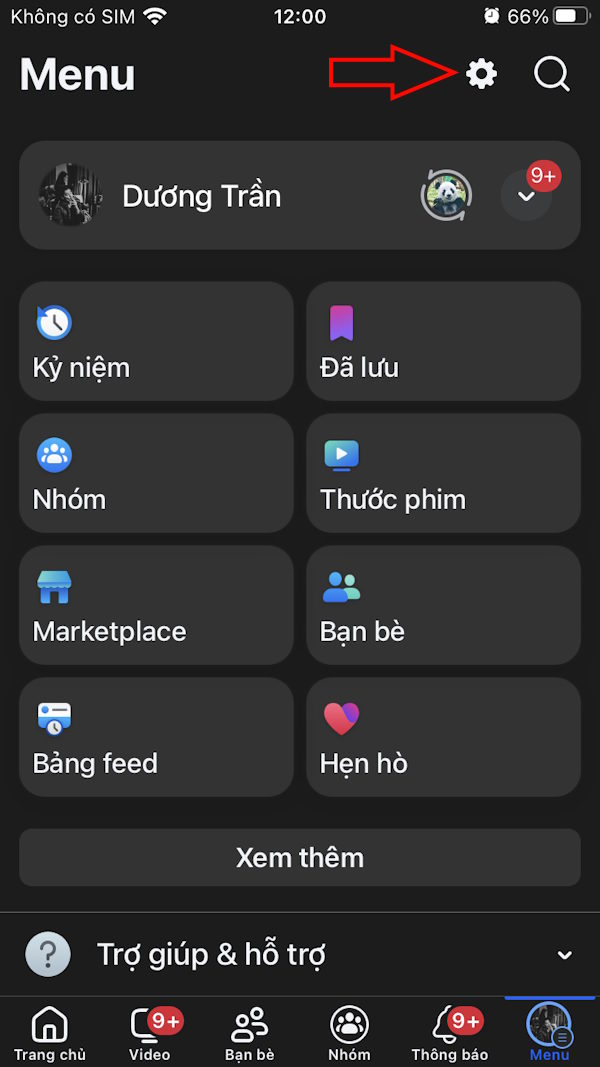
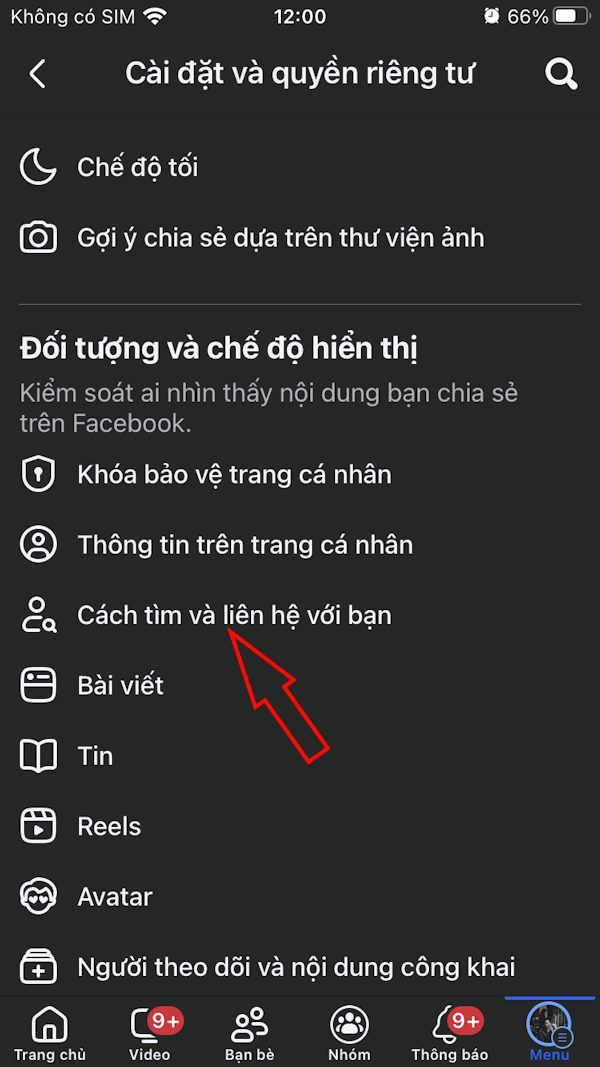
You click on The 3 dashes icon In the bottom corner, then click on The gear icon . Switch to the settings interface, the user Clicks on How to find and contact you .
Step 2:
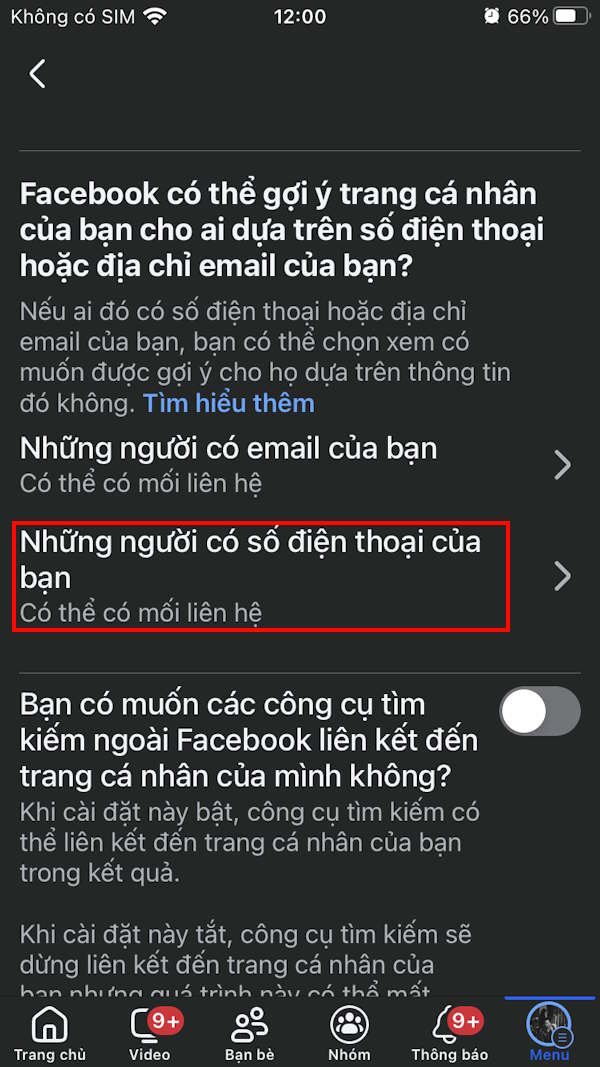
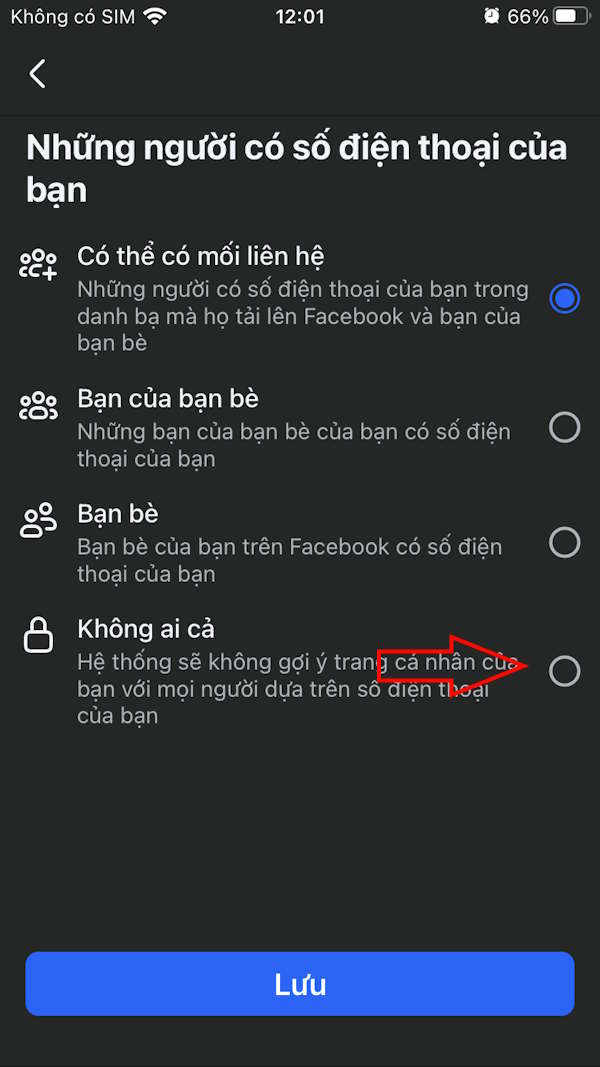
In the new interface, click on the setting People with your phone number . By default, Facebook sets the mode to allow anyone who has synchronized Facebook with your contacts and has your phone number to find your account. To Block Facebook searches using your phone number , click on No one And then Click Save Below.
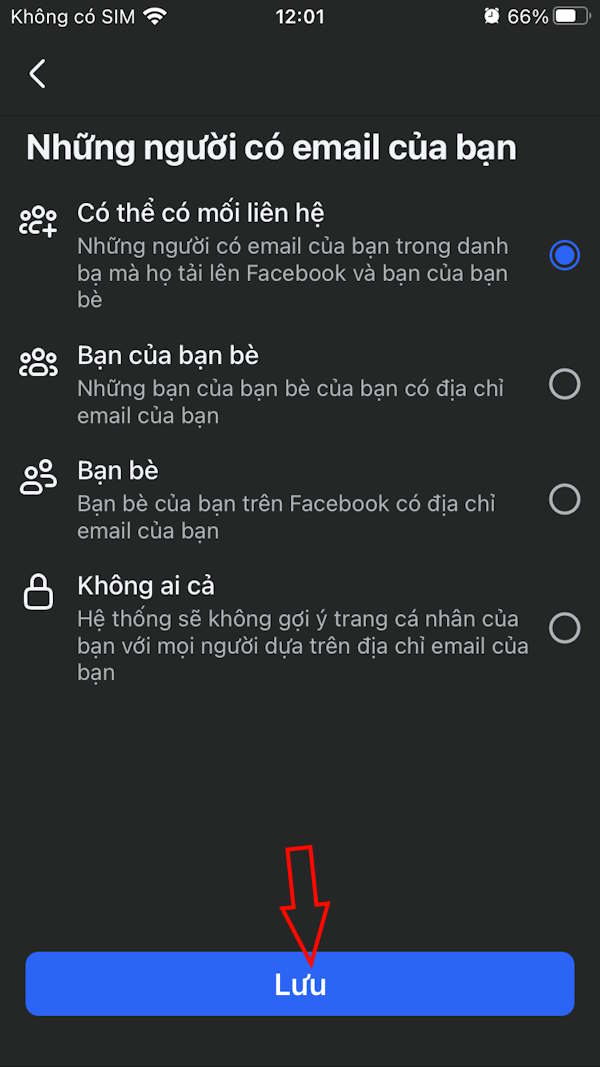
You can also adjust to Block Facebook search mode via email address .

Block Facebook search by phone number on PC
Step 1:
At the Facebook interface on the computer, we Click on the avatar And select Settings and privacy , then also Click on Settings .
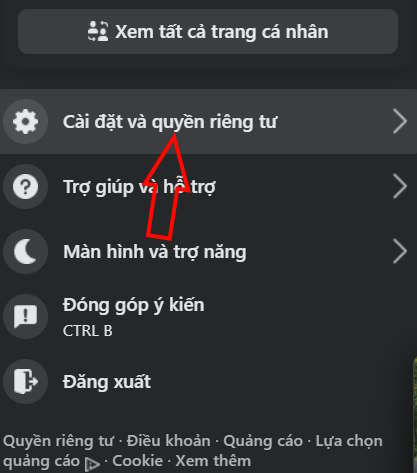
Step 2:
Go to the next interface, we click on How To find and contact you .
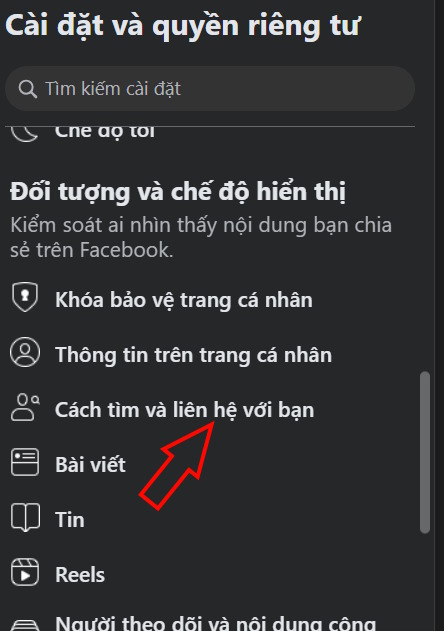
Step 3:
In the content next to it, you will see the Facebook search section by phone number For us to adjust.

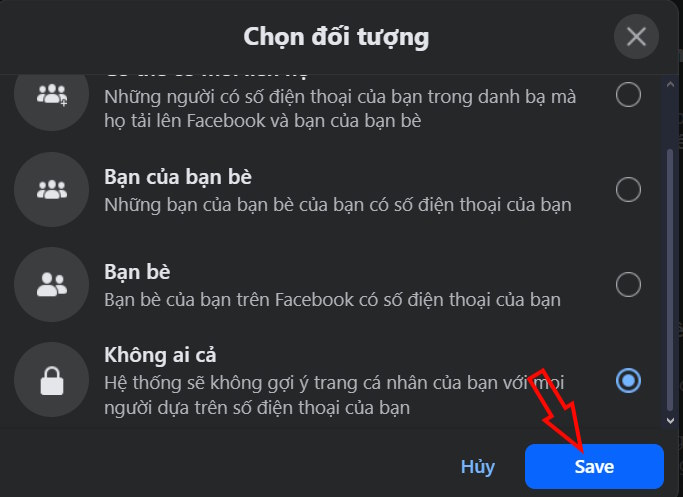
Here you also need to Click on Nobody To block Facebook search by phone number on computer.
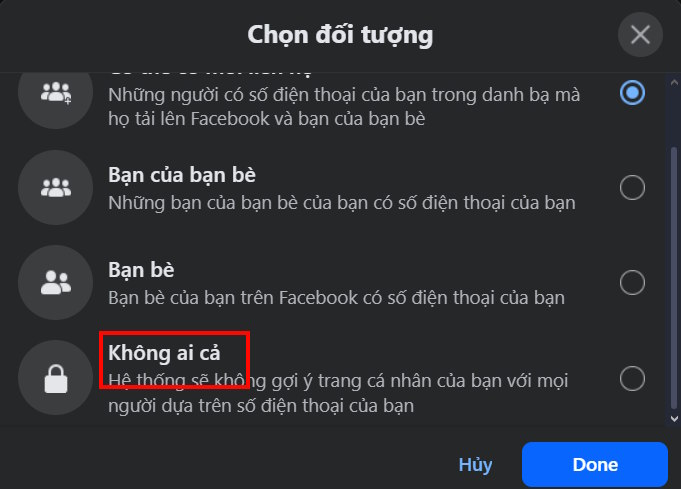
Click Save Below to save your changes to Facebook.
Step 4:
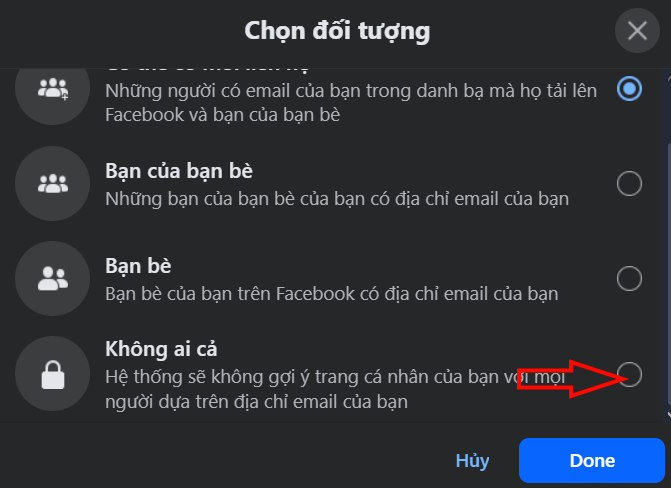
Additionally, you should also Turn off Facebook search via email address .
FAQ
How do you block facebook search by phone number: step-by-step guide?
In practical terms, many people do not want others to find your Facebook account through phone number, so follow the instructions below to block Facebook search through phone number.
What should you check before getting started?
Review the requirements, compatible device or software version, and any warnings described in the guide before making changes.
What should you do if the steps do not work?
Repeat the steps in order, confirm that your app or system is up to date, and review the troubleshooting details provided above.
Related Articles
 How to Block a Facebook Account Via Phone Number: Secure Facebook4 minutes read
 How to Deleting Facebook Phone Numbers4 minutes read
 How to Change Phone Number on Facebook Computer, Phone4 minutes read
 How to Change Phone Numbers on Facebook4 minutes read
 Facebook Tests the Status Search Feature by Keyword3 minutes read
 How to Block Facebook Nick, How to Block an Annoying Invitation?4 minutes read
Reader Comments 0
Sign in with email or Google to join the discussion.