Table of Contents
A standalone iTunes installation for Windows can stop checking for new versions through Edit > Preferences > Advanced. You can also suppress one recurring prompt with Do not ask me again. This setting is not available when iTunes came from Microsoft Store, because Store manages those app updates.
Security note: turning off prompts does not make an old release safe or compatible. If you disable the check temporarily, set a reminder to update iTunes manually and keep Windows security updates enabled.
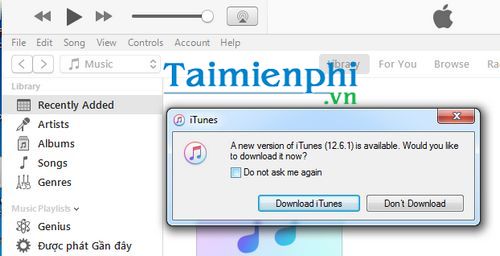
Method 1: dismiss the current prompt
When the older iTunes update dialog appears, select Do not ask me again, then choose Don't Download. This hides the same automatic prompt without changing Windows Update.
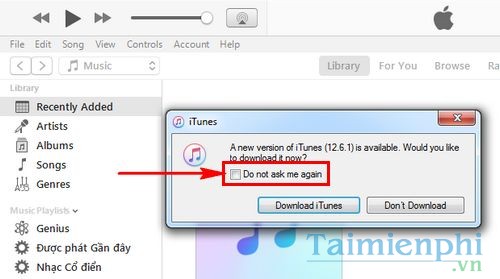
If the prompt does not include that checkbox, close it and use the preferences method below. Do not download an updater from an advertisement or an unofficial mirror.
Method 2: turn off iTunes' weekly update check
This applies to the standalone Apple installer, not the Microsoft Store edition.
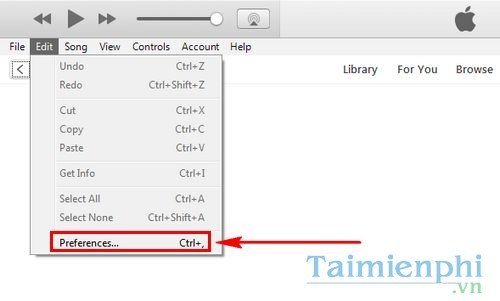
- Open iTunes and choose Edit > Preferences. The keyboard shortcut is Ctrl + , (Control plus comma).
- Select the Advanced tab.
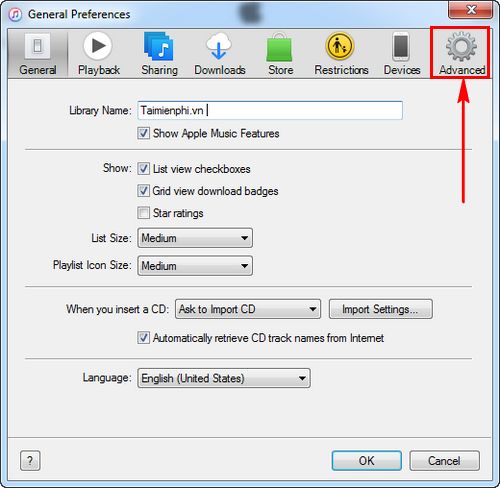
- Clear Check for new software updates automatically.
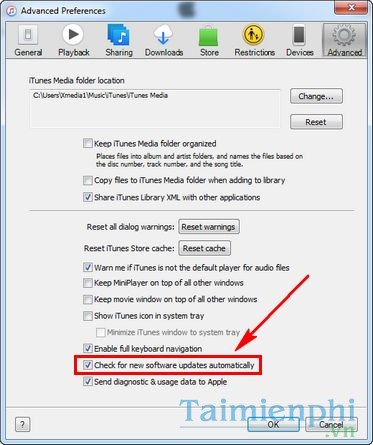
- Click OK, quit iTunes, and reopen it to confirm that the setting remains saved.
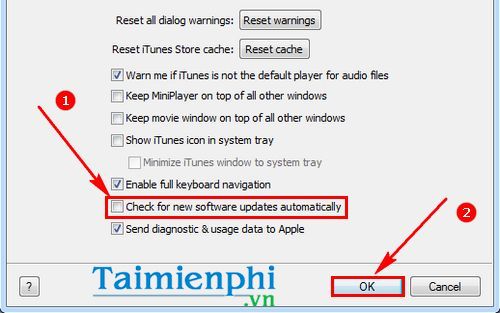
Apple states that this check normally runs weekly after iTunes has been quit and restarted during that period. Disabling it stops the iTunes notification; it does not block all Apple or Microsoft software updates.
If iTunes came from Microsoft Store
The Advanced checkbox is unavailable for the Store edition. Microsoft Store handles app updates, typically automatically. Turning off Store app updates affects every Store app, not just iTunes, so leaving Store updates enabled is the safer default.
If an update is interrupting a time-sensitive task, close iTunes, finish the task offline when possible, then open Microsoft Store and install the update from Library at a convenient time. Avoid disabling update services, editing the registry, or blocking Apple domains in the firewall.
Identify which updater is asking
- iTunes dialog: use the Advanced preference described above.
- Microsoft Store: manage the update in the Store's Library; iTunes cannot suppress it.
- Apple Software Update: open that Apple utility and review the offered packages rather than changing iTunes preferences.
- Windows Update: this is separate from iTunes and should not be disabled to silence an app message.
Update manually after disabling prompts
Check for a supported version regularly. For Microsoft Store iTunes, open Microsoft Store and select Library. For a standalone installation, use Help > Check for Updates when that command is available or run Apple Software Update.
Update sooner when a new iPhone or iPad is not recognized, purchases fail to authorize, or Apple publishes a security or compatibility fix. If update prompts are part of a broader Store problem, see how to troubleshoot iTunes error -45054.
Readers using the legacy interface for the first time can refer to the iTunes beginner guide. Current Windows users should also consider Apple's separate Music, TV, and Devices apps instead of keeping iTunes solely for functions those apps now provide.
Related Articles
 Microsoft Patch Prevents Windows 10 1903 and 1090 Users from Updating to3 minutes read
 Click: How to Update Itunes2 minutes read
 How to Block Facebook Nick, How to Block an Annoying Invitation?4 minutes read
 Top 7 AI Prompting Courses to Do in 2023: What to Know9 minutes read
 How to Stop Windows Updates on Your PC10 minutes read
 How to Prevent iTunes from Automatically Syncing When Connecting iPhone4 minutes read
Reader Comments 0
Sign in with email or Google to join the discussion.