Table of Contents
If Windows updates interrupt your work, use the built-in pause, active-hours, restart-scheduling, and metered-connection controls. These options give you time to finish important work without permanently disabling the security updates your PC needs.
Avoid disabling Windows Update services, protected scheduled tasks, or security components. Those changes can leave the computer unpatched and may be reversed by Windows. Windows 10 also reached end of support for most consumer editions on October 14, 2025, so an unsupported Windows 10 PC needs an upgrade or an eligible extended-security option rather than fewer updates.
1. Pause updates for a short period
Open Settings > Windows Update. Next to Pause updates, choose an available period. The exact maximum depends on the Windows edition, version, and device policy.
Pausing is useful before a presentation, deadline, or trip. When the pause limit expires, Windows may require you to install current updates before pausing again. Do not use it as a permanent security strategy.
2. Set active hours to prevent inconvenient restarts
In Settings > Windows Update > Advanced options, open Active hours. Let Windows adjust the hours automatically from device activity, or select a start and end time that covers your usual workday.
Active hours do not stop downloads or installation. They reduce the chance that Windows will restart the device while you normally use it. Keep work saved because urgent servicing behavior and organization policies can still affect restart timing.
3. Schedule a pending restart
When Windows Update shows that a restart is required, choose Schedule the restart and select a convenient date and time. If the option is absent, no schedulable restart may be pending.
For laptops, connect power before the scheduled time. A manual restart at the end of the day is often the simplest way to complete updates without being surprised later.
4. Use a metered connection to limit large downloads
Open Settings > Network & internet. Select the connected Wi-Fi network or Ethernet properties, then turn on Metered connection.
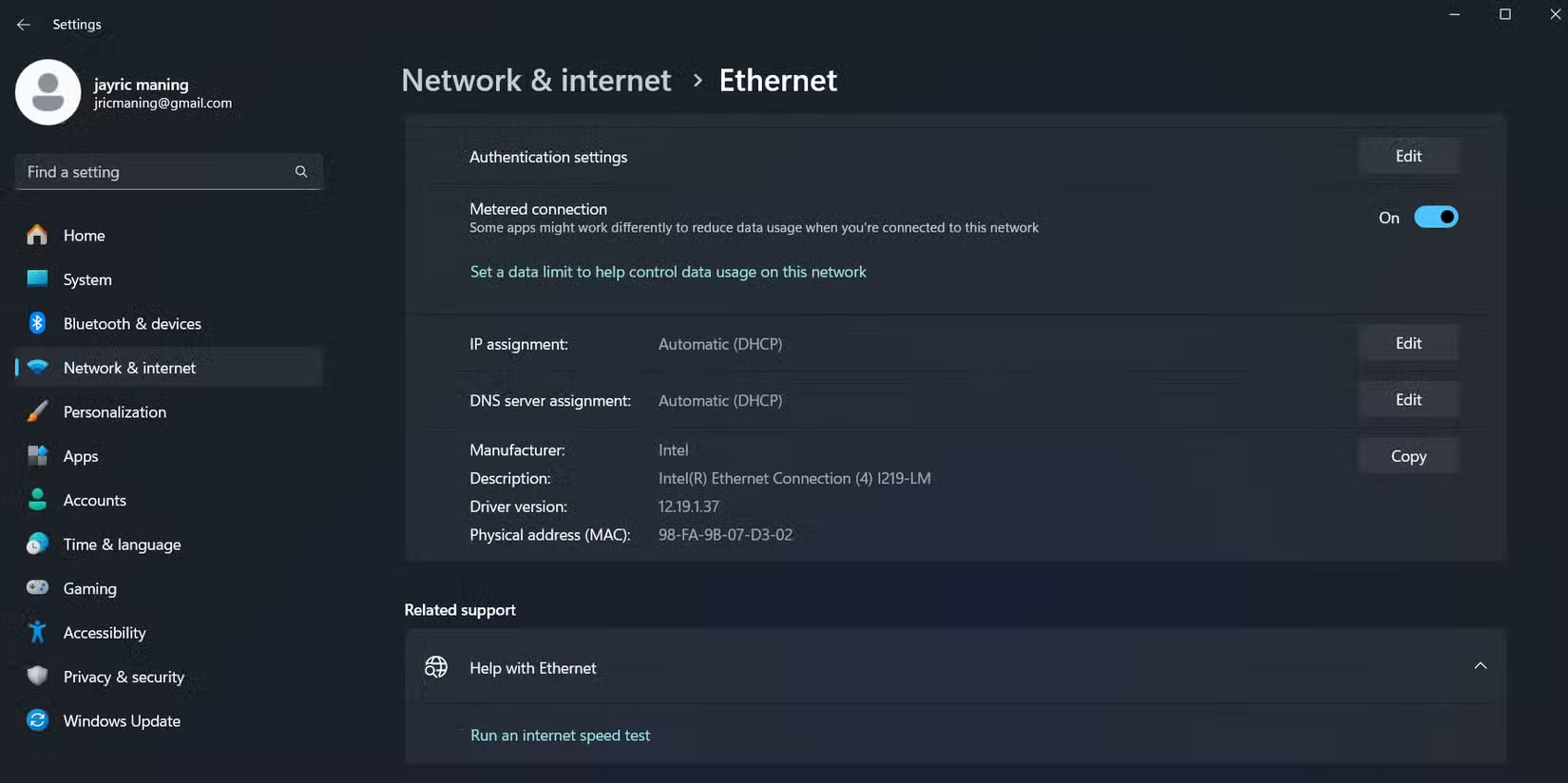
Windows reduces some background data use on a metered network, and some updates may wait. However, updates that Windows considers necessary can still download. OneDrive, Microsoft Store, and other apps may also sync or update less often, so this setting affects more than Windows Update.
5. Configure update notifications with Group Policy
Windows Pro, Enterprise, and Education editions provide administrative policies that Windows Home does not. Press Windows + R, enter gpedit.msc, and browse to Computer Configuration > Administrative Templates > Windows Components > Windows Update > Manage end user experience.
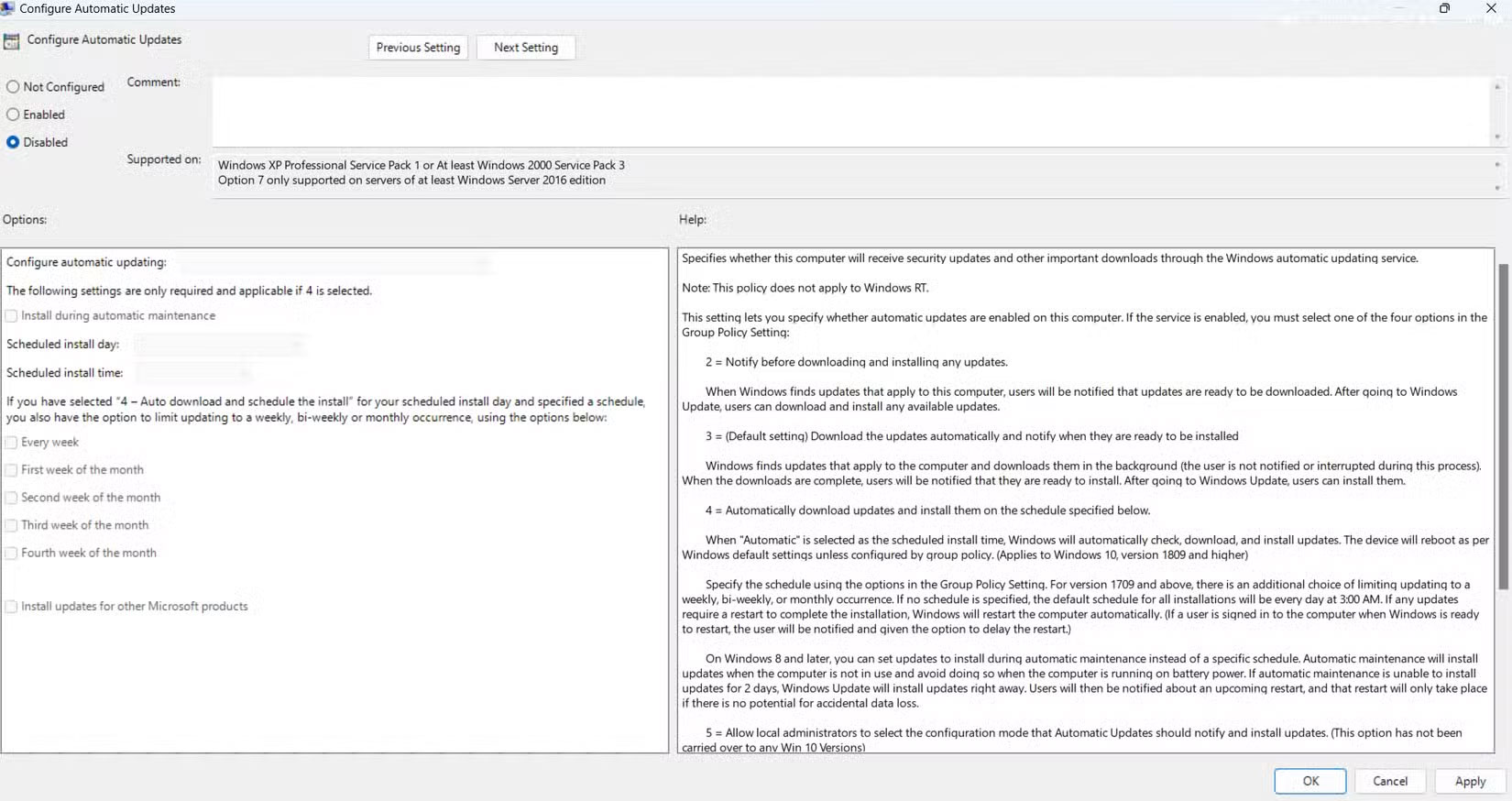
Open Configure Automatic Updates. On supported versions, an administrator can choose a notification or scheduling option instead of disabling updates entirely. Policy names and available choices vary by release, and work or school devices may already be centrally managed.
Methods you should not use for routine update control
Disabling the Windows Update service
The Services console exposes a Windows Update service, but setting it to Disabled is not a reliable scheduling tool. It can block security patches, Microsoft Store dependencies, driver servicing, and update troubleshooting. Windows can also restore service behavior during maintenance.
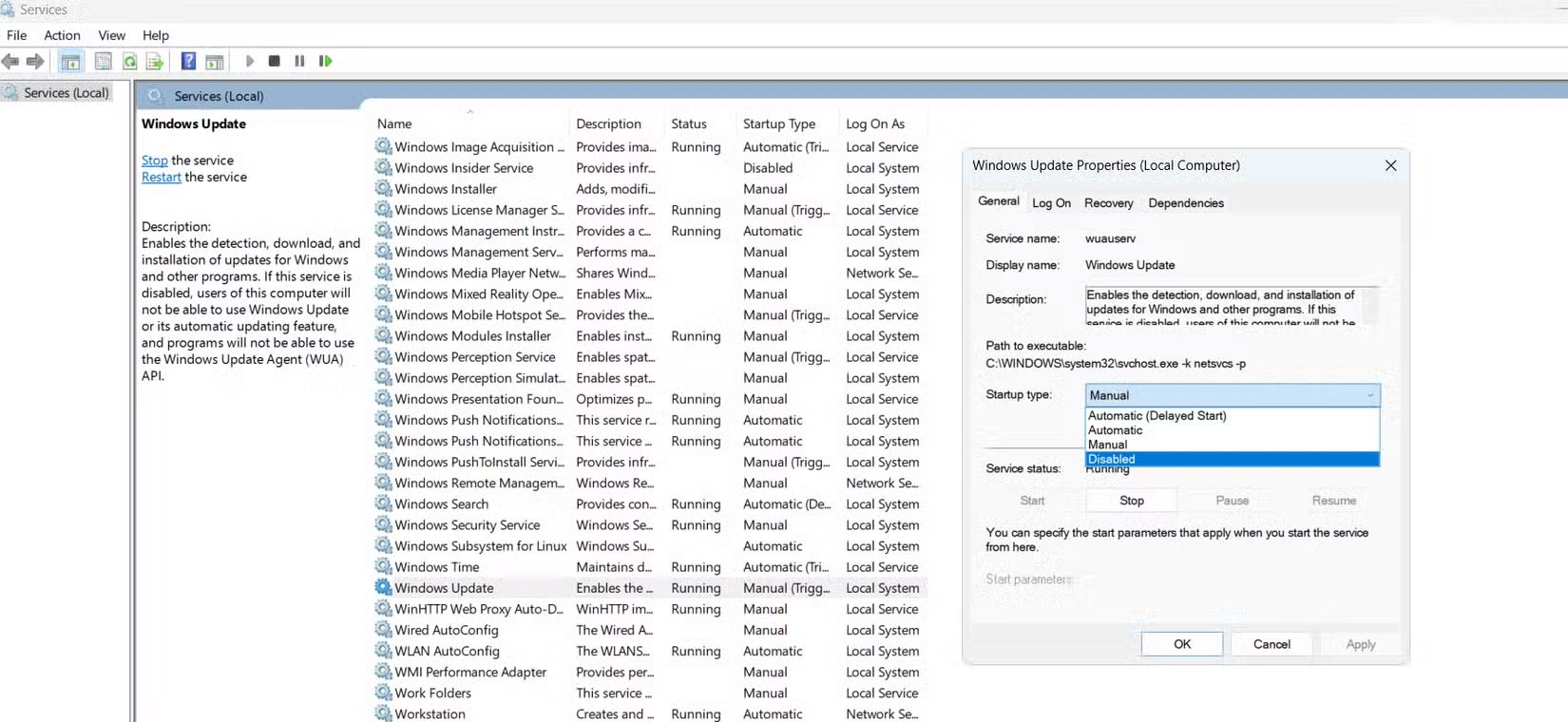
If an update service is already disabled and updates fail, return it to its normal configuration or run the Windows Update troubleshooter. The Windows 11 update error guide lists common codes and recovery steps.
Taking SYSTEM control of Update Orchestrator tasks
Some instructions use PsExec or another elevated tool to launch Task Scheduler with SYSTEM privileges.
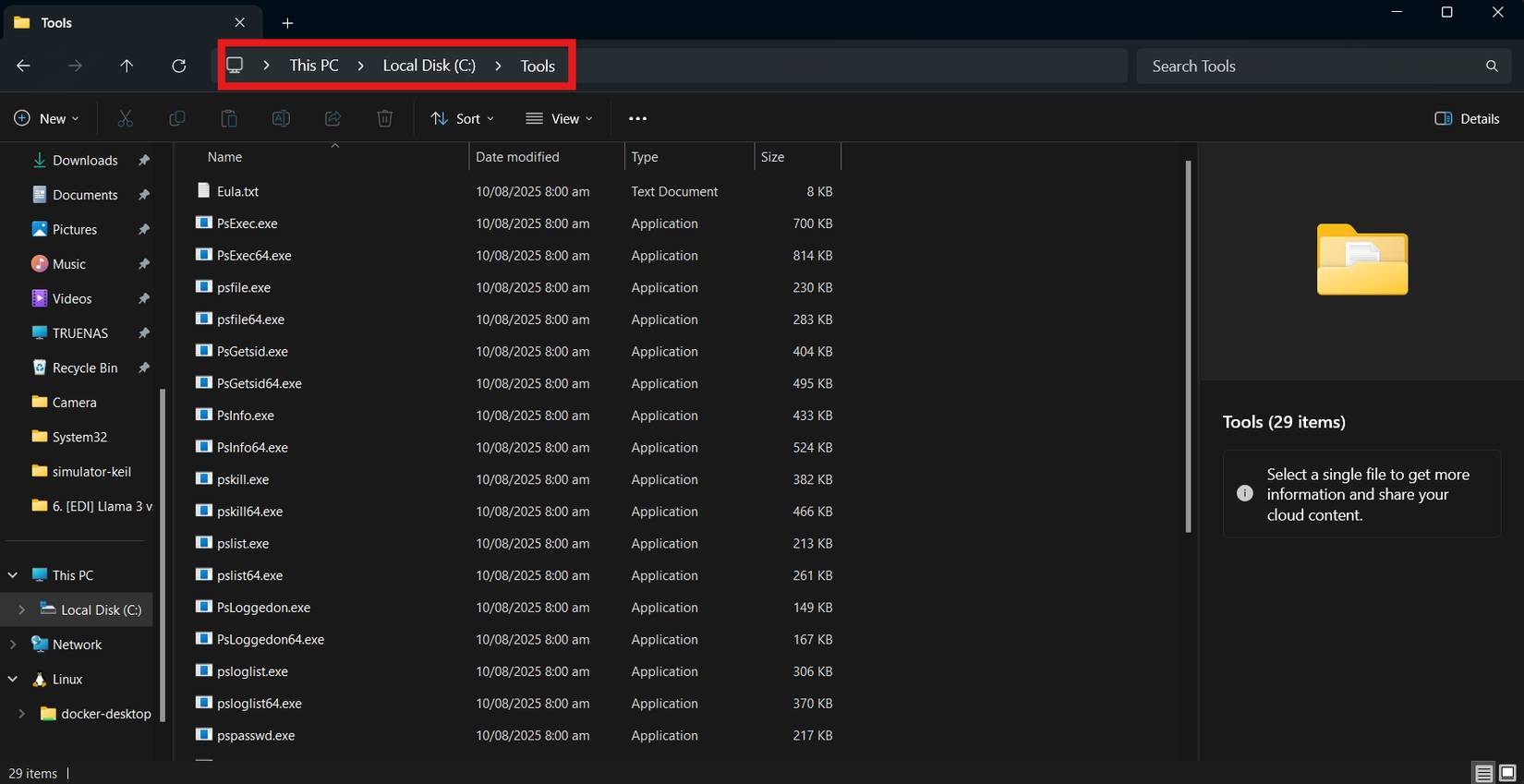
They then disable tasks under Task Scheduler Library > Microsoft > Windows > UpdateOrchestrator.
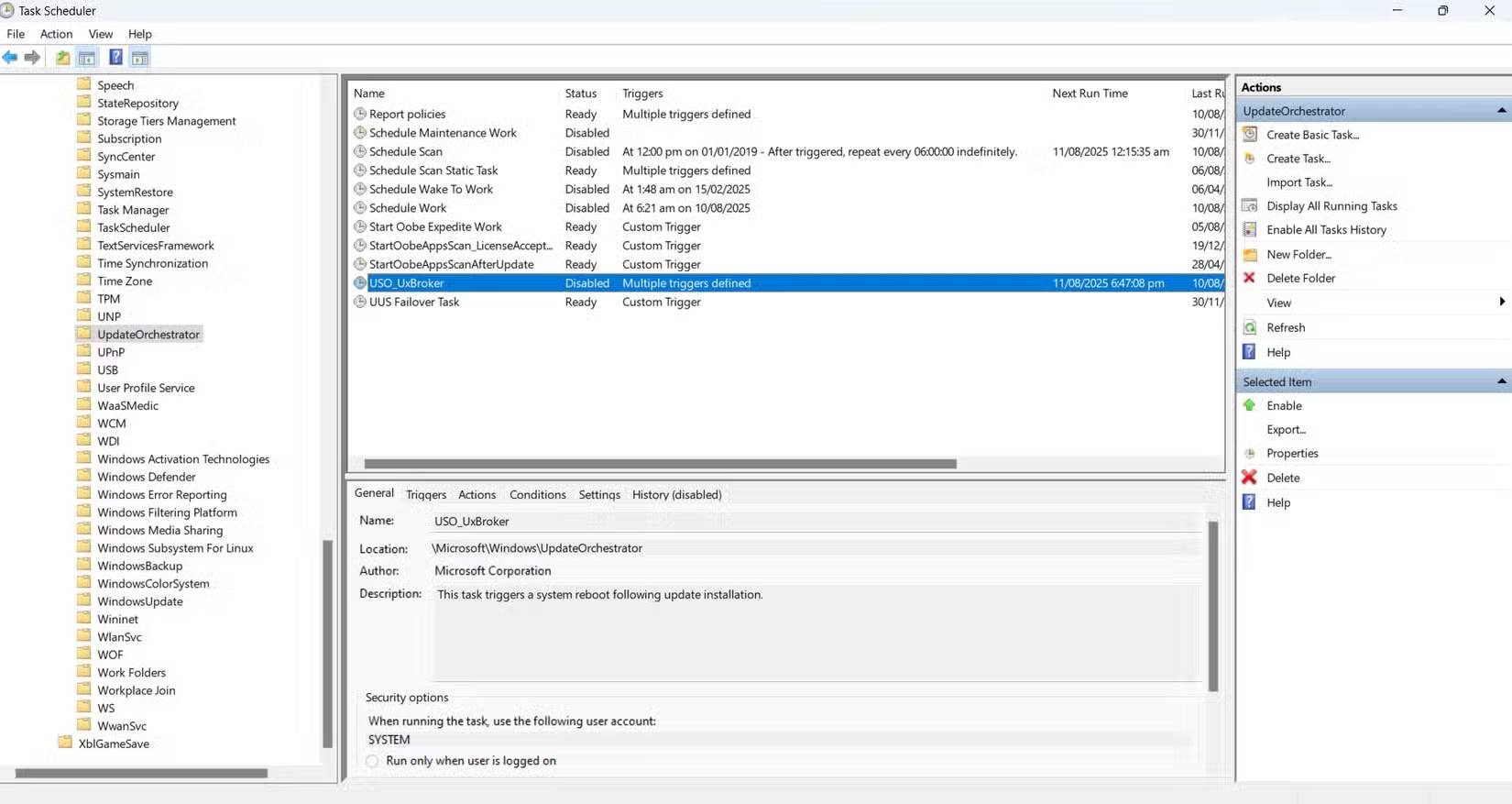
Do not use this approach merely to avoid restarts. Those protected tasks are part of Windows servicing, their names can change, and altering them can produce an unsupported or inconsistent update state. If a PC wakes unexpectedly, diagnose the wake source and power settings instead; see the guide to stopping update-related wake events.
A practical update routine
- Set active hours around your normal work schedule.
- Pause briefly only when interruption would be costly.
- Schedule or perform the required restart at a convenient time.
- Keep the device plugged in and backed up before a major feature update.
- If a specific update fails, troubleshoot that update instead of disabling the entire update system.
Driver updates can be handled separately from security updates. If hardware problems appear after servicing, review the available approaches to updating Windows 11 drivers rather than blocking every Windows patch.
Related Articles
 Tips to Avoid Faulty, Problematic Windows Updates: Practical Guide4 minutes read
 Windows 7 RTM Will Be Discontinued Support on April 94 minutes read
 How to Disable Windows 10 Updates9 minutes read
 Windows 10 Updates Will Be Divided into C, B, and D Levels5 minutes read
 Microsoft: Complete Guide: Microsoft Reminds Users That Windows Server3 minutes read
 Spreading Hacking Tools Helps Windows 7 Still Get Updates Even3 minutes read
Reader Comments 0
Sign in with email or Google to join the discussion.