Table of Contents
The fastest way to open Windows 10 Settings is to press Windows + I. If the keyboard shortcut is unavailable or you need a specific settings page, use Start, Search, the power-user menu, Action Center, Run, or the ms-settings: command.
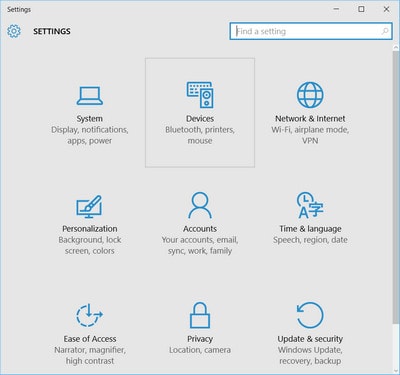
Windows 10 reached end of support for most editions on October 14, 2025. These methods still apply to Windows 10 22H2, but an internet-connected PC should have a plan for a supported operating system.
1. Press Windows + I
Hold the Windows key and press I. This opens the Settings home page from the desktop or most applications and is usually the quickest method.
2. Open Settings from Start
- Select the Start button.
- Choose the gear-shaped Settings icon. Depending on the Start layout, you may need to select the menu icon first.
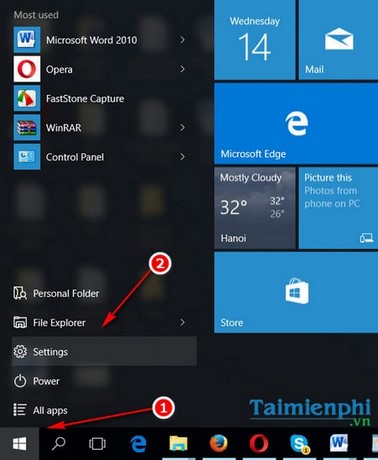
If the icon is missing, use Search or Windows + I; there is no need to repair the Start menu merely to reach Settings.
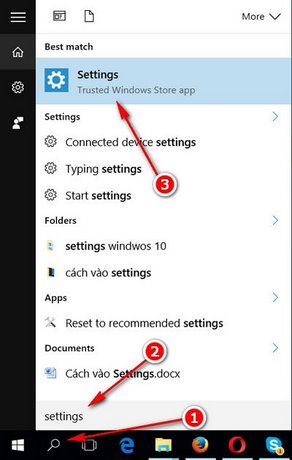
3. Use Windows Search
- Press the Windows key or select Search on the taskbar.
- Type Settings.
- Select the Settings app from the results.
4. Use the power-user menu
Press Windows + X or right-click Start, then choose Settings. This is useful when Start search is slow or hidden.
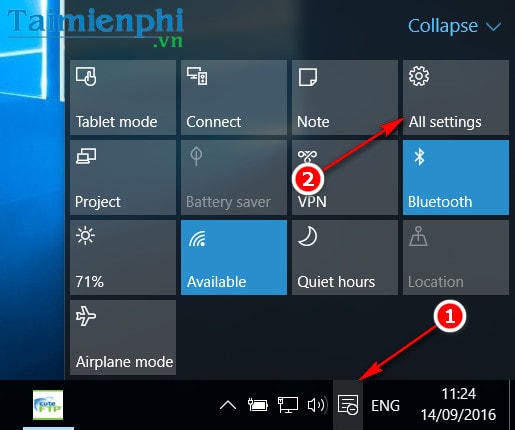
5. Open Settings from Action Center
Select the notification icon at the right end of the taskbar, then choose All settings. If quick actions are collapsed, select Expand. This entry may be absent on heavily customized or managed PCs.
6. Open a taskbar-related Settings page
Right-click an empty area of the taskbar and select Taskbar settings. This opens Settings directly to Personalization > Taskbar rather than the home page.
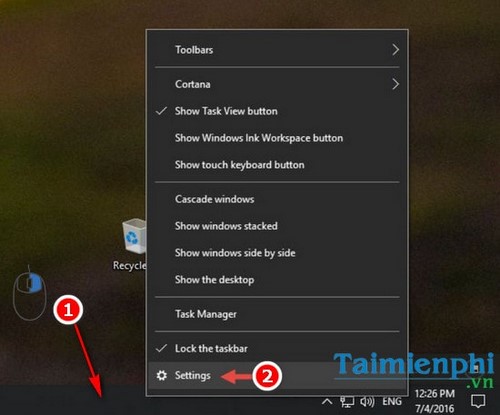
Other taskbar icons can open their own pages: right-click the network icon for network settings or the speaker for sound settings.
7. Pin Settings to Start
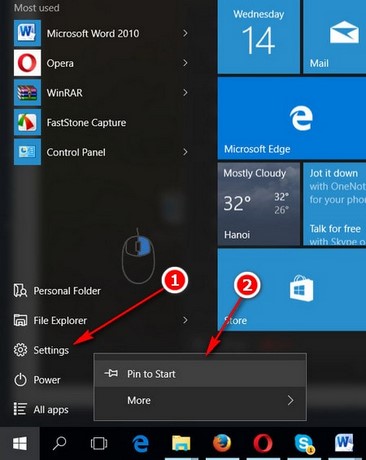
Search for Settings, right-click the result, and choose Pin to Start. The new tile provides one-click access for users who open Settings often.
8. Use File Explorer
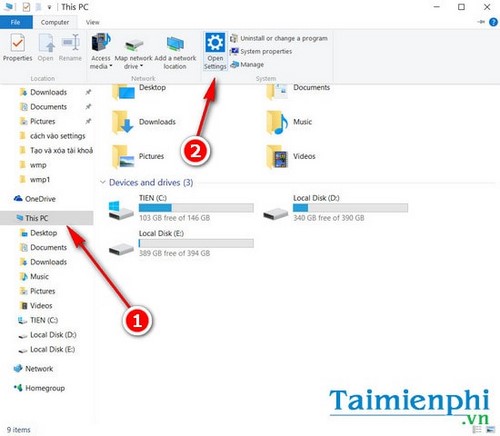
On Windows 10 builds that show the classic ribbon, open File Explorer, select This PC, and look for Open Settings on the Computer tab. If that ribbon command is unavailable, type ms-settings: in File Explorer's address bar and press Enter.
9. Open an account page from Control Panel
Control Panel still links to some Settings pages. For example, open Control Panel > User Accounts > User Accounts and select the link to make changes in PC Settings. The exact link depends on the account type and Windows build.
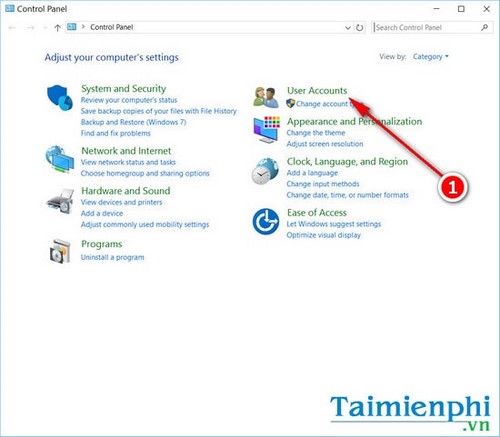
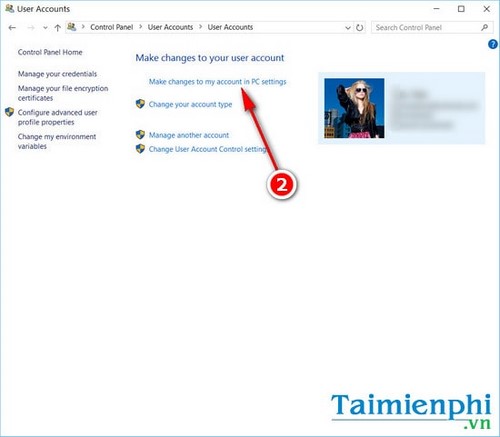
For more direct Control Panel methods, see how to open Control Panel in Windows.
10. Use Run, Command Prompt, or PowerShell
From Run
- Press Windows + R.
- Enter
ms-settings:. - Press Enter.
From Command Prompt or PowerShell
Enter the following command and press Enter:
start ms-settings: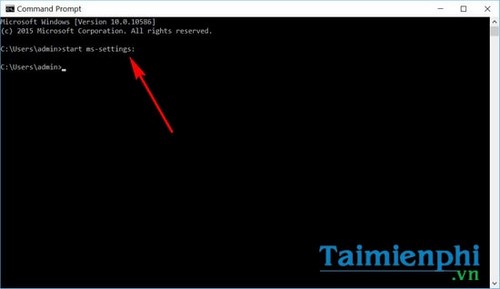
TipsMake's Command Prompt guide covers additional ways to open a terminal window.
Open a specific Settings page
The ms-settings: URI can jump directly to many pages. You can enter these examples in Run, File Explorer's address bar, Command Prompt, or PowerShell:
| Page | Command |
|---|---|
| Windows Update | ms-settings:windowsupdate |
| Display | ms-settings:display |
| Network status | ms-settings:network-status |
| Bluetooth and devices | ms-settings:bluetooth |
| Apps and features | ms-settings:appsfeatures |
Availability can differ by Windows build or edition. If a URI does not open, use the Settings search box for that page name.
If Settings will not open
- Try Windows + I, Start search, and
ms-settings:to determine whether only one shortcut is broken. - Restart Windows Explorer from Task Manager, then try again.
- Sign out and back in, or restart the PC.
- On a managed work or school device, contact the administrator if a page says it is controlled or unavailable.
- If Settings opens and closes immediately, install pending Windows updates where possible and run the built-in system-file repair tools from an administrator terminal.
Do not download a replacement “Settings app” from a third-party site. Settings is a Windows component; repair it through Windows tools or the organization's support process.
Related Articles
 Summary of Several Ways to Quickly Access the Settings4 minutes read
 5 Ways to Open Sound Settings on a Windows PC5 minutes read
 Steps to Open Sound Settings on Windows PC8 minutes read
 7 Ways to Open the Run Dialog Box in Windows6 minutes read
 How to Restrict Access to Settings and Control Panel Windows 104 minutes read
 4 How to Open Advanced Startup Options on Windows 104 minutes read
Reader Comments 0
Sign in with email or Google to join the discussion.