Table of Contents
The quickest way to open Windows sound settings is to press Windows + I, choose System, and select Sound. The same page lets you choose speakers, set the master volume, select a microphone, and open device-specific properties.
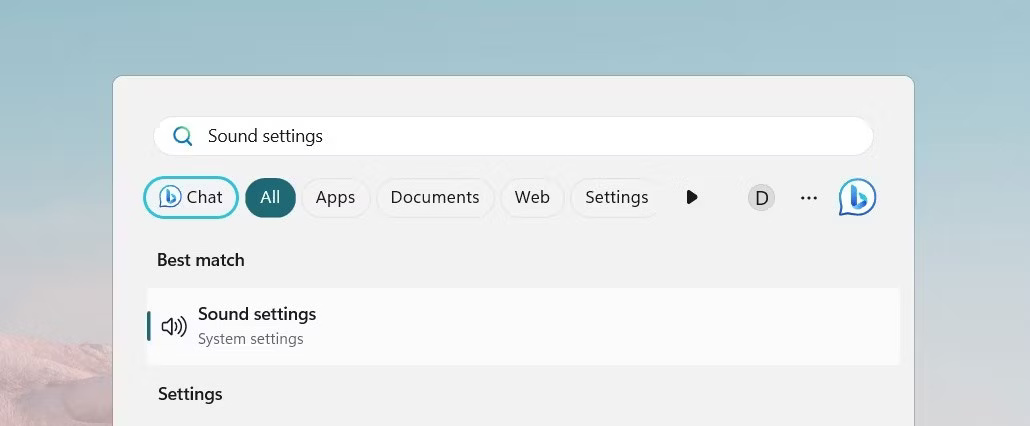
1. Open Sound through Windows Search
- Press the Windows key or click Search on the taskbar.
- Type sound settings.
- Select Sound settings from the results.
Windows + S is the standard Search shortcut in both Windows 10 and Windows 11. Some keyboards also support Windows + Q, but Windows + S is more consistent.
2. Use the Settings app
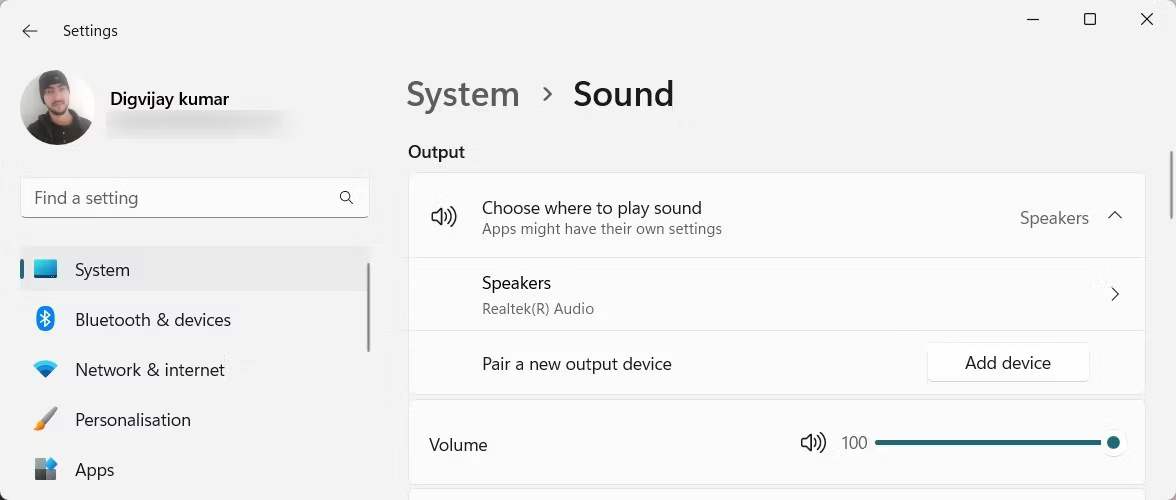
- Press Windows + I to open Settings.
- Choose System.
- Select Sound.
On Windows 11, System is normally selected in the left navigation and Sound appears in the right pane. On Windows 10, choose System first and then Sound from the left menu.
3. Run the Sound settings URI
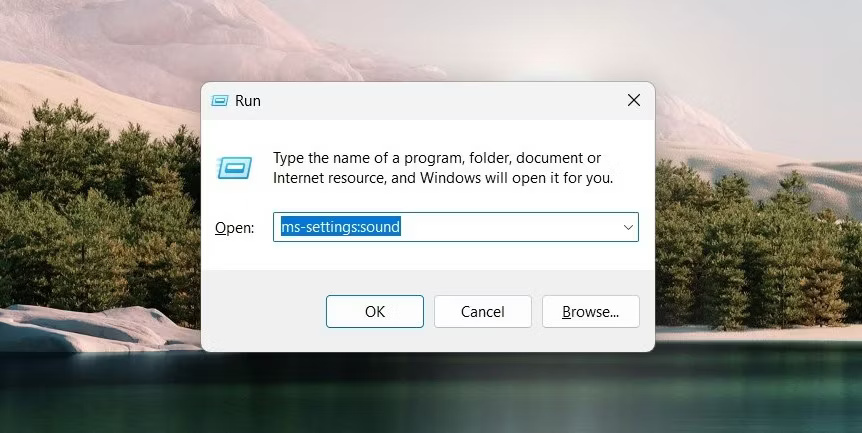
- Press Windows + R.
- Enter
ms-settings:sound. - Press Enter.
The complete command includes :sound. Entering only ms-settings: opens the Settings home page rather than the Sound page directly.
4. Use the taskbar volume icon
Windows 11
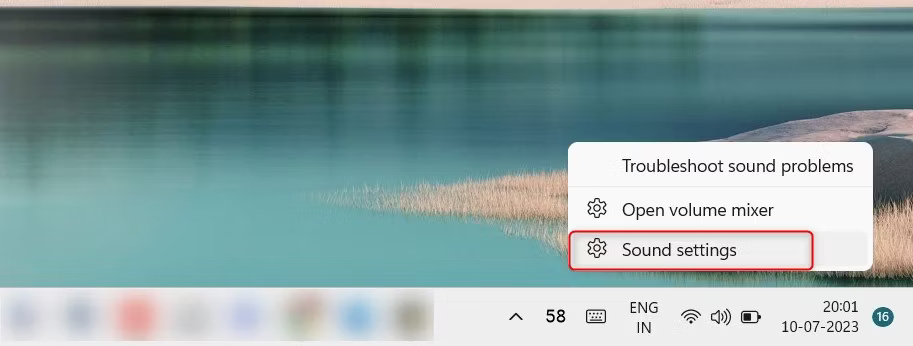
- Right-click the speaker icon in the notification area.
- Select Sound settings.
For a quick output-device change, left-click the network, volume, or battery area to open Quick Settings, then use the output selector beside the volume slider.
Windows 10
- Right-click the speaker icon at the right end of the taskbar.
- Select Open Sound settings.
5. Open Sound settings from Terminal or PowerShell
Open Windows Terminal, PowerShell, Command Prompt, or the Run dialog, then enter:
start ms-settings:soundIn PowerShell, this command also works:
Start-Process "ms-settings:sound"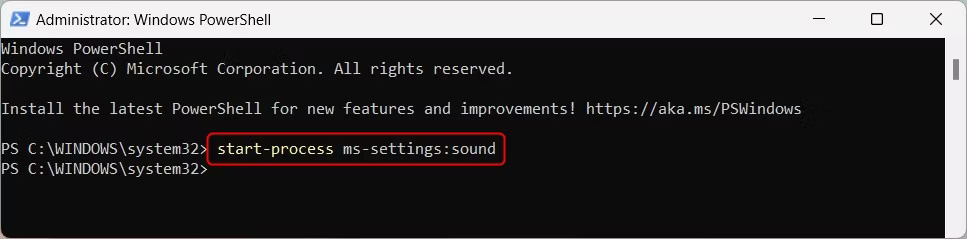
Open the classic Sound Control Panel
Some advanced options, including legacy Playback, Recording, Sounds, and Communications tabs, are easier to find in the classic dialog:
- Press Windows + R.
- Enter
mmsys.cpland press Enter.
On Windows 11, the modern Sound page also links to legacy controls under Advanced > More sound settings. Menu wording can vary slightly by Windows build.
If the correct device is missing
- Check that the headset, speakers, or microphone is connected and powered on.
- Use the output or input selector on the Sound page to choose the intended device.
- Open All sound devices and confirm that the device is not disabled.
- Reconnect Bluetooth audio or try another USB port.
- Restart the app after changing its output device.
If Windows still produces no audio, follow the Windows 11 no-sound troubleshooting guide. To improve an otherwise working output, see how to enable Enhance Audio in Windows 11.
Related Articles
 Steps to Open Sound Settings on Windows PC8 minutes read
 How to Reset Windows 11 Sound Settings4 minutes read
 How to Access Settings in Windows 10, How to Open Settings on Windows 105 minutes read
 10 Ways to Open Display Settings in Windows 118 minutes read
 Summary of Several Ways to Quickly Access the Settings4 minutes read
 How to Set the Opening Sound on Chromebook3 minutes read
Reader Comments 0
Sign in with email or Google to join the discussion.