Table of Contents
Do not permanently disable Windows Update on a Windows 10 PC. If updates are interrupting work or consuming limited data, use the built-in pause, active-hours, restart, metered-connection, and delivery controls. These options preserve the ability to receive security fixes and are easier to reverse than service, registry, or third-party “update blocker” changes.
Standard Windows 10 support ended on October 14, 2025. If the PC is enrolled in Microsoft's applicable Extended Security Updates program, Windows Update must remain functional to receive those protections. Microsoft's Windows 10 ESU page explains current eligibility and dates. Otherwise, plan a move to a supported operating system.
Pause updates temporarily
Use Pause when you need a short maintenance window, are about to give a presentation, or want time to back up before installing a newly offered update.
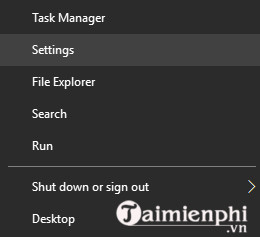
- Open Start > Settings > Update & Security > Windows Update.
- Select Pause updates for 7 days, or open Advanced options and choose an available Pause until date.
- Return to this page and select Resume updates when the reason for pausing has passed.
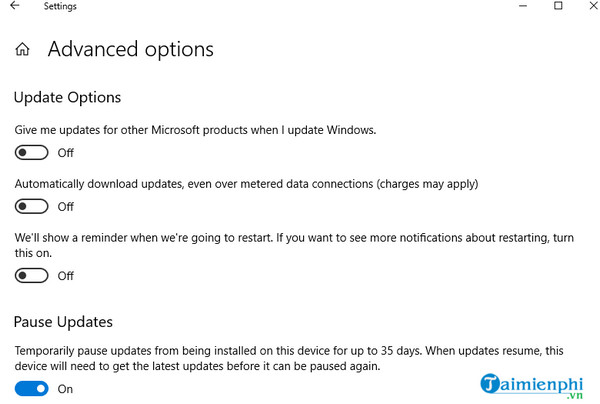
The maximum pause period depends on the Windows build and policy. Windows eventually requires new updates before it allows another pause. Microsoft documents the supported behavior in Pause updates in Windows.
Set active hours and schedule the restart
Active hours tell Windows when you normally use the device so it can avoid an automatic restart during that period.
- Open Settings > Update & Security > Windows Update.
- Select Change active hours.
- Allow Windows to adjust the hours from activity or set the start and end times manually.
- When an update is waiting for restart, choose Schedule the restart and select a convenient time.
Save work before the scheduled time and keep a laptop connected to power. The Microsoft active-hours guide covers both automatic and manual schedules.
Review Windows Update options
Search the taskbar for Check for updates to open the Windows Update page, then choose Advanced options. Exact labels differ by Windows 10 release and organization policy.
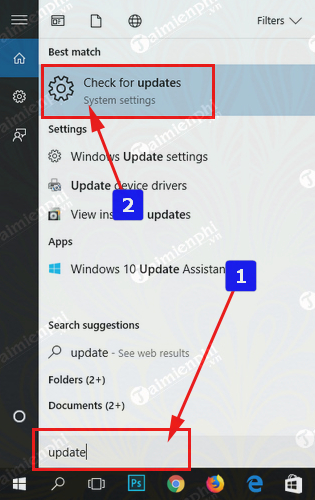
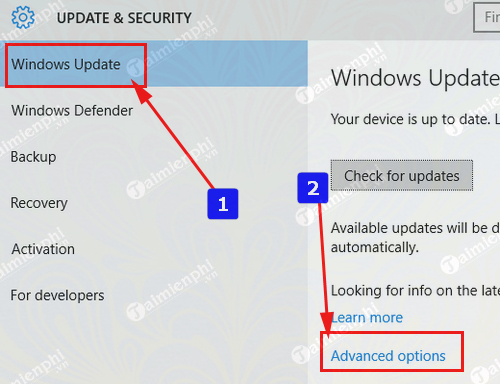
Use these controls to manage restart notifications and other offered update behavior. Avoid options that promise to stop all security updates indefinitely.
Reduce update bandwidth
Turn off downloads from other PCs
Open Settings > Update & Security > Delivery Optimization. Turn off Allow downloads from other PCs if you do not want this PC to exchange update parts with devices on the local network or internet. This does not stop downloads from Microsoft.
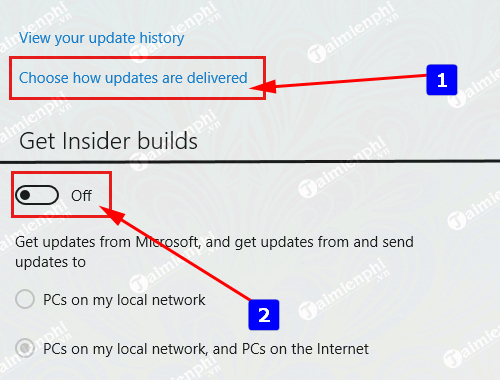
Use a metered connection for limited data
Mark a connection as metered only when the internet plan has a real data limit. Windows reduces some background transfers, but priority updates may still download.
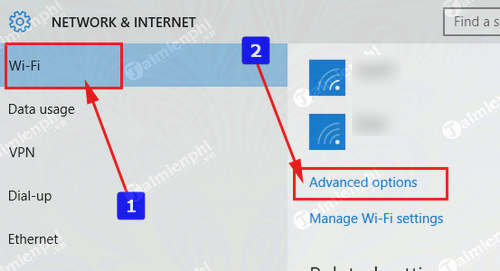
- Open Settings > Network & Internet.
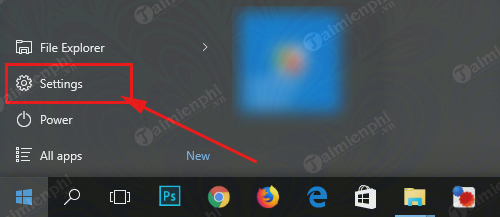
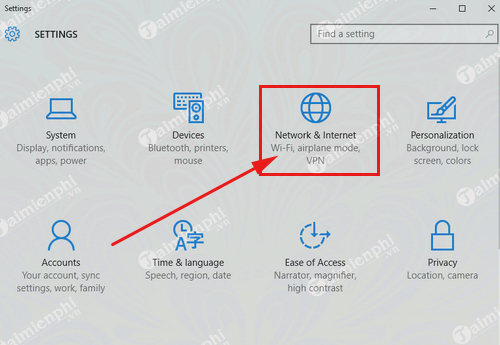
- Select Wi-Fi or Ethernet, then choose the connected network's properties.
- Turn on Set as metered connection.
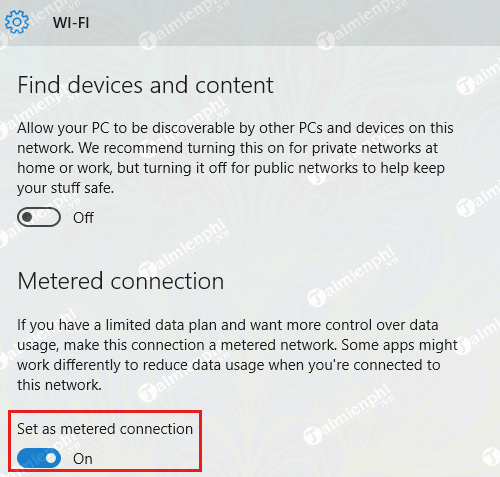
Return the connection to unmetered when the data constraint ends so backups, Store apps, and other background services can work normally.
Administrative control with Group Policy
Windows 10 Pro, Enterprise, and Education include Local Group Policy Editor. Home edition does not. On a company PC, Windows Update policy should be managed centrally by IT rather than changed by an individual user.
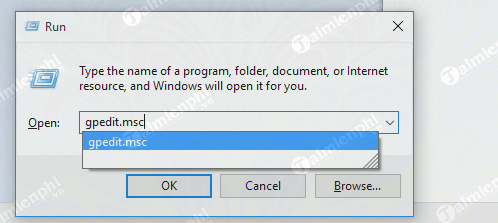
- Press Windows + R, enter
gpedit.msc, and press Enter.
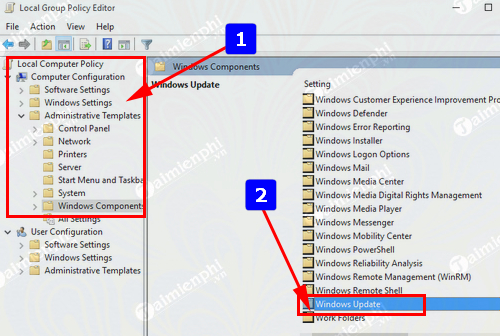
- Go to Computer Configuration > Administrative Templates > Windows Components > Windows Update. The final subfolder name varies by policy-template version.
- Open Configure Automatic Updates.
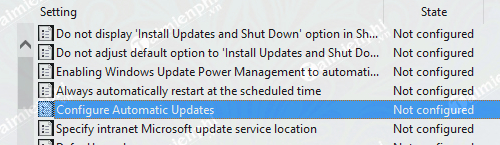
- For a locally managed PC where manual approval is genuinely required, choose Enabled and a notification option such as 2 — Notify for download and auto install. Do not set the policy to Disabled merely to suppress updates.
Managed policies can be overwritten by an organization's domain or mobile-device-management service. Microsoft maintains current administrative settings in its Windows Update policy documentation.
If an update causes a problem
- Restart once and install any follow-up servicing update offered by Windows Update.
- Open View update history and note the KB number and installation date.
- Run the Windows Update troubleshooter from Settings > Update & Security > Troubleshoot > Additional troubleshooters.
- If Microsoft or the hardware vendor confirms a specific update is responsible, use Uninstall updates and remove only that update. Pause briefly while a corrected release is investigated.
- For driver-related failures, use the hardware vendor's driver guidance rather than blocking all Windows updates.
TipsMake's Windows 10 troubleshooting guide covers built-in diagnostics, while System File Checker instructions can help when protected system files are damaged.
Why update blockers, service changes, and registry hacks are risky
- A third-party blocker can modify services, scheduled tasks, firewall rules, or registry policy without clearly documenting how to restore them.
- Disabling the Windows Update service can also interfere with Microsoft Store components, driver servicing, optional features, and ESU delivery.
- Registry policies copied from old articles may be malformed, ignored by a newer build, or conflict with organization policy.
- Rolling Windows back to an older version does not disable updates and may reintroduce vulnerabilities or compatibility problems.
If a blocker or manual tweak was already used, uninstall the blocker, set its changes back to the program's default/re-enabled state, return update policies to Not configured, restart, and check Windows Update. Do not delete unfamiliar registry keys. If the service still fails, use Microsoft's Windows Update troubleshooter or the organization's support process.
A safer update routine
- Back up important files regularly.
- Set active hours and enable restart notifications.
- Pause only for a defined reason and resume promptly.
- Keep adequate free disk space and connect laptops to power before large updates.
- Verify that Windows 10 has an applicable ESU path or migrate to a supported system.
Related Articles
 How to Stop Windows Updates on Your PC10 minutes read
 Click: How to Turn Off Automatic Updates in Windows 108 minutes read
 How to Turn Off Update Win 11 Permanently, Block the Current6 minutes read
 How to Block Chrome Automatically Updating on Windows 104 minutes read
 How to Disable Driver Updates via Windows Update: Step-by-Step Guide5 minutes read
 Instructions to Turn Off Chrome Automatic Updates in Windows4 minutes read
Reader Comments 0
Sign in with email or Google to join the discussion.