Table of Contents
Besides using prompts to create interactive games on Canva or Gemini, teachers can also use several AI-powered websites to assist in creating question sets and supporting their teaching. Below is a guide on how to create an AI quizzz question set on the Wayground website without needing to enter any commands, providing instant review questions for students.
How to create AI quizzes on Wayground
Step 1:
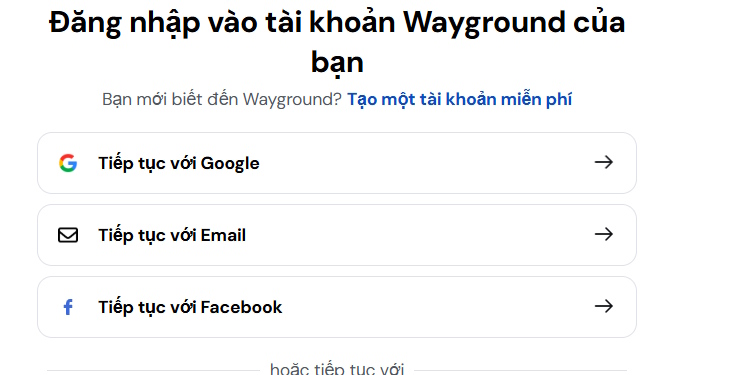
Teachers access the website wayground.com and then register an account using their Google account.
Step 2:
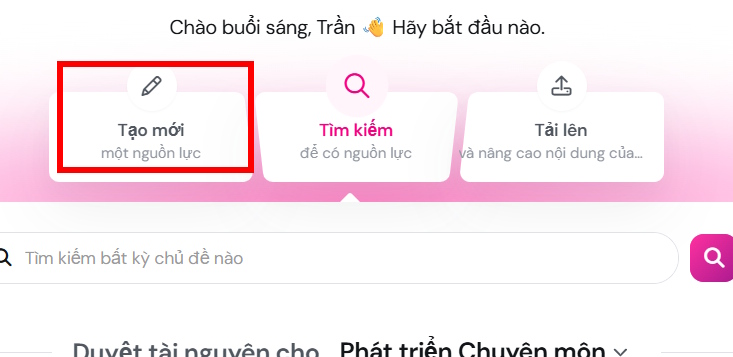
After creating an account, click "Create New" in the interface to proceed.
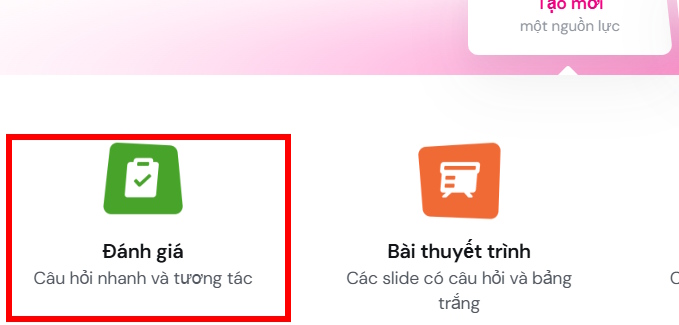
At this point, you'll see several different content creation options; click on "Review" to proceed.
Step 3:
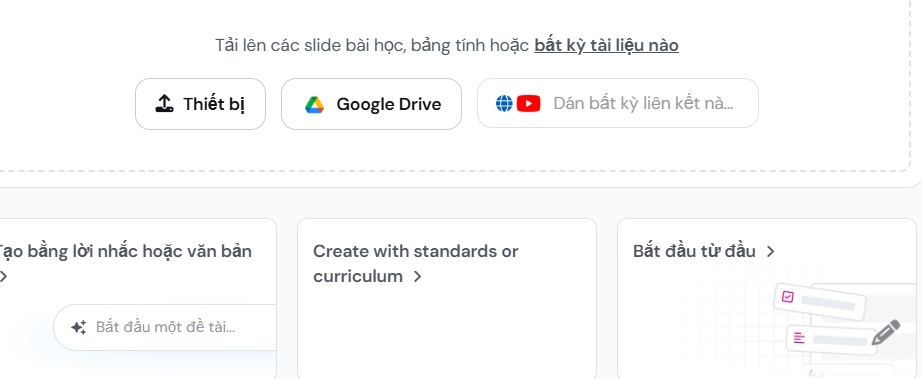
In the interface, you can choose how to create content . You can upload your lecture content file to use as a basis for creating Quizizz questions. Or, below, you can enter commands to create questions based on any topic or knowledge area you want.
For example, here we will download the lesson plan file as a reference data source.
Step 4:
Upon switching to the new interface, teachers will be asked whether to use an existing question or create a new one; select "Create new question" to proceed.
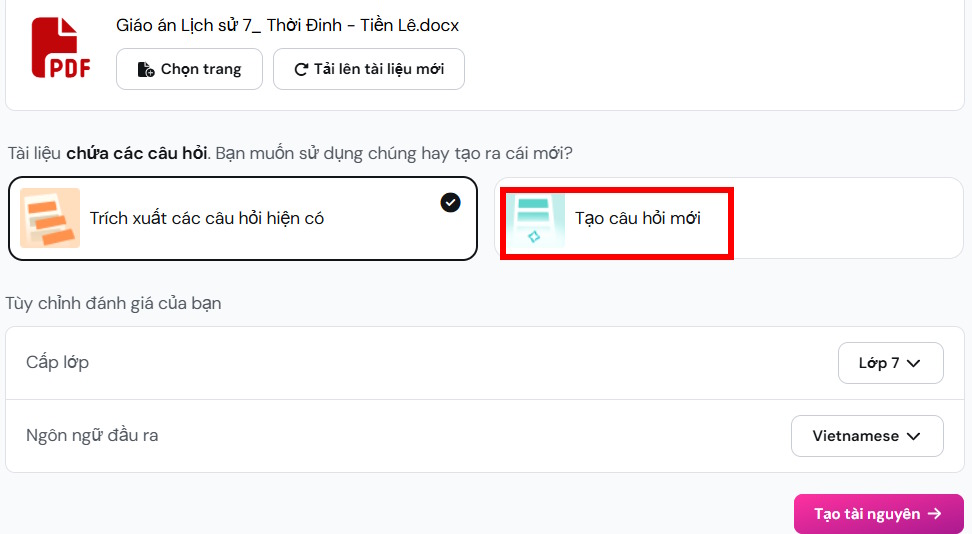
At this point, teachers select the question type and number for the question set, the difficulty level for the question set they want to use, and then click "Create Resource" below.
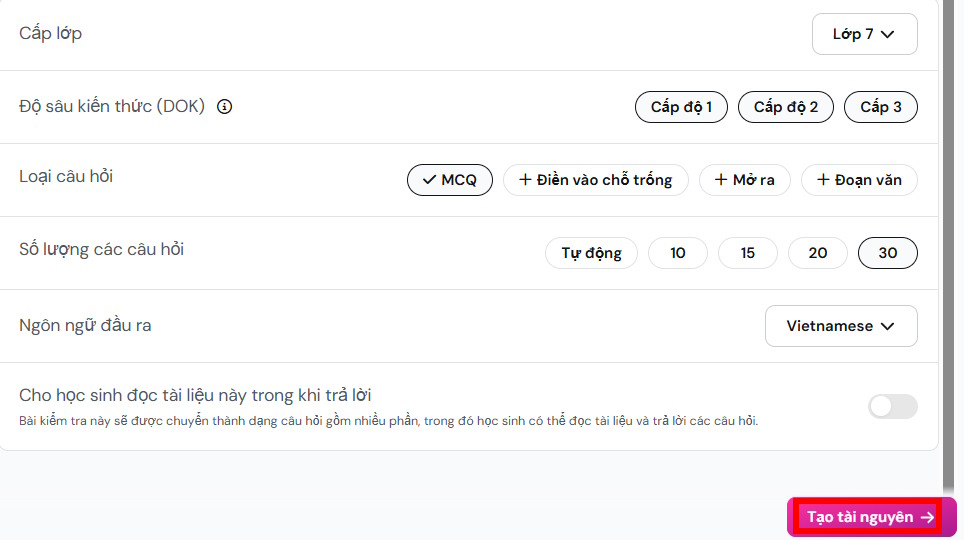
Step 5:
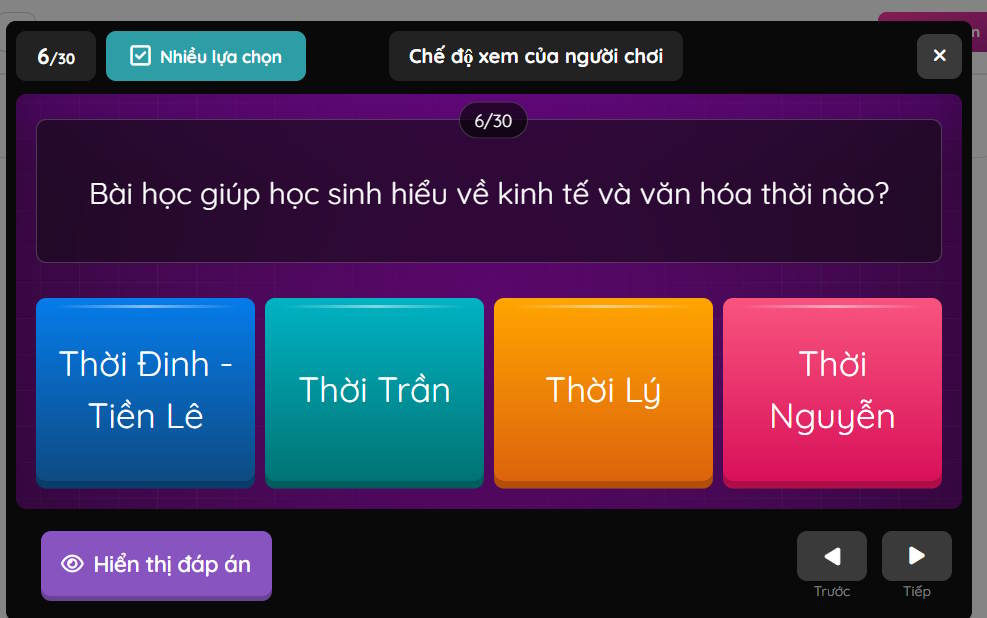
Wait a moment and you will immediately receive a set of Quizizz questions with answers based on the materials and settings you previously selected. You can click the pen icon to modify or delete questions. Click on Preview Quiz to see the content.
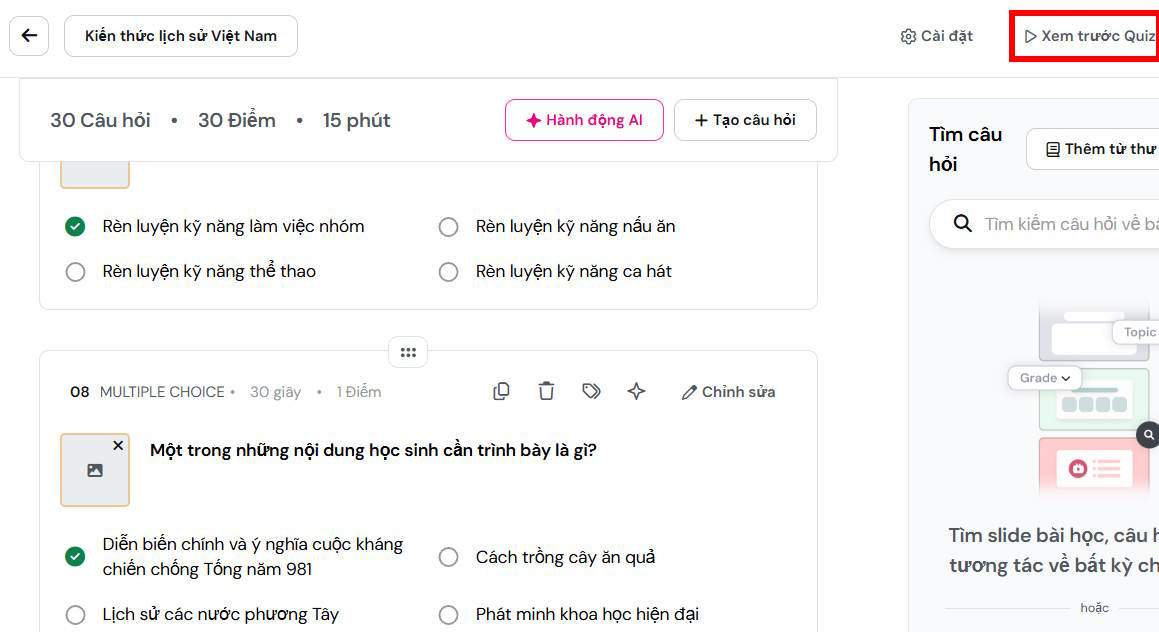
The basic interface of the Quizizz question set from the document you uploaded is shown below. Then click on the Publish button in the upper right corner.
Step 6:
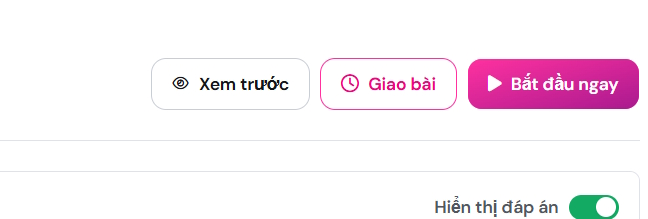
Teachers can click on "Start Now" in the upper right corner to send the link to the students.
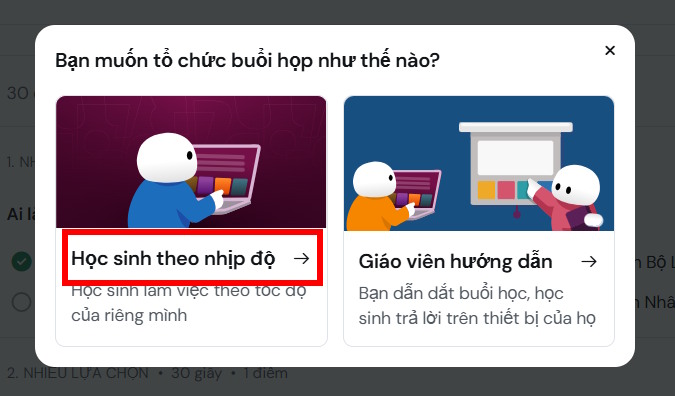
Continue selecting "Students at their own pace" so that they can work on the assignment independently without the teacher having to directly send them questions.
Step 7:
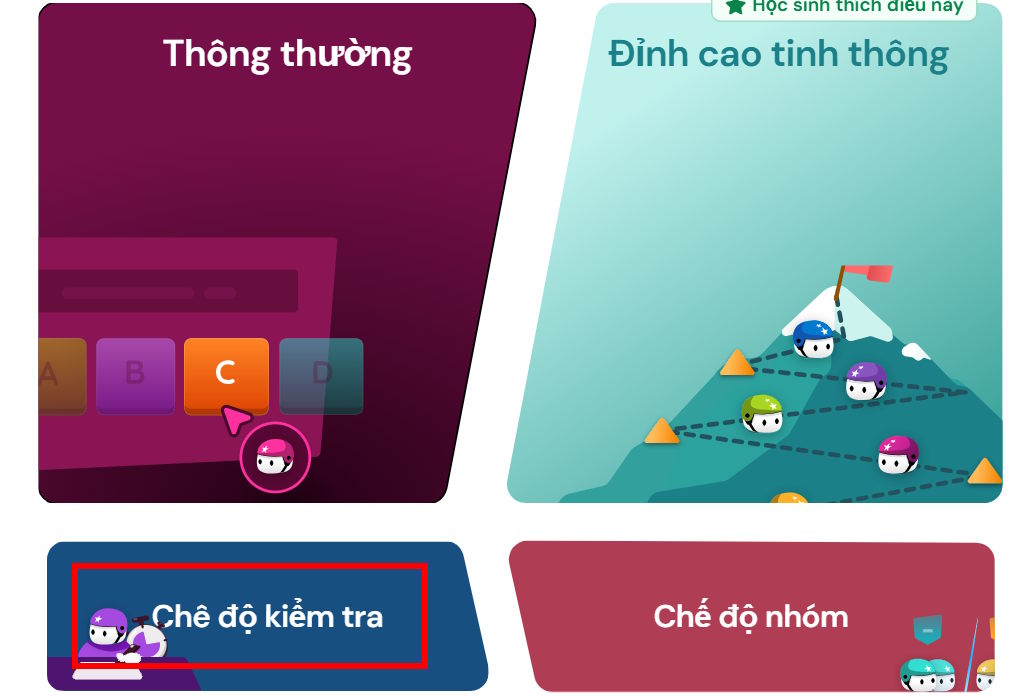
Now select Test Mode so students can complete the assignment individually.
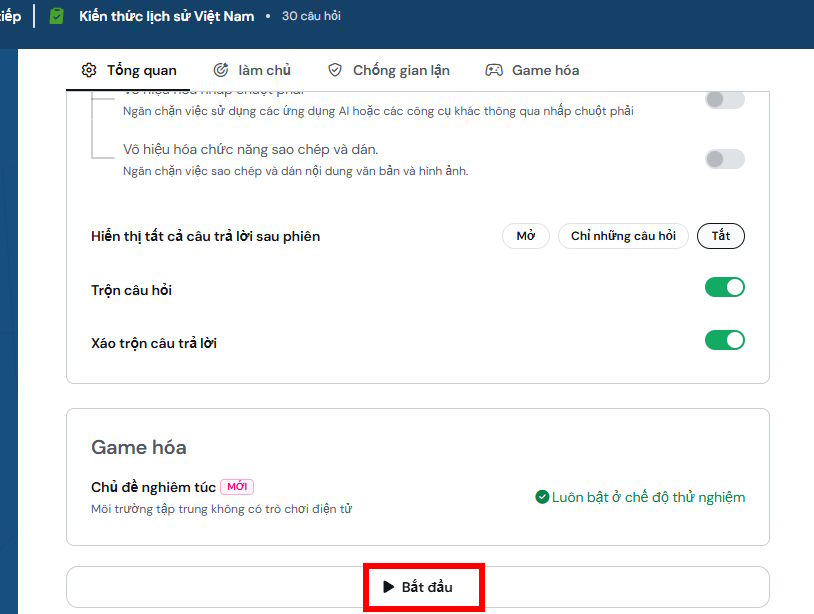
In the interface shown in the image, you can see the teacher setting up rules for students to answer questions . You can enable question shuffling to prevent cheating. Press Start to proceed.
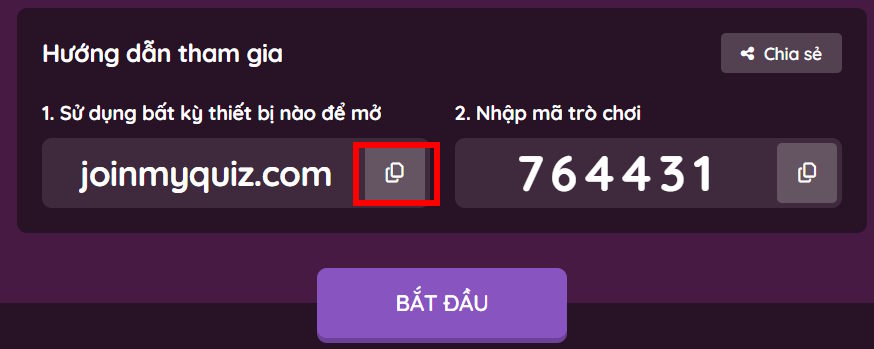
Click the link icon to send the test to participating students . Students need to fill in their names and complete the test. All answers will be sent back.
Step 8:
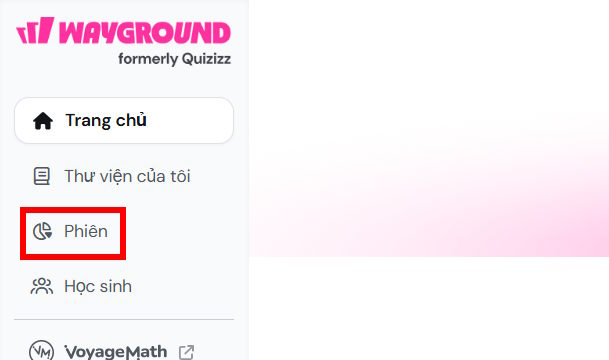
To check and evaluate students' work , teachers click on the "Session" section and then select the test for which they want to view student information.
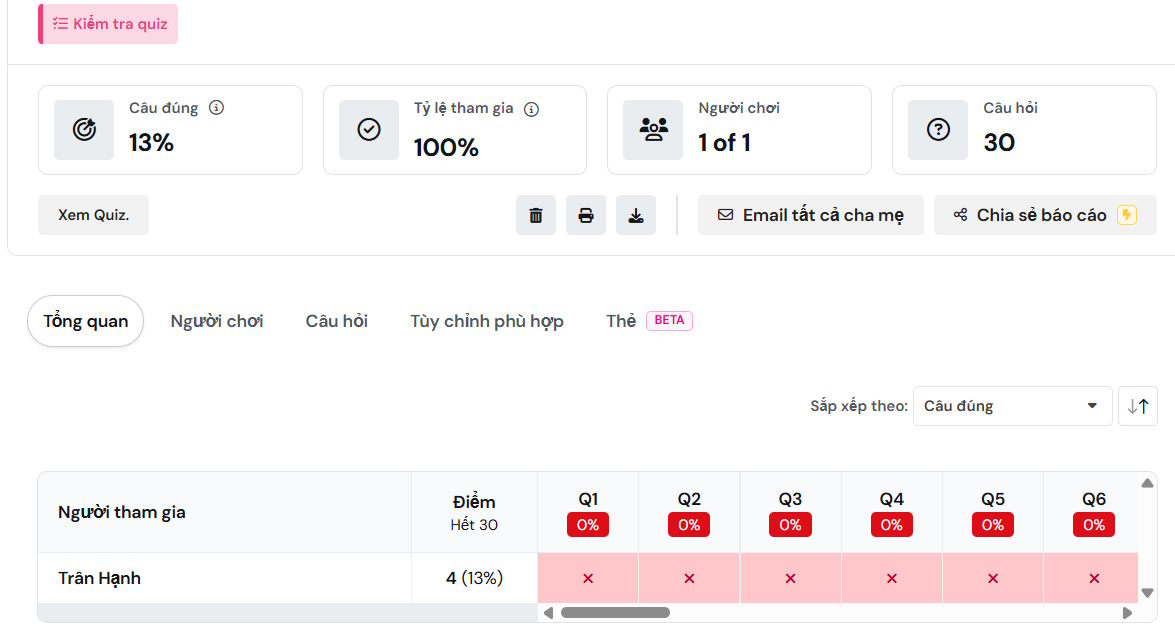
At this point, teachers will see an overview of the students' answers, along with correct and incorrect answers.
Related Articles
 Instructions on Creating Multiple-choice Questions on Gemini3 minutes read
 Quickly Create Multiple-choice Quizzes from Videos Using Magic School AI5 minutes read
 How to Quickly Creating Multiple-Choice Questions Using Brisk3 minutes read
 Guide to Creating a Quiz Website on Canva AI1 minutes read
 How to Create Quizzes on Quiz. Com7 minutes read
 Quickly Create Multiple-choice Questions from Slides4 minutes read
Reader Comments 0
Sign in with email or Google to join the discussion.